
Subscription includes
Support
Branded My Account dashboard: drag-and-drop menu, Design Studio, Buy again, returns, personal offers and self-service tools.
Highlights
Every logged-in customer lands on My Account, yet in most stores it is a plain list of links. It is where customers check an order, change an address and decide whether to buy again, and where they get stuck and email you instead.
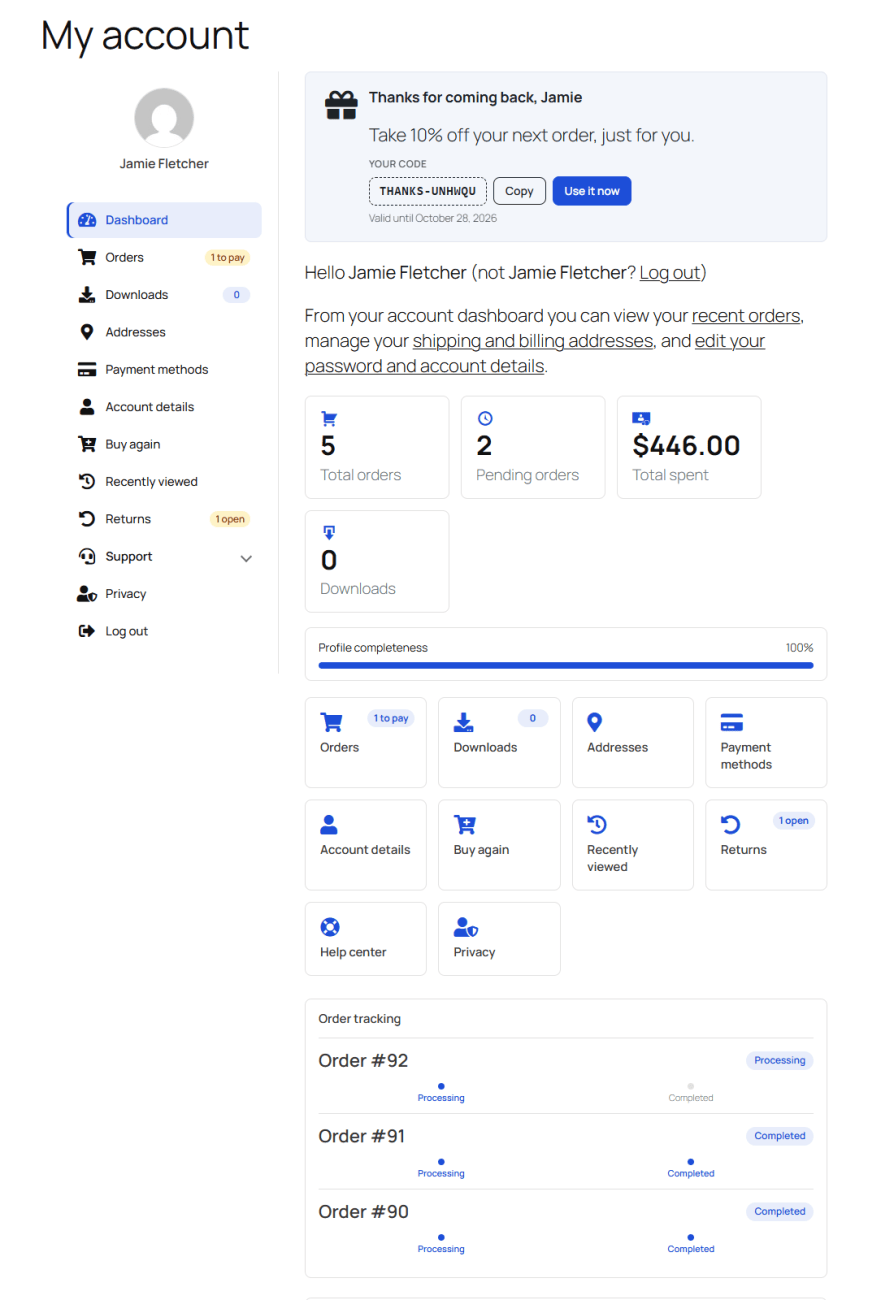
My Account Dashboard Builder turns it into a dashboard that matches your brand: a menu customers find their way around, account numbers and order tracking at a glance, offers that bring them back, and tools that answer their own questions. No theme templates to edit and no code to write.
Features:
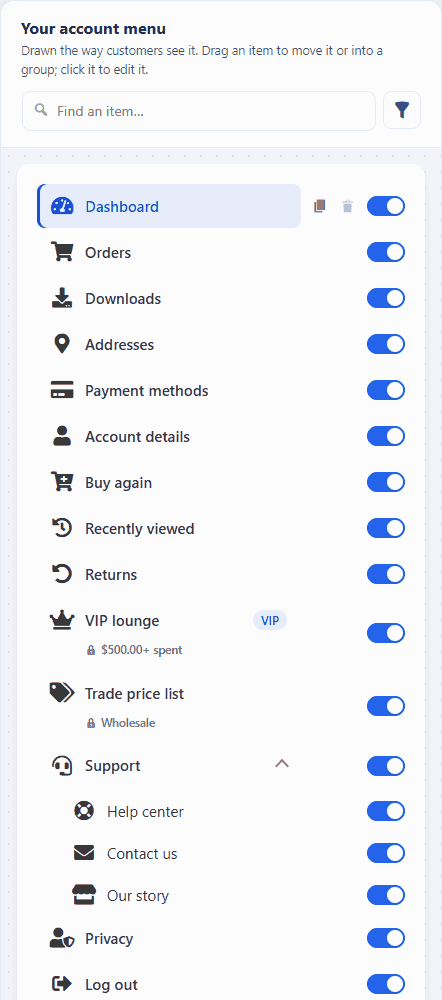
The Menu Items screen draws your account menu exactly as customers see it. Drag an item to move it or drop it into a group, flip its switch to hide it, and click it to edit its label, icon, and badge. The canvas follows as you type.
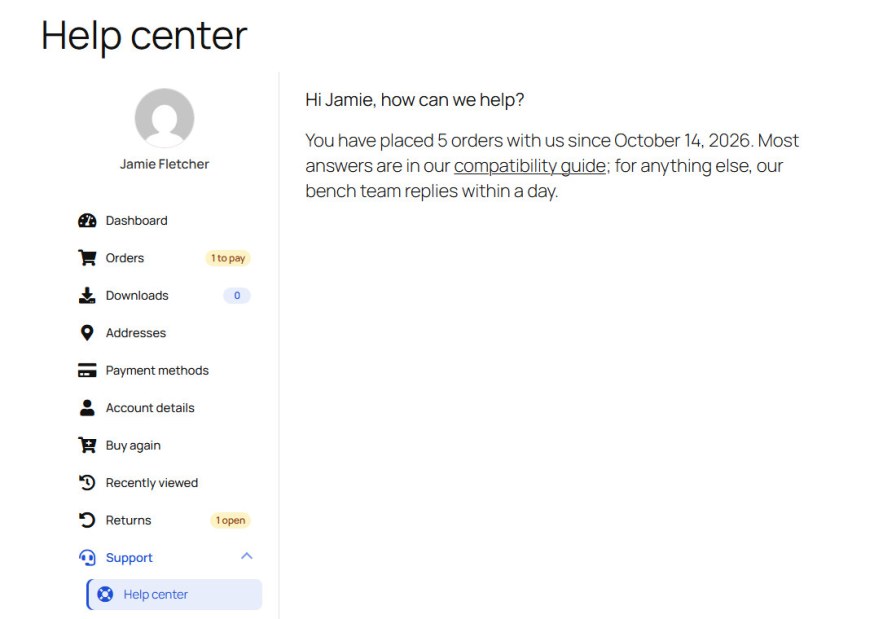
Click Add to menu, pick a type and type a label. Fill a page with the Classic or Block editor, shown before, after, or instead of WooCommerce’s own content. Smart tags greet each customer by name.
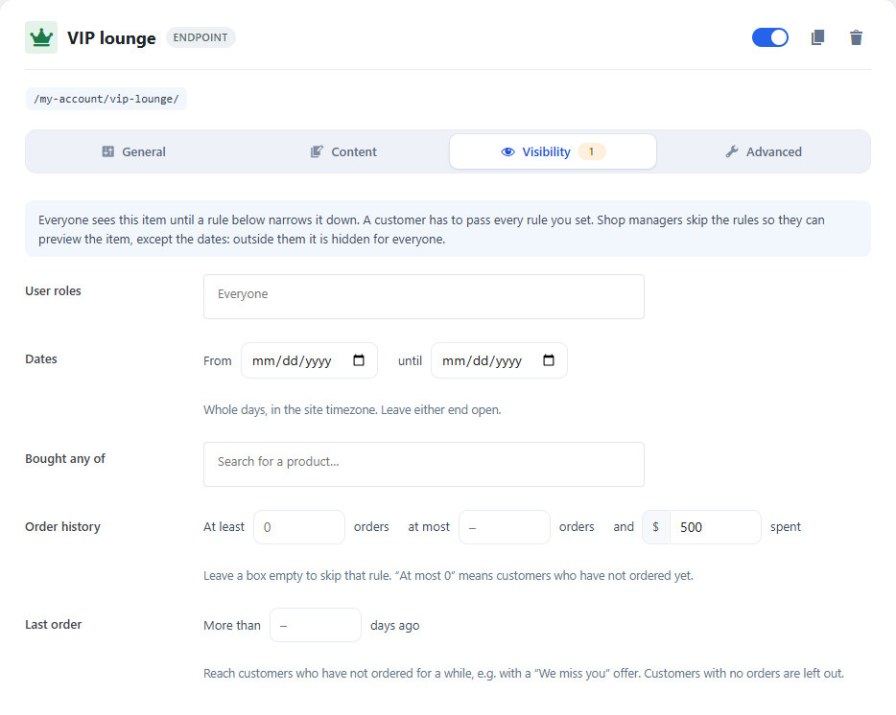
Every item and banner has the same visibility rules: user roles, a date range, products bought, at least or at most a number of orders, an amount spent, or a last order more than N days ago. A VIP page for big spenders or a “we miss you” offer takes a minute to set up.
A Menu for Every Customer Group
Wholesale buyers or members can create their own menu. It starts as a copy of the main menu; take items out, add others and reorder it. Everyone else keeps the main menu.
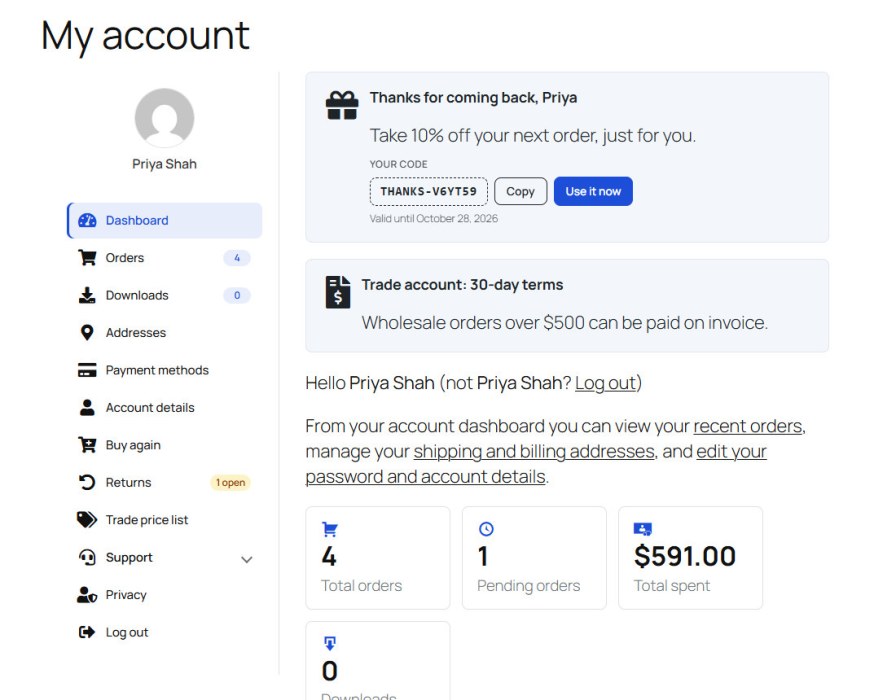
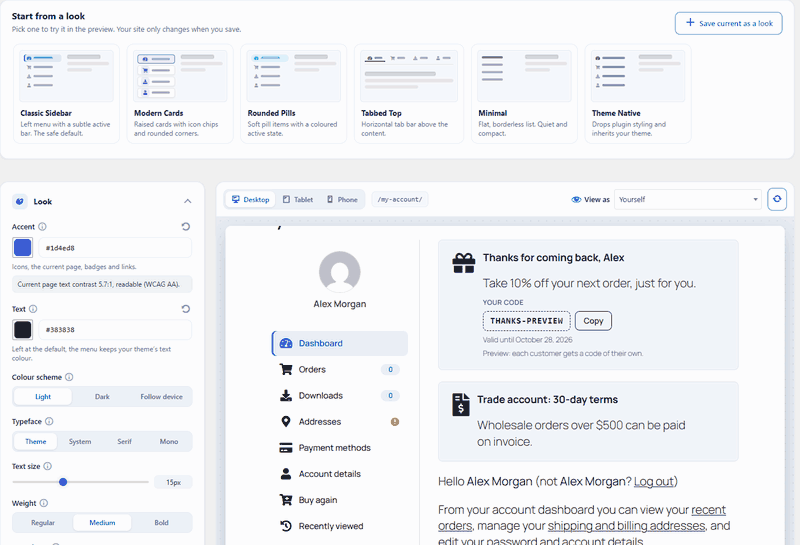
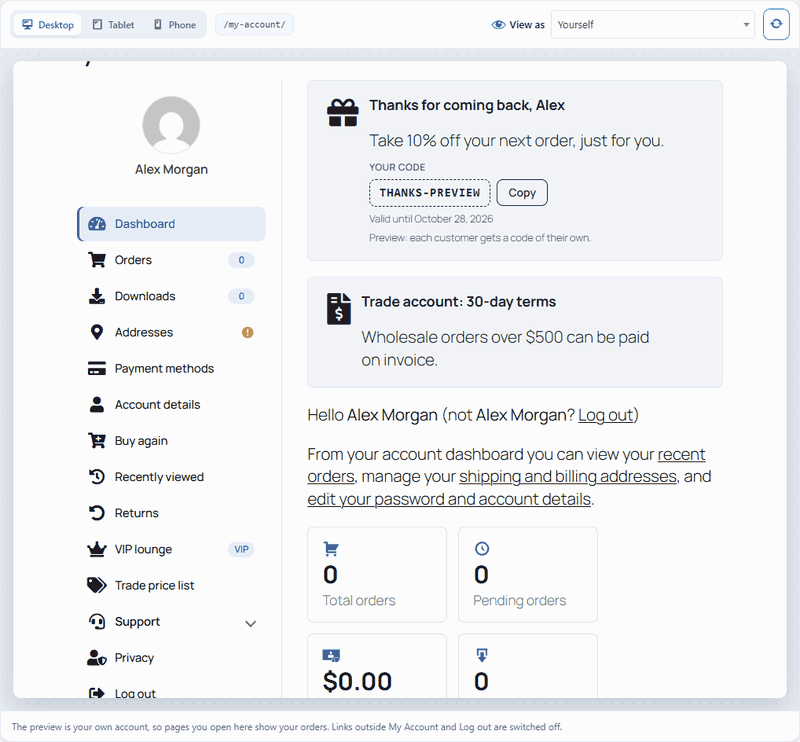
The Design Studio shows the real account page at desktop, tablet, and phone widths while you change colours, typeface, density, the menu style and the profile card. Start from a look:
Arrange the Dashboard
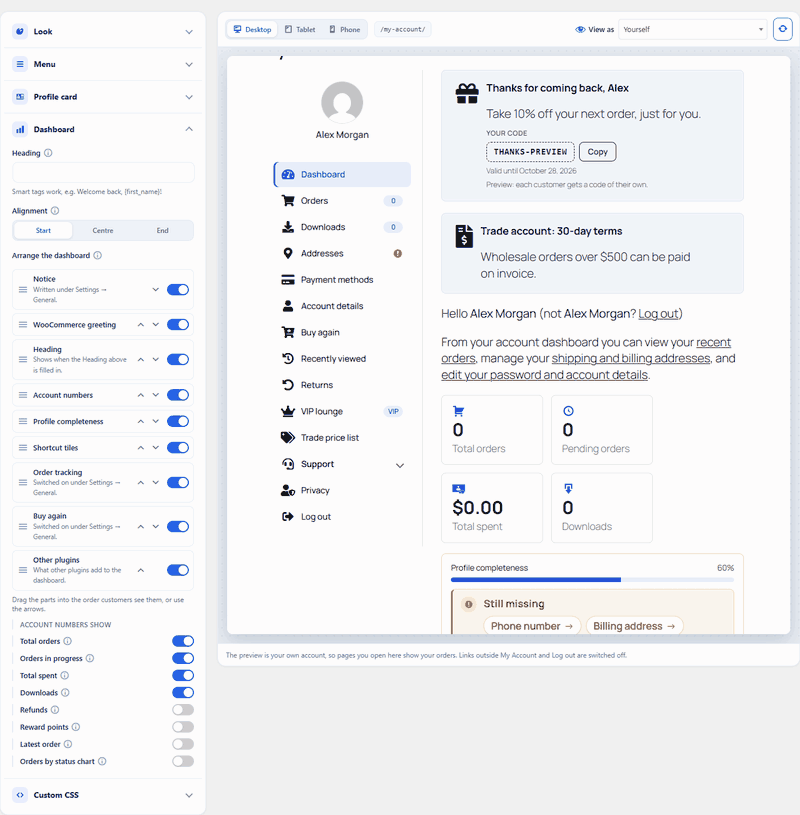
Drag the greeting, account numbers, profile meter, shortcut tiles, order tracking and Buy again into any order, or hide them. The preview follows at once, and nothing goes live until you save.
Pick a customer in View as and the preview shows their menu, badges, offers, and dashboard. A bar lists everything hidden from them, and why. It only looks: nothing is changed, sent, or counted for them.
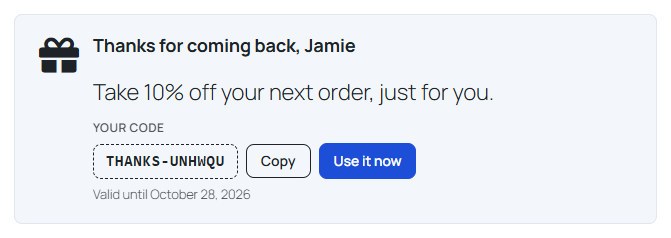
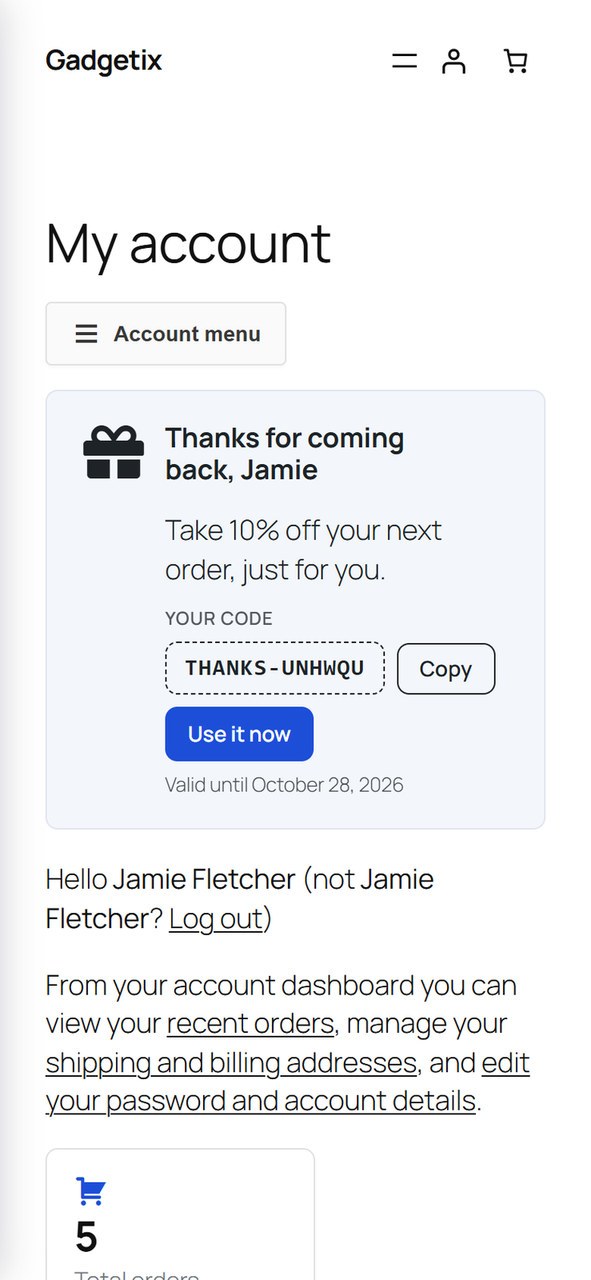
Put banners at the top or bottom of any account page, with an icon, text, a link and an order or cart count. Switch on a personal offer and each customer who sees the banner gets a one-use coupon for their own email, valid for the days you choose.
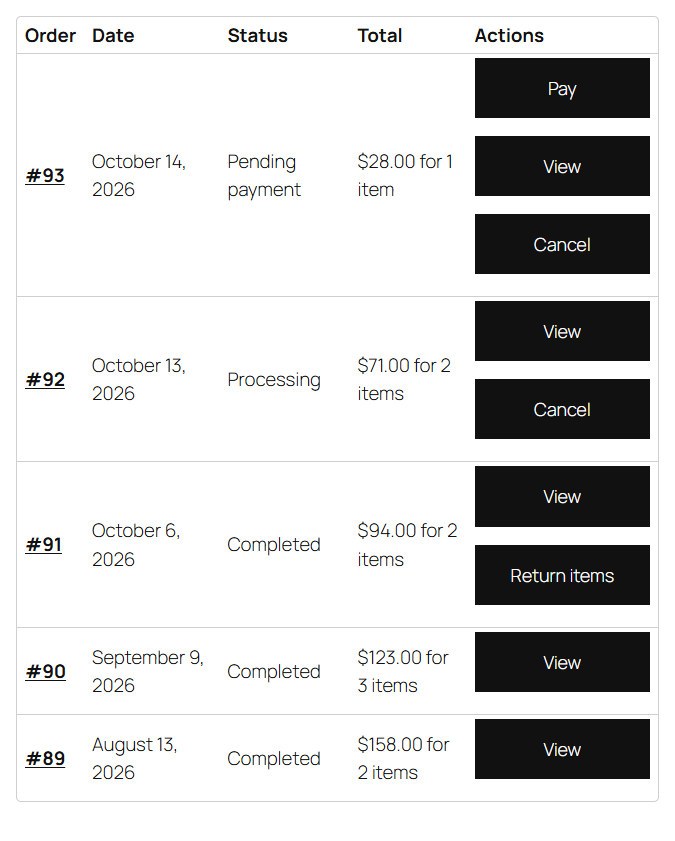
Customers cancel an order that has not shipped, within the hours you allow, and request a return on a completed order with a reason and a photo. You answer each request on the Returns tab, and the customer is emailed.
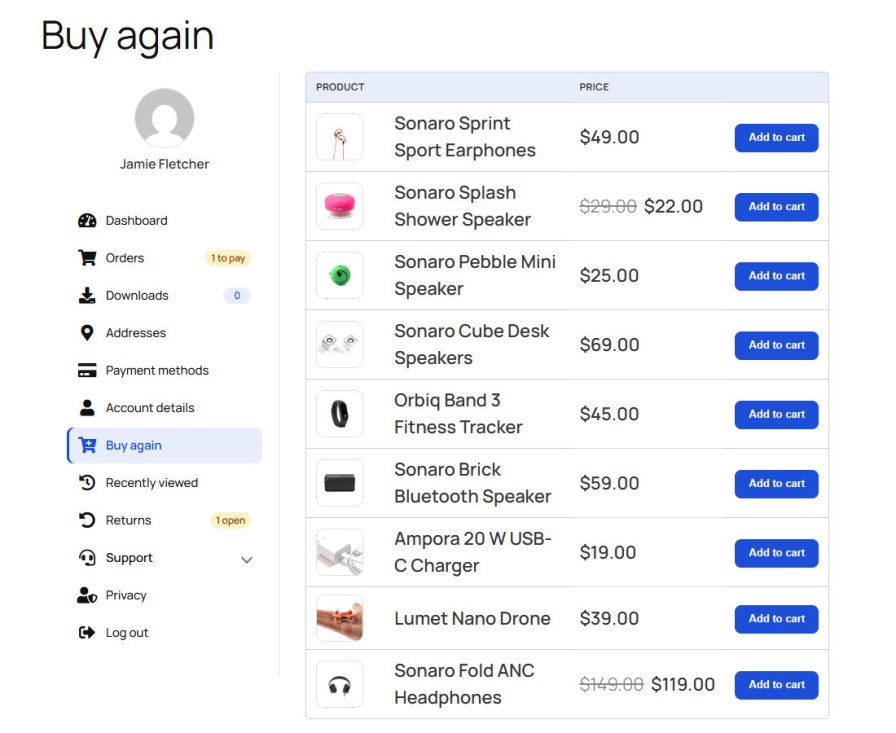
Buy Again, Recently Viewed and Order Tracking
Past purchases sit one click from the cart, recently viewed products wait on their own page, and recent orders show their progress on the dashboard.
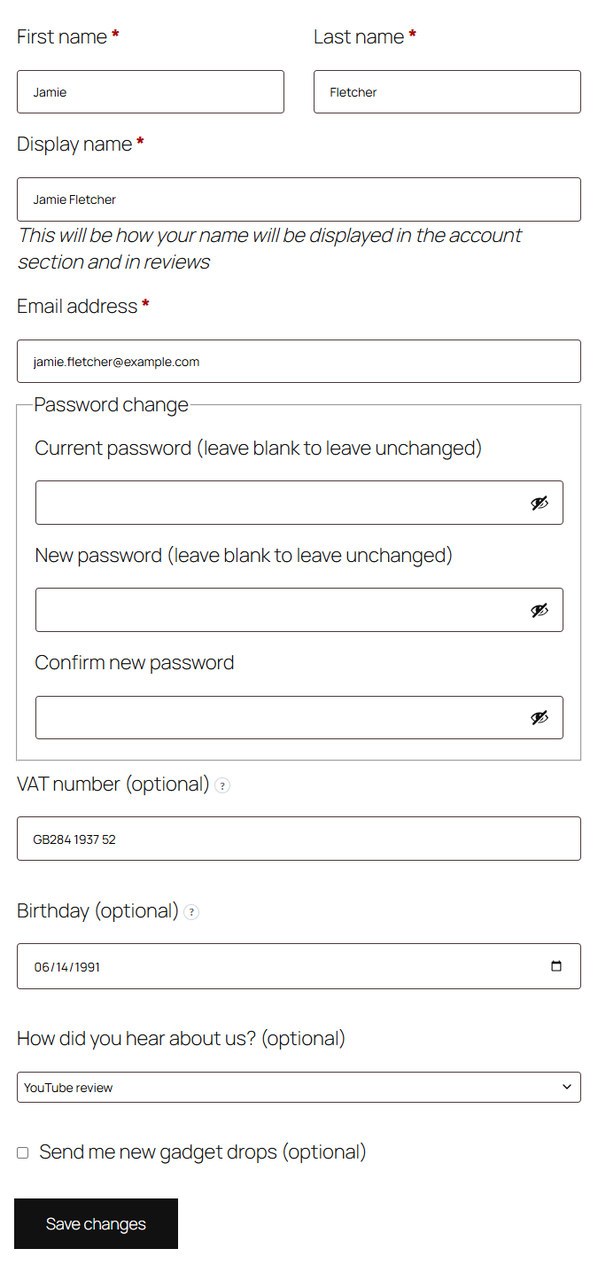
Add a VAT number, a company, a birthday or a dropdown to the registration form and account details. Answers show on the admin order screen and work as smart tags.
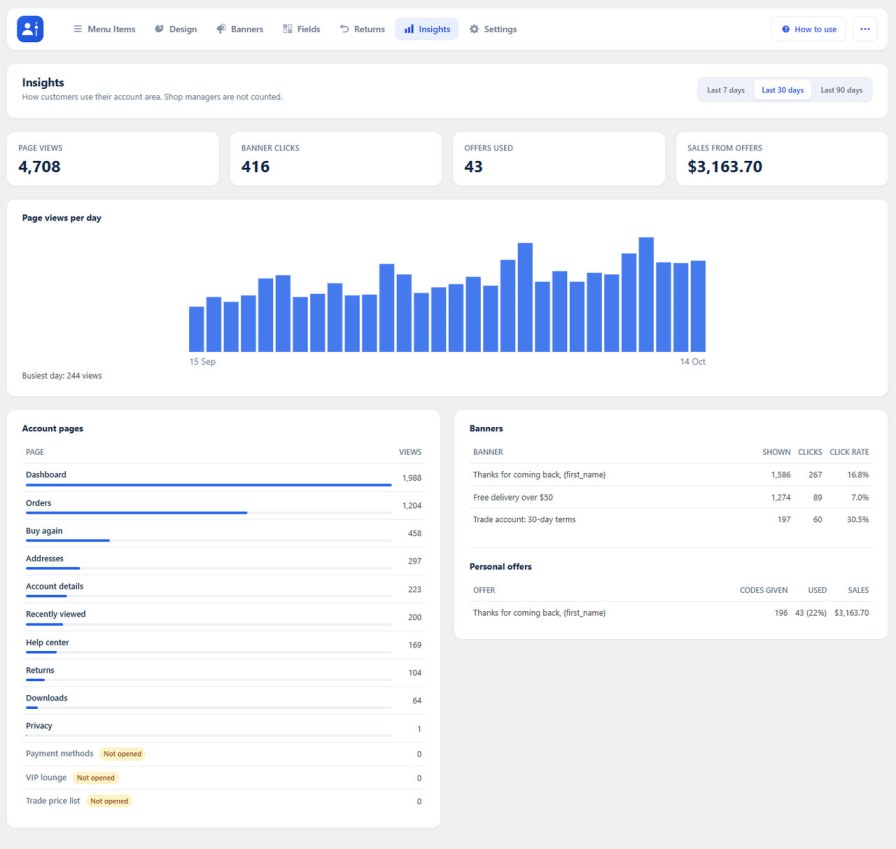
Insights counts account page views, banner clicks, and the sales personal offers bring, over seven, 30, or 90 days. Only daily totals are kept.
Works on Phones
On small screens, the menu folds into an Account menu button.
No. Activate, open WooCommerce → Account Dashboard, use the canvas and Design Studio. How to use covers each feature; default endpoints already work.
Yes for typical WooCommerce themes (Storefront, most block themes). Uses WooCommerce hooks, not theme template copies. Very custom account templates: quick check after install.
Yes — endpoint + slug + Classic/block content. Slugs are checked so you don’t break the store.
In WooCommerce → Account Dashboard → Design (the Design Studio). You edit beside a live preview at desktop, tablet and phone widths. Nothing goes live until you save. Menu structure and content live under Menu Items.
Yes, once you enable it in Design → Profile card. Uploads are limited to common image types, checked against a size limit you set, and verified as real images. The picture then replaces the Gravatar site-wide.
Yes. On Menu Items, add a menu for a customer group (for example wholesale or members). It starts as a copy of the main menu; remove or reorder items as needed. Item settings stay shared, and everyone else keeps the main menu.
Yes, when enabled under Settings → Orders & privacy. Customers can cancel orders that have not shipped (within the hours you allow) and request returns on completed orders with a reason and optional photo. You answer each return on the Returns tab; the customer is emailed.
No. It only offers products that customer purchased on a completed order, and it re-checks purchase history, stock and your store’s normal add-to-cart validation on every request.
Yes. In Design → Dashboard → Arrange the dashboard, drag the greeting, heading, account numbers, profile meter, shortcut tiles, order tracking, Buy again and other widgets into any order, or hide any of them. The preview updates as you drag.
Yes. Use the [acfw_account_menu] shortcode, the Account Menu block, or the Account Menu widget. Classic themes also get My Account items under Appearance → Menus.
Yes — rename, switch off, reorder, or nest in a group. Off items stay dimmed so you can restore them.
Yes — endpoint + slug + Classic/block content. Slugs are checked so you don’t break the store.
Yes — by role, dates, products bought, order count, total spent, or time since last order.
Yes — How to use in the header; searchable, opens on the current tab.
Stores that want a branded My Account without a developer: clearer menus, self-service, Buy again / offers, Design Studio. One plugin — no SaaS, no paid add-ons for the listed features.
Extension information
Quality Checks
Countries