
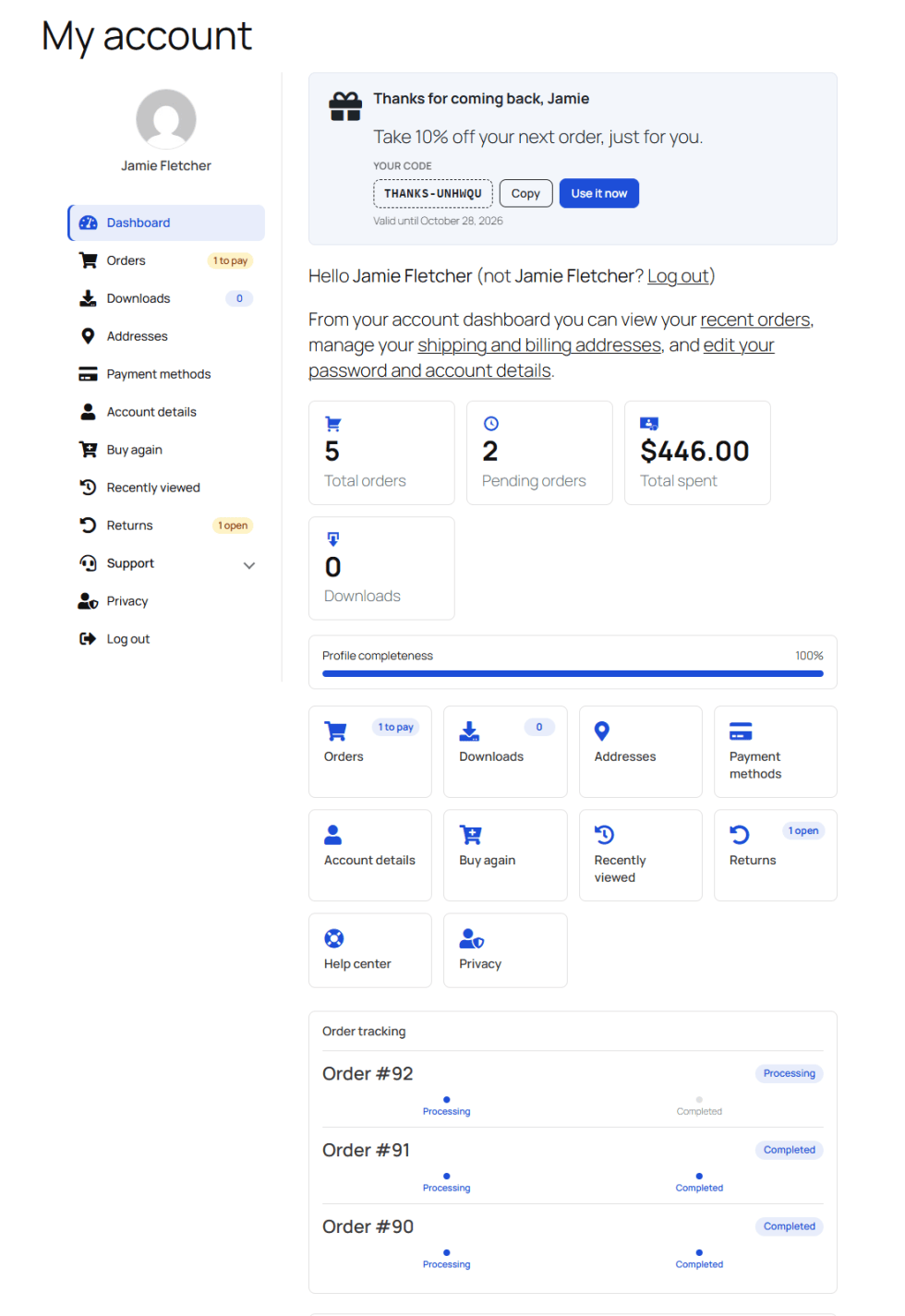
My Account Dashboard Builder turns the plain WooCommerce My Account page into a branded customer dashboard. Reorder and add menu items, design the page beside a live preview, add banners and personal offers, and give customers self-service tools — without editing theme templates or writing code.
Installation
↑ Back to topTo start using a product from WooCommerce.com, you can use the “Add to store” functionality on the order confirmation page or the My subscriptions section in your account.
- Navigate to My subscriptions.
- Find the Add to store button next to the product you’re planning to install.
- Follow the instructions on the screen, and the product will be automatically added to your store.
Alternative options and more information at:
Managing WooCommerce.com subscriptions.

After installing the plugin, navigate to WooCommerce → Account Dashboard in your WordPress admin panel to access the plugin’s main interface. From here, you can explore the available sections and configure the plugin’s settings.
Admin interface overview
↑ Back to top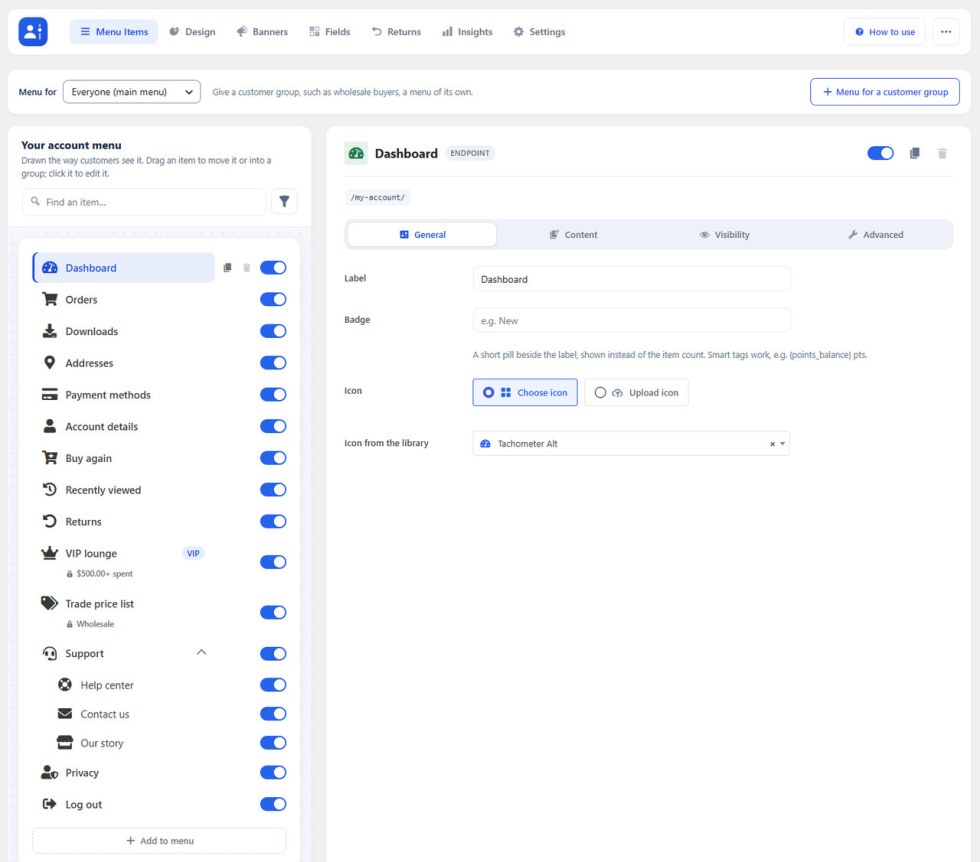
- Top section — the tabs (Menu Items, Design, Banners, Fields, Returns, Insights, Settings), How to use (a searchable guide to every feature), and ⋯ (Preview and View My Account).
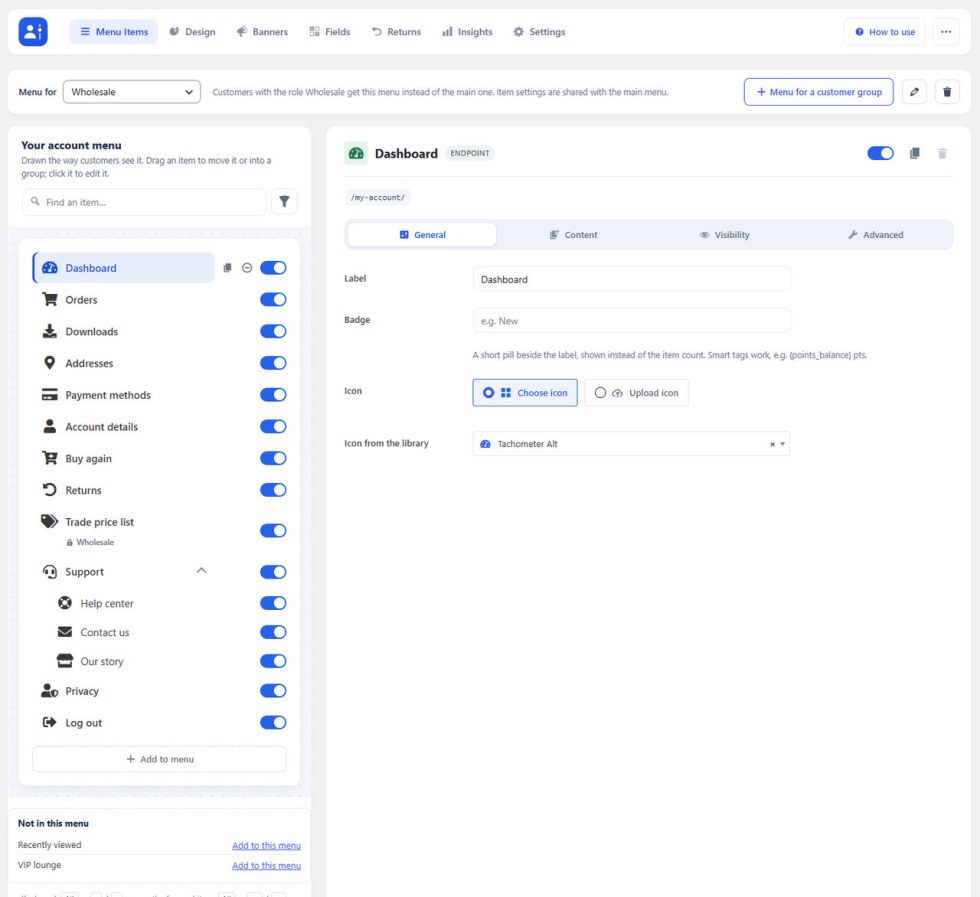
- Left panel — the menu canvas: your account menu drawn the way customers see it.
- Main content area — the options of the item you select.
- Bottom section — Save menu. The save bar floats in view while there are unsaved changes, and leaving the page asks first.
Menu items
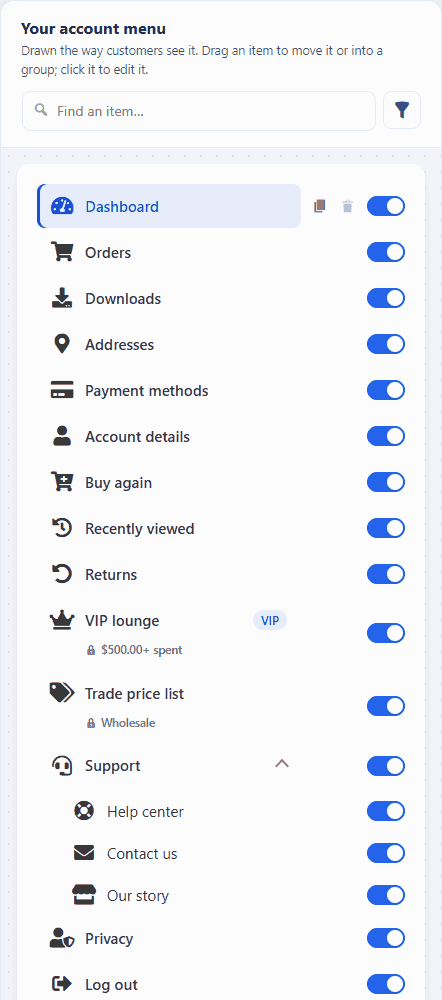
↑ Back to top- Drag an item to reorder it, or drop it into a group. Alt + arrow keys do the same.
- The switch shows or hides an item without deleting it.
- Hover an item for Duplicate and Delete. Built-in items can be switched off but not deleted.
- A line under an item sums up who sees it, e.g., Customer · two+ orders.
Endpoint options
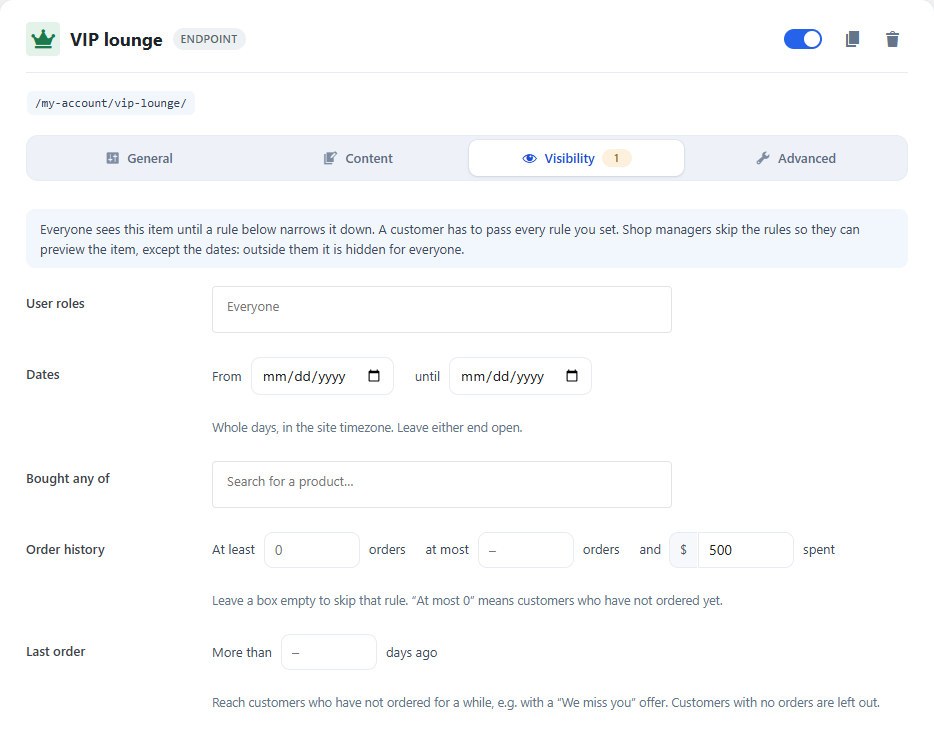
↑ Back to topClick an item to edit it. Its options are grouped in four tabs:
- General — label, address (custom endpoints), badge text and icon (Font Awesome library or your own image).
- Content — Classic or Block editor content shown before, after, or instead of the default page; smart tags work here. Attach banners at the top or bottom.
- Visibility — limit the item by user role, dates, products bought, number of orders, amount spent, or days since the last order.
- Advanced — an extra CSS class and the item key.
Add an endpoint, group, link, or page
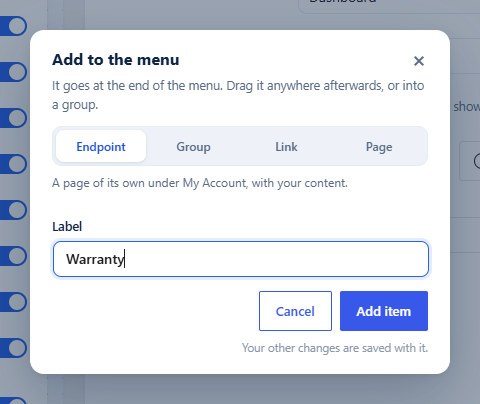
↑ Back to top- Click Add to menu under the menu.
- Pick the type, type a label, and click Add item. It is added at the end of the menu.
- Set its options (a link’s URL, a page’s WordPress page) and drag it where it belongs.
- Click Save menu.
Menus for customer groups
↑ Back to topGive wholesale buyers or members a menu of their own: click Menu for a customer group, name it and tick the roles. It starts as a copy of the main menu; take items out, add others, and reorder it. Item settings stay shared, and everyone else keeps the main menu.
Design studio
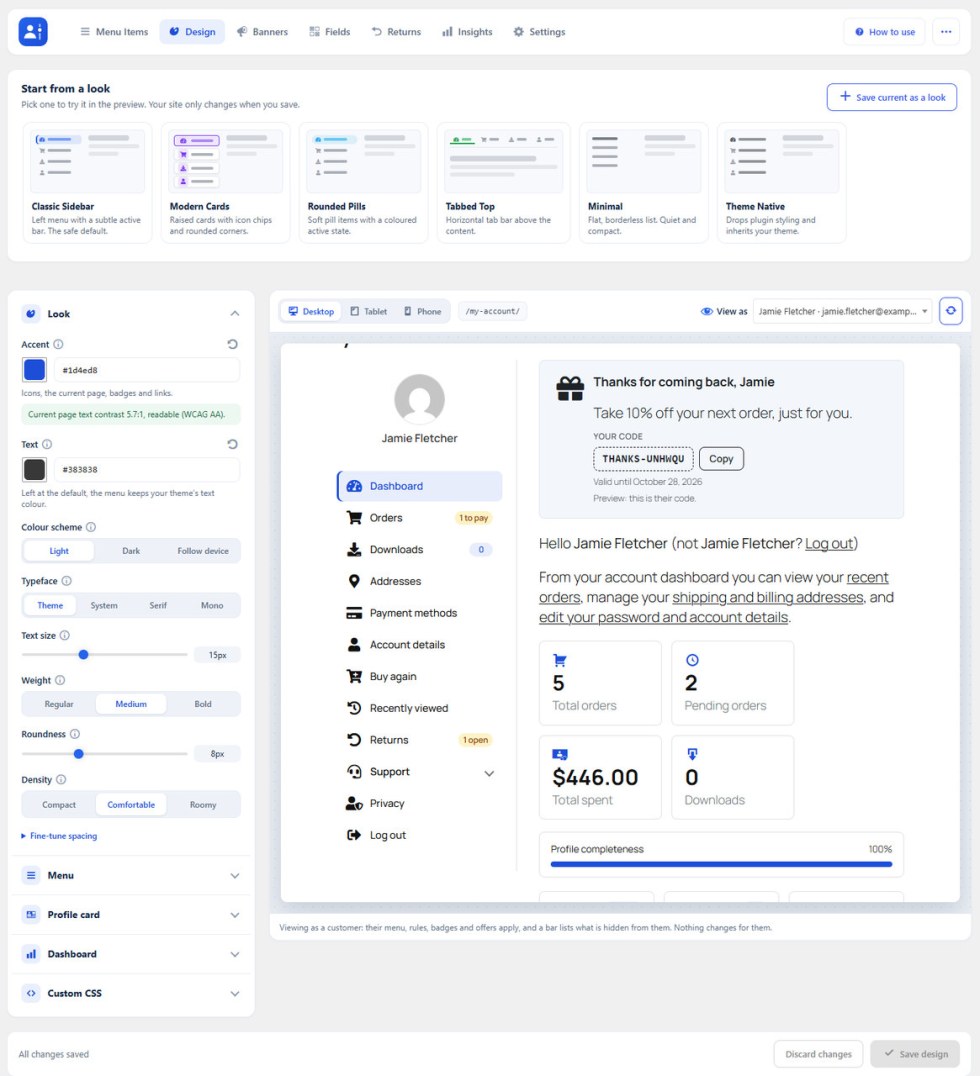
↑ Back to topDesign holds every look setting, beside a live preview of the real account page at desktop, tablet, and phone widths. Nothing changes on your site until you click Save design.
Ready-made looks
↑ Back to topStart from Classic Sidebar, Modern Cards, Rounded Pills, Tabbed Top, Minimal or Theme Native. Click one to try it in the preview. Save current as a look keeps your own design as one more card.
Design controls
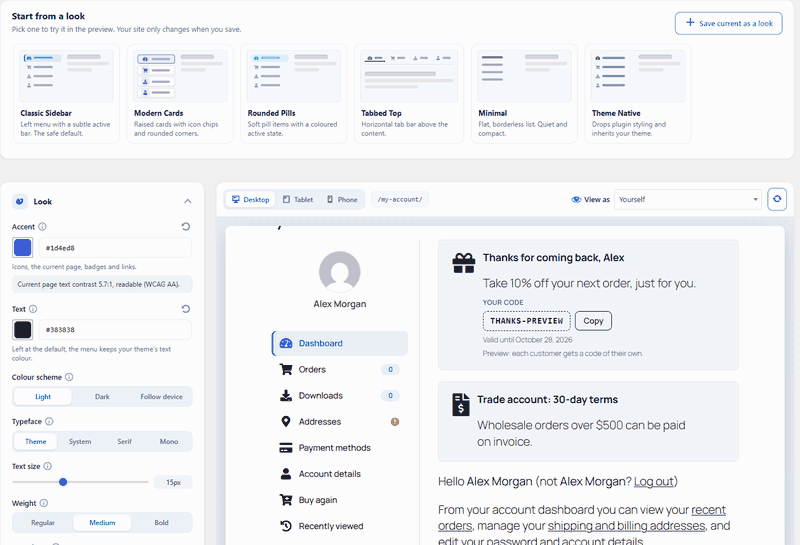
↑ Back to top- Look — accent and text colours (with a live WCAG contrast check), light or dark scheme, typeface, size, weight, roundness, and density.
- Menu — style, placement (left, right, or above the content), current-page marker, hover effect, colours, icons, counts, status badges (one to pay, one open), search box, pinned favourites and a collapsible icon rail.
- Profile card — the customer’s picture and name above the menu; customers can upload their own picture.
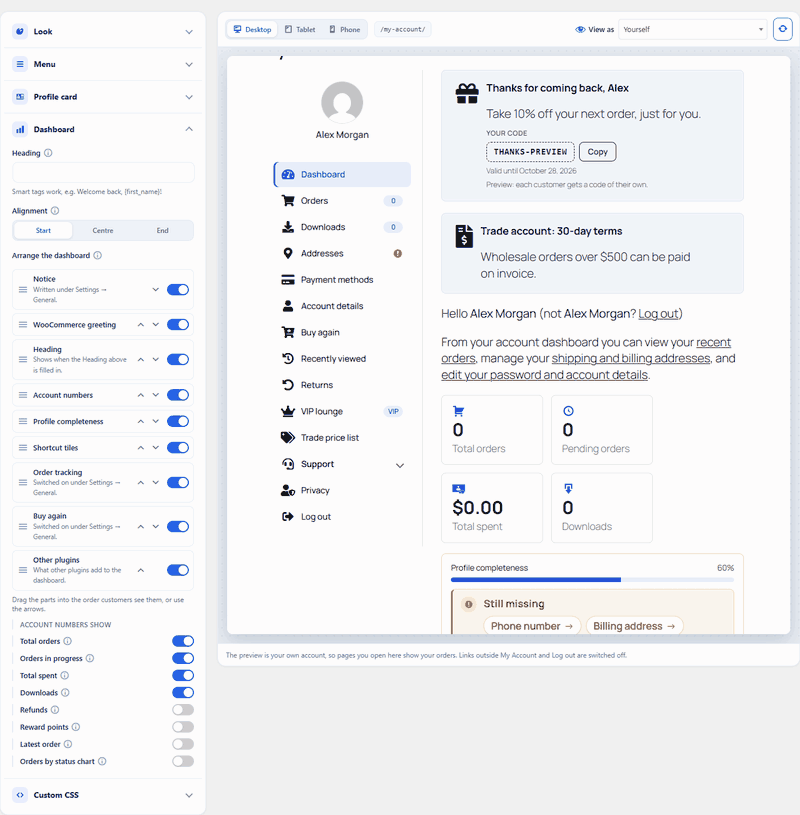
- Dashboard — a heading (smart tags work) and Arrange the dashboard: drag the greeting, account numbers, profile meter, shortcut tiles, order tracking and Buy again into any order, or hide them.
- Custom CSS — your own rules, loaded on account pages.
View as a customer
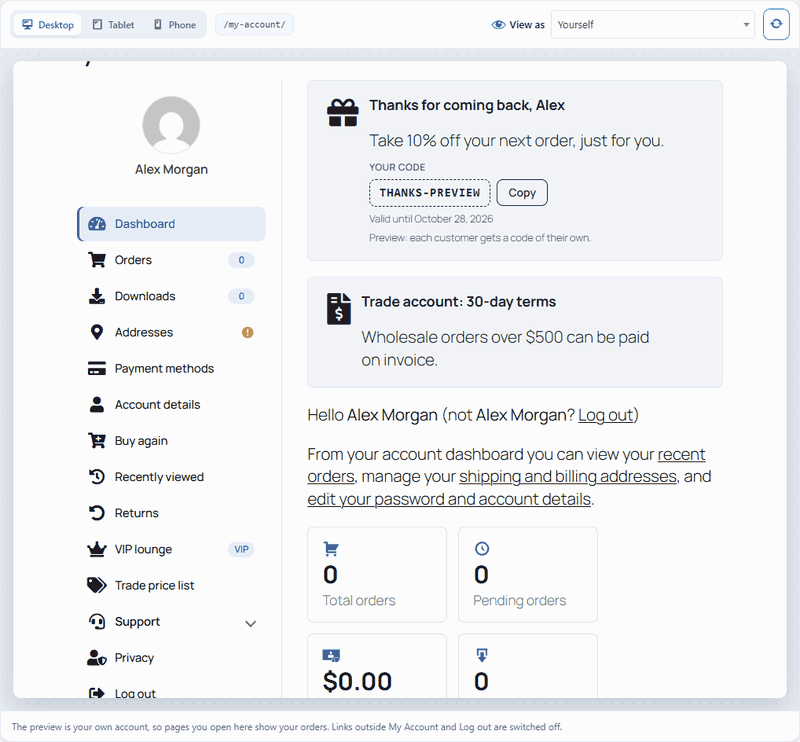
↑ Back to topPick a customer in View as to see My Account exactly as they do: their menu, badges, offers, and dashboard. A bar lists what they can’t see and why. It is read-only: nothing is changed, sent, or counted for the customer.
Banners and personal offers
↑ Back to topBanners are reusable blocks shown on any endpoint (set under the item’s Content tab).
- On Banners, click Add banner.
- Choose Widget (icon, title, text, colors, optional count) or Image.
- Add a Link to an endpoint or any URL, and set Visibility with the same rules as menu items.
- Click Save banner.
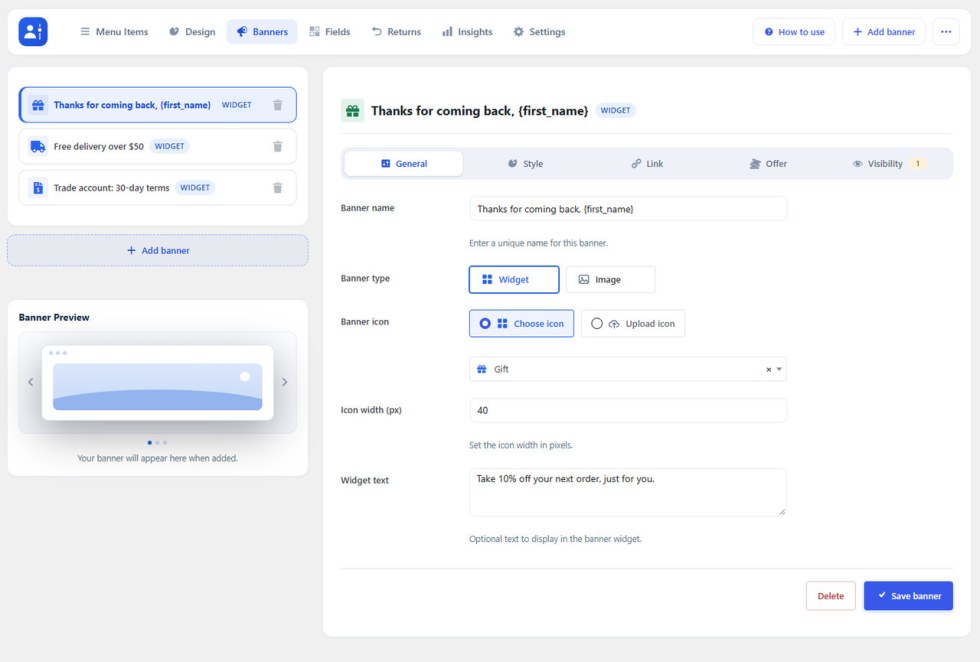
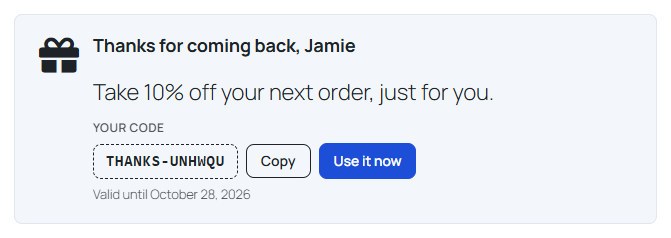
Switch on Personal coupon on the Offer tab and each customer who sees the banner gets a one-use code of their own (percent or amount off, valid for N days, optional minimum spend and free shipping). The banner shows the code with Copy and Use it now. Codes are ordinary WooCommerce coupons.
Customer fields
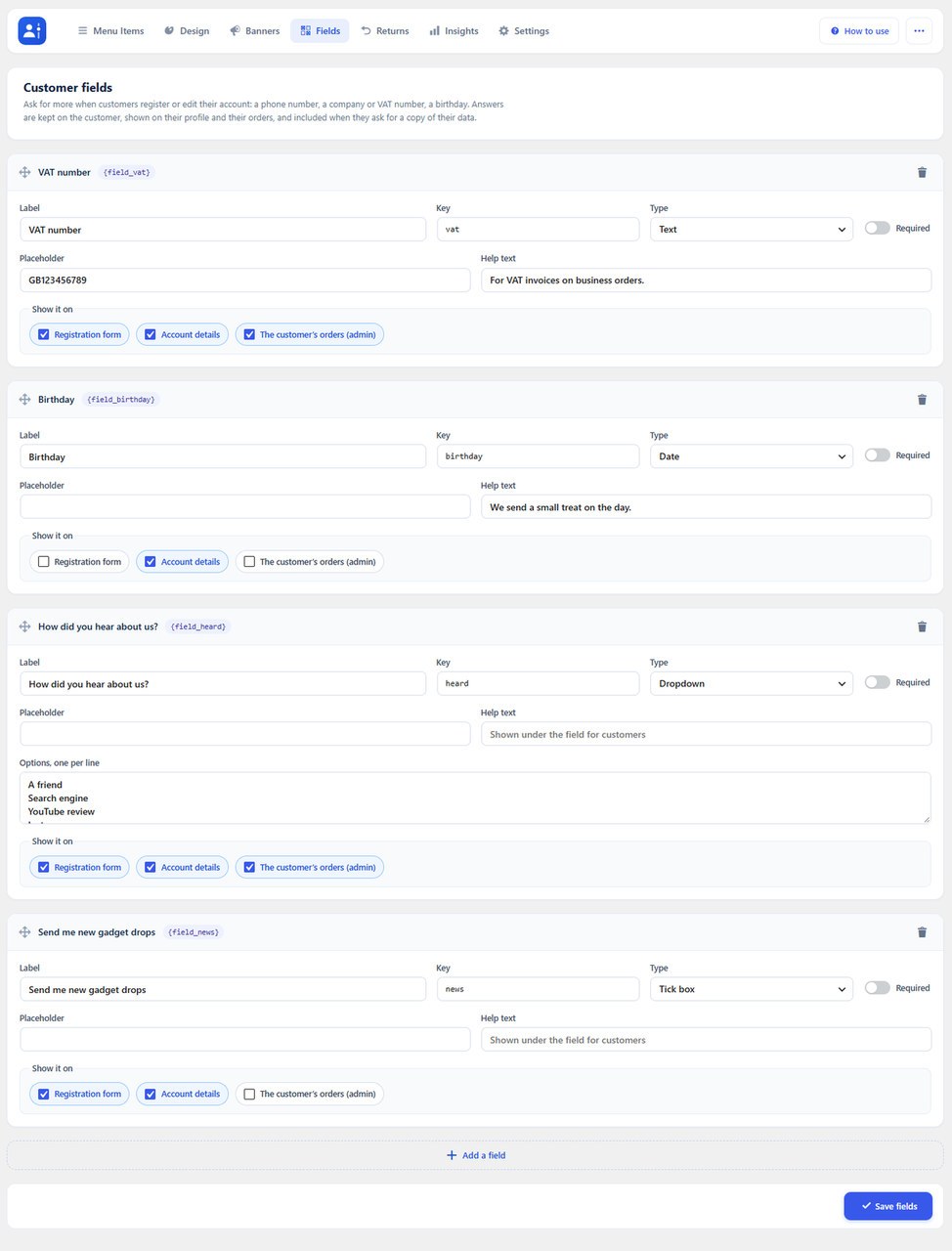
↑ Back to topOn Fields, add your own questions — VAT number, company, birthday, “How did you hear about us?” — as text, number, date, dropdown, choices, or a tick box. Show each one on the Registration form, Account details, and the admin order screen. Answers work as smart tags, e.g. {field_vat}.
Returns and cancelling orders
↑ Back to topSwitch both on under Settings → Orders and privacy.
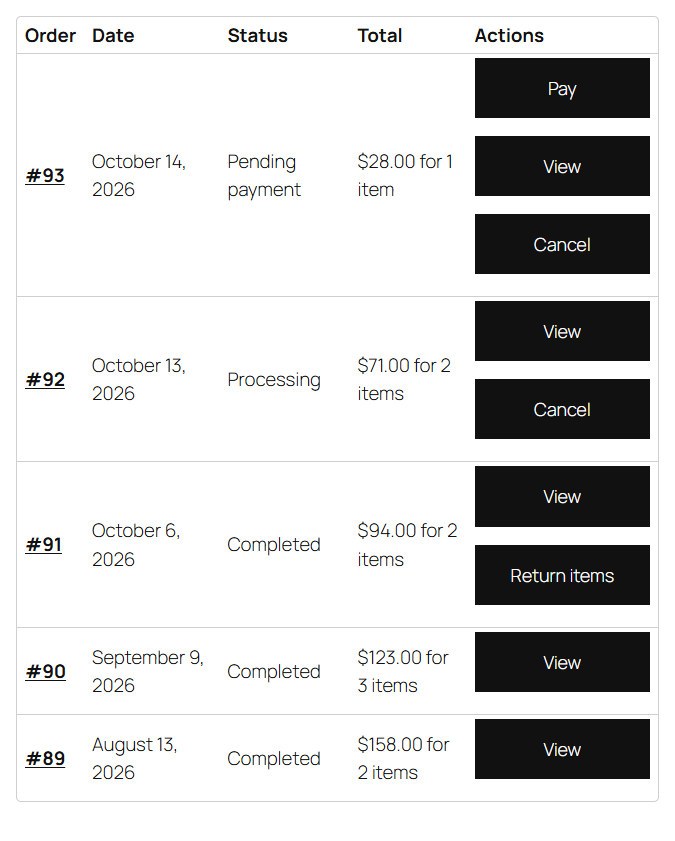
- Cancel orders — customers cancel an order that has not shipped, for the number of hours you allow. Stock goes back.
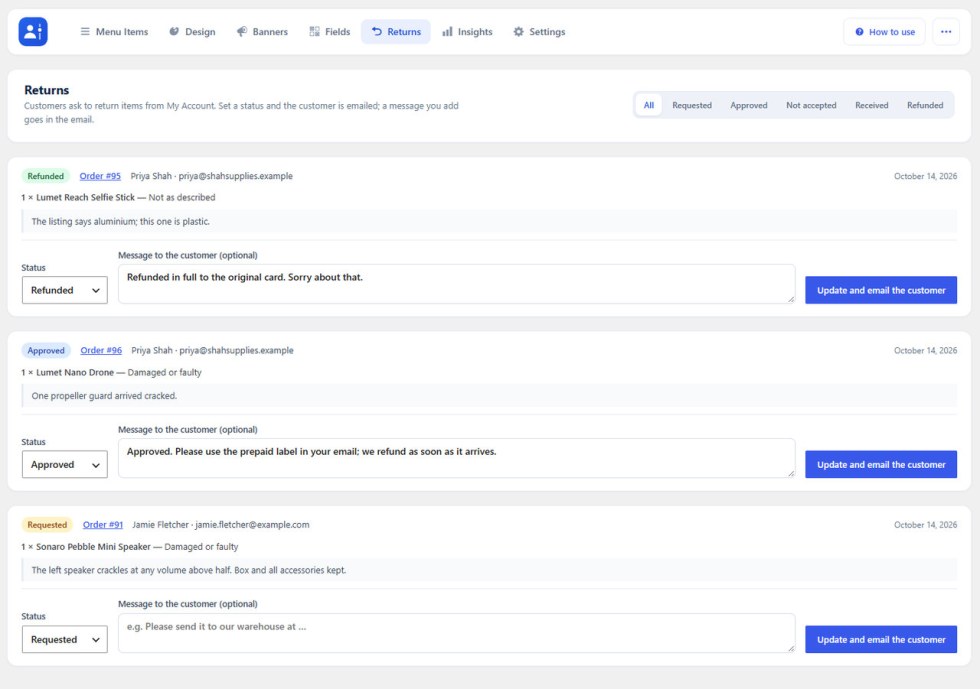
- Returns — customers pick items from a completed order, a reason, and an optional photo. You answer on the Returns tab; each status change emails the customer.
Customer Self-Service
↑ Back to topSwitch these on under Settings; each adds a menu item and a dashboard part.
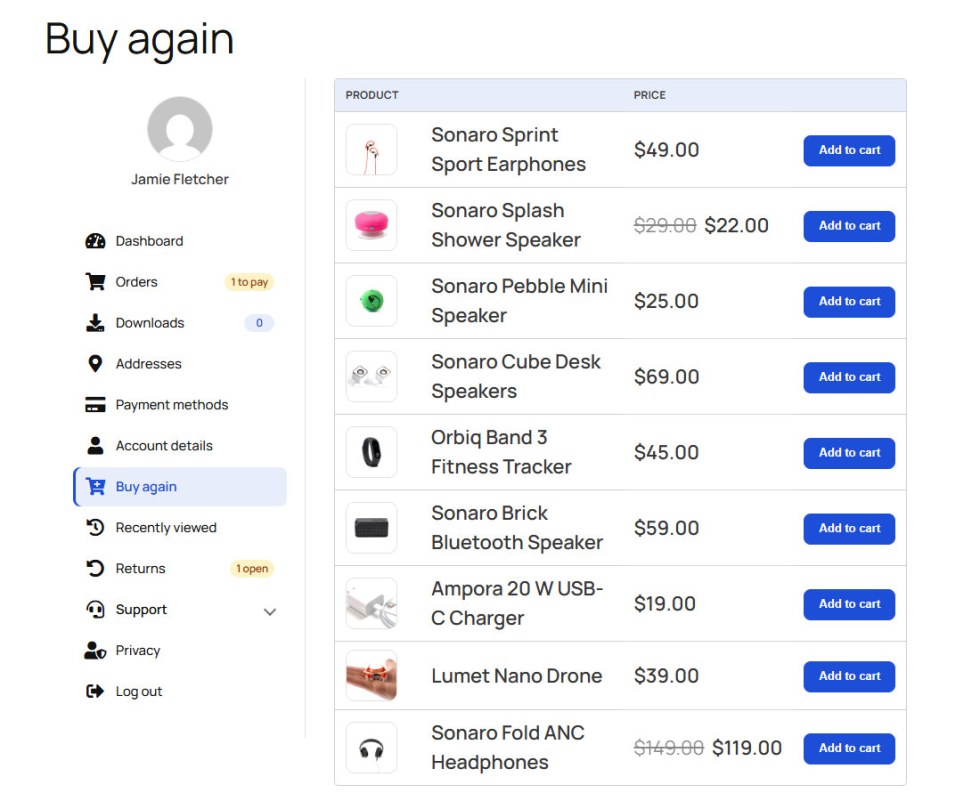
- Buy again — past purchases with Add to cart and Reorder my last order.
- Recently viewed — the products the customer looked at last.
- Order tracking — recent orders on the dashboard, with numbers from WooCommerce Shipment Tracking.
- Address book — more saved addresses, used for shipping or billing in a click.
- Privacy page — customers ask for a copy of their data, or for it to be erased.
Insights
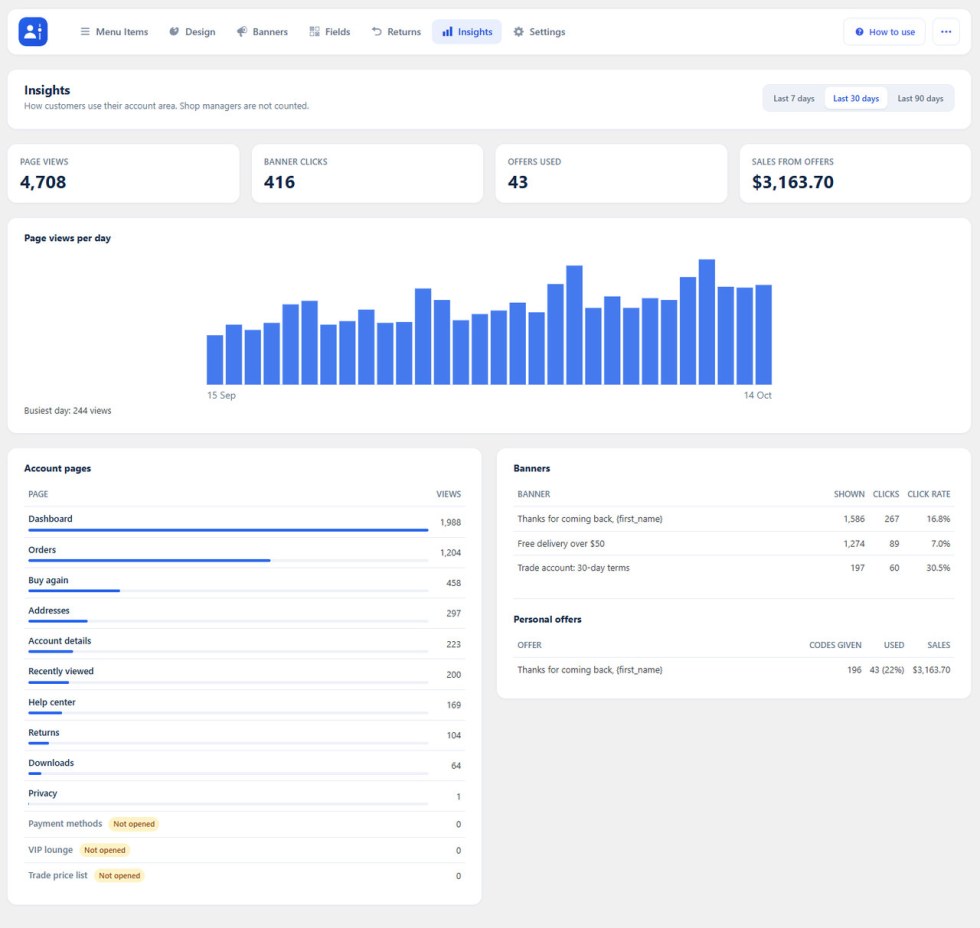
↑ Back to topInsights shows account page views, banner clicks, click rates, and how personal offers convert over 7, 30, or 90 days. Switch on Record usage under Settings → General. Only customers are counted, as daily totals.
Settings
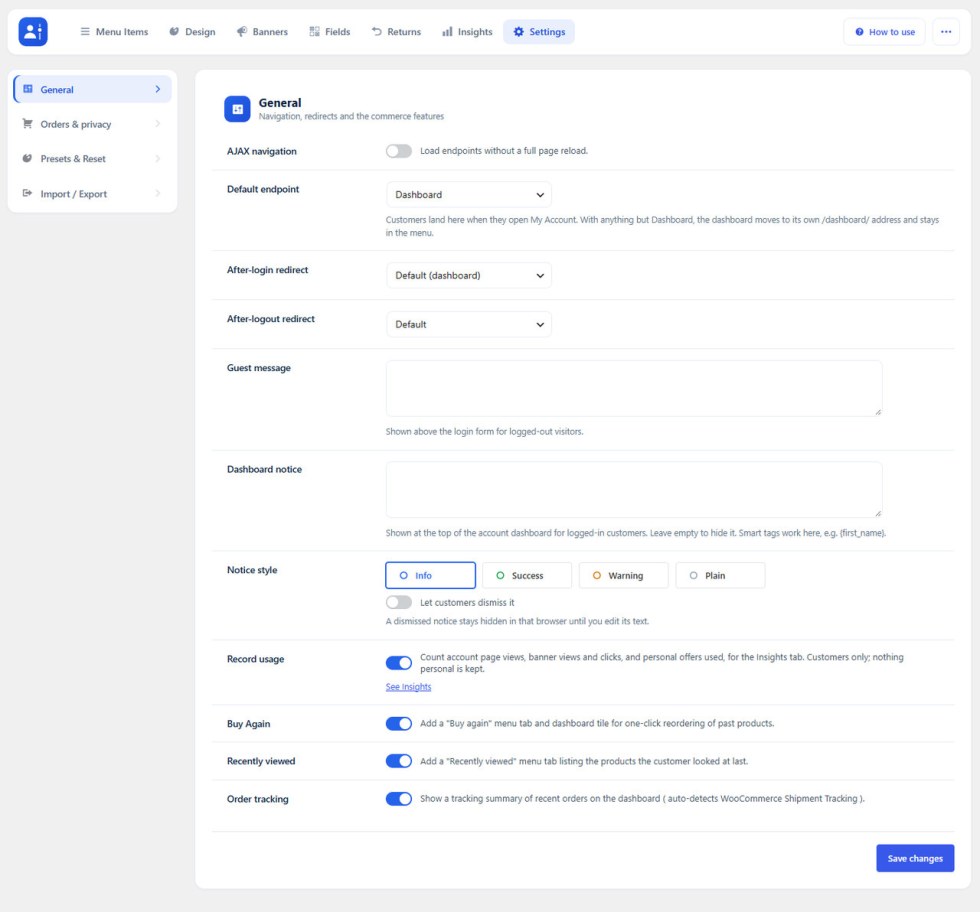
↑ Back to top- General — AJAX navigation, the default endpoint, login and logout redirects, a guest message, a dashboard notice, Record usage, and Buy again / Recently viewed / Order tracking.
- Orders and privacy — cancelling, returns, and their reasons, address book, privacy page.
- Presets and Reset — save the design as a named preset, or reset everything to defaults.
- Import / Export — move the whole configuration to another site as a JSON file.
Smart tags
↑ Back to topUse these in content, the dashboard heading, badges, and banners: {first_name}, {last_name}, {display_name}, {user_email}, {order_count}, {total_spent}, {download_count}, {member_since}, {last_login}, {cart_count}, {site_title}, {shop_url}, {points_balance}, {membership_plan}, {field_…} and, in a banner, {offer_code}, {offer_amount}, {offer_expiry}. In the Classic editor, use Add smart tags.
Developer options
↑ Back to top- Show the account menu anywhere with the [acfw_account_menu] shortcode, the Account Menu block or widget. Classic themes also get a My Account box under Appearance → Menus.
- Override templates by copying files from templates/ to yourtheme/my-account-dashboard-builder/.
- Filters include acfw_status_badges, acfw_dashboard_blocks, acfw_smart_tag_values, acfw_item_is_visible, and acfw_endpoint_content.
Compatibility with Third-Party WooCommerce plugins
↑ Back to top- Account pages added by Subscriptions, Memberships, Bookings, points and wallet plugins appear in the menu with fitting icons; arrange them like any other item.
- YITH and TI WooCommerce Wishlist get a Wishlist page inside My Account.
- Points and Rewards, YITH Points and myCred feed {points_balance} and the Reward points stat; Memberships feeds {membership_plan}.
- HPOS, the Cart and Checkout blocks, WPML and Polylang are supported.
FAQs
↑ Back to topHelp customers by answering commonly asked questions.
Do I need a developer to set this up?
No. Activate, open WooCommerce → Account Dashboard, use the canvas and Design Studio. How to use covers each feature; default endpoints already work.
Will it work with my theme?
Yes for typical WooCommerce themes (Storefront, most block themes). Uses WooCommerce hooks, not theme template copies. Very custom account templates: quick check after install.
Can I add my own account pages with custom URLs?
Yes — endpoint + slug + Classic/block content. Slugs are checked so you don’t break the store.
Where do I change colours and layout?
In WooCommerce → Account Dashboard → Design (the Design Studio). You edit beside a live preview at desktop, tablet and phone widths. Nothing goes live until you save. Menu structure and content live under Menu Items.
Can customers upload their own profile picture?
Yes, once you enable it in Design → Profile card. Uploads are limited to common image types, checked against a size limit you set, and verified as real images. The picture then replaces the Gravatar site-wide.
Can different customers get different menus?
Yes. On Menu Items, add a menu for a customer group (for example wholesale or members). It starts as a copy of the main menu; remove or reorder items as needed. Item settings stay shared, and everyone else keeps the main menu.
Can customers cancel or return orders themselves?
Yes, when enabled under Settings → Orders & privacy. Customers can cancel orders that have not shipped (within the hours you allow) and request returns on completed orders with a reason and optional photo. You answer each return on the Returns tab; the customer is emailed.
Does Buy again let customers reorder anything?
No. It only offers products that customer purchased on a completed order, and it re-checks purchase history, stock and your store’s normal add-to-cart validation on every request.
Can I rearrange what appears on the dashboard?
Yes. In Design → Dashboard → Arrange the dashboard, drag the greeting, heading, account numbers, profile meter, shortcut tiles, order tracking, Buy again and other widgets into any order, or hide any of them. The preview updates as you drag.
Can I put the account menu somewhere else on the site?
Yes. Use the
[acfw_account_menu]shortcode, the Account Menu block, or the Account Menu widget. Classic themes also get My Account items under Appearance → Menus.
Can I hide or rename the default WooCommerce account pages?
Yes — rename, switch off, reorder, or nest in a group. Off items stay dimmed so you can restore them.
Can I add my own account pages with custom URLs?
Yes — endpoint + slug + Classic/block content. Slugs are checked so you don’t break the store.
Is there a guide inside the plugin?
Yes — How to use in the header; searchable, opens on the current tab.
Can I control who sees each menu item?
Yes — by role, dates, products bought, order count, total spent, or time since last order.
Who is this for?
Stores that want a branded My Account without a developer: clearer menus, self-service, Buy again / offers, Design Studio. One plugin — no SaaS, no paid add-ons for the listed features.

