
Subscription includes
Support
Supplier Management for WooCommerce lets you add and organize suppliers with full contact, tax, and billing details, then link them directly to your products. Track purchase prices, lead times, and low stock thresholds for each supplier so reordering stays accurate as your catalog grows.
Create purchase orders in a few clicks, notify suppliers automatically, and update WooCommerce stock the moment an order is marked received. Assign multiple suppliers to the same product in priority order to keep a backup ready without losing pricing history.
Create supplier profiles with tax and VAT numbers, ordering emails, billing currency, company and warehouse addresses, and default discount and tax rates. Set lead time, cancellation window, and payment and delivery terms once, and reuse them across every purchase order for that supplier.

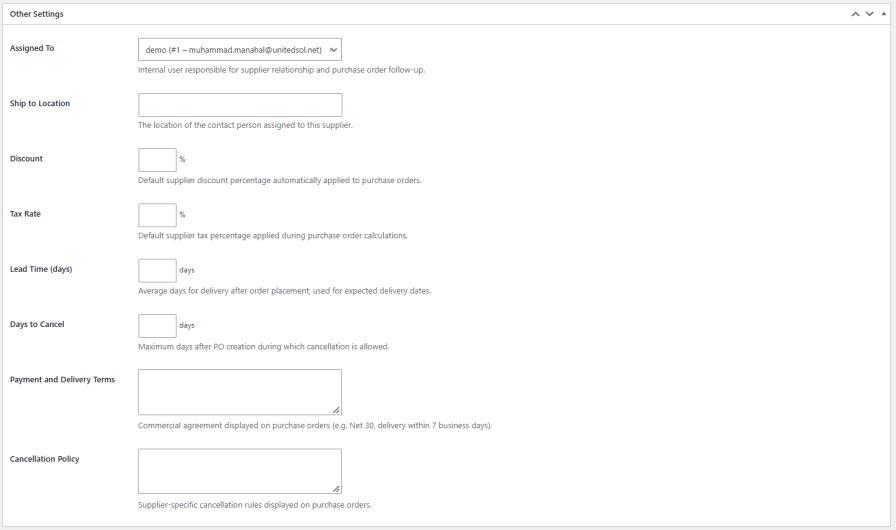
Assign an internal user and ship to location responsible for each supplier, then set a default discount, tax rate, lead time, and cancellation window. Payment and delivery terms and a cancellation policy can also be set per supplier and are reused automatically on every purchase order placed with them.
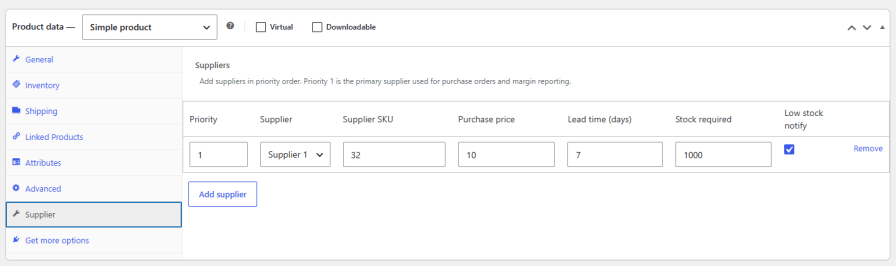
Link one or more suppliers to a product and set them in priority order. Priority 1 is treated as the primary supplier and is used automatically for purchase orders and margin reporting, while additional suppliers stay on record as backups with their own SKU, purchase price, and lead time.
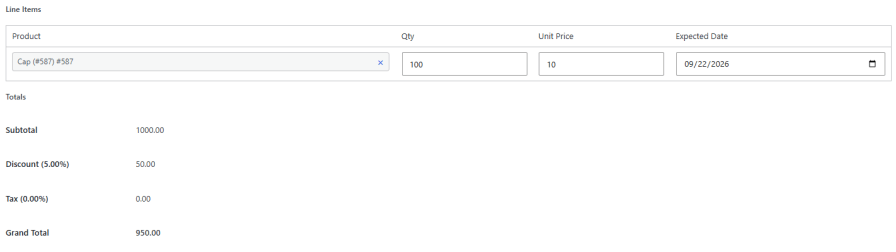
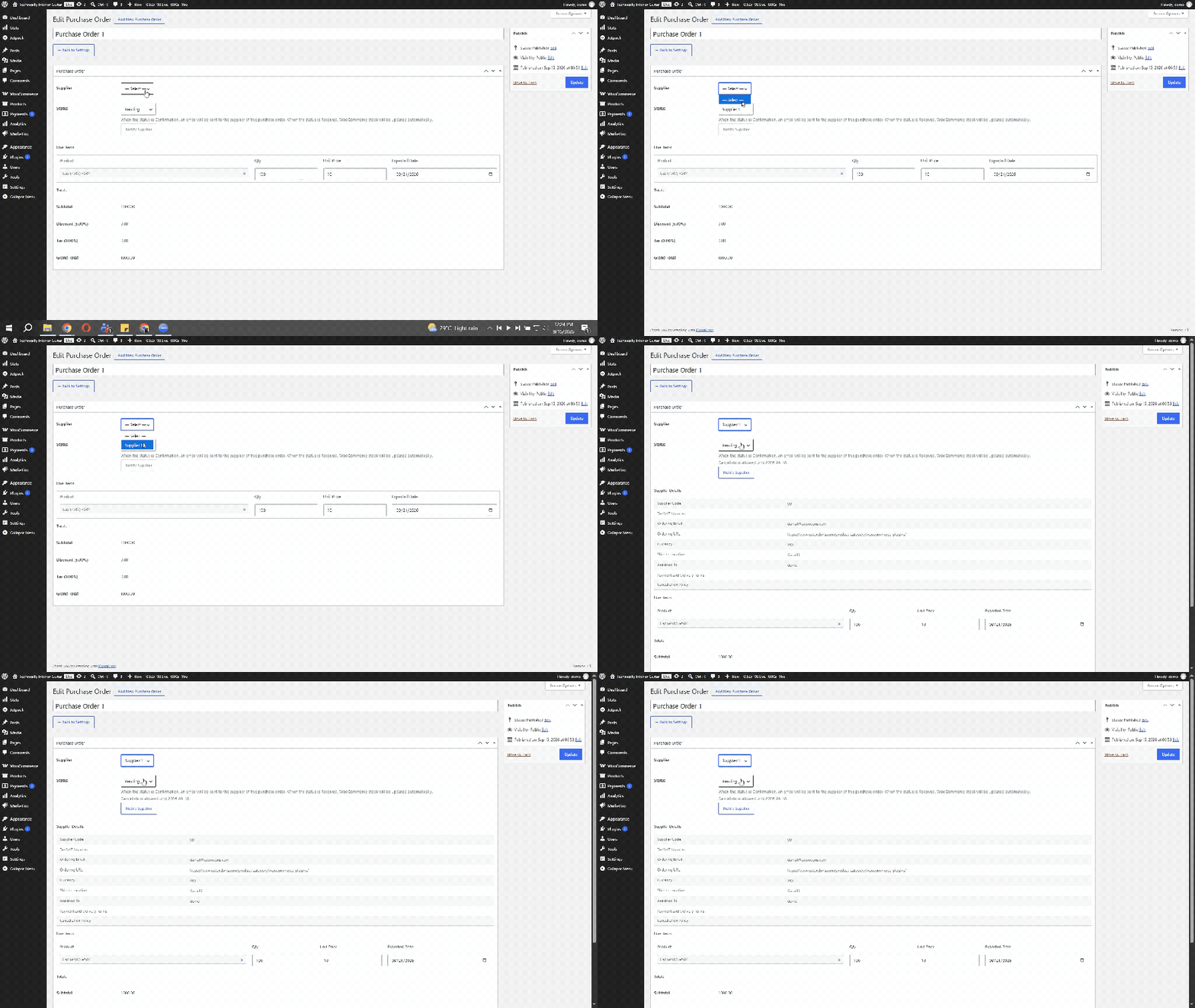
Generate a purchase order for any supplier and add line items with quantity, unit price, and expected delivery date to keep every incoming order organized in one place.
Subtotal, discount, tax, and grand total calculate automatically on every purchase order based on the supplier’s default discount and tax rate, removing manual math from each order.
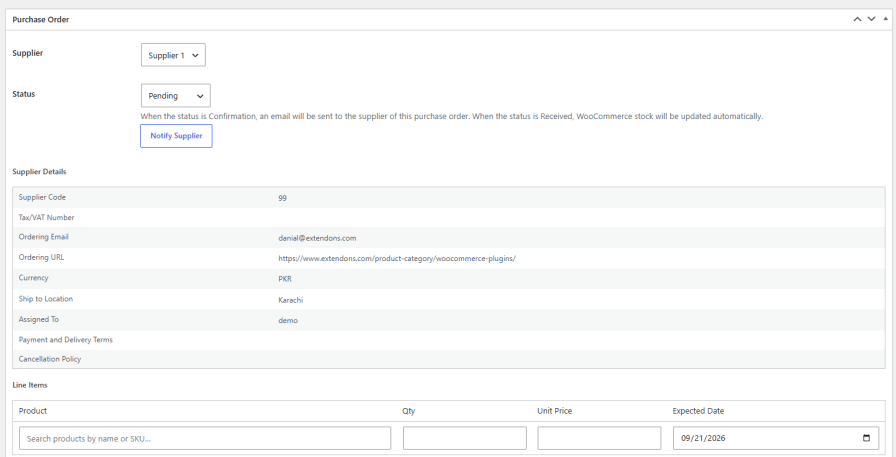
Supplier code, tax and VAT number, ordering email, ordering URL, and currency pull in automatically from the supplier profile on every purchase order, so the right reference details are always on hand without re-entering them.
See stock levels, supplier SKUs, and low stock thresholds for every product linked to a specific supplier in one table, making it easy to spot what needs to be reordered.

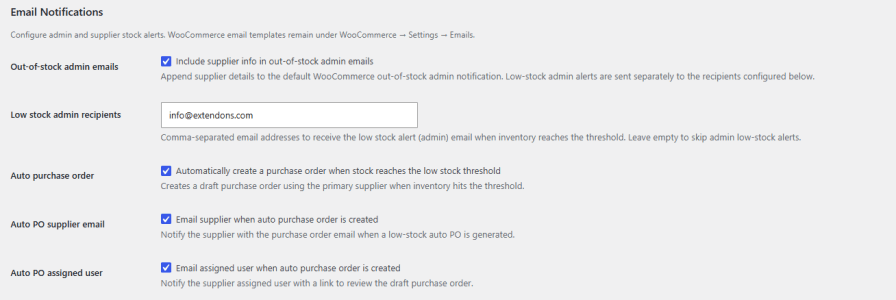
Set low stock alert recipients for admins, add supplier details to WooCommerce’s out of stock emails, and enable automatic draft purchase orders when inventory hits the threshold. Suppliers and assigned users can be notified automatically as soon as a draft purchase order is created.
You can assign multiple suppliers to a single product and set them in priority order. The priority 1 supplier is used automatically for purchase orders and margin reporting.
Yes, marking a purchase order as Received updates WooCommerce stock automatically, without any manual entry.
Yes, each supplier linked to a product has its own purchase price, supplier SKU, lead time, and low stock threshold.
Yes, setting a purchase order to Confirmation status sends an email notification to the supplier automatically.
Yes, you can enable automatic draft purchase orders using the product's primary supplier when inventory reaches the low stock threshold, with optional email notifications to the supplier and assigned user.