
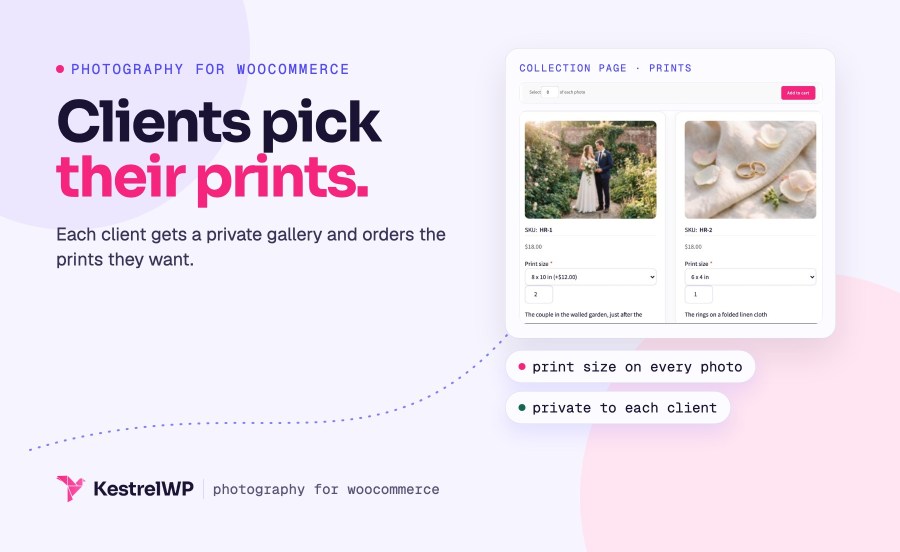
Product Icon

Photography for WooCommerce

Sell prints from private client galleries on WooCommerce. Upload a photography shoot, group it into collections and assign it to a client.
Choose a billing option
$99
Save 20%
$198 $158.40

Product comparison

Subscription includes

  • Product updates and improvements
  • Customer support
  • 30-day money-back guarantee

Sell prints from client photo galleries on WooCommerce

Photography for WooCommerce lets photographers sell prints from private client galleries: give each client a gallery of their photos and let them order the prints themselves. You upload a shoot in one batch, sort the photos into a collection and assign the collection to a client. The client signs in, finds their photos under My Account, picks how many prints of each they want and checks out through the normal WooCommerce checkout.

It suits wedding, event, school and portrait photographers who share a private gallery with each customer and take orders from it.

Before you buy: Photography sells prints, which are physical products assigned to clients. It doesn’t sell digital downloads and it doesn’t watermark photos. Collection pages use a classic PHP template and haven’t been checked on block themes: on the block theme we tried, the collection page showed empty, so test yours on a staging site first. In our testing the Discontinued Products extension hid Photograph products from collection pages. It declares compatibility with High-Performance Order Storage.

What you get

  • Batch-upload JPEG, GIF and PNG photos and publish each as a Photograph product
  • Group photos into collections that are Restricted or Public
  • Assign a collection to a customer and email them a link
  • Show clients their collections in My Account, with a print order page for each
  • Add print sizes and finishes with WooCommerce Product Add-Ons

Upload a whole shoot in one batch

Go to Photography » Add Photographs and add JPEG, GIF or PNG files in bulk. Before you upload, set a SKU pattern, a price and the collections for the batch, and every photo gets them. Each photo is published as a Photograph product as soon as it finishes uploading, so a large shoot is ready to sell without creating products one at a time. A review list then lets you correct any photo’s SKU, price, collections and caption, or remove it.
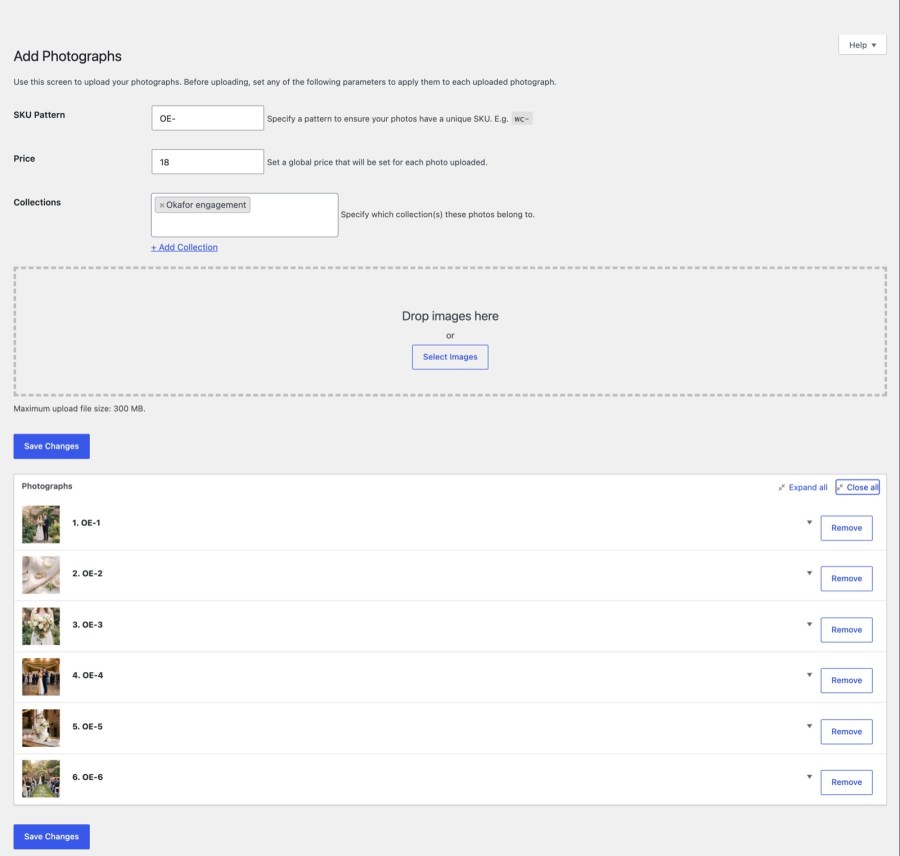
  • Set a SKU pattern, price and collections for the whole batch
  • Edit each photo’s SKU, price, collections and caption
  • Remove a photo and its product from the review list

Add Photographs screen with a SKU pattern, price and collection set and a review list of uploaded photos
Upload a whole shoot at once with one SKU pattern, price and collection

Group photos into collections, restricted or public

Every photo belongs to one or more collections, which you create under Photography » Collections like a product category, with a name, slug, optional parent, description and thumbnail. Each collection is Restricted, so only the customers you assign can open it, or Public, so anyone with the link can. New collections start with the default you choose in Photography » Settings, which is Restricted unless you change it. Visitors without access are sent to the My Account page, so a private gallery stays private even if someone has the link.
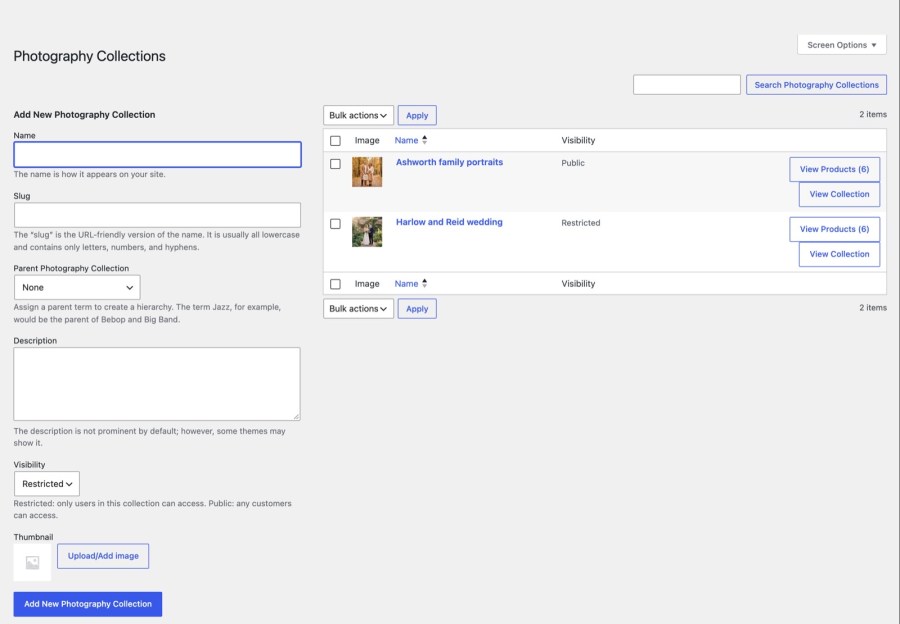
  • Create collections with a name, description and thumbnail
  • Choose Restricted or Public separately for each collection
  • Set the default visibility for new collections in Settings

Collections screen listing client collections with thumbnails, marked Public or Restricted
Keep each client collection private or public, and see them all at a glance

Assign a collection to a customer

Open a customer’s profile, or add a new user, and choose their collections in the Collections field. When you add a collection, the customer gets the New Photography Collection email, which links them to My Account. The email is on by default, and you can edit it or turn it off under WooCommerce » Settings » Emails. Administrators and shop managers can always see every collection, so you never lose access to a client’s gallery, and you can check what a client sees.
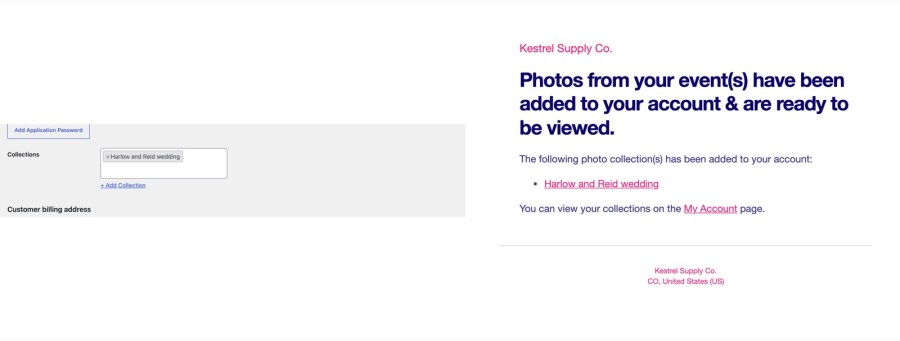
  • Assign one or more collections on the user profile
  • Email the customer when a collection is added
  • Let administrators and shop managers see every collection

User profile with the Collections field set, beside the New Photography Collection email
Assign a collection to a client and they get an email link

Show each client their collections in My Account

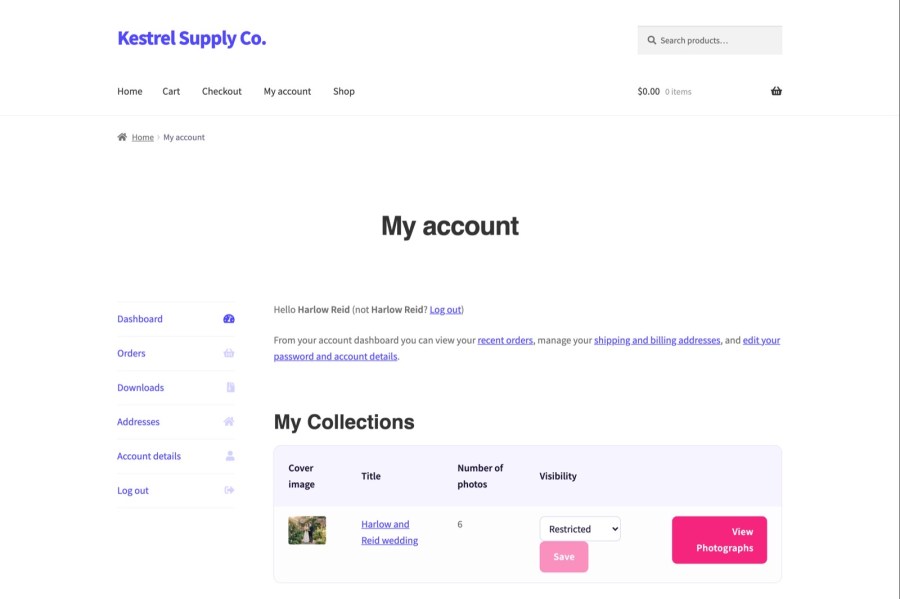
The My Account dashboard lists My Collections, with a cover image, the collection title, the number of photos and its visibility, plus a View Photographs button. Customers can switch a collection between Restricted and Public from the list. The change applies to the collection for everyone, so turn the control off with the woocommerce_photography_customers_can_change_visibility filter if you’d rather keep that decision yourself. Photos in a Public collection are open to anyone with the link, so check the setting before you share a gallery link.
  • List each client’s collections with a cover image and photo count
  • Open a collection with the View Photographs button
  • Hide the visibility control with a filter if you want to

My Account page with a My Collections table showing cover images, photo counts and visibility
Clients find their collections in My Account, with cover images and photo counts

Let clients order prints from the collection page

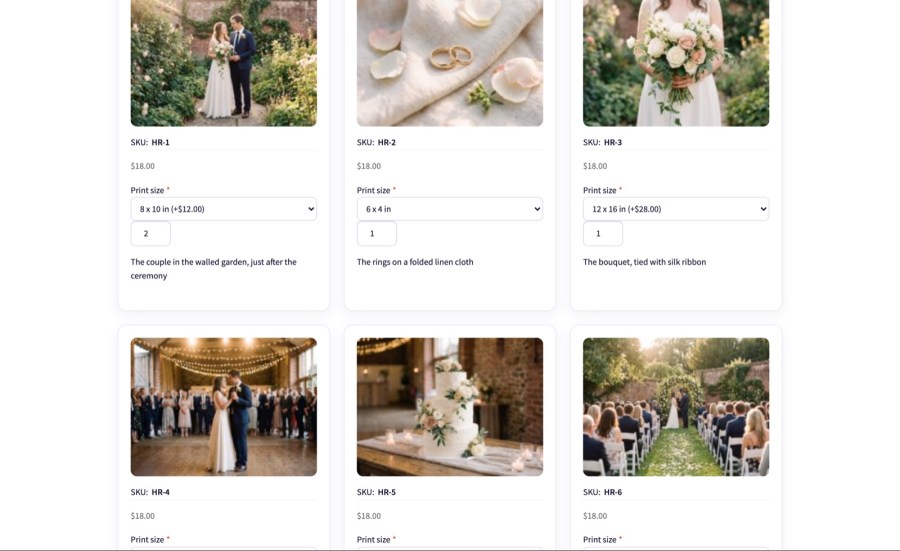
A collection page shows every photo with its SKU, price, options, quantity field and caption, and clicking a photo opens a larger view. A Select shortcut sets the same quantity for every photo, then one Add to cart button adds the lot. Photographs are physical products, not virtual or downloadable ones, and they go to the cart and through your normal WooCommerce checkout, so clients don’t need to learn a new ordering system, and you see their orders in WooCommerce like any other.
  • Set a quantity for each photo, or the same for all
  • Open a larger view of any photo in the collection
  • Add the chosen prints to the cart in one click

Lower rows of a collection page with each photo's SKU, price, print size, quantity and caption
Each photo shows its SKU, price, print size and quantity for ordering

Offer print sizes and finishes with Product Add-Ons

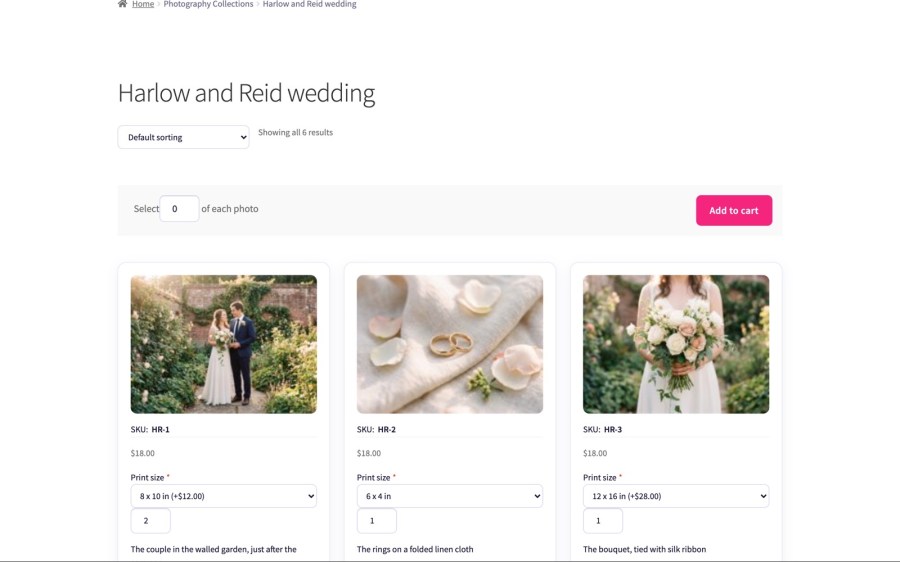
With WooCommerce Product Add-Ons, an add-on group’s product categories list includes your collections. Set up print sizes or finishes once, such as 6×4, 8×10 and 12×16 at their own prices, apply the group to a collection, and every photo in it shows the options on the collection page. A client can then order different sizes of different photos in one visit, without you creating a product for each size, so one set-up covers the whole shoot and every client who orders from it.
  • Apply an add-on group to a whole collection
  • Show print size and finish options beside each photo
  • Charge a different price for each size or finish

Collection page with a print size option beside each photo, set up with Product Add-Ons
Clients pick a print size and quantity beside each photo in the gallery

Works well with

Sell every size and finish. WooCommerce Product Add-Ons turns one photo into many orders: set up print sizes and finishes once, apply them to a collection, and every photo in it offers the options on the collection page. Photography handles the galleries and client access; Product Add-Ons handles what a client can choose for each print, so one client can order several sizes in one visit. Selling gift cards for a shoot or a print order? Store Credit for WooCommerce sells credit as a product that the buyer can send to someone else, who spends it at checkout like a coupon.

Get started

  1. Download, install and activate Photography for WooCommerce
  2. Open Photography » Settings and choose the default collection visibility
  3. Open Photography » Add Photographs and upload your photos
  4. Review the uploaded photos and choose Save Changes
  5. Edit a customer under Users and choose their collections
  6. Sign in as that customer and add prints to the cart

Collections, customer access and common questions are covered in the Get started with Photography guide, and Kestrel support can help if you get stuck. Built and supported by Kestrel, a long-time WooCommerce extension developer.

KestrelWP

Frequently asked questions

Is there a WooCommerce plugin for private client galleries?

Yes. Photography for WooCommerce gives each client a private gallery of their photos under My Account, and they order prints from it through normal WooCommerce checkout. It sells prints you fulfill, not digital downloads, and it has no watermarks or proofing.

Can I sell photos as digital downloads or add a watermark?

No. Photography for WooCommerce sells prints you fulfill, not downloads, and it doesn't watermark. Photograph products have no downloadable or virtual option. Add any watermark to your files before you upload them; what you upload is what your clients see. A single photo can be a Simple product with a downloadable file by hand, outside the collection workflow.

Are my clients' collections private?

Restricted collections are private: only the customers you assign can open them, and everyone else is sent to the My Account page. Public collections open for anyone with the link. If you deactivate the extension, Photograph products become ordinary products with no restriction, so move or unpublish private photos first.

How do I sell prints in different sizes and finishes?

Use WooCommerce Product Add-Ons. An add-on group's product categories list includes your collections, so one group can add size and finish options to every photo in a collection. Clients choose the size beside each photo on the collection page, and the add-on price applies per photo.

Can customers see a list of all my collections?

Not on a page of its own. Customers reach a collection from My Account, a direct link, or, for public collections, the shop and archive pages when Shop Page Visibility is on. A browsable index of every collection would need work in your theme.

Is there a limit on how many photos I can upload at once?

You can upload many photos in one batch, and each photo is limited by your host's maximum upload size. If large files fail to upload, ask your host to raise that limit.

Extension information

  • WooCommerce version required: 3.4.0
  • PHP version required: 7.4
  • Tested with WordPress: 7.1.3
  • Tested with WooCommerce: 11.2.1
  • Requires at least WordPress: 6.3
  • Requires at least WooCommerce: 8.0

Countries

  • Worldwide

Customer reviews

Average rating 2.6

6 reviews from verified users

5 stars, 20% of reviews
4 stars, 0% of reviews
3 stars, 40% of reviews
2 stars, 0% of reviews
1 star, 40% of reviews

Click to rate

  • KoiLabSpainOct 31, 2022
    Hi there, Thanks for taking the time and leaving a review. We take note of everything you said, we are going to continue working to get the best results for you in the future. Kind regards.
  • Rated 5 out of 5
    evoquestFranceSep 29, 2022
  • Rated 1 out of 5
    websiteconceptsUnited Kingdom (UK)Mar 22, 2022
    Definantly not as the video shows You would have hoped that this would be able to set digital downloads automatically, create categories, and keep the image size you uploaded. But sadly not. To get it to enable digital downloads you have to edit each image product and change to simple product and then select the image from the media section to download. To get you images to display in a category, you have to add them and then deactivate the plugin. The images uploaded get resized. Lastly the layout is not good and requires additional CSS to work correctly. Sorry to say but there are better products on the market.
  • Rated 3 out of 5
    mypeSouth AfricaAug 1, 2020
    Been circling this for a while and decided to take advantage of the sale to buy. Even at the sale price I fear that this may not be the right product for my needs. I ASSUMED that the extension would include a watermarking functionality plus allow online purchase and delivery of NON-WATERMARKED images. BUT, this is not the case - you must use a 3rd party watermarking plugin and if you watermark your images then ONLY watermarked images are available for download to a client. At this present time you will have to send the NON Watermarked images to your client manually after purchase. Let me be clear here - I ASSUMED that the functionality I needed would be part and parcel of this extension as that is what happens on other photography sites. Yes, I did engage support and was told that the feature is not in the list so I am presuming that I should have ASSUMED that - like assuming that cars come with wheels (my words) - it was not available. Include watermarking and the ability to deliver purchased images via the client's account page.
  • Rated 3 out of 5
    b8europeNetherlandsJul 2, 2019
    The plugin is a very nice addition to standard WooCommerce and every photography website that sells it's products. Product is a bit slow when an image is uploaded and sometimes unresponsive. Would be nice to choose images from the Media folder. More integration with WooCommerce products for Up/Cross selling would be a plus.

Related Products

Price $279 annually
Rated 3.9 out of 5 stars
Price $79 annually
Rated 3.4 out of 5 stars
Price $59 annually
Rated 3.1 out of 5 stars
Price $109 annually
Rated 2.8 out of 5 stars
Price $49 annually
Rated 4.1 out of 5 stars
Price $109 annually
Rated 2 out of 5 stars
Price $109 annually
Rated 2.5 out of 5 stars
Price $199 annually
Rated 4 out of 5 stars
Price $39 annually
Rated 2.8 out of 5 stars
Use of your personal data
We and our partners process your personal data (such as browsing data, IP Addresses, cookie information, and other unique identifiers) based on your consent and/or our legitimate interest to optimize our website, marketing activities, and your user experience.