
Active installs
800+
Subscription includes
Support
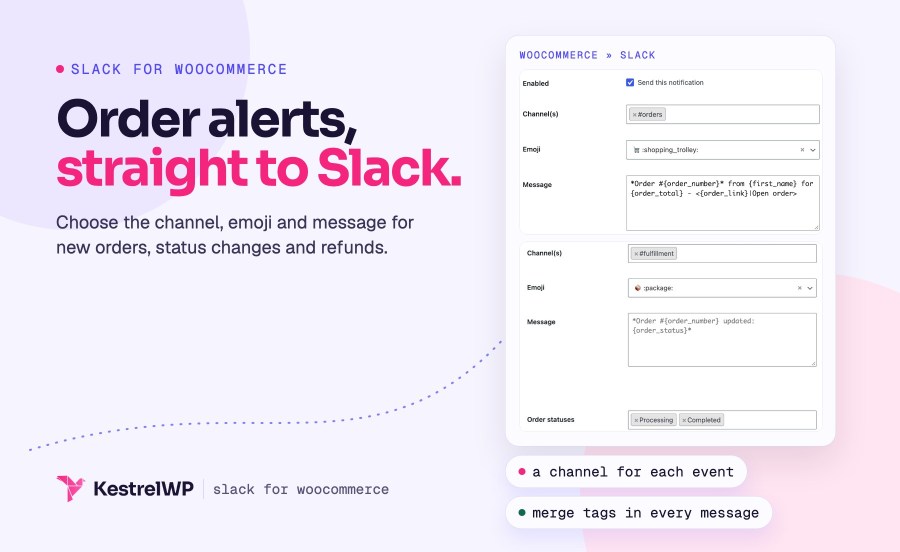
Slack Notifications for WooCommerce is a WooCommerce Slack integration that posts your store’s events to the channels you choose: new orders, order status changes, refunds, stock alerts, new customers, reviews, new posts and subscription renewals and cancellations. Your team sees what is happening without keeping wp-admin open. Switch on only the events you want, send each one to its own channels with its own emoji, and reword any message with merge tags.
Before you buy: notifications go one way, from your store into Slack. The connection uses a Slack app that you create in your own workspace from a manifest the plugin gives you, so you stay in control of the permissions.
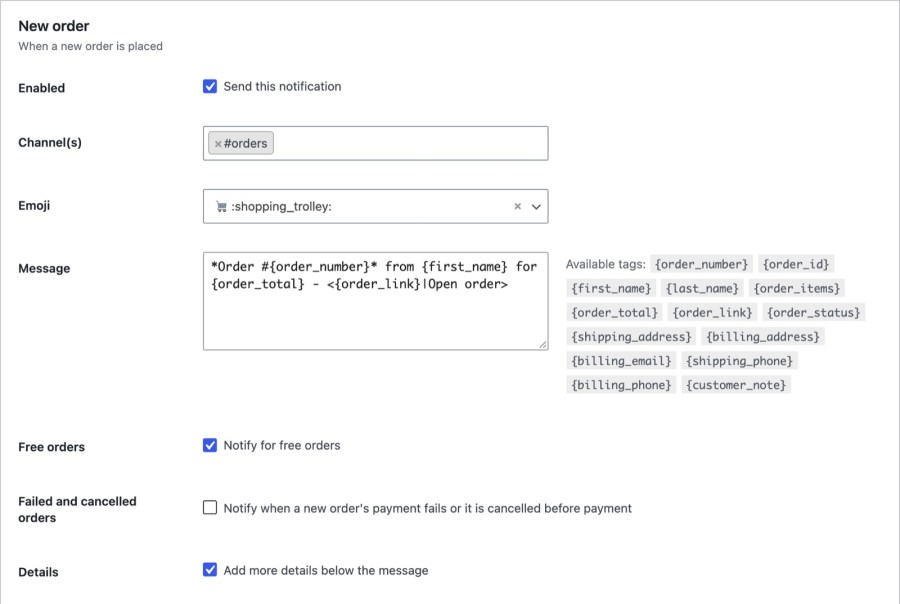
Turn on New order and each order lands in the channel you choose with the order number, customer, items and total, plus a View order button that opens it in your store admin. The message goes out when the order is created, at the classic checkout, the checkout block or Point of Sale for WooCommerce. Turn on Failed and cancelled orders and you also hear when a new order’s payment fails or it is cancelled before payment. For paid orders only, use Order update with Processing selected.
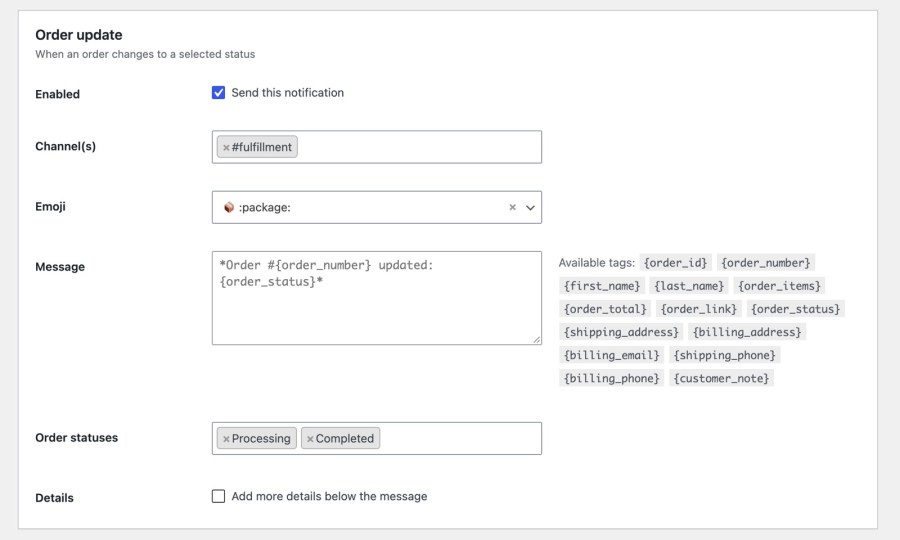
Order update sends a message when an order moves to a status you select, custom statuses included. Pick Processing to hear about paid orders, or add Completed, On hold and your own statuses to follow an order all the way through. Leave Order statuses empty and you are notified for every paid status. Turn on Details to add the status, payment method, customer and items. Subscriptions and renewal orders are skipped here and use the Subscription renewal notification instead, so nothing is announced twice.
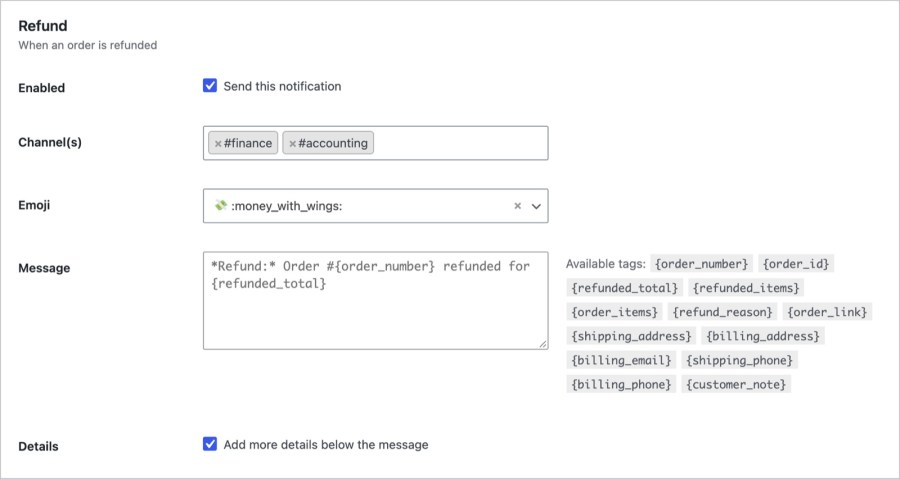
Refund posts the order number and refunded amount whenever you refund an order. Back order, Low stock and Out of stock follow WooCommerce’s own stock levels, so whoever reorders hears about it in Slack before a customer finds out. Turn on stock management for your products and set the thresholds under WooCommerce » Settings » Products » Inventory. Send refunds to finance and stock alerts to operations, so each team sees only what it needs, and nobody scrolls past alerts that aren’t theirs.
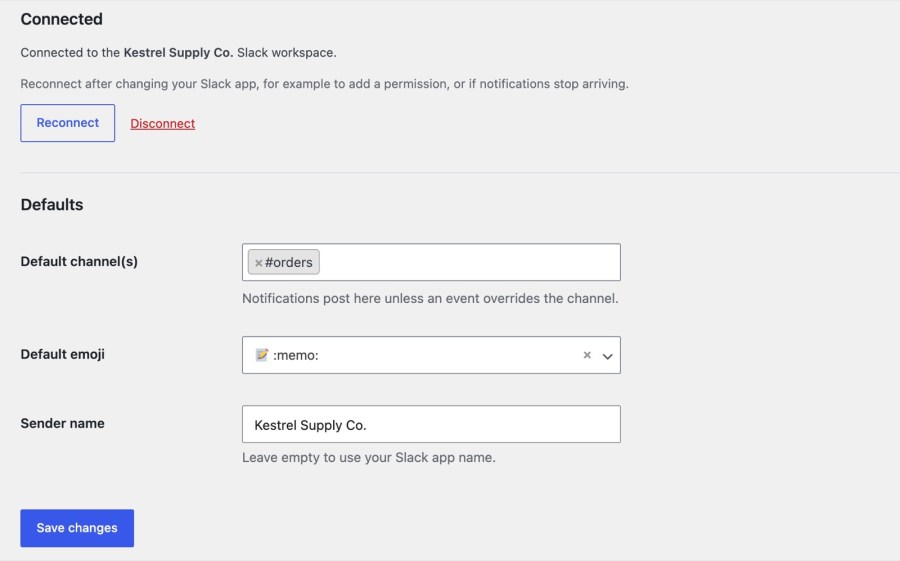
Choose default channels, a default emoji and a sender name once under Settings, then override the channels and emoji for any event. Refunds can go to #finance, low stock to #ops and new reviews to #marketing. An event with its own channels always wins over the defaults, and a blank field falls back to them. Pick emoji from a searchable list that includes your workspace’s custom emoji, and leave the sender name empty to use your Slack app’s name, or set one name that fits your brand.
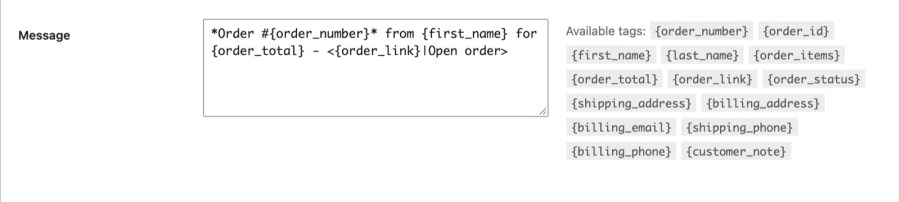
Each event has a Message field. Leave it empty to use the built-in message, or write your own with merge tags such as the order number, order total and customer name, listed under the field. Slack formatting works, so you can bold the part that matters and turn any text into a link to the order. Messages arrive with a button to the order, product or customer, so your team can act in one click. Reviews show their rating as stars, and replies to reviews stay quiet unless you turn on the Replies setting.
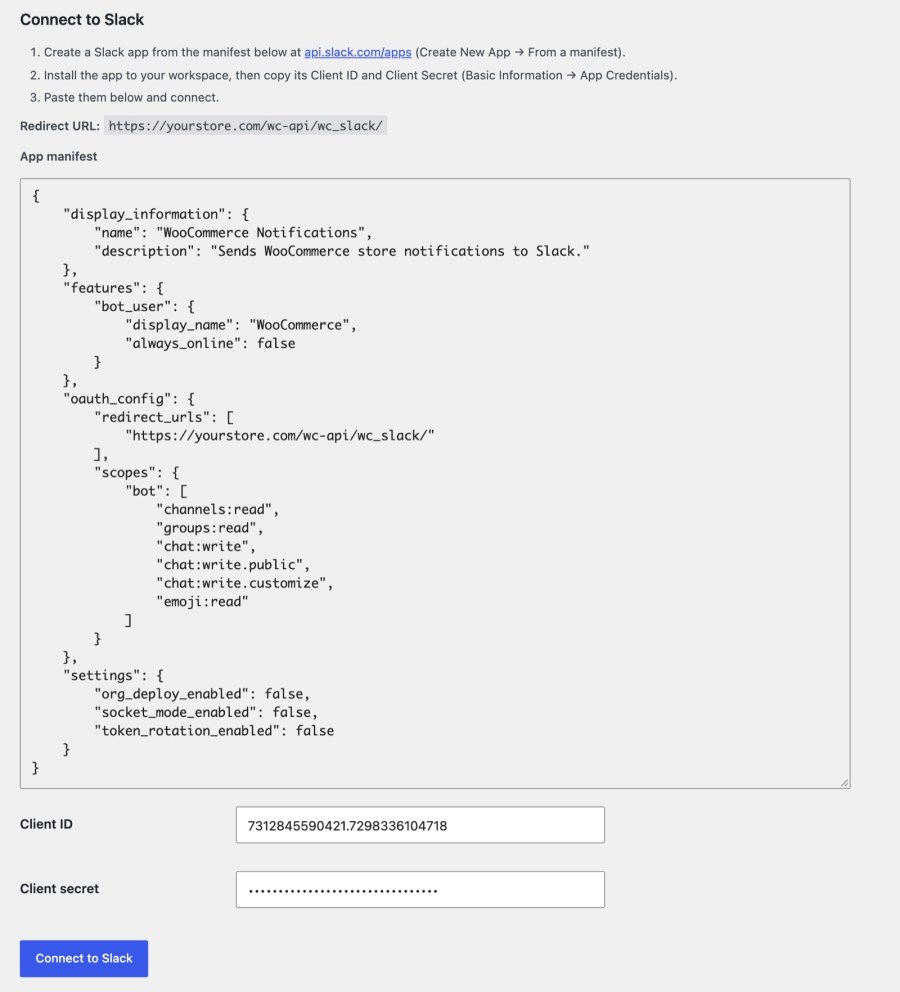
Slack Notifications for WooCommerce uses a Slack app that you create in your own workspace, so the connection is yours. Open WooCommerce » Slack » Settings, copy the manifest, create the app from it in Slack, then paste its Client ID and Client secret back and click Connect to Slack. The manifest already holds your store’s redirect URL and the permissions the plugin needs. Once connected, Send test notification posts a message to your default channels, so you can check everything before a real order arrives.
Slack works on its own. Selling memberships or subscriptions? Constellation, with its built-in recurring billing, sends renewal notifications to Slack so your team sees every renewal, and WooCommerce Subscriptions adds Subscription cancelled alerts too. Point of Sale for WooCommerce orders are covered by New order. Slack supports the cart and checkout blocks and High-Performance Order Storage.
Want a daily or weekly summary as well? Slack posts each event as it happens, and Sales Report Email sends the summary of your sales on a schedule.
Read the Slack documentation for every setting and the full list of merge tags.
New installs start with New order, New post, Subscription renewal, Low stock and Out of stock switched on. Upgrading from version 1.x with an existing connection? Your current screen stays until you click Switch to the new experience; switching carries over your events and messages, but you create a new Slack app and reconnect, and notifications pause until you do. Built and supported by Kestrel, a long-time WooCommerce extension developer.

Eleven events, starting with order notifications for New order, Order update and Refund, plus Back order, Low stock, Out of stock, New customer, New review, New post, Subscription renewal and Subscription cancelled. The subscription events appear only when a supported subscriptions plugin is active. Each event can go to its own channels.
Yes, in your own Slack workspace. The plugin gives you a manifest to paste into Create New App, From a manifest, so the name, permissions and redirect URL are filled in for you. It doesn't ship a shared Slack app.
No. The plugin posts straight from your store to Slack through a Slack app you connect, so there is no automation service in between. You choose the events, channels and wording in WooCommerce, and the Slack app only needs the permissions in the manifest.
No. Notifications go one way, from your store into Slack, and the channel picker lists public and private channels, not individual people. You can't manage orders from Slack, so keep wp-admin for replies, refunds and fulfillment.
Private channels appear, and receive messages, only after you invite the Slack app to them. Invite the app in Slack, then click Reload channels and emoji under Tools on the Settings tab.
When the order is created, before payment, so it can include orders whose payment later fails. To hear only about paid orders, use Order update with Processing selected. A setting on New order also reports payments that fail and orders cancelled before payment.
Extension information
Quality Checks
Countries