
Vaulting lets WooCommerce PayPal Payments store a payment method as a token, so customers don’t have to re-enter details next time.
If you have been approved for Vaulting (Reference Transactions), you can store the information in the PayPal Vault.
Here are the benefits of saving your customers’ payment methods:
- Faster repeat checkouts – no forms to fill.
- Automatic renewals & subscriptions – WooCommerce Subscriptions is required
- Lower PCI scope – card data stays in PayPal’s vault.
Visit the “Securely store payments for a more seamless customer checkout experience” blog post or the PayPal Developer Portal to learn more about saving customers’ payment methods.
Which payment methods can customers save?
↑ Back to topMerchant Requirements
• PayPal & Venmo → Reference Transactions approval
• Credit/debit cards → Advanced Card Processing (no Reference Transactions needed)
If your customers complete an initial purchase on your website using any of the following payment methods while the Vaulting feature is enabled, they will be able to save that payment method in the PayPal vault.
- PayPal & Venmo
- Credit and debit cards (via Advanced Card Processing)
PayPal accounts and credit/debit cards can be saved with or without a purchase, for example, from the “My account” section or free-trial subscription products.
Request Reference Transactions approval
↑ Back to topVaulting requires your PayPal business account to be approved for Reference Transactions to start saving your customer’s payment methods using the PayPal vault
The quickest way: in PayPal Payments, open the Overview tab, find Save PayPal and Venmo in the Features section and click Sign up. When PayPal approves your account, come back and click Refresh. The feature then shows Configure, and the Save payment methods options appear in the Settings tab.
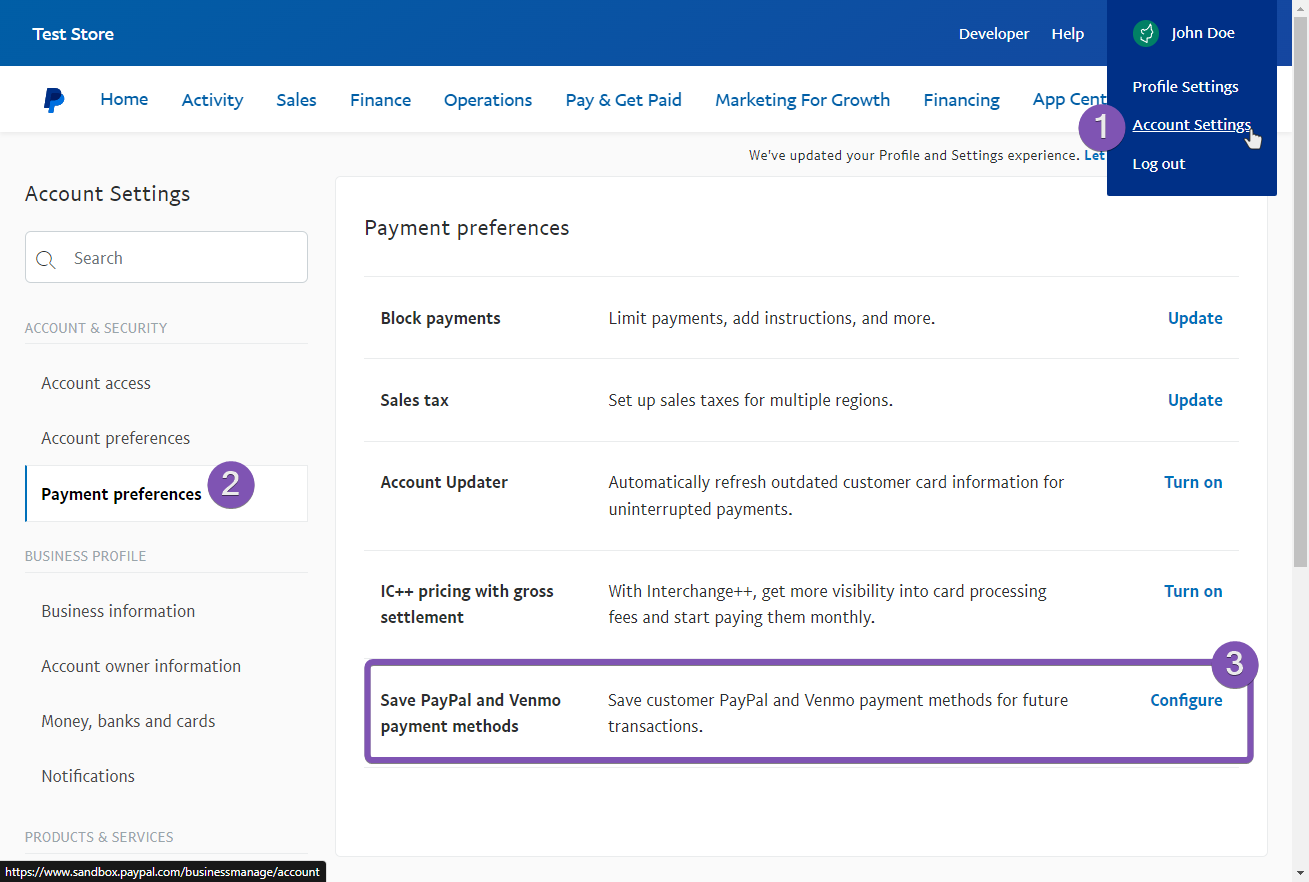
Here’s how to request Vaulting approval from your PayPal account using a web browser:
- Go to Account Settings.
- Click Payment preferences.
- Click Get Started next to “Save PayPal and Venmo payment methods” to start the approval process.
PayPal will send you an email with the next steps or the approval confirmation.
Once you’re approved, go back to Account Settings and click Configure to set up saved payments.
Turn on Vaulting in your REST app
↑ Back to topNote: The onboarding wizard is the recommended way to connect your account as it will automatically configure the REST application for use with PayPal Payments, including Vaulting.
You can enable the Vaulting feature from the PayPal developer dashboard for manually created REST applications. To use Vaulting within the extension, first ensure it’s activated for the REST application. This step is necessary only when integrating existing API credentials manually rather than using the onboarding wizard for the account connection.
To manually enable vaulting on your Live REST App, follow these steps:
- Connect your account to WooCommerce (see above).
- Visit https://developer.paypal.com.
- Login with the same PayPal account connected to WooCommerce.
- Click Live under My apps & credentials.
- Select the REST App you connected to the plugin.
- Scroll down to Live App Settings.
- Click Advanced options next to Accept Payments.
- Place a checkmark next to Vault.
- Click Save at the bottom of the box.
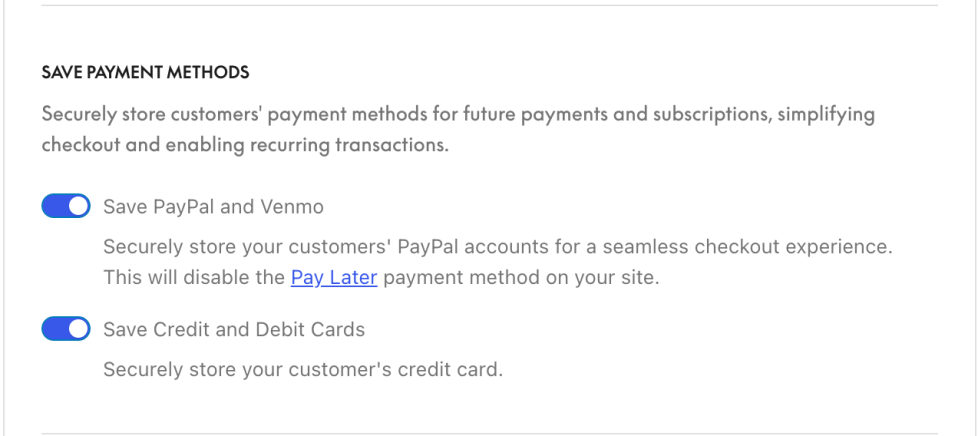
Support for WooCommerce Subscriptions with Vaulting is automatically activated when the Save PayPal and Venmo feature is enabled in the extension settings.
Vaulting a PayPal account
↑ Back to topWhen the Save PayPal and Venmo setting (Settings tab › Common settings › Save payment methods) is enabled, PayPal and Venmo accounts are saved in the secure Vault after a payment is attempted.
With saved payment methods, customers can make PayPal payments with just one click while logged into their WordPress user account, providing a streamlined checkout experience for repeat customers.
Vaulting a credit card
↑ Back to topThe Advanced Card Processing gateway allows credit cards to be securely stored for future use before confirming the payment. While the standard card button does not support card vaulting, it can display a previously vaulted card in the checkout process as can be seen in the Customer Experience screenshots.
Test card vaulting in the sandbox using the PayPal documentation’s list of Vault-ready test cards. In live mode, all supported credit and debit card types are eligible for card vaulting.
View/delete saved payment methods
↑ Back to topPayment methods saved in the Vault can be viewed and deleted on the shop website in the My Account > Payment Methods section.
Customers can also save a new payment method without buying anything: My Account › Payment methods › Add payment method.
Using “Save PayPal and Venmo” (Vaulting) for WooCommerce Subscriptions
↑ Back to topWhen you enable the Save PayPal and Venmo setting, or store cards through Advanced Card Processing, WooCommerce Subscriptions can charge customers automatically with far fewer limits than “PayPal Subscriptions”.
| Feature | Vaulting (Save PayPal & Venmo) | PayPal Subscriptions |
|---|---|---|
| Renewal amounts & dates | Flexible (supports coupons, shipping changes, prorated or synchronized renewals, multiple concurrent subscriptions, upgrades/downgrades) | Fixed plan only |
| Mixed-product carts | ✓ | ✗ |
| Multiple subscriptions in one checkout | ✓ | ✗ |
| Free-trial products | ✓ | ✓ |
| Requirements |
PayPal/Venmo → Reference Transactions approval
Cards → Advanced Card Processing approval
|
Works on any Business account |
Why choose Vaulting
- Works with all WooCommerce Subscriptions features: Plan switching, variable totals, and manual or automatic renewals
- One saved token covers any number of future purchases or subscriptions.
- Customers stay on-site for renewals; no need to log in to PayPal or re-enter card data.
- Payment data remains secure in PayPal’s vault.
When to use PayPal Subscriptions instead
- You want a quick, fixed-price subscription and don’t need flexible billing.
- Your account can’t (or doesn’t want to) request Reference Transactions or Advanced Card Processing.
For details on the subscription setup, see the Subscriptions FAQ.
Troubleshooting Vaulting
↑ Back to topBefore contacting PayPal, check:
- The Save payment methods options are missing in the Settings tab: the Save PayPal and Venmo feature is not active. In the Overview tab, click Sign up for Save PayPal and Venmo, or click Refresh if you were approved recently.
- Your PayPal account country is in the list under Which payment methods can customers save?
- Cards are not saved: check that Advanced Card Processing is active (Overview tab › Features) and that Save Credit and Debit Cards is on.
- The customer is logged in. Guests can’t see or reuse saved methods.
Saving a payment method in the Vault can still fail, and PayPal Payments usually cannot tell the exact reason. Contact PayPal’s Merchant Technical Support with a copy of your extension log files to ask why a payment method could not be saved in a specific case.