
Connecting your WooCommerce store to your WooCommerce.com account enables you to install extensions automatically, receive product updates and support, and manage your subscriptions directly from your site’s WP Admin dashboard.
You are prompted to connect your store during your first purchase on WooCommerce.com. You can also connect at any time from within WP Admin.
Note: WooCommerce.com requires a WordPress.com account
for login — your credentials are shared across both platforms. This
connection does not require Jetpack and is separate from the
WordPress.com connection used by WooPayments, WooCommerce Shipping,
WooCommerce Tax, and Google for WooCommerce.
Why connect your site?
↑ Back to topConnecting your site to WooCommerce.com allows you to:
- Install extensions and themes automatically from your WooCommerce.com dashboard or from WP Admin, without downloading and uploading
.zipfiles. - Receive updates for your paid Woo Marketplace extensions and themes via the WooCommerce.com Update Manager.
- Access support by submitting your store’s System Status Report automatically when creating a support ticket.
- View your connected stores on the My Stores page of your WooCommerce.com account.
How to connect your site
↑ Back to topFrom WP Admin
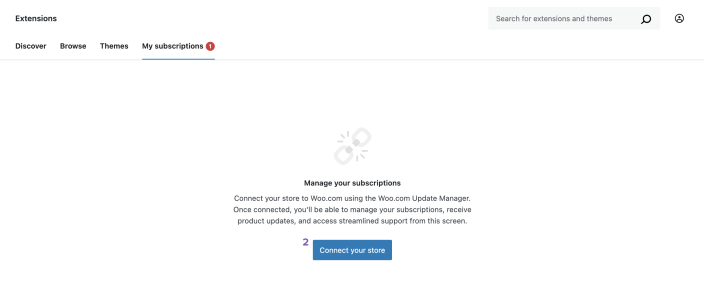
↑ Back to top- In your site’s WP Admin, go to WooCommerce > Extensions > My Subscriptions.
- Click the Connect button.
- If you are not already logged into your WooCommerce.com account, log in when prompted.

- Click the Connect your store button to authorize the connection.
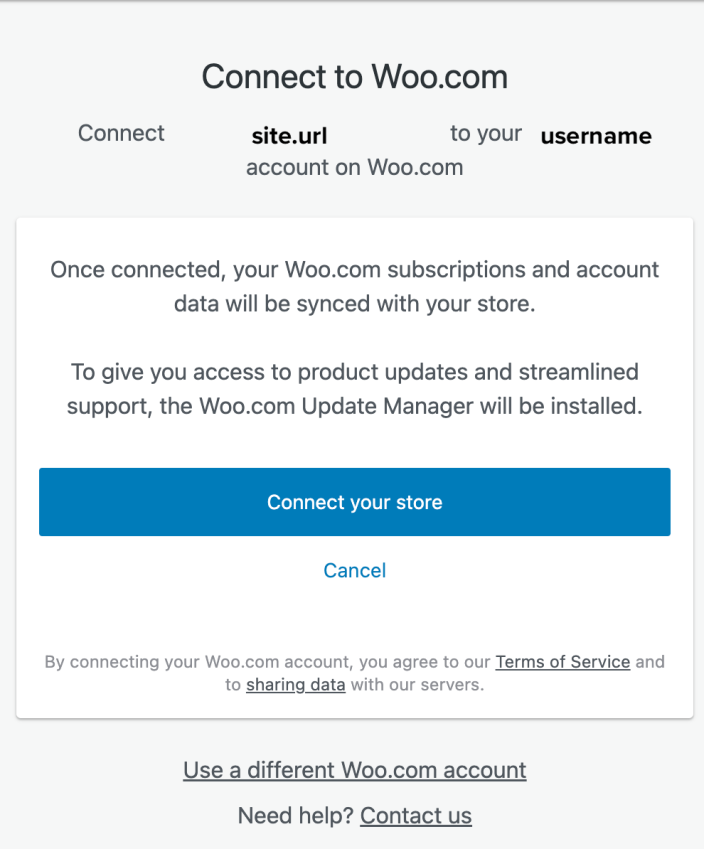
Once connected, your WooCommerce.com subscriptions and account data sync to your site. If you already own paid Woo Marketplace subscriptions, the WooCommerce.com Update Manager installs automatically.
During your first purchase
↑ Back to topWhen you complete your first purchase on WooCommerce.com, you are prompted to connect a store. Enter your store URL and approve the connection. For future purchases, your connected store is available for selection.
From the My subscriptions page on WooCommerce.com
↑ Back to top- Go to My subscriptions on WooCommerce.com.
- Click the Add to store button next to a product.
- Choose a connected store, or enter a new store URL to connect.
- Approve the connection if prompted.
From the My stores page on WooCommerce.com
↑ Back to top- Go to My stores on WooCommerce.com
- Click the Connect new store button
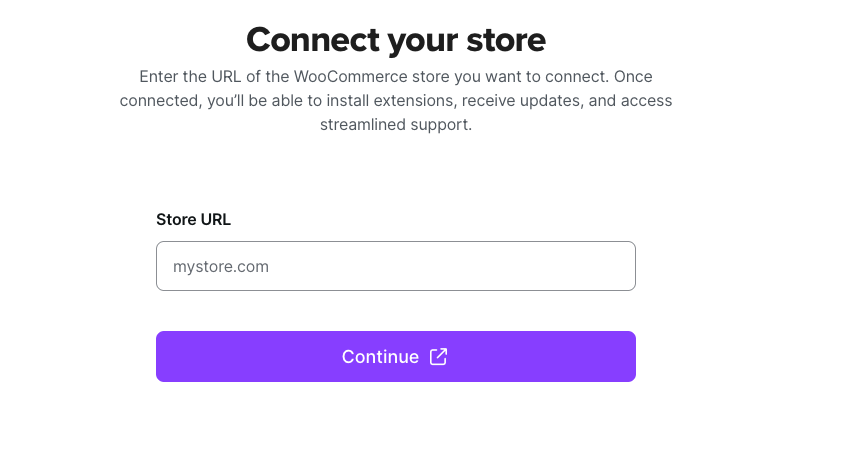
- Enter the Store URL
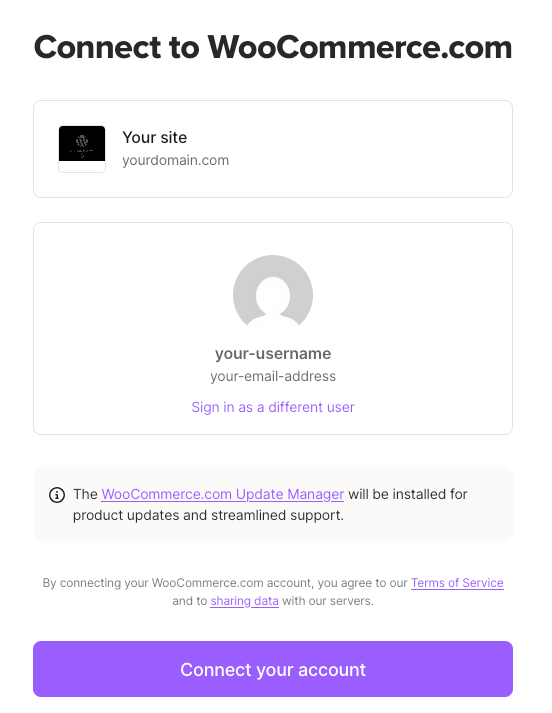
- Check the details are correct and click the Connect your account button
Use the correct WooCommerce.com account
When connecting your site, use the WooCommerce.com account that holds your Woo Marketplace purchases. Subscriptions are tied to the account used during purchase. If you connect with a different account, your subscriptions do not appear on the site.
To check which account is connected, go to WooCommerce > Extensions > My Subscriptions in your site’s WP Admin. Your connected account’s email address and Gravatar appear at the top of the page.
REST API requirement
↑ Back to topTo connect your site to WooCommerce.com, your site’s REST API must be accessible.
If the REST API is blocked by a security plugin, firewall, or hosting configuration, the connection may fail. Common causes include:
- Security plugins (e.g., Wordfence, Really Simple Security) that restrict or disable REST API access.
- Hosting-level firewalls that block
/wp-json/endpoints. - WordPress.com-hosted sites set to “Private” — automatic installation and connection features are not available while a site is private. Set the site to Coming Soon instead. See the WordPress.com privacy settings guide for instructions.
If you are unable to connect, verify that your REST API is accessible and consult your hosting provider or security plugin documentation.
Disconnect and reconnect your site
↑ Back to topIf you need to switch WooCommerce.com accounts, or if your connection is not working correctly, you can disconnect and reconnect your site.
How to disconnect
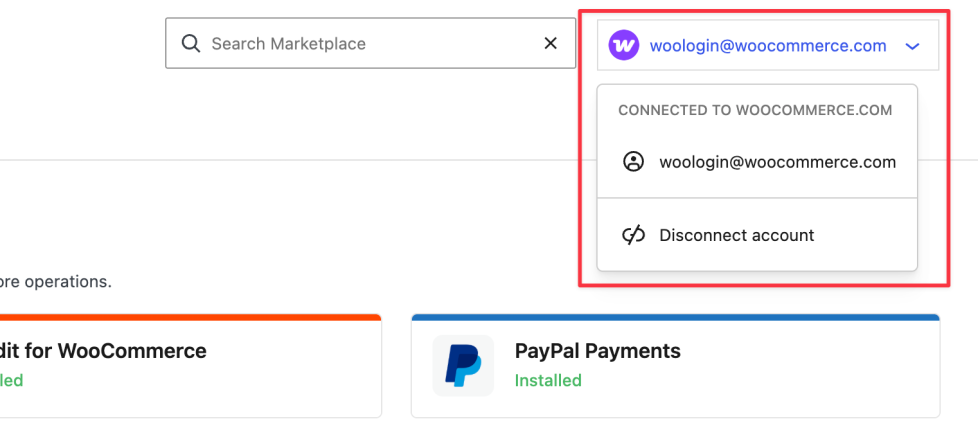
↑ Back to top- In your site’s WP Admin, go to WooCommerce > Extensions > My Subscriptions.
- Click the account dropdown (where your Gravatar and email address appear).
- Select Disconnect account.
- Confirm by clicking the Disconnect button in the pop-over.
How to reconnect
↑ Back to topAfter disconnecting, follow the prompts on the same page to connect your store to WooCommerce.com again (click here for detailed steps). Make sure you log in with the correct WooCommerce.com account — the one that holds your Woo Marketplace purchases.
Troubleshooting
↑ Back to top| Issue | Solution |
|---|---|
| Subscriptions do not appear on the site | Verify that the correct WooCommerce.com account is connected. Disconnect and reconnect with the account used to purchase the subscriptions. |
| Connection fails or times out | Ensure your site’s REST API is accessible. Check for security plugins or hosting firewalls blocking /wp-json/ endpoints. |
| WordPress.com-hosted site cannot connect | If the site is set to “Private,” change it to “Coming Soon” to enable REST API access. |
| “Connect” button does not respond | Clear your browser cache and try again. If the issue persists, try a different browser or disable browser extensions temporarily. |
| WooCommerce.com Update Manager does not install automatically | Verify the connection is active, then install the Update Manager manually using the download link. |
| Installing Jetpack does not resolve fix the connection to WooCommerce.com | The WooCommerce.com store connection does not use Jetpack. |
For additional help, see Troubleshoot common issues.
Related documentation
↑ Back to top- What are WooCommerce.com subscriptions?
- Installing extensions
- Activate and manage your subscriptions
- Log into WooCommerce.com with WordPress.com
- Connect your store to a WordPress.com account
Questions and support
↑ Back to topDo you still have questions and need assistance?
- Get in touch with a Happiness Engineer via our Help Desk. We provide support for extensions developed by and/or sold on WooCommerce.com, and Jetpack/WordPress.com customers.
- If you are not a customer, we recommend finding help in the WooCommerce support forum or hiring a Woo Agency Partner. These are trusted agencies with a proven track record of building highly customized, scalable online stores. Learn more about Woo Agency Partners.