
Purple controls the design of your WooCommerce store. It is a block theme, so you edit its layouts and styles in the WordPress Site Editor without changing theme files. Follow this guide to install Purple and check your first store design.
Get Purple through WooCommerce.com and install it on your test or staging site using the instructions below. Test it on a separate site before using it on a live store. If you are moving from Storefront, start with the migration guide.
Choose the guide for your task
↑ Back to top- Customize your store with the Purple theme: change styles, headers, footers, navigation, pages, patterns, and WooCommerce templates.
- Move your store to the Purple theme: plan a safe theme change for an existing store and review what may need to be rebuilt.
- Developing with the Purple theme: choose an update-safe customization path and find the relevant theme files and developer resources.
Before you install Purple
↑ Back to topYou need a WordPress site, an administrator account that can install themes, and WooCommerce installed and active. If you are new to WooCommerce, follow Installing WooCommerce first and add a product so you have something to review.
A staging site is a separate test copy that shoppers do not use. Ask your host how to create one if you already have a live store. On a new test site, configure the payment and shipping methods you plan to use before testing checkout.
- Use a staging site or a test copy of your store before changing themes. This lets you review customer-facing pages without affecting shoppers.
- Back up your site, including your existing theme settings, custom code, page content, and Site Editor changes.
- Purple currently requires WordPress 7.1 or later, WooCommerce 11.1 or later, and PHP 7.4 or later. Check the requirements for the release you install before continuing. Keep WooCommerce active; Purple uses WooCommerce blocks and store templates.
- Make a note of customizations from your current theme, such as custom CSS, child-theme files, widgets, page-builder layouts, and custom templates. You may need to rebuild these in the Site Editor.
Warning:
Purple’s starter patterns may include example copy, images, links, categories, and promotional details. Replace or remove that content before publishing. The theme does not import a product catalog or automatically make starter content accurate for your store.
Installation
↑ Back to topTo start using a product from WooCommerce.com, you can use the “Add to store” functionality on the order confirmation page or the My subscriptions section in your account.
- Navigate to My subscriptions.
- Find the Add to store button next to the product you’re planning to install.
- Follow the instructions on the screen, and the product will be automatically added to your store.
Alternative options and more information at:
Managing WooCommerce.com subscriptions.

Once Purple is installed, go to Appearance > Themes on your test site. If Purple is not already active, select Activate. Open the front end and check the homepage, catalog, product, cart, checkout, and account pages before making design changes.
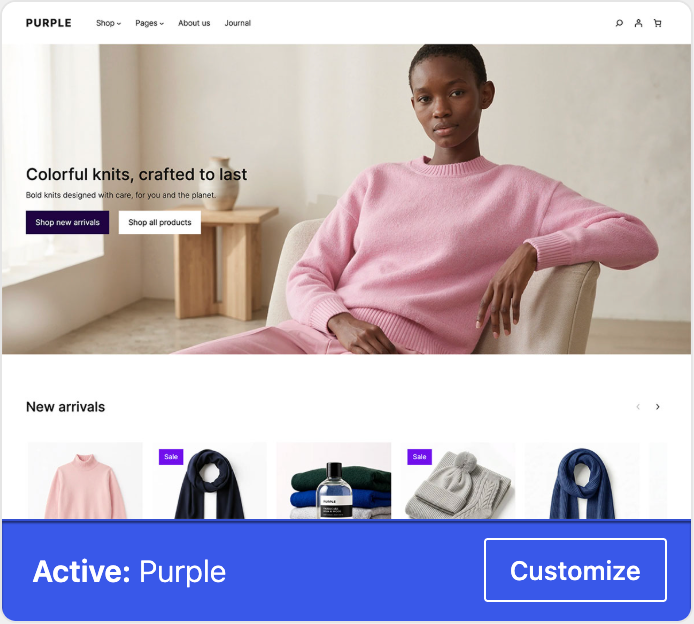
After activation, Purple should be marked as the active theme under Appearance > Themes, and Appearance > Editor should be available. Your store uses Purple’s design, but its products and WooCommerce settings stay in place.
Test Purple updates on staging before applying them to your live store. For help managing your WooCommerce.com connection and product updates, see Managing WooCommerce.com subscriptions.
Ask an agent to help with installation (optional)
↑ Back to topIf you use an AI agent with access to your WordPress site, copy the prompt below. You may need to complete steps the agent cannot access. Do not include passwords or access tokens in the prompt.
Installation prompt:
“Help me install the latest released version of Purple on a test or staging site. Confirm the site URL with me, check the release requirements, and verify that I have a current backup. Use the WooCommerce.com installation instructions in this guide. Confirm that Purple is available in my WooCommerce.com account before installing it on the test site. If I need to add it to my account or connect the store, ask me to complete those steps. Show me the theme, version, and planned changes before installing. Do not use a development build or pre-release. Ask for my confirmation before activating Purple, replacing an existing installation, or updating other software. Do not change my live store or place real orders or charges. After approved activation, verify that Purple is active and the Site Editor opens. Help me review the storefront and test checkout using test payments. Report what passed, what failed, and anything you could not verify.”
Set up your store design
↑ Back to topGo to Appearance > Editor. Open Styles to choose your colors and typography. Then review the header, homepage, and footer and replace any sample content.
A template controls the layout of a type of page, such as a product page. A template part is a shared section, such as the header. Editing either can affect several pages. Use the page editor for content that belongs only on one page.
When you are ready for the detailed editing steps, see Customize your store with the Purple theme. For general information about templates, styles, blocks, and saving changes, see Using the WordPress Site Editor in WooCommerce.
Use the Purple demo as a reference for the storefront structure. Your products, content, and store settings determine the final result. If your store uses a static homepage, confirm that the assigned page shows the content you expect after activation, then remove or replace any demo sections before publishing.

Check your store pages
↑ Back to topPurple supplies a starting design, but your products, store settings, payment methods, shipping methods, and extensions determine what customers can do on each page. Test the complete shopping path after changing the theme.
- Review the product catalog, product page, cart, checkout, order confirmation, and My Account pages.
- Check product search, category pages, filters, pagination, empty states, and no-results states. Test the filter layouts available in your WooCommerce version at desktop, tablet, and mobile widths.
- Test the layouts at desktop, tablet, and mobile sizes.
- Complete a test purchase using the payment, shipping, and extension workflows your store needs.
Use the WooCommerce store editing guides for detailed instructions about product catalogs, product pages, cart, checkout, and other store templates.
Extensions and compatibility
↑ Back to topPurple’s templates can affect how extensions look and behave on the storefront. Compatibility testing has included Subscriptions, Bookings, Product Add-Ons, Product Bundles, Gift Cards, Stripe, PayPal, and WooPayments. Test the versions and customer journeys your store uses; this test set does not guarantee that every extension or configuration works with Purple.
To report a problem, open an issue in the Woo Themes repository. Include your WordPress, WooCommerce, PHP, and Purple versions, the affected page or block, and steps to reproduce the problem. Add screenshots for visual issues, but remove customer details and other private information.
- Test product options, subscriptions, bookings, bundles, gift cards, payments, and other extension-specific workflows that your store uses.
- Complete a test purchase and review the order confirmation, customer account, emails, and any extension-created pages.
- If an extension does not display as expected, review the extension author’s documentation and support process before changing the Purple templates.
Troubleshooting
↑ Back to top- The Site Editor is unavailable: confirm that Purple is active and that your WordPress installation meets the requirements for the release you installed.
- A pattern or template is missing: confirm that you are editing the active site or template and that the relevant WooCommerce blocks are available.
- A starter section is empty or inaccurate: open the pattern in the Site Editor and replace its example copy, images, links, product selections, categories, and shipping or promotional statements with values for your store.
- A change affects more pages than expected: check whether you edited a shared template or template part instead of an individual page.
- Your static homepage shows unexpected content: review the assigned homepage and the front-page template in the Site Editor, compare them with your backup, and remove or replace any unexpected demo sections.
- You need to undo the change: use the Site Editor revision history where available, restore a backup, or reactivate your previous theme while you investigate.
Next steps
↑ Back to top- Read the customization guide if you are starting a new design.
- Read the migration guide if you are changing an existing store.
- Read the developer guide if you are building a child theme, custom extension, or update-safe theme customization.
- Back up your site and test future Purple, WooCommerce, and extension updates on staging before applying them to your live store.

