
WooCommerce 11.0 lets customers confirm that they own the email address on their account. After confirmation, WooCommerce links matching past guest orders to the account so the customer can find them under My account > Orders.
Important: This account-confirmation flow is different from the email check shown when someone opens a guest order payment link. See Customer Verification in Paying for Orders for that payment-page privacy check.
When customers are asked to confirm
↑ Back to topA logged-in customer whose current account email is not confirmed sees a prompt on the My account > Orders page. WooCommerce shows the prompt whether or not matching guest orders exist. This avoids revealing the existence of orders before the customer proves that they control the email address.

Since WooCommerce 11.1, the prompt only appears when confirming could actually link a guest order to the account. WooCommerce hides it when:
- Guest checkout is turned off in Accounts and Privacy Settings, since no guest order could exist to link.
- The confirmation email itself is disabled at WooCommerce > Settings > Emails > Confirm email address.
- The account still shows a temporary-password notice. Completing the emailed set-password link confirms the address, so the separate prompt isn’t needed. Completing a later password reset also confirms the current account email.
Customer confirmation flow
↑ Back to top- The customer signs in and opens My account > Orders.
- They select Confirm email address. WooCommerce sends a one-time link to the account email address.
- The customer opens the link within 24 hours.
- If they are logged out, WooCommerce asks them to sign in. They must sign in to the same account that requested the link.
- WooCommerce confirms the address and links matching guest orders to the account.
The link does not sign the customer in automatically. Email scanners and logged-out visitors cannot use or consume it because confirmation only completes while the target customer is signed in.
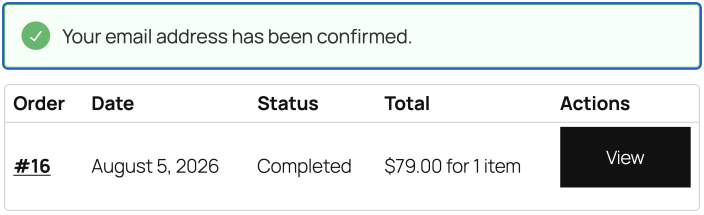
Which orders are linked
↑ Back to topWooCommerce links past orders that:
- Are still assigned to the Guest customer.
- Use the same billing email address as the customer’s current account email.
Orders already assigned to another registered customer are not moved. If a customer changes their account email address, the confirmation status no longer applies to the new address and they must confirm it separately.
Confirmation link results and retries
↑ Back to top- Link sent — WooCommerce asks the customer to check their inbox.
- Requested again within one minute — WooCommerce keeps the current link active and asks the customer to wait before requesting another.
- Expired or invalid link — The customer is asked to return to My account > Orders and request a new link.
- Signed in to a different account — WooCommerce does not confirm the address and asks the customer to log out and open the link again.
- Link opened again after confirmation — WooCommerce takes the customer to their Orders page without repeating the confirmation.
Manage confirmation from a customer profile
↑ Back to topAn authorized user can manage the status from Users > All Users by opening the customer profile and finding the Email confirmation section.

- Selecting Email address confirmed confirms the customer’s current email and immediately links matching past guest orders.
- Clearing the checkbox resets the confirmation status. It does not detach orders that have already been linked.
The control is available only to users with the manage_woocommerce capability who can access the relevant profile screen.
Customize the confirmation email
↑ Back to topGo to WooCommerce > Settings > Emails > Confirm email address to enable or disable the notification and customize its subject, heading, additional content, and email type. You can also preview the message and send a test email. See Email settings for more information.