
Subscription includes
Support
Biometric Passkey Login for WooCommerce is a WordPress and WooCommerce extension that replaces the password with a passkey, built on the FIDO2 and WebAuthn standards that Apple, Google, and Microsoft already ship in every current device. Your customers tap a fingerprint reader or look at their phone and they are signed in. Your staff get sign-in credentials that cannot be phished, reused, or leaked in someone else’s data breach, because there is no password on your server to steal. You install it, turn it on, and each person registers their own passkey once from their account page. Everything after that is a single tap.
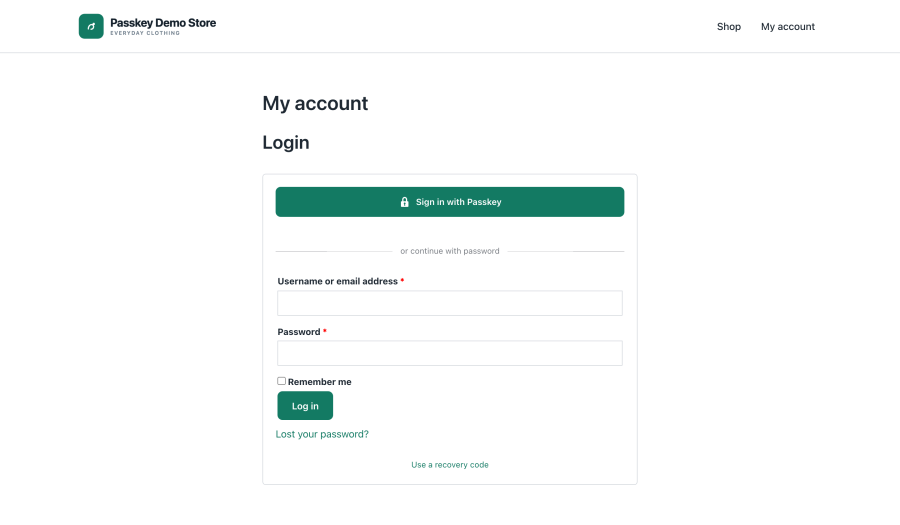
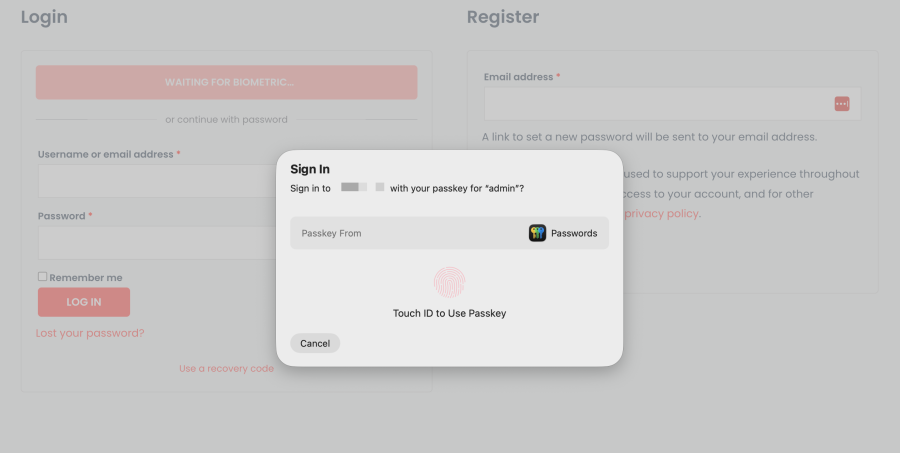
Passkey sign-in in three places. The button appears on the WordPress login screen, on the WooCommerce My Account login form, and in the classic checkout’s login prompt. On the block checkout it appears on the login page the checkout links to, and signing in returns the customer to checkout with their cart still there. The button stays hidden until the browser confirms it supports passkeys, so nobody sees a control that cannot work for them.
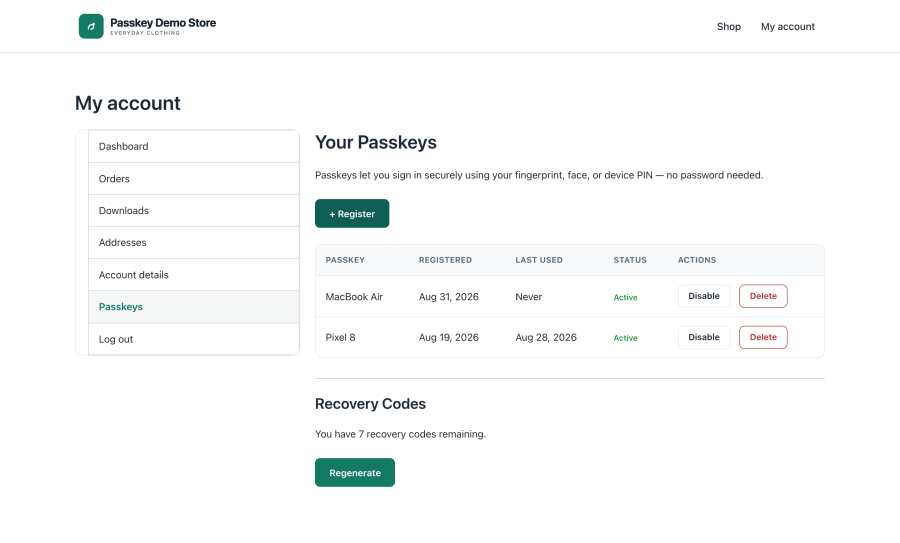
A Passkeys tab in My Account. Customers add, name, disable, and remove their own devices without contacting you. The page is a standard WooCommerce template, so your theme can override it.
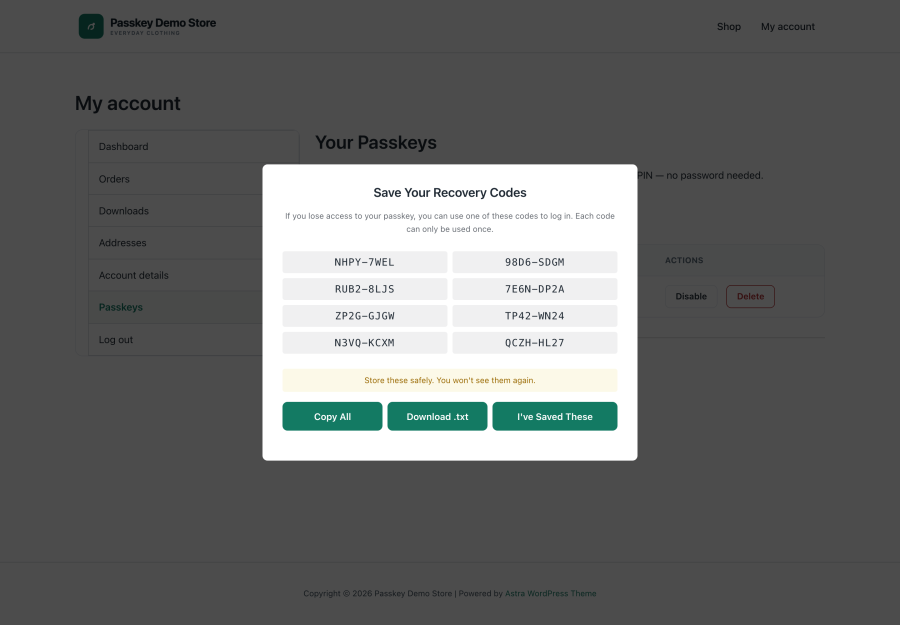
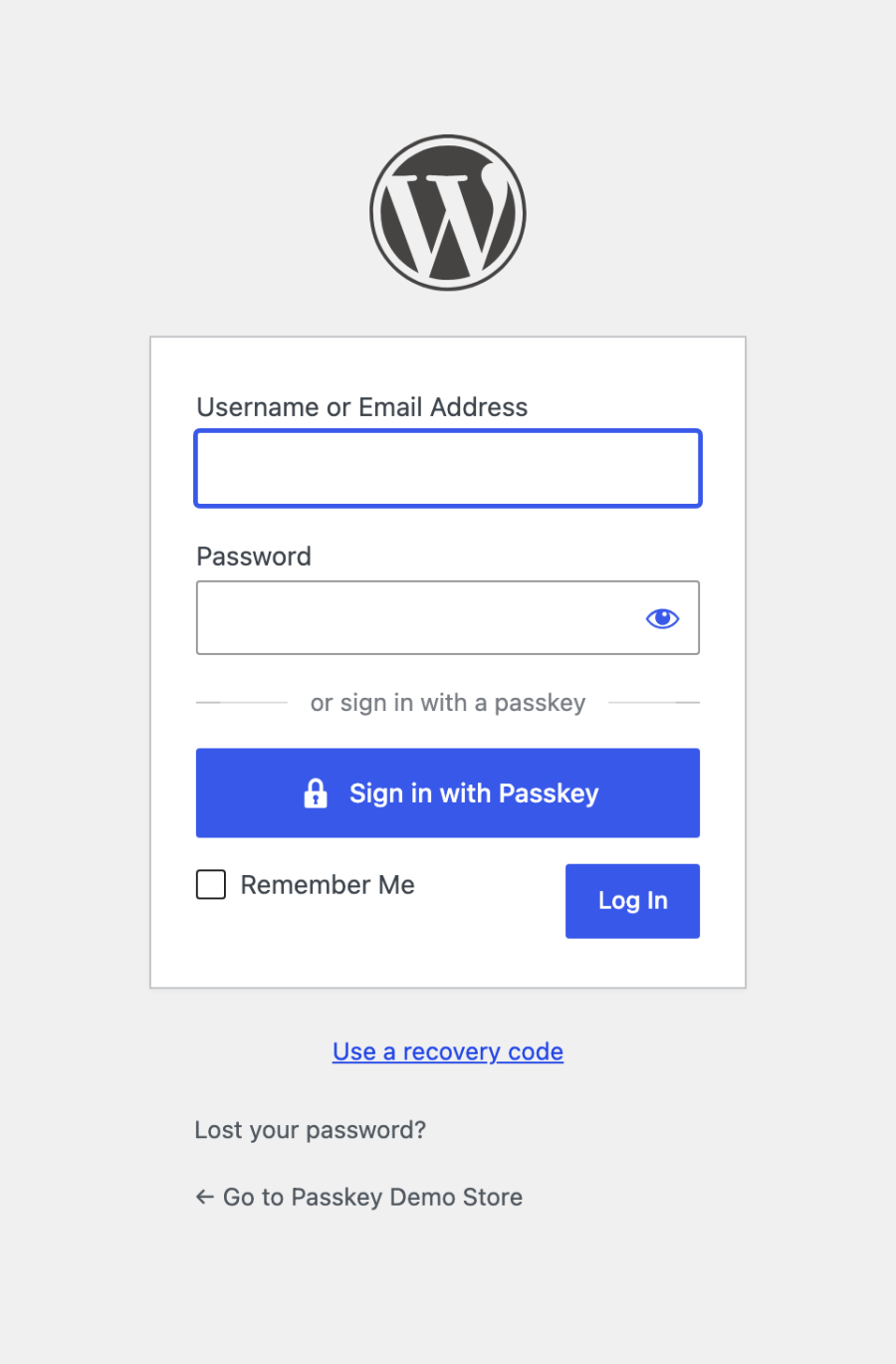
Recovery codes that actually recover the account. Each user gets a set of one-time codes, 8 by default and configurable from 4 to 16, generated automatically with their first passkey. Codes are stored hashed, shown once with copy and download buttons, and each works exactly once. A “Use a recovery code” link sits under the passkey button on both login forms. Administrators can clear a user’s codes from the profile screen when a set has been exposed.
Per-role policy, not one switch for everyone. Decide which roles may register passkeys and which roles must use one. A user in a required role who has a passkey can no longer sign in with a password. A user in a required role who has none is sent to the setup screen after login and held there until they enroll, which is what makes a staged rollout possible.
Passkey-only mode when you are ready. Hides the password fields site-wide so a passkey or a recovery code is the only way in. Up to 20 devices per person. The default cap is 5, which covers a phone, a laptop, a work machine, and a hardware key. Raise or lower it to suit your team.
Authentication settings that match your risk. Choose whether the device always asks for a biometric check, asks where supported, or treats the passkey alone as sufficient. Set how long the browser waits for the prompt, from 15 to 300 seconds. Request hardware attestation if your organization has to verify specific authenticator models. An activity log with real filters. Filter by event type, start date, and end date, then export the result as CSV. Retention is yours to set, from 7 days to 365, or indefinite.
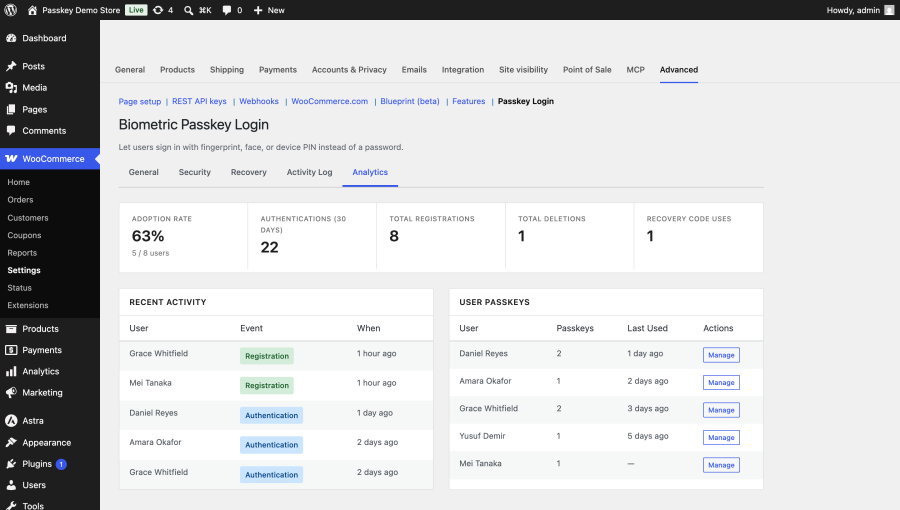
An analytics tab that answers “is this working?” Adoption rate with the underlying counts, authentications in the last 30 days, lifetime registrations and deletions, recovery code uses, and a per-user breakdown of who has enrolled and when they last signed in. Sign-in protection built in. Authentication requests are rate limited per IP address. Recovery attempts are throttled per account as well, with a cooling-off period after repeated failures, and unknown usernames throttle identically to real ones so the response cannot be used to discover which accounts exist.

Answers your GDPR requests. The extension registers with Tools > Export Personal Data and Tools > Erase Personal Data. An export includes a person’s passkeys, recovery code status, and sign-in history. An erasure removes their passkeys and codes and anonymizes their sign-in history, so your audit trail survives without the personal data in it. Deleting a WordPress account does the same thing automatically.
Manage passkeys from an AI assistant. Fourteen tools let an assistant connected over MCP read adoption statistics, query the activity log, find privileged users still on passwords, and revoke a passkey or clear recovery codes. Registering a passkey and signing in are deliberately not exposed, because both need a real browser and a real device. Every tool requires administrator permission, IP and email addresses are shortened before anything leaves your site, and a guard refuses any change that would lock you out of your own store. Turn the whole surface off with one checkbox if you would rather not have it.
Available in 18 languages. Arabic, Chinese (Simplified), Danish, Dutch, Finnish, French, German, Greek, Hebrew, Indonesian, Japanese, Korean, Portuguese (Brazil), Russian, Spanish, Swedish, Thai, and Turkish translations ship with the extension.
Stores with repeat customers. Subscription boxes, refill orders, and anything where the same people check out month after month. Every returning customer who fumbles a password is a checkout at risk, and passkeys remove the step entirely.
Stores where staff accounts are the real target. If administrators and shop managers can be phished, the store can be taken. Require passkeys for those roles, leave customers on passwords, and a stolen staff password stops being useful on its own.
Agencies handing a store to a client. Turn on passkeys for the client’s team, watch the analytics tab until adoption hits 100 percent, and hand over a store where nobody’s login is a sticky note. The per-role policy means you can enforce it for staff without touching the customer experience. Stores that answer to a compliance process. The activity log, the CSV export, and the built-in data export and erasure handling give you the records a review will ask for, without a second plugin.
There are good free passkey plugins for WordPress, and they all do the same core thing this one does: put a passkey button on the login screen. If you run an admin-only site, one of them is probably the right answer and you should use it. The gap shows up when the site is a store. A free plugin gets your customers signed in. It does not get them back in when they lose the phone their passkey lived on, it does not give them a page in My Account to manage their own devices, and it does not let you make passkeys mandatory for staff while customers keep passwords. The two plugins below are the ones a buyer would actually weigh:
| This extension | Secure Passkeys | WP-WebAuthn | |
|---|---|---|---|
| Recovery codes if a device is lost | Yes, one-time and hashed | No | No |
| Self-service device management for customers | Passkeys tab in My Account, theme-overridable | No | No |
| Passkey sign-in at checkout | Yes, returns to cart intact | No | No |
| Making passkeys mandatory | Allowed and required are separate per-role settings | Restricts which roles may use passkeys | Role checking only |
| Passwordless-only mode | Yes, site-wide | No | Password reset can be disabled |
| GDPR export and erasure requests | Registers with the core privacy tools | No | No |
| Adoption reporting | Adoption rate, per-user enrolment, 30-day activity | No | No |
| AI assistant tools over MCP | 14 administrator-gated tools | No | No |
| This extension | Secure Passkeys | WP-WebAuthn | |
|---|---|---|---|
| Passkey button on the WordPress login screen | Yes | Yes | Yes |
| Multiple passkeys per person | Up to 20, default 5 | Yes, configurable | Yes |
| Restricting which roles may register | Yes | Yes | Yes |
| Activity logging | Yes, filterable with CSV export | Yes, with cleanup schedule | No |
| Rate limiting on sign-in | Per IP and per account | Per IP | Not listed |
| Shortcodes | Yes | Yes | Yes |
Before you buy, check these against your hosting:
Categories
Quality Checks
Countries