
In this guide:
- What Is the Scheduled Exports Feature?
- Why Automate Your WooCommerce Order Exports?
- Before You Start: Create a Saved View
- How to Create a Scheduled Export (Step by Step)
- Email Attachment vs. Secure Download Link
- What Happens Behind the Scenes
- Managing Your Schedules
- File Retention, Security, and Permissions
- Developer Hooks and Filters
- Frequently Asked Questions
- Troubleshooting Common Issues
What Is the Scheduled Exports Feature?
↑ Back to topIf you run a WooCommerce store, you already know the drill: every Monday morning, or every first-of-the-month, someone has to log in to wp-admin, apply a handful of filters to the Orders screen, click Export, and email the resulting spreadsheet to accounting, fulfillment, or a marketing partner. It is a small task that repeats forever — and every repeat is a chance for someone to apply the wrong filter, forget the attachment, or simply be on vacation when the report is due.
Scheduled Exports, built into Extra Order Filters for WooCommerce (available from version 2.8.0 onward), removes that manual step entirely. It takes any Saved View — a named combination of order filters you have already set up — and turns it into a recurring job: daily, weekly, monthly, or on a custom cron cadence of your choosing. Each time it runs, it builds a fresh CSV or XLSX file of every order matching that view and delivers it automatically, either as an email attachment or as a secure, time-limited download link.
In short: you define the report once, and the plugin keeps producing it for you, on time, every time.
Why Automate Your WooCommerce Order Exports?
↑ Back to topManual exports do not scale, and they quietly cost more than they appear to. Here is what teams typically gain by switching to Scheduled Exports:
- Consistency. The same filters run the same way every time — no risk of a tired team member selecting the wrong date range or forgetting a status filter.
- Time back. A five-minute manual task, done daily or weekly, adds up to hours every quarter. Automating it gives that time back to higher-value work.
- Reliable handoffs. Fulfillment partners, accountants, and marketing teams receive the data on a predictable schedule, without having to chase anyone internally.
- No single point of failure. The export runs whether or not the person who originally set it up is online, in the office, or even still with the company.
- Safer at scale. Large result sets never silently fail — the system automatically adapts delivery (more on this below) instead of producing a broken or oversized email.
Common real-world use cases include a daily “orders awaiting fulfillment” report sent to a warehouse team, a weekly “refunded orders” export for finance, a monthly “VIP customer orders” report for a loyalty program, or a recurring feed of flagged/high-risk orders for a fraud-review process.
Before You Start: Create a Saved View
↑ Back to topScheduled Exports always runs on top of a Saved View — this is the one prerequisite. A Saved View is a named, reusable combination of filters applied from the WooCommerce Orders screen (for example, “Support Queue,” “International Orders,” or “VIP Customers”).
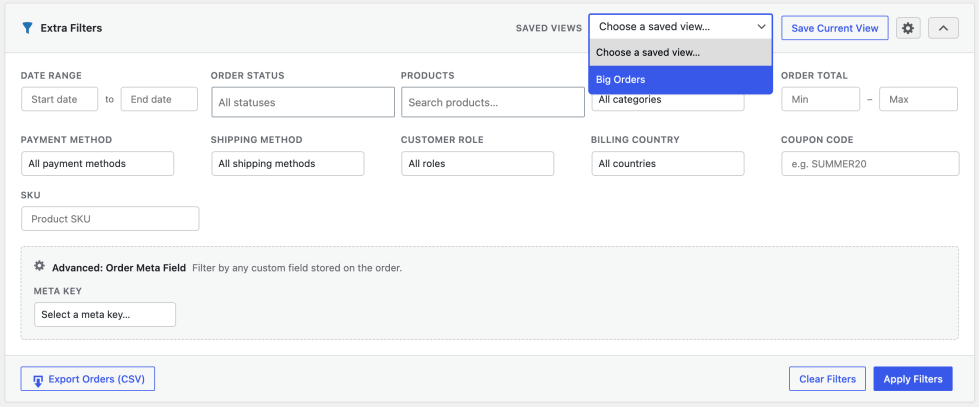
If you have not created one yet:
- Go to WooCommerce → Orders.
- Apply the filters you want the report to include (status, date range, product, customer, or any of the other available filters).
- Save the filter combination as a named view.
Once the view exists, it becomes selectable inside the Scheduled Exports setup screen. This separation is deliberate: the filtering logic lives in one place (your Saved Views), and the delivery logic — when, how, and to whom — lives in the schedule itself. Update the Saved View later and every schedule built on it automatically picks up the new filter criteria on its next run.
How to Create a Scheduled Export (Step by Step)
↑ Back to topNavigate to WooCommerce → Settings → Order Filters. The “Scheduled Exports” screen loads by default (the “Custom Column Builder” tool lives alongside it as a second section).
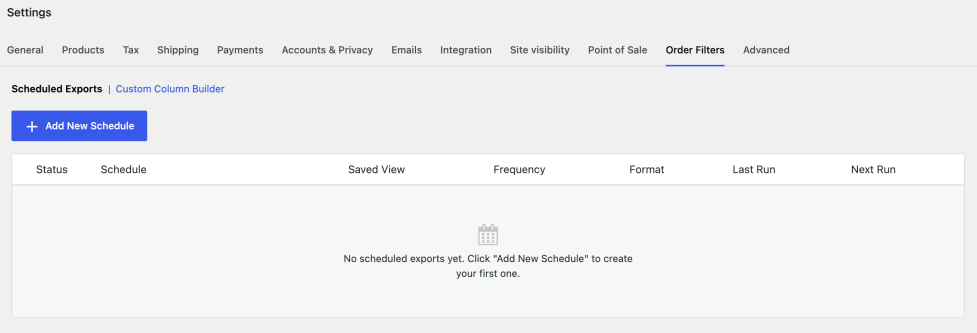
Click Add New Schedule to open the setup modal and configure the following:
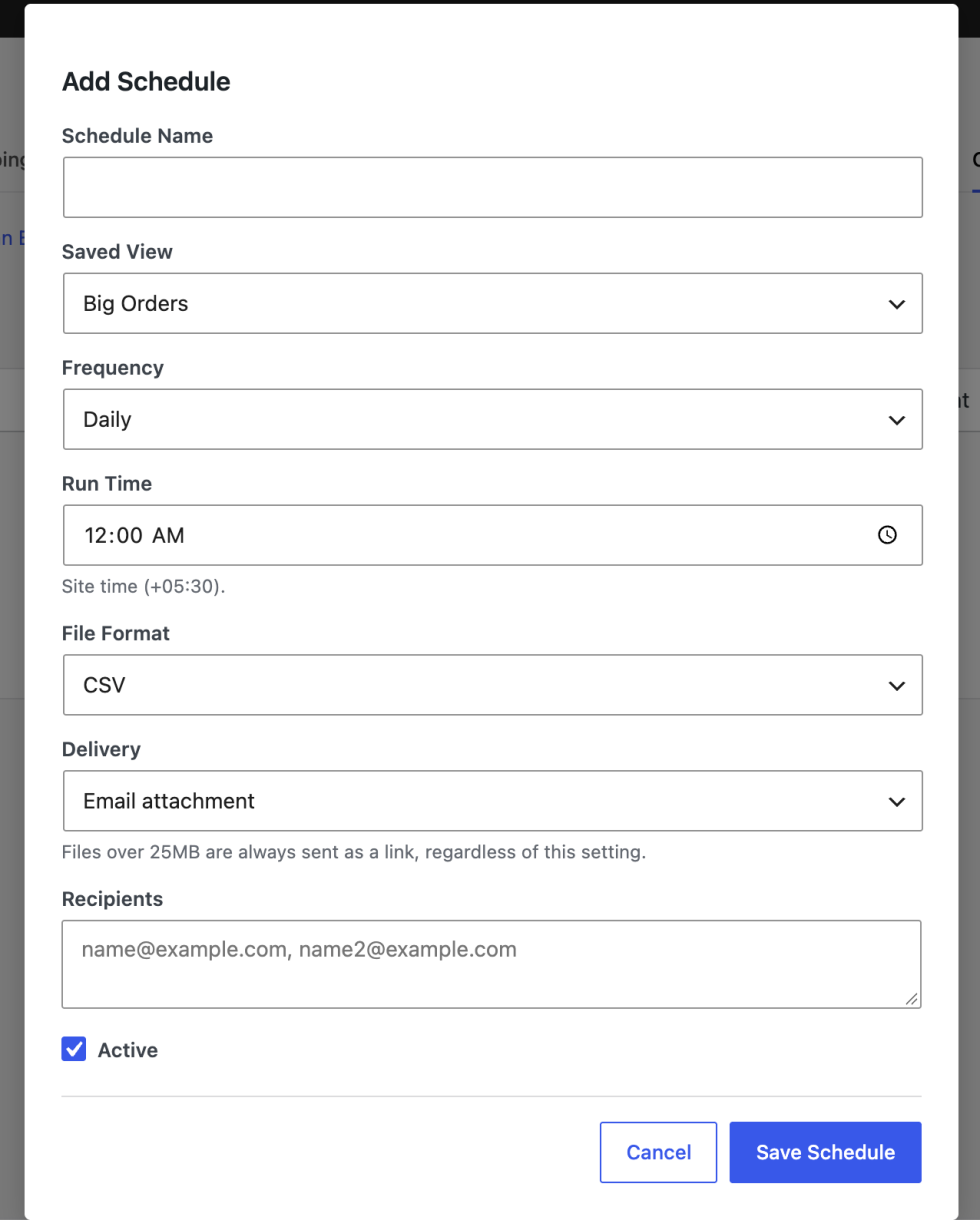
1. Schedule Name
↑ Back to topA clear, internal label (for example, “Weekly Fulfillment Report”). This is required and is what you will see in the schedule list, in run logs, and in the email subject line sent to recipients.
2. Saved View
↑ Back to topChoose which Saved View supplies the filter criteria for this export. Required.
3. Frequency
↑ Back to topChoose how often the export should run:
- Daily — runs once every day at the time you specify.
- Weekly — runs once a week on a day of your choosing (Sunday through Saturday).
- Monthly — runs once a month on a day of your choosing (1–31). If a chosen day does not exist in a given month — the 31st in February, for instance — the run is automatically capped to that month’s last day, so it never silently skips a month.
- Custom — enter a standard 5-field cron expression (minute, hour, day of month, month, day of week) for full control, ideal for cadences like “every weekday” or “twice a month.”
For Daily, Weekly, and Monthly schedules, you also set a Run Time (HH:MM). This is entered in your site’s local timezone and converted automatically under the hood — you never need to do timezone math yourself.
4. File Format
↑ Back to topChoose CSV or XLSX. CSV is the universal choice for compatibility with virtually any spreadsheet tool or import system; XLSX preserves native Excel formatting. If XLSX generation isn’t available in a given server environment, that specific run automatically falls back to CSV, so delivery is never blocked by a missing server dependency.
5. Delivery Method
↑ Back to topChoose how the finished file reaches its recipients — see the full comparison in the next section.
6. Recipients
↑ Back to topEnter one or more email addresses, separated by commas, spaces, or semicolons. Invalid addresses are automatically discarded, and duplicates are removed, so a slightly messy paste from another document won’t break the schedule.
7. Active / Inactive
↑ Back to topNew schedules are active by default. Use this toggle to pause a schedule without deleting its configuration or its run history — useful for seasonal reports you only need part of the year.
Click Save, and the schedule is armed immediately using WooCommerce’s built-in background job system (Action Scheduler) — no additional server cron configuration is required.

Email Attachment vs. Secure Download Link
↑ Back to topChoosing the right delivery method matters once your order volume grows. Here’s how the two options compare:
| Delivery Method | How It Works | Best For |
|---|---|---|
| Email Attachment | The CSV/XLSX file is attached directly to the notification email sent to each recipient. | Smaller, routine exports where recipients want the file in their inbox with zero extra clicks. |
| Secure Download Link | The email contains a button linking to a token-protected download URL instead of an attachment. | Large exports, recipients on strict email attachment-size policies, or anyone who prefers not to store large files directly in their inbox. |
Built-in safety net: if you choose Email Attachment but a particular run produces a file larger than 25 MB, the plugin automatically switches that run only to a secure download link instead of failing or producing an undeliverable email. Your recipients always get the data, regardless of how large a single export happens to be.
Download links do not require the recipient to log in to your site — the link itself, a long random security token, is the credential. Each link remains valid for 7 days and can be used more than once within that window, which is useful for a recipient who wants to re-download the same file on a different device.
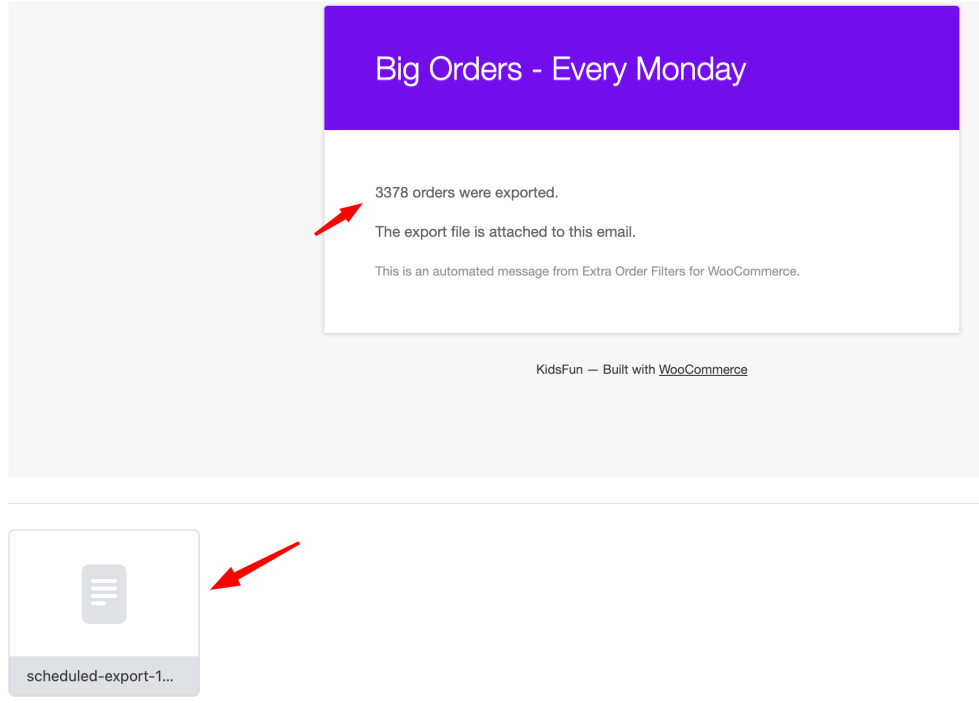
What Happens Behind the Scenes
↑ Back to topA few design details make Scheduled Exports dependable without requiring any attention from you:
- No duplicate runs. Each schedule enforces a 5-minute cooldown between runs, so an accidental double-click on “Run Now,” or a timing overlap with the regular cron, can never generate and send the same report twice.
- Automatic retry on failure. If a run encounters an unexpected error, it is logged as failed and the system automatically retries it once, 15 minutes later, before giving up.
- Self-healing if a Saved View is deleted. Should the Saved View behind a schedule ever be removed, the schedule pauses itself automatically (rather than failing silently on every future run) and a one-time, dismissible notice appears in wp-admin identifying exactly which schedule needs attention.
- Zero-result runs are still reported. If a run matches no orders, recipients still receive a short notification email confirming that no orders matched the filters that time — so “no news” never gets mistaken for “it’s broken.”
Managing Your Schedules
↑ Back to top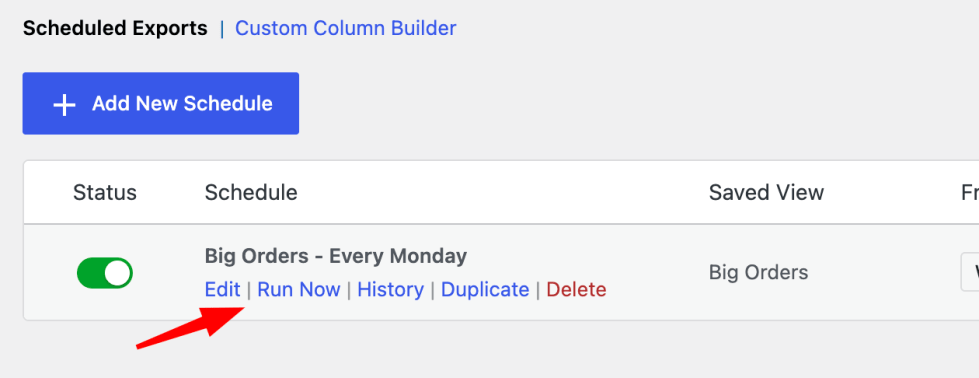
Every schedule in your list supports the following actions:
- Run Now — triggers an immediate, on-demand run in the background (subject to the same 5-minute cooldown as automatic runs), useful for testing a new schedule or generating an out-of-cycle report.
- Edit — change any setting, including swapping the underlying Saved View.
- Duplicate — creates an exact copy (always saved as inactive, so you can safely adjust it before turning it on) — handy for spinning up a near-identical schedule for a different recipient list or cadence.
- Activate / Deactivate — pause and resume a schedule instantly from the list view.
- Delete — permanently removes the schedule and its run history.
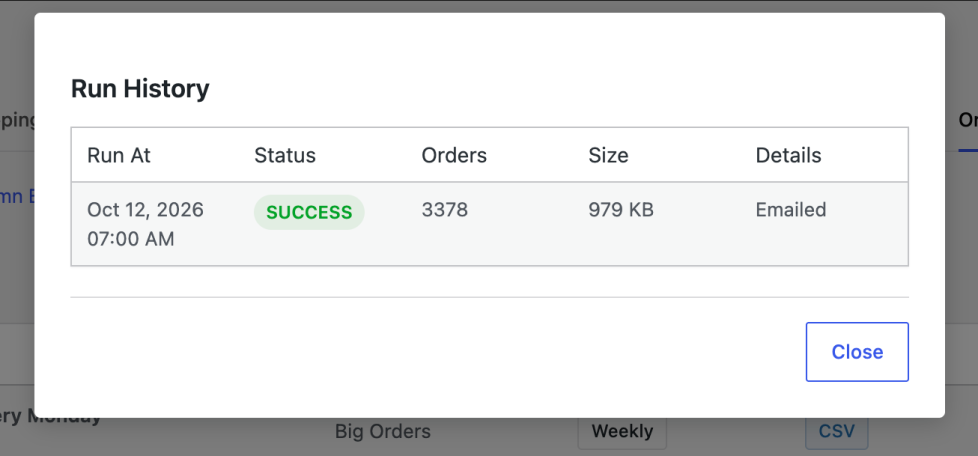
- View Logs — inspect the most recent 20 runs for any schedule, each showing the run time, success or failure status, number of orders exported, resulting file size, and — for runs still within their 7-day window — a working download link.
File Retention, Security, and Permissions
↑ Back to topAutomated exports can contain sensitive customer and order data, so several safeguards are built in by design:
- Access control. Only users with WooCommerce’s
manage_woocommercecapability (typically Shop Managers and Administrators) can create, edit, run, or view scheduled exports. - Token-secured downloads. Download links use a long, randomly generated, single-purpose security token rather than relying on a guessable URL or a logged-in session.
- Time-limited access. Download tokens expire after 7 days.
- Automatic file cleanup. Generated export files are stored on the server for 30 days, after which a daily housekeeping task permanently deletes them. Run history is preserved for your records even after the underlying file has been cleaned up.
Developer Hooks and Filters
↑ Back to topFor stores with custom requirements, two WordPress filters are available for developers to customize the notification email that Scheduled Exports sends:
eofw_scheduled_export_email_content— filter the message content before it is wrapped in the standard WooCommerce email header/footer.eofw_scheduled_export_email_body— filter the fully rendered HTML email body, after it has been wrapped and styled.
These make it straightforward to adjust the email’s wording, add store-specific branding elements, or inject additional context for recipients — without touching core plugin files.
Frequently Asked Questions
↑ Back to topDo I need a separate cron job or server-level scheduling tool?
↑ Back to topNo. Scheduled Exports runs on WooCommerce’s built-in background job system (Action Scheduler), which is already active on any site running WooCommerce. There is nothing additional to install or configure on the server.
What file formats are supported?
↑ Back to topCSV and XLSX. If your hosting environment doesn’t support XLSX generation at the moment a schedule runs, that run automatically falls back to CSV so the export is never blocked.
What happens if an export file is too large to email?
↑ Back to topIf a run configured for email attachment produces a file larger than 25 MB, that run is automatically delivered as a secure download link instead — no manual intervention required.
How long are export files kept?
↑ Back to topGenerated files remain available for 30 days before automatic cleanup removes them. Download links themselves expire after 7 days, whichever comes first.
Can I send the same export to multiple people?
↑ Back to topYes. Add as many recipient email addresses as needed, separated by commas, spaces, or semicolons.
What happens if I delete the Saved View a schedule depends on?
↑ Back to topThe schedule automatically pauses itself and logs the reason, and you’ll see a one-time admin notice naming the affected schedule — nothing fails silently.
Can I trigger an export outside of its normal schedule?
↑ Back to topYes — use the “Run Now” action on any schedule to generate and deliver a report immediately, subject to a short cooldown that prevents accidental duplicate sends.
Who can set up or manage scheduled exports?
↑ Back to topOnly users with the WooCommerce Shop Manager / Administrator capability (manage_woocommerce) can access this feature.
Troubleshooting Common Issues
↑ Back to top- A schedule shows as paused and I didn’t pause it. Check whether the Saved View it depends on was deleted or renamed — this is the most common automatic-pause trigger. Re-select or recreate the Saved View, then reactivate the schedule.
- Recipients say they never received the email. Check the schedule’s run logs first — a “failed” status will show the underlying error. If the run shows “success,” verify the recipient’s spam folder and confirm the email address was entered correctly (invalid addresses are silently dropped during validation).
- A download link says it has expired. Download links are valid for 7 days from the run that generated them. Use “Run Now” to generate a fresh export and a new link.
- An export seems to be missing recent orders. The export reflects whatever the underlying Saved View’s filters match at the moment the schedule runs — double-check the Saved View’s filter criteria (date range, status, etc.) rather than the schedule itself.
Final Thoughts
↑ Back to topScheduled Exports takes one of the most repetitive parts of running a WooCommerce store — pulling the same filtered order report again and again — and turns it into something that simply happens on its own. Set it up once against a Saved View, choose how often and how it should be delivered, and let the plugin handle the rest, with automatic safeguards for large files, failed runs, and deleted views already built in.
If you haven’t tried it yet, start with one recurring report you currently build by hand — a daily fulfillment queue or a weekly refunds list is a great first candidate — and let Scheduled Exports take it off your plate.

