
It’s been a big year for Stripe for WooCommerce. Here’s a look back at the past 12 months of releases, including features built to improve your conversion rate: prices in each shopper’s local currency, the payment methods they’re most likely to use, and Amazon Pay at express checkout. Already using Stripe? Update the extension, then check WooCommerce > Settings > Payments > Stripe to see which options are available for your store.
Shoppers can pay in their own currency
With Adaptive Pricing, international shoppers see prices in their local currency at checkout, on both the classic and block checkout. Order confirmation emails and the order details page show the converted amount, and the order edit screen shows what the customer paid.
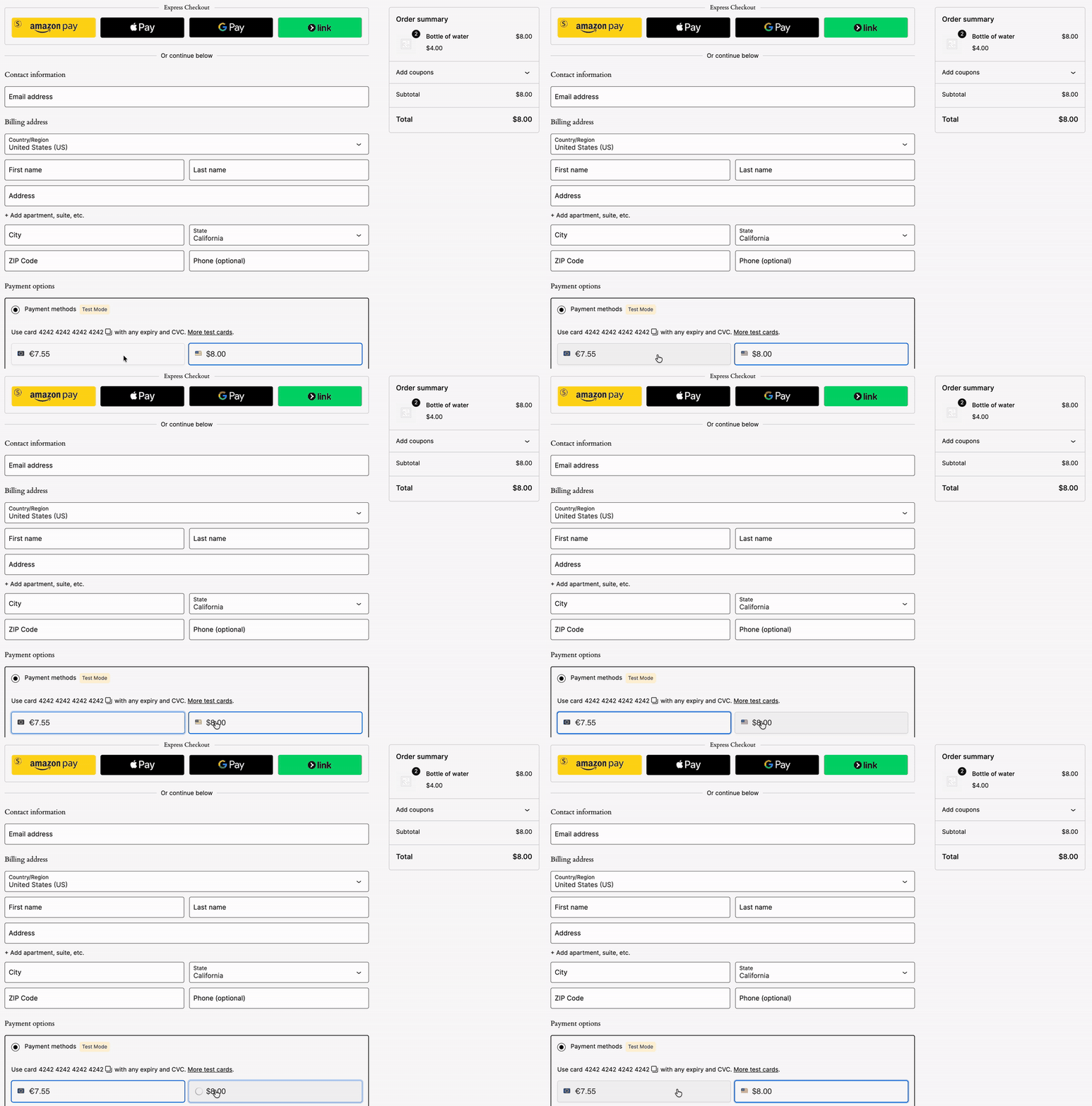
One payment form that dynamically adapts to each shopper
The Optimized Checkout Suite shows each shopper the payment methods they’re most likely to use, based on the payment method settings in your Stripe account.
Since version 10.8.0, Adaptive Pricing and the Optimized Checkout Suite are on by default for eligible stores. Running an earlier version? Update the Stripe extension to get these features. Then go to WooCommerce > Settings > Payments > Stripe > Settings to check whether they’re on.
Amazon Pay joins express checkout
Stores based in the US, the UK, and 15 other European countries can turn on Amazon Pay alongside Apple Pay, Google Pay, and Link in the Stripe extension’s Payment Methods tab. Check which countries and currencies qualify. All express checkout buttons also start loading earlier, so they appear sooner on product, cart, and checkout pages, and they’re the same size across every payment method. In the settings, each Customize express checkouts tab previews where a button will and won’t appear, and why.
Express checkout for subscriptions
If you use WooCommerce Subscriptions, subscribers can change their payment method with Apple Pay, Google Pay, or Link. Shoppers can also sign up for eligible free trials through express checkout.
A clearer view of your account’s health
The Account details card on the Stripe settings page shows your account sync status and whether any webhooks, the messages Stripe sends your store when a payment changes, are still pending. Webhooks stay in place on your live site when you connect or disconnect Stripe on a staging or cloned copy. If Stripe has an outage, you’ll see a notice in WP Admin.
More reliable payments
Version 11.2.0 makes checkout more dependable for you and your shoppers. If a shopper resubmits an interrupted checkout or pays for the same cart in 2 browser tabs, they’re only charged once. If an error comes up after a shopper completes 3D Secure, they still land on their order confirmation. If a payment goes through on an order that was already cancelled, the extension refunds or voids it automatically.
Security improvements
The extension now checks that Stripe’s payment script came from Stripe before it processes a payment, and shows an error if a Stripe connection attempt fails its security check. Your Stripe secret keys and webhook secrets stay hidden when other tools connect to your store. Version 10.9.0 also added wider security hardening, so update to the latest version to get every fix.
How to set up your Stripe checkout
Already using Stripe: update the Stripe extension to the latest version from the Plugins page in WP Admin. Update to 11.2.0 or later for the payment fixes above. Then go to WooCommerce > Settings > Payments > Stripe to see which features are on, switch on the ones you want, and check the Account details card. The settings guide covers each option.
New to Stripe: get the Stripe extension from the WooCommerce Marketplace, then connect your Stripe account. The latest features are included from the start.