Product Icon

Frequently Bought Together for WooCommerce

Show matching products as a discounted set on the product page, so customers add the whole set to the cart in one click.
Choose a billing option
$49
Save 20%
$98 $78.40

Subscription includes

  • Product updates and improvements
  • Customer support
  • 30-day money-back guarantee

  • Offer the products customers need alongside the one they’re viewing, as a ready-made set
  • Add the whole set to the cart with one “Add all to cart” button
  • Give each product in the set its own discount, from 0 to 100%
  • Create a bundle for one product, or one bundle for every product in a category
  • Let customers pick a size, color, or other variation inside the bundle

Sell the whole set, not just one product

A customer looking at a hoodie may want a beanie and a cap to go with it. Frequently Bought Together puts those products next to the hoodie on its product page as one set, with each product’s price, the set’s total, and how much the customer saves by buying them together. One button adds every product in the set to the cart.

You choose the products in each bundle yourself, so every set is one you’d recommend.

Example: a hoodie bundle

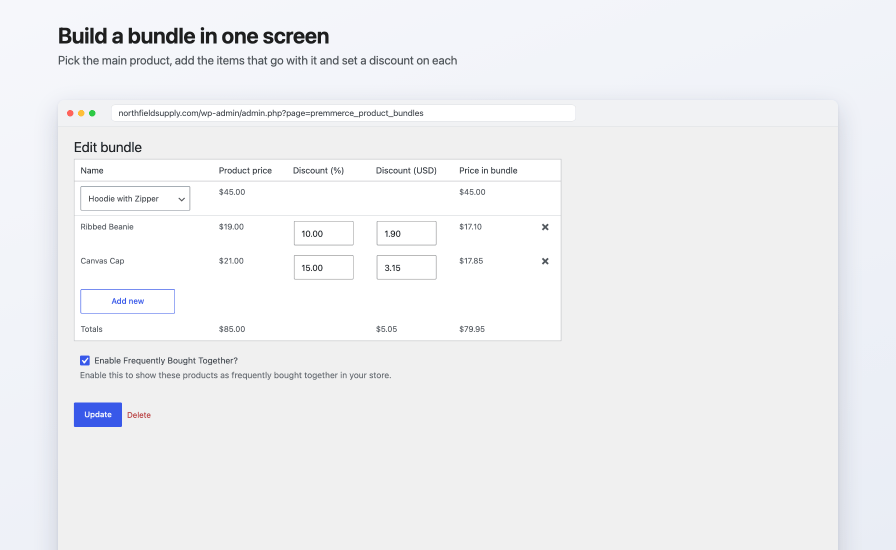
You create a bundle for the Hoodie with Zipper and attach a Ribbed Beanie and a Canvas Cap:

  • Hoodie with Zipper: $45.00. This is the main product, so it keeps its normal price.
  • Ribbed Beanie: $19.00, with a 10% bundle discount, so $17.10 in the bundle.
  • Canvas Cap: $21.00, with a 15% bundle discount, so $17.85 in the bundle.

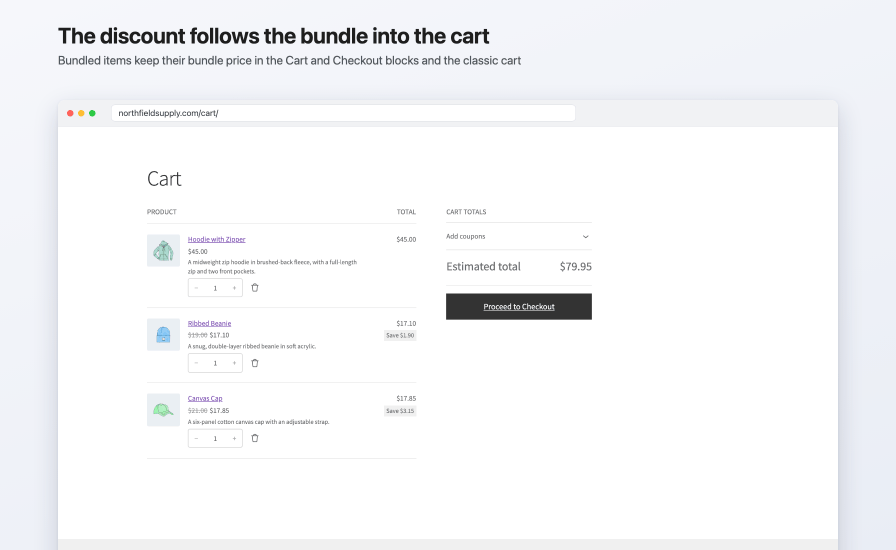
On the hoodie’s product page, the bundle shows the regular total of $85.00 struck out, the bundle price of $79.95, and “You save $5.05”. The customer clicks “Add all to cart”, and the cart holds the hoodie at $45.00, the beanie at $17.10, and the cap at $17.85.
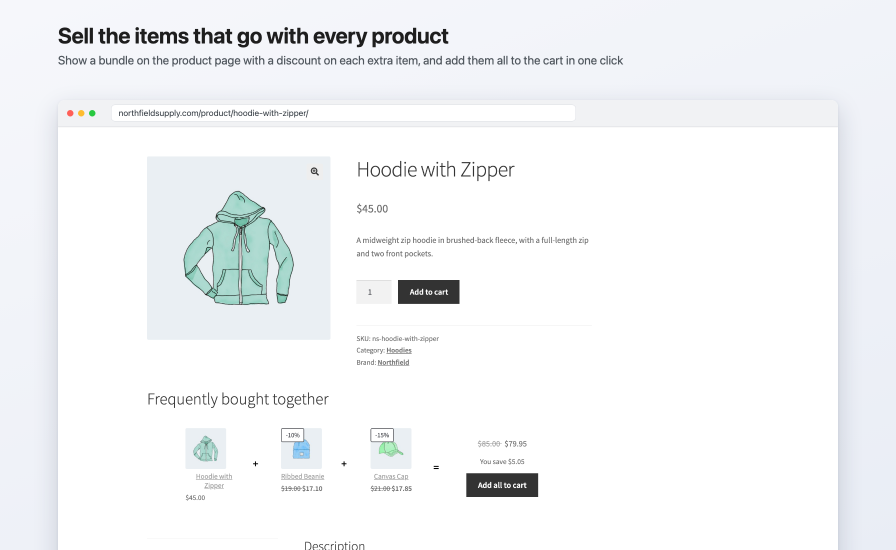
Hoodie with Zipper product page with a Frequently bought together bundle of the hoodie, a Ribbed Beanie at 10% off, and a Canvas Cap at 15% off, showing the struck-out total of $85.00, the bundle total of $79.95, You save $5.05, and the Add all to cart button

Reward customers for buying together

  • Set a discount for each attached product as a percentage, or type an amount in your store’s currency and it’s converted to a percentage for you.
  • Use 100% to include a product as a free gift, or 0% to include it at its full price.
  • The main product is always sold at its current price, including its sale price when it’s on sale.
  • Each discounted product shows its regular price struck out next to its bundle price, with a label such as “-10%” on its image.
  • In the cart, every product is its own line, and bundled products keep their bundle price in the Cart and Checkout blocks and the classic cart.
  • Removing the main product from the cart removes its bundle.

Cart block with Hoodie with Zipper at $45.00, Ribbed Beanie at $17.10, and Canvas Cap at $17.85, each bundled item showing its saving, and an estimated total of $79.95

Set up bundles from the product screen or for a whole category

  • Create, edit, and delete a product’s bundles from the Frequently Bought Together tab on its product edit screen, without leaving the page.
  • See and manage every bundle in one list under Premmerce > Frequently Bought Together, with bulk activate, deactivate, and delete.
  • Use a category bundle, on the Category Bundles tab, to show the same attached products on every product in a category, with the product being viewed as the main product.
  • Give a product more than one bundle, so customers can choose the set that suits them.
  • Bundles hide themselves when a product in them can’t be bought, for example when it’s out of stock or still a draft.

Edit bundle screen with Hoodie with Zipper as the main product, Ribbed Beanie at 10% off and Canvas Cap at 15% off, each discount also shown in USD, the price in bundle, and a totals row of $85.00, $5.05, and $79.95

Fits your product page

  • Show bundles before or after the product description, in classic themes and block themes.
  • Show several bundles one below the other, or in a slider with arrows.
  • Set the section title, such as “Frequently bought together”, and the colors of the price box, the saving, the button, the discount labels, the “+” and “=” signs, and the arrows in the WordPress Customizer, with a live preview.
  • On narrow screens the products in a bundle stack vertically.
  • Show bundles on any page or post with a shortcode, or with WooCommerce’s Single Product block.
  • Copy any front-end template into your theme to change the markup.

Works with your store

  • Simple products, variable products, and single variations
  • Customers pick a variable product’s variation inside the bundle, and the bundle price updates to match
  • The Cart and Checkout blocks, and the classic cart and checkout
  • High-Performance Order Storage (HPOS)
  • Classic themes and block themes
  • Bundled products are ordinary order lines for the real products, so WooCommerce handles their stock, taxes, and coupons in the usual way
  • The admin order screen marks each bundled product with its main product, for example “(bundled in Hoodie with Zipper)”
  • Includes German, French, Spanish, Russian, and Ukrainian translations

For example, a Long Sleeve Tee bundle can include a variable hoodie. The customer flips through the hoodie’s variations with the arrows, and the bundle total updates to the variation shown.
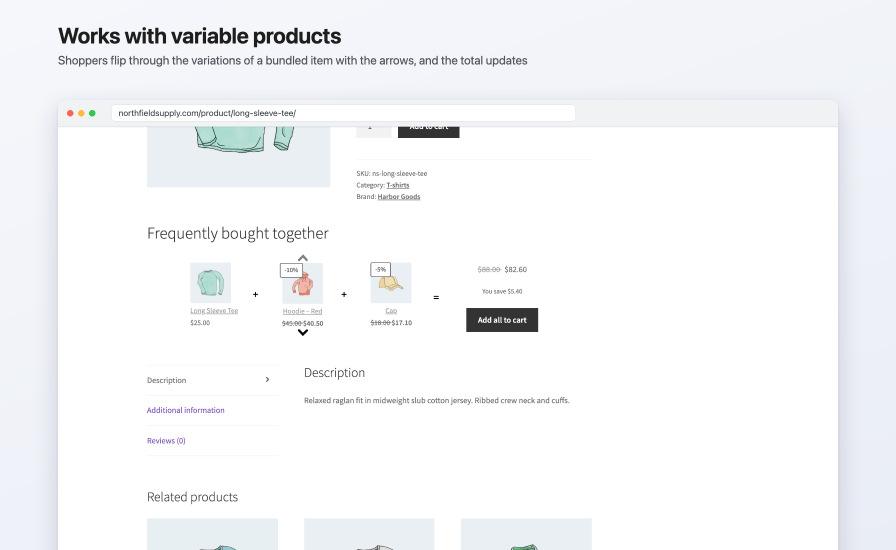
Long Sleeve Tee product page with a bundle of the tee, a variable hoodie shown as Hoodie, Red at 10% off with up and down arrows to change the variation, and a cap at 5% off, with a total of $82.60 and You save $5.40

How to get started

  1. Install and activate Frequently Bought Together.
  2. Edit a simple or variable product, open the Frequently Bought Together tab in the Product data box, and click Add New Frequently Bought Together.
  3. Add the products to sell with it, set a discount for each, keep “Enable Frequently Bought Together?” ticked, and click Save Frequently Bought Together.
  4. Go to Appearance > Customize > WooCommerce > Bundles, type a section title such as “Frequently bought together”, choose the position, layout, and colors, then click Publish.

How it differs from upsells and cross-sells

WooCommerce’s own linked products recommend other products, but each one is added to the cart separately and at its full price. Frequently Bought Together sells a set.

WooCommerce upsells WooCommerce cross-sells Frequently Bought Together
Where it shows Product page Cart Product page, or any page with a shortcode or the Single Product block
Discount for buying together No No Yes, set for each product
How products reach the cart One at a time One at a time The whole set with one button
Combined price and saving shown No No Yes
One setup for a whole category No No Yes, with category bundles

Frequently Bought Together doesn’t create a new product type or a separate bundle product. Each product in a set is sold as itself, with its own stock. You choose the products in each bundle, and the extension doesn’t generate recommendations automatically.


Frequently asked questions

How is the bundle discount applied?

Each attached product goes into the cart at its discounted bundle price, on its own line. The main product goes in at its current price. There's no separate discount line or coupon.

Can customers untick products they don't want?

No. "Add all to cart" adds the whole set. To offer different combinations, give the product more than one bundle.

Does it work with variable products?

Yes. A variable product in a bundle lets the customer pick a variation with arrows, and the price updates. You can also attach one specific variation, or base a bundle on a single variation.

Does it work with coupons?

The extension doesn't change how coupons work. A coupon applies to bundled products at their bundle price, the same as to any other cart item.

Does it create a new product or change how stock works?

No. A bundle isn't a product. Each product in it is added to the cart as itself, and WooCommerce manages its stock as for any other order.

What do customers see on their order?

Each product in the bundle is an ordinary line at the price they paid, on the order received page, in their account, and in order emails. The "(bundled in ...)" note shows only on the admin order screen.

How many products can a bundle have?

There's no fixed limit. A product can also have several bundles.

Can I add a bundle to every product in a category?

Yes. A category bundle shows its attached products on every product in that category, with the product being viewed as the main product.

What happens when a product in a bundle goes out of stock?

The bundle stops showing until every product in it can be bought again. A bundle already in a customer's cart is removed, with a notice.

Does it work with block themes, the Cart and Checkout blocks, and HPOS?

Yes. It works in classic and block themes and with the Single Product block, and it's declared compatible with the Cart and Checkout blocks and High-Performance Order Storage.

Can I show a bundle somewhere other than the product page?

Yes. Use a shortcode on any page or post, or add a Single Product block and its bundles show with it.

Will it slow down my store?

It loads its stylesheets and scripts only on product pages and on pages that show a bundle. Bundles are stored in the extension's own database tables, and a product page looks up only its own bundles.

What happens to my data if I uninstall it?

Deleting the extension from the Plugins screen removes its bundle tables. Past orders keep their products and prices.

Extension information

  • PHP version required: 5.6
  • Tested with WordPress: 7.1
  • Tested with WooCommerce: 11.2.0
  • Requires at least WordPress: 4.8
  • Requires at least WooCommerce: 3.6

Countries

  • Worldwide

Related products

Price $279 annually
Rated 3.9 out of 5 stars
Price $79 annually
Rated 3.4 out of 5 stars
Price $59 annually
Rated 3.1 out of 5 stars
Price $109 annually
Rated 2.7 out of 5 stars
Price $49 annually
Rated 4.1 out of 5 stars
Price $109 annually
Rated 2 out of 5 stars
Price $109 annually
Rated 2.3 out of 5 stars
Price $39 annually
Rated 2.8 out of 5 stars
Price $109 annually
Rated 2.6 out of 5 stars
Use of your personal data
We and our partners process your personal data (such as browsing data, IP Addresses, cookie information, and other unique identifiers) based on your consent and/or our legitimate interest to optimize our website, marketing activities, and your user experience.