
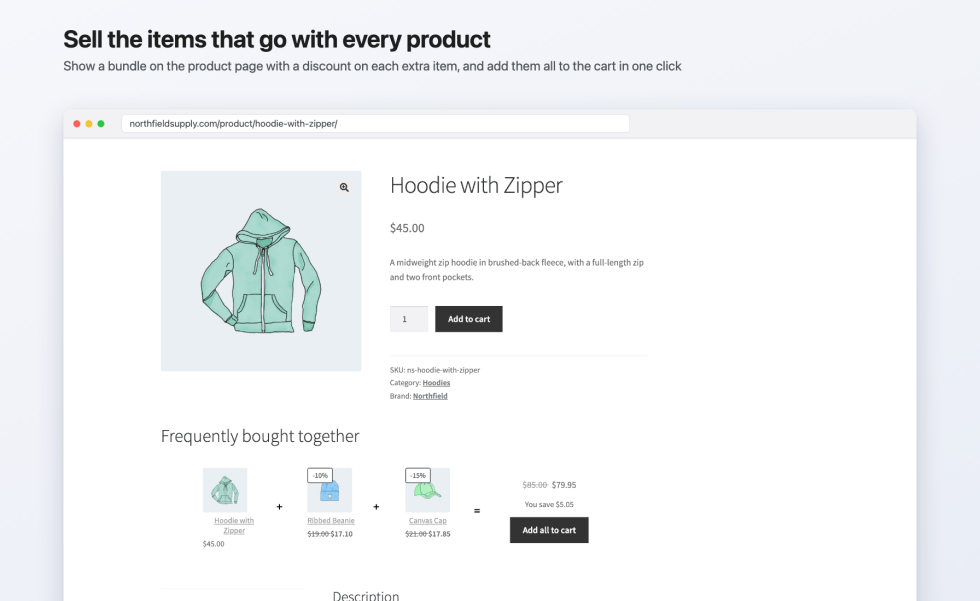
Frequently Bought Together shows the products that go with the one a customer is viewing as a set on the product page. Each set, called a bundle, has a main product and one or more attached products. You give each attached product a discount, and the bundle shows every product’s price, the set’s total, and how much the customer saves. One “Add all to cart” button adds the whole set to the cart, where each product is its own line at its bundle price.
You can create a bundle for one product, or a category bundle that shows on every product in a category. Bundles show automatically on the product page in classic and block themes, and you can also place them with shortcodes or WooCommerce’s Single Product block.
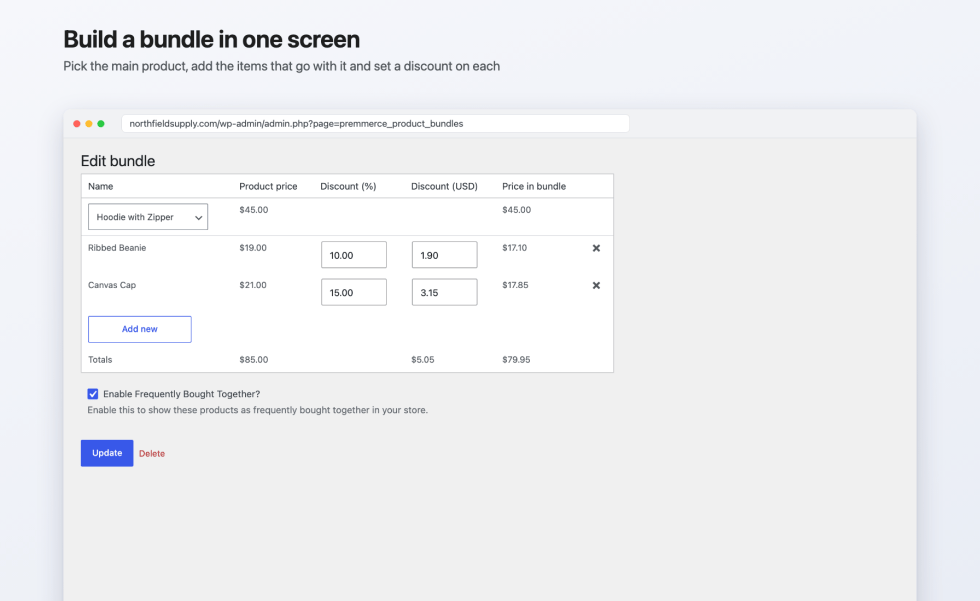
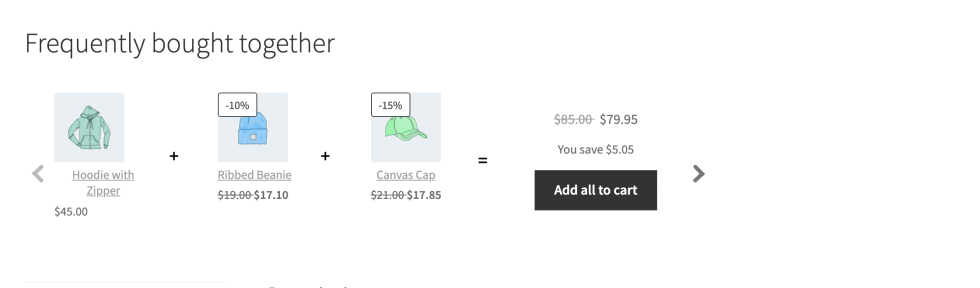
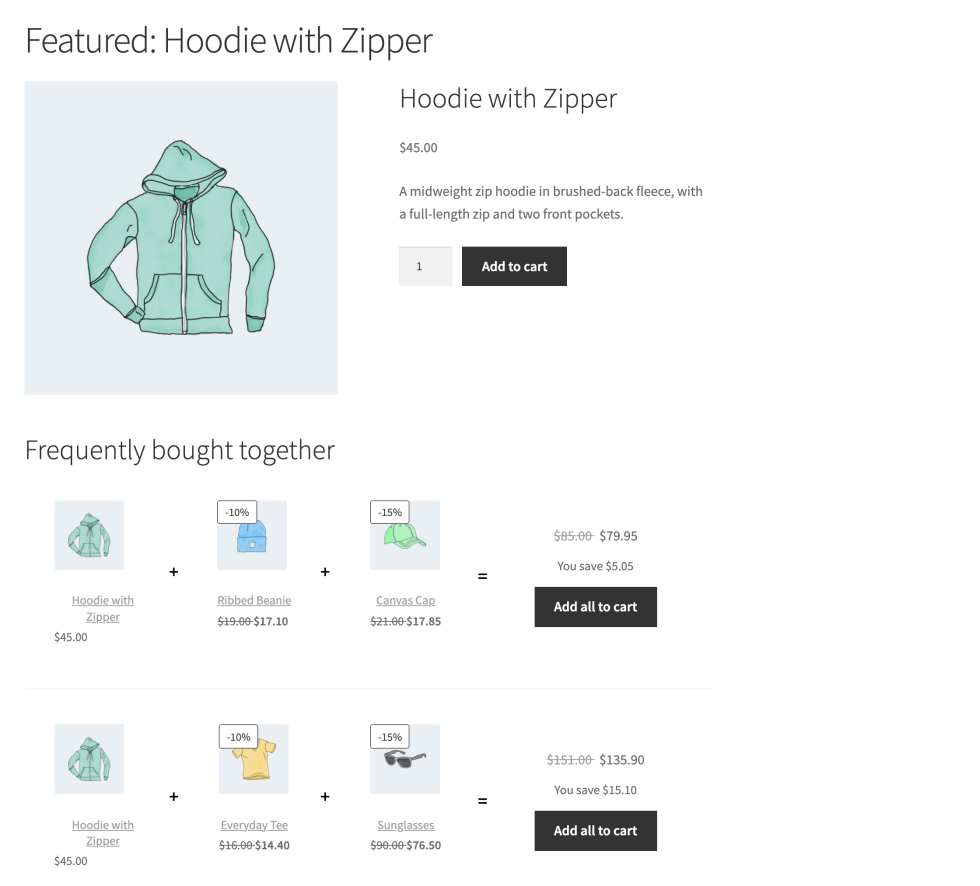
For example, a bundle for the Hoodie with Zipper ($45.00) attaches a Ribbed Beanie ($19.00) at 10% off and a Canvas Cap ($21.00) at 15% off. The product page shows the beanie at $17.10, the cap at $17.85, the regular total of $85.00 struck out, the bundle total of $79.95, and “You save $5.05”.
Requirements
↑ Back to top- WooCommerce 3.6 or later (tested up to 11.1.2)
- WordPress 4.8 or later (tested up to 7.1)
- PHP 5.6 or later
- Compatible with High-Performance Order Storage (HPOS) and the Cart and Checkout blocks
The Premmerce > Frequently Bought Together admin page needs an administrator account (the manage_options capability). The Customizer settings need an account that can use the Customizer and manage WooCommerce, such as an administrator. Anyone who can edit products, including shop managers, can manage a product’s bundles from the Frequently Bought Together tab on its edit screen.
Installation
↑ Back to topTo start using a product from WooCommerce.com, you can use the “Add to store” functionality on the order confirmation page or the My subscriptions section in your account.
- Navigate to My subscriptions.
- Find the Add to store button next to the product you’re planning to install.
- Follow the instructions on the screen, and the product will be automatically added to your store.
Alternative options and more information at:
Managing WooCommerce.com subscriptions.

Getting started
↑ Back to topThis creates a bundle for one product from its edit screen. The tab appears once the product has been saved at least once, and only for simple and variable products.
- Go to Products, and edit the product you want to build the bundle around. This is the bundle’s main product.
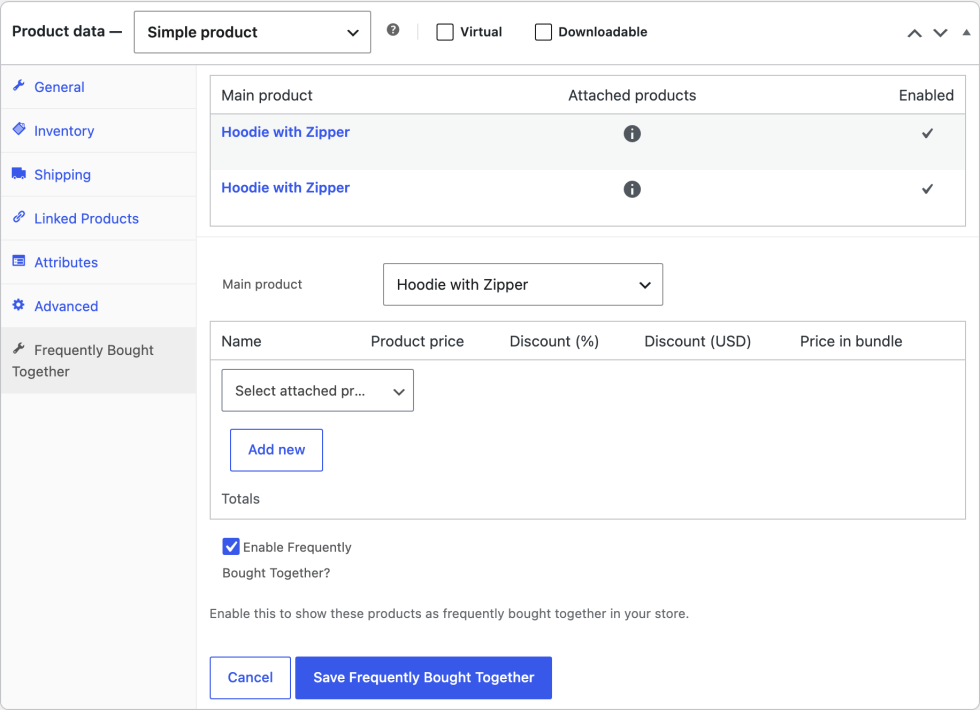
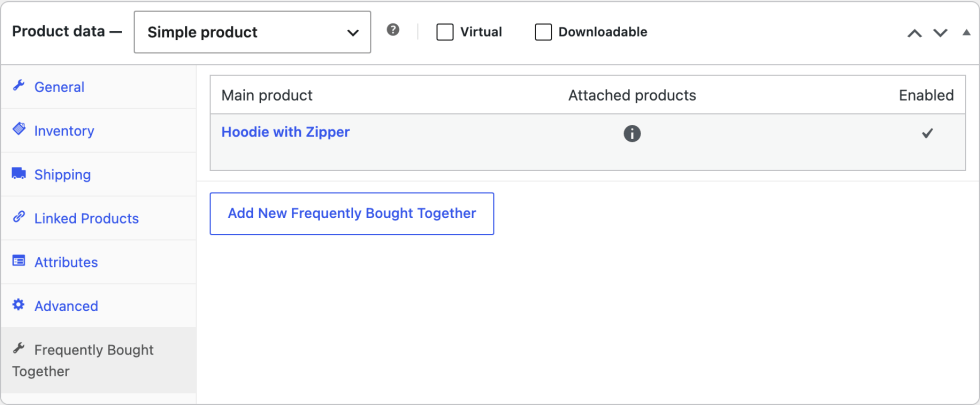
- In the Product data box, open the Frequently Bought Together tab.
- Click Add New Frequently Bought Together. A form opens with a product search field.
- Search for a product to attach and select it. It’s added as a row in the table.
- Enter its discount in Discount (%), or type an amount in the currency column and the percentage is filled in for you. Price in bundle and the Totals row update as you type.
- To attach another product, click Add new and repeat steps 4 and 5. To take a product out, click the cross at the end of its row.
- Keep Enable Frequently Bought Together? ticked so the bundle shows in your store.
- Click Save Frequently Bought Together. The bundle is saved straight away and appears in the tab’s list. You don’t need to update the product.
Visit the product’s page to see the bundle. It shows below the product summary and above the description by default. Then go to Appearance > Customize > WooCommerce > Bundles and set a title for the section, such as “Frequently bought together”: the heading may not show until you save one. See Display settings.
Bundle settings
↑ Back to topProduct bundles and category bundles
↑ Back to topThere are two kinds of bundle:
- Product bundles belong to one main product and show on that product’s page. Create them from the product’s Frequently Bought Together tab, or on the Product Bundles tab of Premmerce > Frequently Bought Together.
- Category bundles belong to a product category and show on the page of every product in that category. The product being viewed becomes the bundle’s main product, so one category bundle offers the same attached products with every product in the category. Create them on the Category Bundles tab of Premmerce > Frequently Bought Together.
A category bundle shows on products assigned directly to its category. Products that are only in a subcategory don’t get it. Assign them to the parent category as well, or create a bundle for the subcategory.
A category bundle doesn’t show on the page of a product that is itself one of the bundle’s attached products, so a product is never offered with itself.
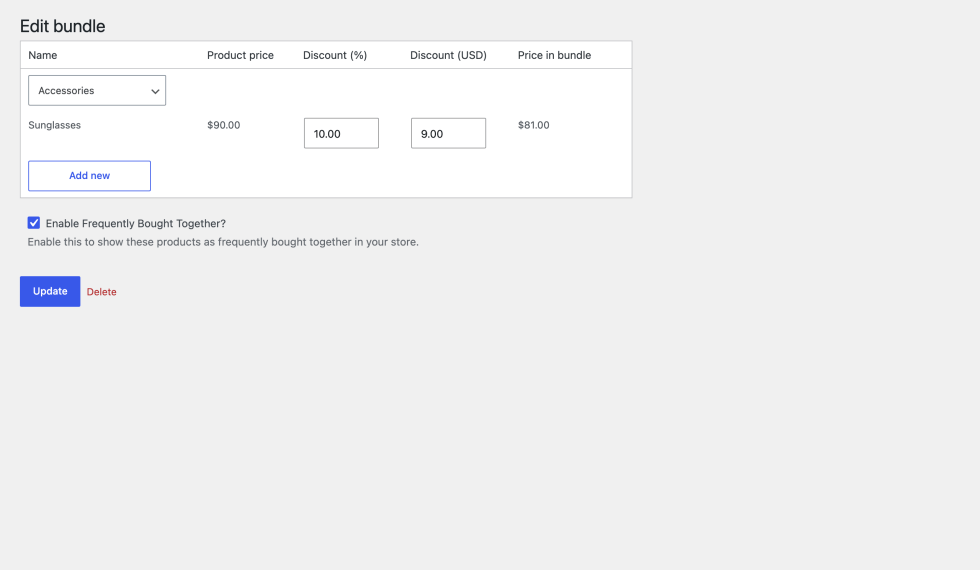
For example, a category bundle for Accessories that attaches Sunglasses ($90.00) at 10% off offers the sunglasses at $81.00 with every product assigned to Accessories.
Create a bundle from the bundles page
↑ Back to top- Go to Premmerce > Frequently Bought Together.
- Open the Product Bundles tab or the Category Bundles tab.
- In the Add New Frequently Bought Together form, select the main product (search by name) or the category.
- Search for each product to attach, and set its discount. Click Add new for each extra product.
- Keep Enable Frequently Bought Together? ticked, and click Add New Frequently Bought Together.
The bundle appears in the list below the form. A bundle must have at least one attached product: if it has none, it isn’t saved and you see a message saying so.
Choosing the main product
↑ Back to topThe main product can be a simple product, a variable product, or a single variation.
- In a product’s Frequently Bought Together tab, the main product is the product you’re editing.
- To base a bundle on one variation, for example “Hoodie, Red”, create it on Premmerce > Frequently Bought Together and search for the variation in the main product field.
A bundle whose main product is a variation shows on the variable product’s page, and its “Add all to cart” button adds that variation. The product tab of a variable product lists the bundles of the product and of its variations.
If the main product is a variable product, the customer picks its variation inside the bundle, in the same way as for an attached variable product.
Choosing attached products
↑ Back to topAttached products can be simple products, variable products, or single variations:
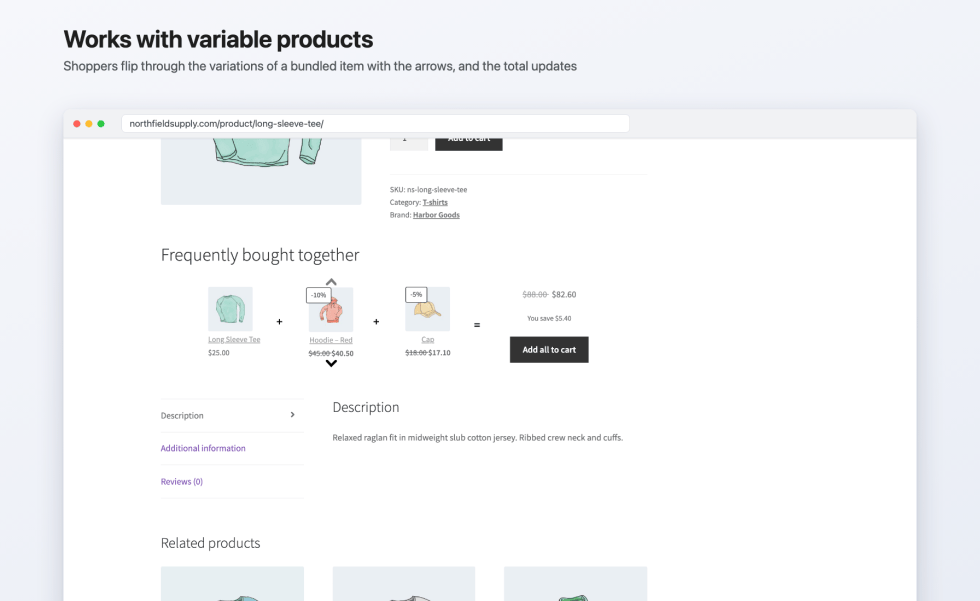
- A variable product lets the customer pick the variation inside the bundle. The bundle shows one variation at a time, with up and down arrows to move between them. The price and the bundle total update to the variation picked.
- A single variation is always added as that variation.
For example, the Long Sleeve Tee ($25.00) has a bundle with a variable hoodie at 10% off and a cap at 5% off. With the Red hoodie ($45.00) showing, the hoodie is $40.50 in the bundle, the total is $82.60 instead of $88.00, and the customer saves $5.40. Clicking an arrow shows the next variation and updates these prices.
The product search leaves out the main product and products already in the bundle. There’s no fixed limit on the number of attached products, and the same product can be attached to as many bundles as you like. A product can have several bundles of its own, and its page shows them all.
Discounts
↑ Back to topEach attached product has its own discount, stored as a percentage of its regular price:
- Discount (%) takes any value from 0 to 100, including decimals such as 12.5.
- The currency column, for example Discount (USD), takes an amount instead and converts it to a percentage. For a variable product, the amount is converted using its lowest variation price, and the resulting percentage then applies to every variation. The rows under a variable product show each variation’s bundle price.
- Enter 100 to include a product free, as a gift.
- Enter 0, or leave the field empty, to include a product at its full price.
How the bundle’s prices are worked out:
- The main product has no bundle discount. It counts at its current price, which is its sale price when it’s on sale.
- Each attached product counts at its regular price less its discount. The sale price of an attached product isn’t used, so if an attached product is on sale, check that its bundle price is lower than its sale price.
- For product bundles, the Totals row in the form shows the regular total, the total discount, and the bundle total.
On the product page, the label on an attached product’s image shows its discount as a whole number, so 12.5% shows as “-12%”. The prices themselves use the exact percentage.
Enabling and disabling a bundle
↑ Back to topEnable Frequently Bought Together? controls whether a bundle shows in your store. Untick it to keep a bundle without showing it, for example outside a promotion. The Enabled column in the bundles list shows a tick for enabled bundles and a dash for disabled ones.
Managing bundles
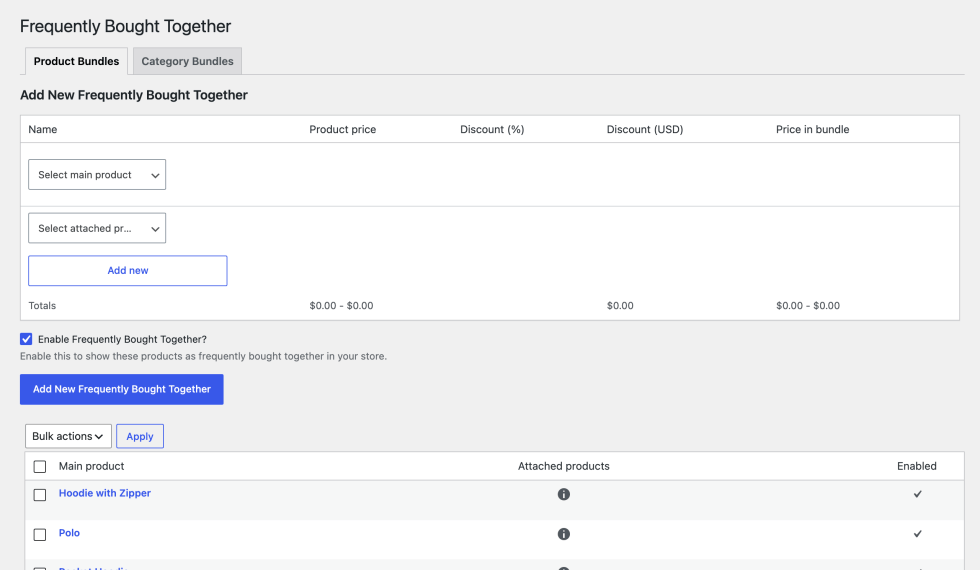
↑ Back to topPremmerce > Frequently Bought Together lists all bundles of each kind on its two tabs. The columns are:
- Main product, or Category on the Category Bundles tab, with “Hidden” after the name when the bundle can’t show in the store. See When a bundle is hidden.
- Attached products: hover over the icon to see their names.
- Enabled: a tick or a dash.
Hover over a bundle’s name for its actions:
- Edit opens the bundle’s edit screen.
- Delete deletes the bundle, after you confirm.
- View opens the main product’s page in a new tab. For a category bundle, it opens a random product from the category.
To change several bundles at once, tick them, choose Delete, Activate, or Deactivate from Bulk actions, and click Apply.
Editing and deleting bundles
↑ Back to topOn the edit screen you can change the main product or category, add and remove attached products, change discounts, and enable or disable the bundle. Click Update to save, or Delete to delete the bundle.
In a product’s Frequently Bought Together tab, click Edit under a bundle to open it in place, then click Update Frequently Bought Together, or Cancel to close it. Category bundles aren’t listed in the product tab: edit them on the Category Bundles tab.
Bundles are also deleted for you:
- Permanently deleting a product deletes the bundles it’s the main product of. Moving it to the trash keeps them.
- Deleting a product category deletes its category bundles.
Before you permanently delete a product that is attached to a bundle, remove it from that bundle first.
When a bundle is hidden
↑ Back to topA bundle shows in your store only when it’s enabled, it has at least one attached product, and every product in it, including the main product, can be bought. A bundle is hidden when any of its products:
- isn’t published (for example, it’s a draft, pending review, scheduled, or private)
- is password protected
- has no price
- is out of stock (a product on backorder still counts as in stock)
- is hidden from the catalog by its Catalog visibility setting
In the bundles list, a hidden bundle has “Hidden” after its name. The list doesn’t check catalog visibility, so if a bundle doesn’t show and isn’t marked “Hidden”, check the catalog visibility of each of its products.
Display settings
↑ Back to topTitle, position, and layout
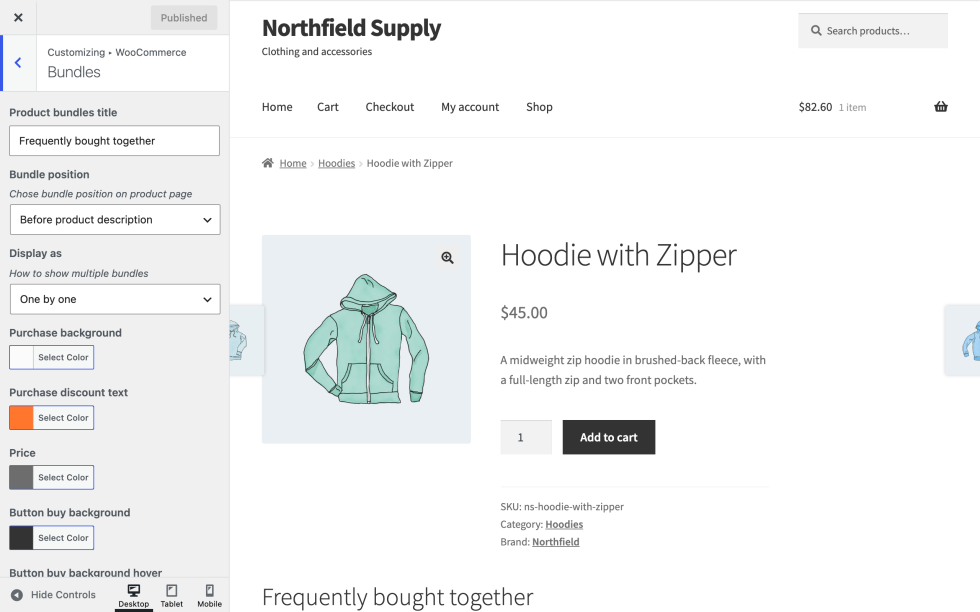
↑ Back to topGo to Appearance > Customize > WooCommerce > Bundles. This works in block themes too: the Customize menu item shows under Appearance because the extension adds Customizer settings.
| Setting | Options | Default |
|---|---|---|
| Product bundles title | The heading shown above the bundles | “Bundles” in the field (see the note below) |
| Bundle position | Before product description, After product description | Before product description |
| Display as | One by one, Slider | One by one |
Set a title here. The field shows “Bundles” as the default, but the heading may not appear until you’ve saved a title. Type the title you want, for example “Frequently bought together”, and click Publish. To show no heading, save the field empty.
Display as decides how a product with more than one bundle shows them: One by one lists them one below the other, and Slider shows one bundle at a time with arrows to move between them.
Where bundles show on the product page
↑ Back to topIn classic themes:
- Before product description shows the bundles below the product summary (the images, title, price, and add to cart button) and above the description tabs.
- After product description shows them below the description tabs, and above upsells and related products.
In block themes, the extension places bundles around the Product Details block, which holds the description in WooCommerce’s single product template:
- Before product description shows them just before the Product Details block.
- After product description shows them after it.
Bundles show once per page, whichever position you choose.
Colors
↑ Back to topThe same Customizer section sets the colors. Changes show in the preview as you make them.
| Setting | What it colors | Default |
|---|---|---|
| Purchase background | The box with the total, the saving, and the button | #fbfbfb |
| Purchase discount text | The “You save” amount | #ff762c |
| Price | The bundle total | #6d6d6d |
| Button buy background | The “Add all to cart” button | #333333 |
| Button buy background hover | The button when hovered | #1a1a1a |
| Button buy text color | The button text | #fff |
| Discount label background | The discount label on product images | #fff |
| Discount label border color | The discount label’s border | #6d6d6d |
| Discount label text color | The discount label’s text | #43454b |
| Arrow color | The slider and variation arrows | #000000 |
| Arithmetic operator color | The “+” between products and the “=” before the total | #43454b |
| Arithmetic operator size | The size of “+” and “=”, from 10 to 60 pixels | 20 |
The button text, “Add all to cart”, and the “You save” label are part of the extension’s translations and can be changed with a translation plugin or a template override.
On mobile
↑ Back to topOn screens narrower than 1024 pixels, the products in a bundle stack vertically, with the total and the button below them. From 1024 pixels up, they sit in a row with the total beside them. In Slider mode, customers can swipe between bundles.
Show bundles on other pages
↑ Back to topUse a shortcode in any page, post, or Shortcode block:
[premmerce_get_bundle_by_id id="12"]shows one bundle. Find a bundle’s ID in the address bar of its edit screen, where the URL ends withid=12.[premmerce_get_bundles_by_main_product_id id="34"]shows all the product bundles whose main product has the ID 34.[premmerce_get_bundles_by_main_product_id]without an ID shows the current product’s bundles, including category bundles. Use it in a single product template, for example in the Site Editor. Off product pages it shows nothing.
Category bundles need a product to act as their main product, so they only show on product pages.
The Single Product block also shows bundles: when you add it to a page or post, the bundles of the product it displays appear at the end of the block. Each Single Product block on the page shows its own product’s bundles.
A bundle shown with a shortcode or the Single Product block works as it does on the product page, including the “Add all to cart” button and variation picking. The extension loads its styles and scripts on those pages automatically.
To change the markup of the bundle section, copy its templates into your theme. See Template overrides.
How bundles behave in the cart and checkout
↑ Back to topAdding a bundle to the cart
↑ Back to top“Add all to cart” adds one of each product in the bundle, with the variations the customer picked, and shows a message that the products have been added to your cart. Each variable product in the bundle starts on its first variation, so the customer only needs to use the arrows to choose a different one.
The customer can still buy the main product on its own with the product page’s normal add to cart button. A product bought on its own is a separate cart line at its full price.
Clicking “Add all to cart” again adds another set, so every line in the bundle goes up by one.
Prices in the cart
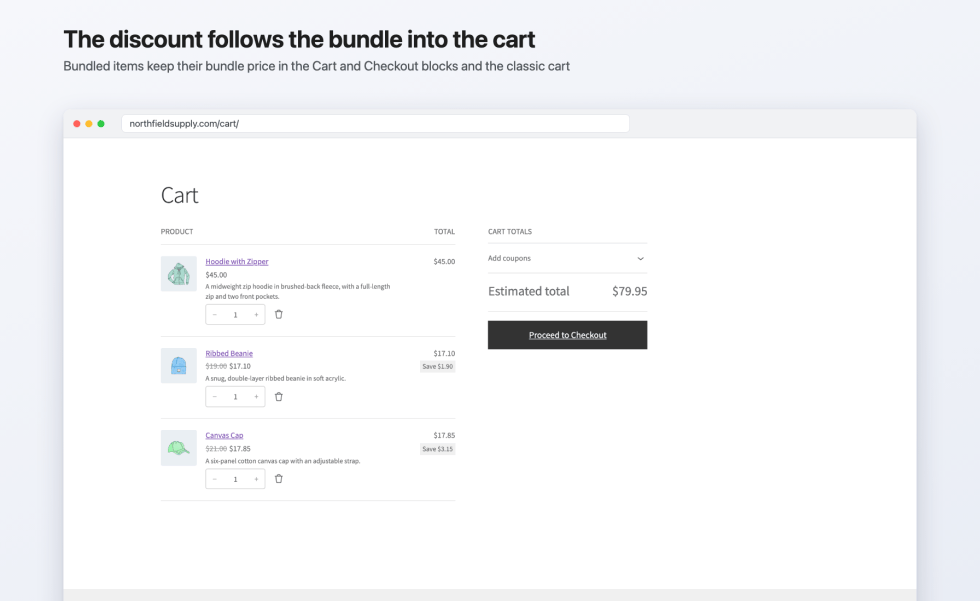
↑ Back to topEach product in a bundle is its own cart line:
- The main product is at its current price.
- Each attached product is at its bundle price, its regular price less its discount.
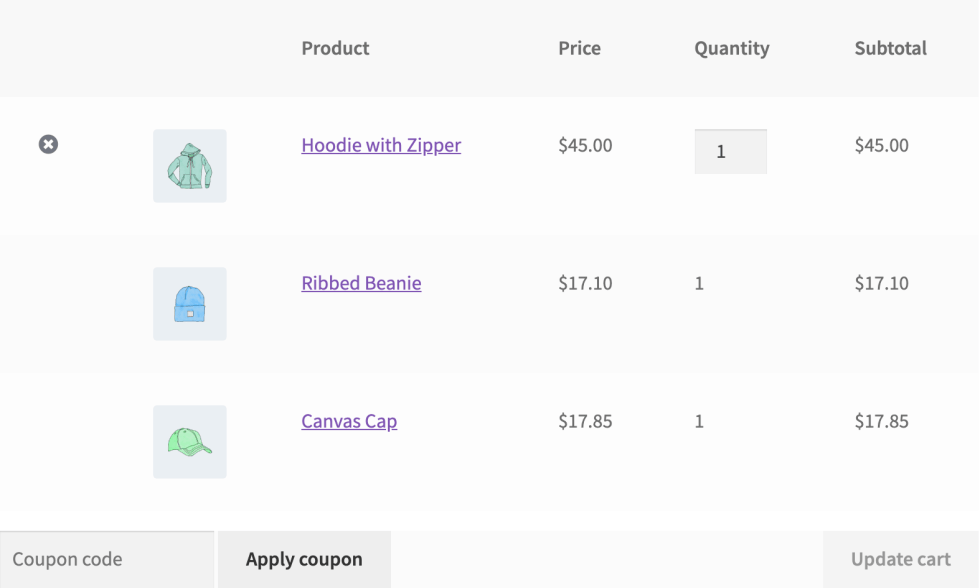
Bundled products keep their bundle price in the Cart and Checkout blocks and in the classic cart and checkout. In the hoodie example, the cart holds the Hoodie with Zipper at $45.00, the Ribbed Beanie at $17.10, and the Canvas Cap at $17.85, for a total of $79.95.
The discount is part of each line’s price, so there’s no separate discount line or coupon. Prices are worked out again whenever the cart is calculated, so if you change a bundle’s discounts, carts that already hold it pick up the new prices.
The mini cart count in the header counts a bundle as one item.
Quantities and removing products
↑ Back to top- In the classic cart, bundled products have a fixed quantity and no remove link. Only the main product has a quantity box and a remove link.
- In the classic cart and the Cart block, removing the main product removes its bundle.
If any product in a bundle is set to Sold individually, the bundle’s quantity stays at 1 and the customer sees a notice saying which product is sold only individually.
Coupons and taxes
↑ Back to topThe extension doesn’t change how coupons or taxes work. Bundled products are ordinary cart lines, so WooCommerce applies coupons to them at their bundle prices and calculates tax on each line with your store’s tax settings, as for any other product.
Stock, orders, and reports
↑ Back to topA bundle isn’t a product and has no stock of its own. Each product in it is ordered as itself, so WooCommerce reduces each product’s stock as it does for any order.
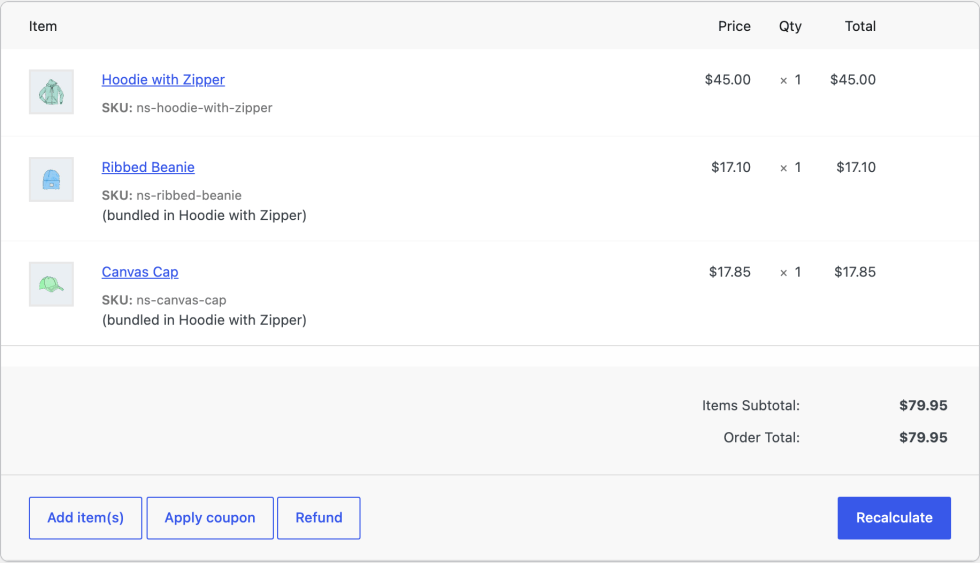
On the order screen in your admin, each bundled product shows “(bundled in Hoodie with Zipper)”, naming its main product. In WooCommerce’s reports and Analytics, each product appears as its own product at the price it was sold for.
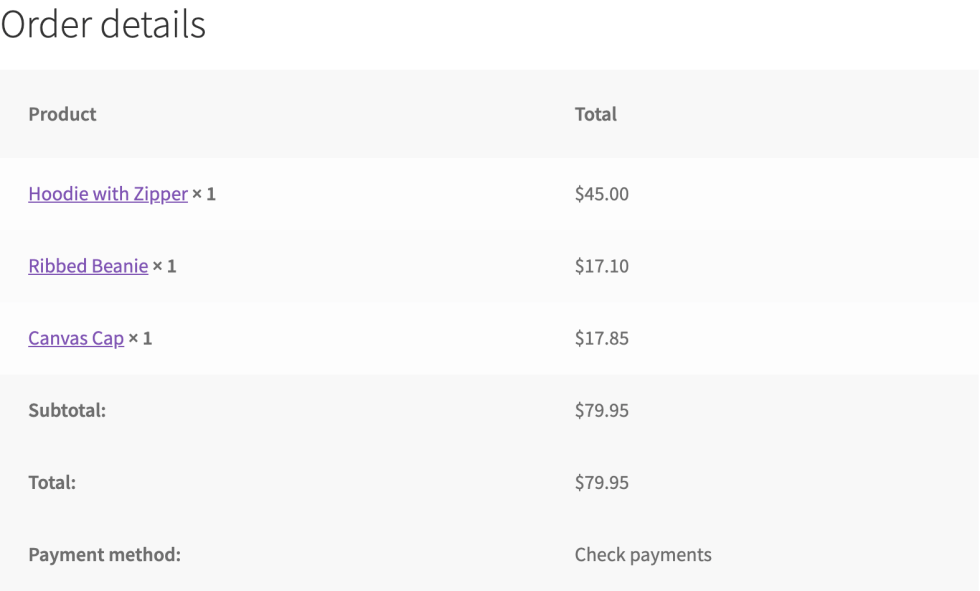
Customers don’t see the bundle’s internal data. On the order received page, in their account, and in order emails, each product is an ordinary line at the price they paid.
When a bundle can no longer be bought
↑ Back to topThe extension checks every bundle in the cart whenever the cart is calculated. If a bundle can’t be bought any more, for example because one of its products has gone out of stock or the bundle has been disabled, it’s removed from the cart with the notice “Hoodie with Zipper has been removed from your cart because it can no longer be purchased. Please contact us if you need assistance.” If the bundle has been deleted, its products are removed from the cart.
Troubleshooting
↑ Back to topWhy isn’t the bundle showing on my product page?
↑ Back to topCheck these in order:
- The bundle is enabled. In Premmerce > Frequently Bought Together, its Enabled column shows a tick.
- The bundle isn’t marked “Hidden”. If it is, check each of its products against the list in When a bundle is hidden: published, not password protected, priced, in stock, and visible in the catalog.
- Every product in the bundle is visible in the catalog. Check each product’s Catalog visibility in the Publish box. The bundles list doesn’t flag this.
- For a category bundle, the product is assigned directly to the bundle’s category, not only to a subcategory, and it isn’t one of the bundle’s attached products.
- Your theme outputs WooCommerce’s standard product page hooks. Switch to Storefront or Twenty Twenty-Five for a moment: if the bundle shows there, your theme’s product template is the cause. Add the
[premmerce_get_bundles_by_main_product_id]shortcode to your theme’s product template, or use premmerce_bundles_get_bundles_html().
Why don’t my bundles show in my block theme?
↑ Back to topIn block themes, bundles are placed around the Product Details block of the single product template. If you’ve edited the template in the Site Editor and removed that block, add a Shortcode block with [premmerce_get_bundles_by_main_product_id] where you want the bundles.
Why is there no title above my bundles?
↑ Back to topThe title only shows once it’s been saved. Go to Appearance > Customize > WooCommerce > Bundles, type a title in Product bundles title, and click Publish.
Why is the bundle discount missing in the cart?
↑ Back to top- The products were added with the normal add to cart button, not “Add all to cart”. Only products added through the bundle get bundle prices.
- The discount is in the line prices. Compare each attached product’s line with its regular price: there’s no separate discount line.
- An attached product on sale is priced from its regular price, so its bundle price can be close to, or above, its sale price. Raise its discount if needed.
- Another plugin that changes cart prices, such as a dynamic pricing or currency plugin, can override bundle prices. Test for a conflict as described below.
Why doesn’t the bundle total on the product page match the cart?
↑ Back to topThe bundle box works out its total from the prices you enter on the products. If your store enters prices excluding tax but displays them including tax, the bundle box shows totals without tax, while the cart shows them with tax.
Why did a bundle disappear from my cart?
↑ Back to topThe bundle can no longer be bought, for example because a product went out of stock, or the bundle was disabled or deleted. See When a bundle can no longer be bought.
Why don’t my changes to a bundle show on the site?
↑ Back to topThe product page may be cached. Clear your caching plugin’s cache, your host’s server cache, and any CDN cache, then reload the page.
Why can’t I see the Frequently Bought Together menu or tab?
↑ Back to top- The Premmerce menu needs an administrator account. Shop managers can use the product tab instead.
- The product tab shows only for simple and variable products, and only once the product has been saved.
- WooCommerce must be active. Without it, the extension shows a notice in your admin and does nothing else.
Test for a theme or plugin conflict
↑ Back to topIf none of the above helps, check whether another plugin or your theme is the cause. Do this on a staging site if you can, and back up your site first.
- Switch to a default theme, such as Storefront or Twenty Twenty-Five.
- Deactivate every plugin except WooCommerce and Frequently Bought Together.
- Clear all caches (caching plugin, server, CDN, and browser).
- Test again.
- If the problem has gone, reactivate your plugins one at a time, testing after each, until it comes back. The last one you activated is the cause. Then switch back to your theme and test again.
The Health Check & Troubleshooting plugin can do steps 1 and 2 for your own login only, so your customers aren’t affected. For more detail, see How to test for conflicts.
FAQ
↑ Back to topCan customers untick products in a bundle?
↑ Back to topNo. “Add all to cart” adds every product in the bundle. To offer different combinations, give the product more than one bundle.
Can I set a fixed price for a whole bundle?
↑ Back to topNo. Each attached product has its own percentage discount, and the main product keeps its current price. You can type a discount as an amount, and it’s converted to a percentage.
Can I discount the main product?
↑ Back to topNo. Put it on sale in WooCommerce: the bundle uses the main product’s sale price.
Can a product have more than one bundle?
↑ Back to topYes. Its page shows all its enabled bundles, one by one or in a slider. A product can also get category bundles from each category it belongs to.
Does the extension create a new product type?
↑ Back to topNo. Bundles are stored in the extension’s own database tables, and the products in them are sold as themselves.
Can I bulk-assign bundles?
↑ Back to topUse a category bundle to show one bundle on every product in a category. You can also activate, deactivate, or delete many bundles at once from the bundles list.
Will it slow down my store?
↑ Back to topThe extension loads its stylesheets and scripts only on product pages and on pages that show a bundle, and prints a short block of color settings in the page head. A product page looks up only the bundles for that product and its categories.
What happens if I deactivate or uninstall the extension?
↑ Back to topDeactivating keeps your bundles, and they come back when you reactivate it. Deleting the extension from the Plugins screen deletes its two bundle tables, so your bundles are gone. Your Customizer settings stay in the database, and past orders keep their products and prices.
Can I translate the text customers see?
↑ Back to topYes. All front-end text, including “Add all to cart” and “You save”, is translatable. The extension includes German, French, Spanish, Russian, and Ukrainian translations.
Developer reference
↑ Back to topThis section is for developers who want to change how bundles look or work. Add PHP snippets to a child theme’s functions.php or a code snippets plugin.
Template overrides
↑ Back to topEvery front-end template can be overridden from your theme. Copy the file from the extension’s views/frontend/ folder into a folder called premmerce-woocommerce-product-bundles in your theme or child theme, keeping the same path below views/frontend/. WordPress looks in the child theme first, then the parent theme, then the extension. Admin templates can’t be overridden.
| Template | Renders | Variables |
|---|---|---|
product-bundles-list.php | The section wrapper, title, and slider arrows | $bundles, $mainProduct, $title, $position, $displayType, $fileManager |
bundle/bundle.php | One bundle: its products and purchase box | $bundle, $mainProduct, $fileManager |
bundle/products/simple.php | A simple product or a single variation | $product, $bundleId, $fileManager |
bundle/products/variable.php | A variable product, with its variation arrows | $product, $bundleId, $fileManager |
bundle/products/product-price.php | A product’s price, struck out and discounted | $product |
bundle/purchase/purchase.php | The purchase box and the “Add all to cart” form | $bundle, $mainProduct, $fileManager |
bundle/purchase/purchase-price.php | The struck-out regular total and the bundle total | $price, $regularPrice |
bundle/purchase/purchase-discount.php | The “You save” line | $discount |
$bundle is a Premmerce\ProductBundles\Bundle\BundleInterface and $product is a Premmerce\ProductBundles\Bundle\BundleProduct. The price templates are also used when a customer changes a variation, so overrides of them apply to the updated prices too.
For example, to change the saving line, copy views/frontend/bundle/purchase/purchase-discount.php to your-theme/premmerce-woocommerce-product-bundles/bundle/purchase/purchase-discount.php and edit it:
<?php
if ( ! defined( 'ABSPATH' ) ) {
	exit;
}
/** @var float $discount */
?>
<div class="product-bundle__discount" data-bundle-discount>
	<?php if ( $discount ) : ?>
		<span class="product-bundle__discount-title"><?php esc_html_e( 'Save', 'your-text-domain' ); ?></span>
		<span class="product-bundle__discount-val"><?php echo wp_kses_post( wc_price( $discount ) ); ?></span>
	<?php endif; ?>
</div>
Keep the data-bundle-price, data-bundle-discount, data-bundle-add-to-cart, data-bundle-purchase-block, and data-variation-* attributes and the form fields in your copies: the variation picker and the price updates rely on them.
Shortcodes
↑ Back to top| Shortcode | Attribute | Shows |
|---|---|---|
[premmerce_get_bundle_by_id] | id: a bundle ID (required) | That bundle, if it’s enabled and can be bought |
[premmerce_get_bundles_by_main_product_id] | id: a product ID (optional) | With id, the enabled product bundles whose main product is that ID. Without id, the current product’s bundles, including its variations’ bundles and category bundles |
Both enqueue the extension’s styles and scripts when used off product pages.
PHP functions
↑ Back to toppremmerce_bundles_get_bundles_html( int $id ): string
Returns the HTML of the bundles whose main product is the product ID $id, the same as [premmerce_get_bundles_by_main_product_id id="…"]. It returns an empty string when the product has no bundles that can be bought, and always in wp-admin and admin-ajax.php requests, where the extension’s front end isn’t loaded. Category bundles and the bundles of a variable product’s variations aren’t included.
// Show the product's bundles straight after the add to cart form.
// Combine with the snippet in "Change where bundles are placed" so they don't also show in their usual place.
add_action( 'woocommerce_after_add_to_cart_form', function () {
	if ( function_exists( 'premmerce_bundles_get_bundles_html' ) ) {
		echo premmerce_bundles_get_bundles_html( get_the_ID() ); // Template output from the extension.
	}
} );
premmerce_bundles()->checkBundleInCart( int $bundle_id ): bool
Returns whether the bundle with that ID is in the current cart.
if ( function_exists( 'premmerce_bundles' ) && premmerce_bundles()->checkBundleInCart( 12 ) ) {
	// Bundle 12 is in the cart.
}
Filters
↑ Back to toppremmerce_bundles_hide_product_from_self
| Argument | Type | Description |
|---|---|---|
$hide | bool | false by default. Return true to stop bundles being output. |
The filter runs once for each bundle as it renders, everywhere bundles show. It has no other arguments, so use conditional tags to decide. When it returns true, the section’s title still prints.
// Don't show bundles on products in the Clearance category.
add_filter( 'premmerce_bundles_hide_product_from_self', function ( $hide ) {
	if ( is_product() && has_term( 'clearance', 'product_cat', get_the_ID() ) ) {
		return true;
	}
	return $hide;
} );
Actions
↑ Back to toppremmerce_bundles_admin_page_tab_content
| Argument | Type | Description |
|---|---|---|
$tab_slug | string | The open tab on Premmerce > Frequently Bought Together: product-bundles or category-bundles |
Fires where the open tab’s content is output on the bundles admin page. The extension uses it to render the tab, so your callback’s output appears after it.
add_action( 'premmerce_bundles_admin_page_tab_content', function ( $tab_slug ) {
	if ( 'category-bundles' === $tab_slug ) {
		echo '<p>' . esc_html__( 'Category bundles show on products assigned directly to the category.', 'your-text-domain' ) . '</p>';
	}
}, 20 );
Change where bundles are placed
↑ Back to topThe extension adds its placement hooks on wp, from the Bundle position setting. To place bundles yourself, remove them after that and output them with the shortcode or premmerce_bundles_get_bundles_html(). The object is the extension’s internal front-end class, so check it exists:
add_action( 'wp', function () {
	$fbt = isset( $GLOBALS['premmerce_bundles_frontend'] ) ? $GLOBALS['premmerce_bundles_frontend'] : null;
	if ( ! $fbt ) {
		return;
	}
	// "Before product description" (classic and block themes).
	remove_action( 'woocommerce_after_single_product_summary', array( $fbt, 'renderProductBundles' ), 1 );
	remove_filter( 'render_block', array( $fbt, 'prependProductBundles' ), 9 );
	// "After product description".
	remove_action( 'woocommerce_after_single_product_summary', array( $fbt, 'renderProductBundles' ), 12 );
}, 20 );
REST API
↑ Back to topGET /wp-json/premmerce-bundles/v1/get-bundles-html?id={product_id}
Public, no authentication. Returns the HTML of the enabled bundles that can be bought whose main product is {product_id}, and how many there are. Category bundles aren’t included. The HTML doesn’t include the extension’s styles or scripts.
{
	"html": "<div class=\"product-bundle product-bundle--position-default\" data-product-bundle-slider>…</div>",
	"count": 1
}
A product with no such bundles returns {"html": "", "count": 0}.
Front-end price endpoint and events
↑ Back to topWhen a customer picks a variation, the bundle posts its form to the WooCommerce AJAX endpoint ?wc-ajax=premmerce_bundles_get_prices with bundle_id, main_product_id, and variation[{parent_id}]={variation_id}. It returns success, plus priceHtml and discountHtml rendered from the two price templates, or message on failure.
The variation picker triggers the jQuery event bundle_found_variation on document, with the bundle ID, the variable product’s ID, and the variation data:
jQuery( document ).on( 'bundle_found_variation', function ( event, bundleId, productId, variation ) {
	console.log( 'Bundle', bundleId, 'product', productId, 'now uses variation', variation.variation_id );
} );
Cart and order data
↑ Back to top| Where | Key | Value |
|---|---|---|
| Cart item of a bundle’s main product | premmerce_bundle_id | The bundle ID |
| Cart item of a bundled product | premmerce_parent_key | The cart item key of its main product |
| Order item of a bundled product | premmerce_parent_id | The main product’s ID |
The order screen hides premmerce_parent_id and shows “(bundled in …)” instead.
Database tables and options
↑ Back to topBundles are stored in two tables with your site’s table prefix:
{prefix}premmerce_bundles:id,main_entity_id(a product ID, or a category’s term taxonomy ID),active,visible,bundle_type(productorcategory){prefix}premmerce_bundles_products:id,bundle_id,product_id,discount(a percentage)
When a bundle is deleted, its rows in {prefix}premmerce_bundles_products are deleted with it. Uninstalling drops both tables.
The Customizer settings are WordPress options: premmerce_product_bundles_title, premmerce_product_bundles_position (default or after), premmerce_product_bundles_display_type (default or slider), and the colors, which start with premmerce_product_bundles_purchase_, premmerce_product_bundles_arrows_, and premmerce_product_bundles_arithmetic_operator_. The database version is stored in premmerce_bundles_db_version.
CSS classes
↑ Back to topTo restyle bundles with CSS, target these classes:
| Class | Element |
|---|---|
.product-bundle | The whole section, with .product-bundle--position-default or .product-bundle--position-after |
.product-bundle__title | The section title |
.product-bundle__item | One bundle |
.product-bundle__product | One product in a bundle |
.product-bundle__discount-label | The discount label on a product image |
.product-bundle__purchase | The purchase box |
.product-bundle__price | The bundle total |
.product-bundle__discount | The “You save” line |
.product-bundle__btn | The “Add all to cart” button’s wrapper |
Feedback and support
↑ Back to topIf you have a question, or something isn’t working as described here, contact support through your WooCommerce.com account, and choose Frequently Bought Together. Feature requests and reviews are welcome on the extension’s WooCommerce.com product page.

