
Note: This product has been retired and is not for sale. Documentation is no longer being updated.
Requirements
↑ Back to top- Nordea account
- Euro set as your store’s currency
Installation
↑ Back to top- Download the .zip file from your WooCommerce account.
- Go to: WordPress Admin > Plugins > Add New and Upload Plugin with the file you downloaded with Choose File.
- Install Now and Activate the extension.
Setup and Configuration
↑ Back to top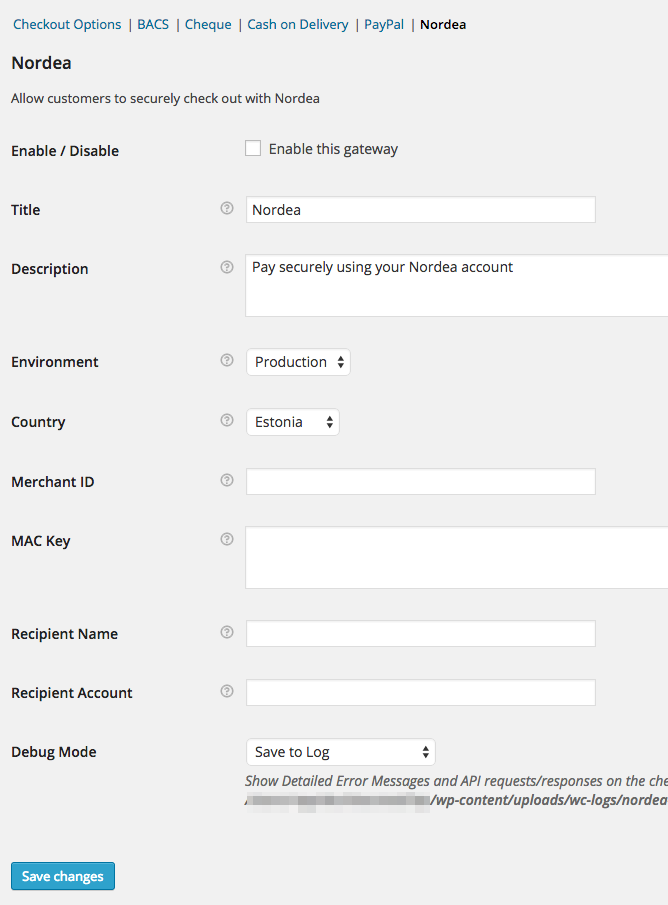
- Enable / Disable – Enable the gateway if ready to go live.
- Title – Displayed to customers during checkout and on the Order Received page.
- Description – Displayed under the title during checkout. Limited HTML is allowed.
- Environment – Switch between “Test” and “Production” credentials. Enable “Test” to send test payments.
- Merchant ID – Merchant ID sent to you by Nordea. For Test mode, use the following values: 12345678.
- MAC Key – Secret MAC key sent to you by Nordea. For Test mode, use the following values: LEHTI.
- Recipient Name – Optional. Only enter a value if you want to specify a different payment recipient than in your contract with Nordea.
- Recipient Account – Optional. Only enter an IBAN account number if you want to specify a different payment recipient than in your contract with Nordea, otherwise, leave blank.
- Debug Mode – Enable this is you are having issues processing transactions. Either log API requests / responses directly to the checkout / thank you page, save them to the WooCommerce Error Log (found under WooCommerce > System Status > Logs) or both. All debugging messages are cleaned of sensitive information before display, but as a best practice do not enable this unless you are having issues with the plugin.
Test Mode
↑ Back to topUsage
↑ Back to top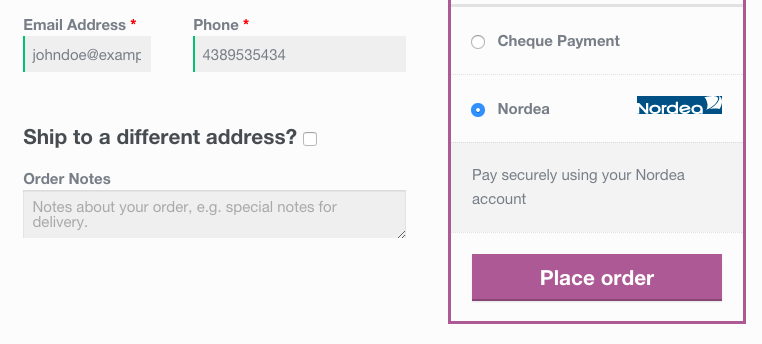
Troubleshooting
↑ Back to top- Verify that your Merchant ID, and secret MAC key are correct.
- Double-check that your Merchant ID, and secret MAC key are correct.
- Enable only WooCommerce and Nordea using a WordPress default theme to see if the issue persists.
- Submit a support ticket and tell us what happened when you took these steps.
FAQ
↑ Back to topWooCommerce 2.2 added the ability to process automatic refunds. Does this gateway support automatic refunds?
↑ Back to topWhere can I find official Nordea bank link / e-payment documentation?
↑ Back to top- Finland: English | Finnish | Swedish
- Estonia: English | Estonian | Russian
- Latvia: English | Latvian | Russian
- Lithuania: English | Lithuanian