
Use the Product Collection block to choose which products appear on a page or template, arrange them in a grid, list, or carousel, and control how shoppers browse them.
To edit a catalog template, use a block theme and go to Appearance > Editor > Templates. Open Product Catalog or the relevant category, tag, attribute, brand, or product search template. You can also add a collection while editing a regular page.
Choose a product collection
↑ Back to top- Open the page or template you want to edit.
- Open the block inserter, search for Product Collection, and add the block. If the template already contains a collection, select it in List View.
- Choose a ready-made collection, or select create your own to set the product criteria yourself.
- To change an existing collection, select the parent collection in List View, then select Choose collection in its block toolbar.
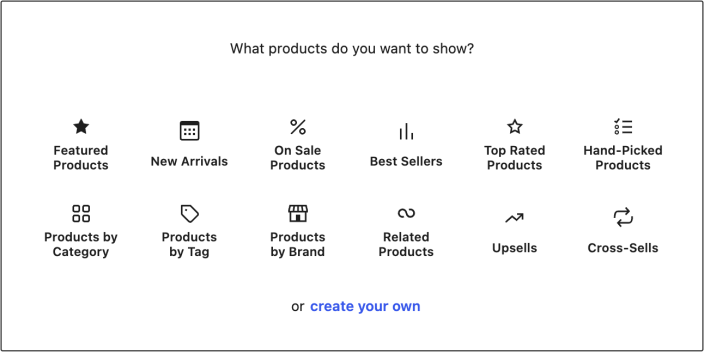
Create your own
↑ Back to topUse this option to build a collection with your own product criteria. On catalog and archive templates, the Default query follows the current template: for example, a tag archive shows products with that tag. Choose Custom when the collection should show a fixed selection instead. See Query type for how this works on regular pages.
Featured Products
↑ Back to topShow products you’ve marked as featured. See how to mark products as featured.
Top Rated Products
↑ Back to topShow products with the highest review ratings.
On Sale Products
↑ Back to topShow products that are on sale.
Best Sellers
↑ Back to topShow products with the highest sales totals.
New Arrivals
↑ Back to topShow products added to your catalog within the last seven days by default. Adjust the date range with the Created filter in the block settings.
Hand-Picked Products
↑ Back to topChoose the specific products to include in the collection.
Products by category, tag, or brand
↑ Back to topChoose Products by Category, Products by Tag, or Products by Brand to select products from those groups. Use a custom collection’s Product Attributes filter for attributes such as size or color.
Related Products
↑ Back to topRecommend products related to the product a shopper is viewing, based on shared categories or tags. Use this collection in a product context, such as the Single Product template.
Upsells
↑ Back to topShow alternatives you’ve assigned as upsells to the product being viewed. Use this collection in a product context.
Cross-Sells
↑ Back to topRecommend products you’ve assigned as cross-sells to items in the shopper’s cart. See Related products, upsells, and cross-sells for how automatic recommendations and manually linked products differ.
Block structure
↑ Back to topOpen List View and expand the collection to select its inner blocks. The collection can contain:
- Product Template: the repeated product card, including its image, title, price, and add-to-cart button. Change an inner block here to change that element across the collection.
- Pagination: navigation between product pages. It isn’t shown when the collection is limited to one page.
- No results: the message shown when no products match the collection’s criteria.
Select the parent collection to change which products appear and how they’re arranged. Select an inner block to change that part of the product card or message. See Working with WooCommerce blocks for the block toolbar, settings sidebar, and styles.
Block settings
↑ Back to topSelect the parent collection and open its Block settings. The available controls depend on the collection, query type, and layout. If a control is hidden, check the three-dot options menu beside the relevant Settings or Filters heading.
Query type
↑ Back to topA query defines which products the collection displays. Choose Default or Custom under Query type.
Default
On catalog and archive templates, Default follows the current template and lets shoppers filter the results. Keep this setting for the main catalog collection so category, tag, brand, attribute, and search pages show the expected products.
On regular pages, Default uses the collection’s product criteria and allows shoppers to filter it. The help text below the control explains the behavior for the current location.
When the collection follows a catalog template, Default sort by offers Newest to oldest, price in either direction, Sales, high to low, Rating, high to low, and Manual (menu order + name). This changes the shared catalog sort setting: other Product Collection blocks using the default catalog query use the same order.
Custom
Choose Custom to show products based on fixed criteria. Use this for a curated collection that should keep its selection when shoppers filter other products on the page.
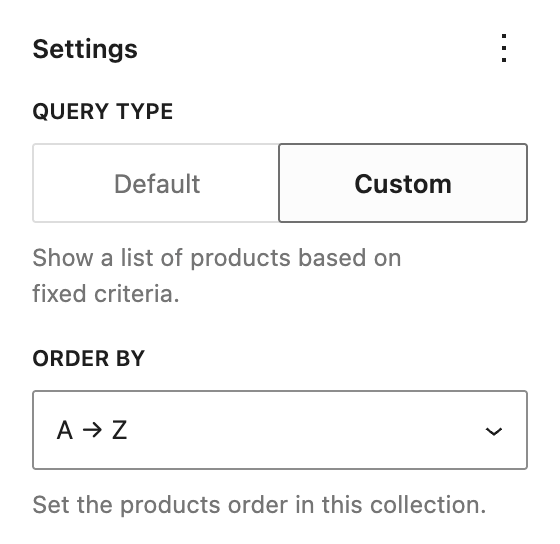
Order by supports product name, date, price, sales, and rating in either direction, plus Manual (menu order + name) and Random. Random ordering doesn’t guarantee a different order on every page load.
Products per page sets how many products appear at a time. Max pages to show limits how many pages shoppers can browse; 0 allows all pages. Add Pagination if shoppers should reach products beyond the first page.
Under Filters, use Show only products on sale and Stock status to narrow the collection. The options menu can show further filters for hand-picked products, keyword, product attributes, featured products, creation date, price range, brands, categories, and tags. Ready-made collections may hide controls that don’t apply to them.
Layout
↑ Back to topChoose the arrangement that fits the space available.
- Stack: a vertical list.
- Grid: rows and columns. Adjust Columns and keep Responsive enabled to reduce the column count on smaller screens.
- Carousel: a horizontal collection shoppers can scroll through. Its product-count control is labeled Products in carousel or Number of products, depending on the available carousel controls.
Width lets products fill the available space or use a fixed width. Check the result at both wide and narrow screen sizes before saving.
Customize and check the collection
↑ Back to topCreate a single row of products
↑ Back to top- Select the parent collection and choose Custom under Query type.
- Choose Grid and set Columns to the number of products you want in the row, such as 3.
- Set Products per page to the same number. In the Settings three-dot options menu, show Max pages to show and set it to 1.
- Keep Responsive enabled so products can wrap into fewer columns on smaller screens.
At a wide screen size, the collection shows one row when enough matching products are available. On smaller screens, that same selection can wrap to keep the product cards readable. Use Carousel instead if you want horizontal browsing.
Filter by categories, tags, or attributes
↑ Back to top- Select the parent collection, open its Block settings, and choose Custom under Query type.
- Under Filters, open the three-dot options menu and enable Product Categories, Product Tags, or Product Attributes.
- Select the values to include in the controls that appear. For attributes, choose the attribute and its terms.
- Check the products in the editor. If none appear, check that published products match all the criteria you’ve selected and that the stock and sale filters aren’t excluding them.
Save and verify
↑ Back to top- Save the page or template and open it on the storefront.
- Check the product selection, order, and layout at desktop and mobile sizes. For an archive template, open a real category, tag, or search result to confirm that its main collection follows the page context.
- Try any pagination, carousel, or shopper filters you’ve included. If products are missing, return to the collection’s settings and check its product criteria, product count, and page limit.
Questions and support
↑ Back to topDo you still have questions and need assistance?
This documentation is about the free, core WooCommerce plugin, for which support is provided in our community forums on WordPress.org. By searching this forum, you’ll often find that your question has been asked and answered before.
If you haven’t created a WordPress.org account to use the forums, here’s how.
- If you’re looking to extend the core functionality shown here, we recommend reviewing available extensions in the WooCommerce Marketplace.
- Need ongoing advanced support or a customization built for WooCommerce? Hire a Woo Agency Partner.
- Are you a developer building your own WooCommerce integration or extension? Check our Developer Resources.
If you weren’t able to find the information you need, please use the feedback thumbs below to let us know.