
The Checkout block lets customers complete a purchase by entering their contact, delivery, and payment information.
This reference explains the Checkout block’s structure, settings, and customization options. Open your designated Checkout page in the block editor to inspect these controls.
- Checkout block structure
- Checkout block settings
- Checkout Fields
- Checkout Totals
- Local Pickup delivery option
Note:
After adding the Checkout block to a page, designate that page as your Checkout page in WooCommerce > Settings > Advanced. See advanced settings for the page setup options.
Checkout block structure
↑ Back to topThe Checkout block contains two main inner blocks, Checkout Fields and Checkout Totals — two key components of the checkout experience. Use the List View to see how these blocks fit together.
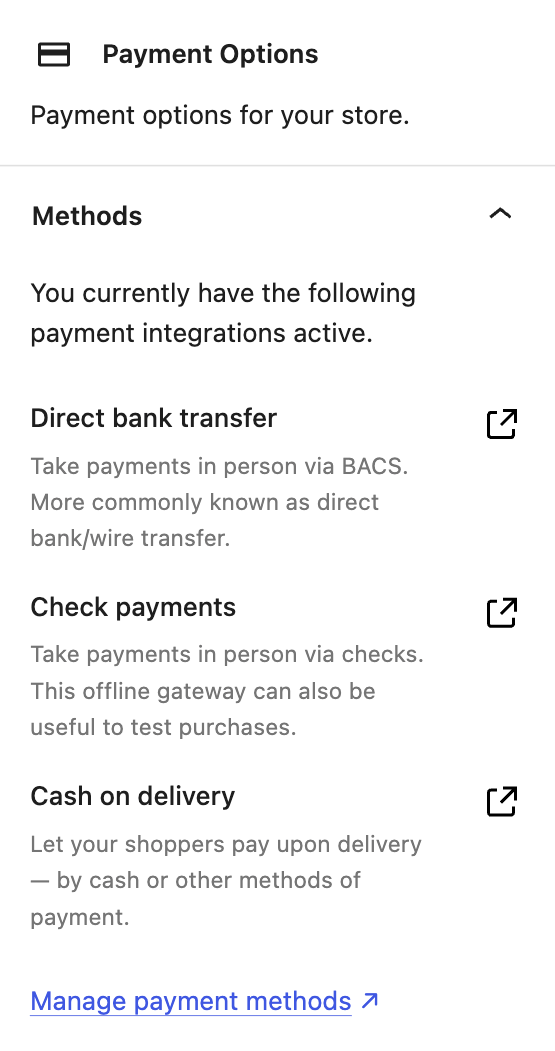
Payment methods available during checkout depend on your active gateways and whether they support the Checkout block. In the editor, Payment Options lists active payment integrations and marks integrations identified as incompatible. See Checkout-compatible extensions and manage your payment gateway settings.
Some inner blocks have no settings to configure in the block editor. Select them using List View to see a description of each inner block in the settings sidebar.
Where possible, in the Settings sidebar, these blocks will point you to the relevant settings in WooCommerce so you can configure them.
Checkout block settings
↑ Back to topThe Checkout block has two settings in its sidebar: Show form step numbers adds numbers to checkout section headings, and Dark mode inputs styles form controls for dark backgrounds.
Checkout Fields block
↑ Back to topThe Checkout Fields block contains the fields where a customer enters their information to complete their purchase. It contains inner blocks for each field; most of these inner blocks are dynamic. Their behavior is based on:
- The current customer’s order, and
- How your WooCommerce settings are configured.
The Checkout Fields block is one of the two main blocks nested inside Checkout. Its Address Fields settings are also available in the Shipping and Billing Address blocks; changing a shared setting in one block updates the others.
- Address Fields: Use this setting to toggle the visibility of the Company, Address line 2, and Phone fields. When a field is visible, choose whether it is Optional or Required.
Additional blocks are nested inside Checkout Fields. Select a block in List View to inspect its settings and available movement or renaming controls. Some blocks are locked to preserve the checkout structure.
Express Checkout
↑ Back to topThe Express Checkout block displays content only if an active payment gateway supports express checkout methods, such as WooPay, Apple Pay, or Google Pay.
Available controls depend on your active express payment integration. Where supported, Button Settings lets you apply uniform styles and adjust the button height or border radius.
To enable express checkout methods, we recommend using WooPayments if it is available in your country.
Delivery block
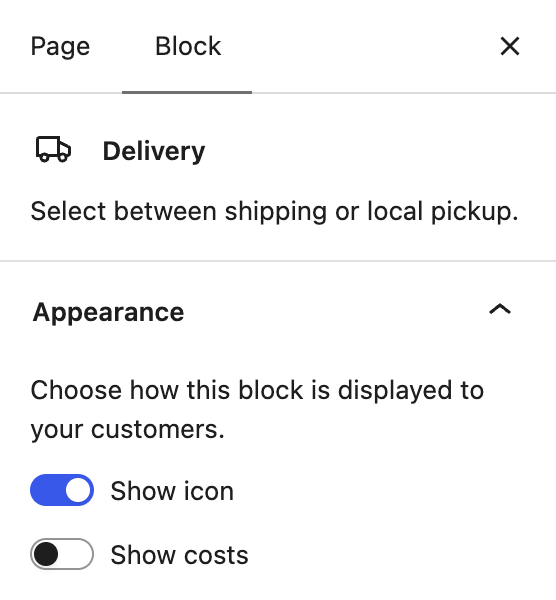
↑ Back to topThe Delivery block is where customers can choose between shipping their order or picking it up locally. To open its settings, expand Checkout > Checkout Fields in List View and select Delivery.
For the local-pickup option in the Delivery block and the Pickup Method block to appear:
- Enable the block version of Local Pickup in WooCommerce > Settings > Shipping > Local Pickup, and configure a pickup location or method. The Delivery block also requires a shippable cart and calculated shipping options.
- Designate the page being edited as the Checkout page in WooCommerce > Settings > Advanced.
Appearance
- Show icon: Displays an icon next to the delivery options to visually differentiate them.
- Show costs: Includes delivery costs alongside each option to provide customers with transparent pricing information.
Shipping Address
↑ Back to topThe settings in this block are the same as those found in the Checkout Fields block. These settings are linked, meaning a change in one location changes it in the other.
Terms and Conditions
↑ Back to topThe Terms and Conditions block facilitates customer acknowledgment of your store policies before a purchase can be completed.
- Require Checkbox: Toggle this setting to make it mandatory for customers to check a box confirming their agreement to the terms and conditions before they can proceed with their order.
Automatically link to your store’s policies in the block’s content by specifying your Terms and Conditions and Privacy Policy pages.
Learn more about page setup and privacy policy options.
Actions
↑ Back to topThe Actions block provides additional navigation options for customers during checkout.
- Navigation Options: Use the Show a Return to Cart link setting to show or hide a link that takes customers back to their cart to make changes.
- Return to Cart button: On your designated Checkout page, the link returns shoppers to your WooCommerce Cart page by default. If you use the block on another page or have a custom return page set, the page selector lets you choose its destination.
Checkout Totals block
↑ Back to topThe Checkout Totals block contains inner blocks displaying an order summary, a coupon entry form, and a list of the costs that make up the order total. Most structural blocks are locked to prevent their removal. The available movement controls depend on the selected block.
The Coupon Form is the only block in the checkout totals section that is unlocked and can be removed.
At a Checkout block container width of 920 pixels or more, the layout uses two columns with a 360-pixel order-summary sidebar. At 919 pixels or less, the layout stacks into one column. These breakpoints use the Checkout block container width, not the browser viewport width.
Local Pickup delivery option
↑ Back to topTo show local pickup options at checkout, add the Checkout block to your designated checkout page, then enable and configure the block version of Local Pickup.
Local Pickup in WooCommerce blocks allows you to offer one or more pickup locations to your customers. Enabling this option (and configuring a pickup location via WooCommerce > Settings > Shipping > Local Pickup) displays the Delivery and Pickup Method blocks in your site’s Checkout block — a more streamlined way for shoppers to select a pickup location for their order.
This is separate from zone-based local pickup, which you configure within shipping zones.
Check your changes
↑ Back to topAfter saving your changes, add a physical product to the cart and open your designated Checkout page. Check that the fields, delivery choices, payment methods, and order summary match your settings. Repeat the check on a narrow screen. If a delivery or payment option is missing, check that the method is enabled and available for the customer’s address and cart.
Questions and support
↑ Back to topDo you still have questions and need assistance?
This documentation is about the free, core WooCommerce plugin, for which support is provided in our community forums on WordPress.org. By searching this forum, you’ll often find that your question has been asked and answered before.
If you haven’t created a WordPress.org account to use the forums, here’s how.
- If you’re looking to extend the core functionality shown here, we recommend reviewing available extensions in the WooCommerce Marketplace.
- Need ongoing advanced support or a customization built for WooCommerce? Hire a Woo Agency Partner.
- Are you a developer building your own WooCommerce integration or extension? Check our Developer Resources.
If you weren’t able to find the information you need, please use the feedback thumbs below to let us know.