
While the default downloadable product settings work for most merchants, some stores need a different configuration. This page guides you through the downloadable product settings in WooCommerce, including file download methods, upload protection, storage options, and how customers receive and access their downloads.
Before you start, you’ll need access to WooCommerce settings and orders. If your account cannot open these screens, ask your store’s Administrator for help.
General settings
↑ Back to topConfigure how WooCommerce delivers downloadable files to your customers. To access these settings, follow the steps below:
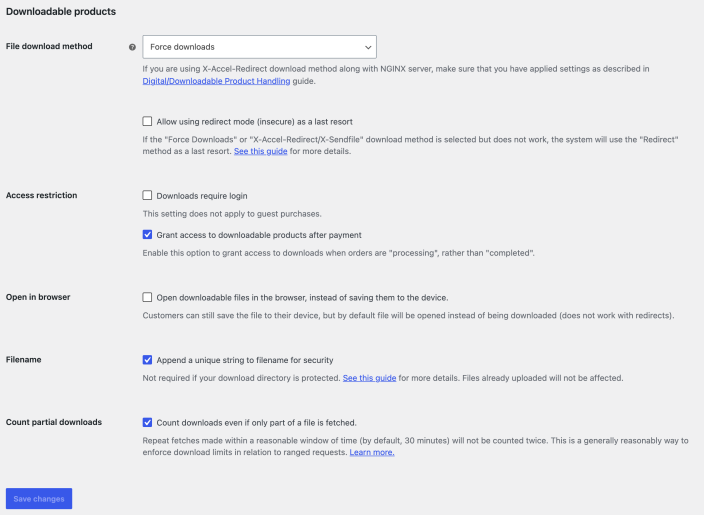
- Go to WooCommerce > Settings > Products > Downloadable products.
- Select a File download method from the dropdown. Each method handles file delivery differently:
- Force downloads — Files are delivered using PHP, which prevents direct linking. If your files are large or your server is underpowered, you may experience timeouts during download. In that case, ask your host about improving server performance or using X-Accel-Redirect/X-Sendfile. Redirect only exposes the file URL. For files hosted remotely, PHP must allow remote streams through the allow_url_fopen setting. Ask your hosting provider to check this if remote downloads fail.
- X-Accel-Redirect/X-Sendfile — The server (nginx or Apache) handles file delivery directly to the customer. This method requires the X-Accel-Redirect or X-Sendfile module to be installed and enabled on your server. Confirm with your web host that one of these modules is available before selecting this method. The web server sends the file directly. Protection depends on server support and configuration; NGINX requires explicit configuration.
- Redirect only (insecure) — Customers access downloads by being redirected directly to the file URL. Anyone with the URL can access the file, even if they are not logged in. This means customers who purchase the product can share the link with others who have not.
Note: If you select either Force downloads or X-Accel-Redirect/X-Sendfile, you can enable the Allow using redirect mode (insecure) as a last resort setting. This allows the redirect method to be used if a remotely hosted file cannot be delivered using your selected method. This carries the same risks as Redirect only (insecure) but is helpful when you host assets across different platforms that may not work with your preferred method.
- Select your access restriction options:
- Enable Downloads require login to require registered customers to sign in before downloading their files. This setting does not apply to guest purchases. Disable guest checkout if you want every purchaser to have an account.
- Enable Grant access to downloadable products after payment if you want customers to access their files when orders are in a Processing status, instead of waiting until the order is marked Complete. This is helpful if you sell downloadable products alongside physical products, so customers do not have to wait for the physical product to arrive before accessing their digital content.
- Determine whether to keep Append a unique string to filename for security enabled. This setting is enabled by default and is recommended to enhance file security. It is not required if your upload directory is properly secured through other means. Activating or deactivating this setting does not affect previously uploaded files or links; it only applies to files uploaded after the change.
- Select Save changes.
Additional settings are available under WooCommerce > Settings > Products > Approved download directories (the tab next to “Downloadable products” at the top of the page). These settings are particularly useful for sites where shop managers or other users can edit products. See the approved download directories documentation for details.
Protecting your uploads directory
↑ Back to topBy default, WooCommerce adds an .htaccess file to protect your wp-content/uploads/woocommerce_uploads directory. However, this does not guarantee protection in all server configurations. The sections below cover additional measures you can take.
NGINX server configuration
↑ Back to topIf you use an NGINX server with the X-Accel-Redirect/X-Sendfile or Force downloads method, you need to modify your server configuration for proper file protection. Refer to the WooCommerce developer documentation on NGINX uploads protection for instructions.
Unique string appended to filenames
↑ Back to topAs described in the general settings section above, WooCommerce appends a unique string to uploaded filenames by default. This makes it harder for unauthorized visitors to guess download URLs.

Storing files and downloads
↑ Back to topWhere you store your downloadable product files depends on your preference and security needs. Download files can use local paths or remote URLs. If Approved download directories is enabled, the file must be in an enabled directory. Remote URLs must also work with the selected download method. The sections below answer common questions about file storage.
Cloud storage
↑ Back to topYou can use cloud storage to host your downloadable files. Use an external URL that points to the file and meets your store’s approved-directory rules. Test the specific cloud-storage URL with your chosen download method. Some services require a direct download URL or do not support protected delivery; Redirect only (insecure) exposes the file URL. See the general settings section for an explanation of each method.
Securing files uploaded through the media library
↑ Back to topWhen you upload a file through the WordPress media library instead of through WooCommerce, anyone with the direct URL can access the file. The WordPress media library is public because it stores all images and files attached to posts and pages.
To prevent unauthorized access, upload files from the Edit product page in WooCommerce rather than selecting them from the media library. WooCommerce uploads those files to the woocommerce_uploads folder. This does not guarantee that direct URLs are blocked: protection depends on your server configuration, and NGINX requires an explicit rule.
Supported file extensions
↑ Back to topWooCommerce allows the file types that WordPress allows for upload. For details about adding media files in WordPress, see using image and file attachments.
Maximum file size
↑ Back to topWooCommerce does not impose a maximum file size limit. However, your server likely has its own limit. Contact your hosting provider if you need the limit increased.
Customer experience when ordering a downloadable product
↑ Back to topWhen a customer orders a downloadable product, they receive an email containing a download link for the purchased file. If the customer has an account on your site, the download link is also available under My Account > Downloads. Your downloadable product settings affect when customers gain access to their downloads:
- If you enable Grant access to downloadable products after payment, customers can download the product from the order received page, the order email, or the My Account > Downloads page (if they have an account).
- If you do not enable Grant access to downloadable products after payment, customers gain access only when the order status is set to Complete. For products marked as both “virtual” and “downloadable,” WooCommerce sets this status automatically. If the product is only marked as “downloadable,” you need to manually mark the order as Complete for customers to access the downloads.
Note about PayPal Standard: PayPal Standard is deprecated and is not loaded by default on new stores. If it is already enabled on your store, payment confirmation through Instant Payment Notification (IPN) can be delayed, so download links might not appear on the order received page immediately. We recommend switching to PayPal Payments. If you continue using PayPal Standard, enable Payment Data Transfer (PDT) using the steps below.
To configure Payment Data Transfer (PDT) for PayPal Standard:
- In your PayPal business account, go to My selling tools and select Update next to Website preferences.
- Enable Auto Return for Website Payments. Enter https://yoursite.com/checkout/order-received/ as the return URL, replacing yoursite.com with your store’s address.
- Enable Payment Data Transfer, then copy the identity token PayPal provides.
- In WordPress, go to WooCommerce > Settings > Payments. Find PayPal Standard, select Manage, paste the token into PayPal identity token, and select Save changes.
Order confirmation email
↑ Back to topAfter the order is processed and payment is confirmed, the customer receives an order confirmation email containing a clickable download link.
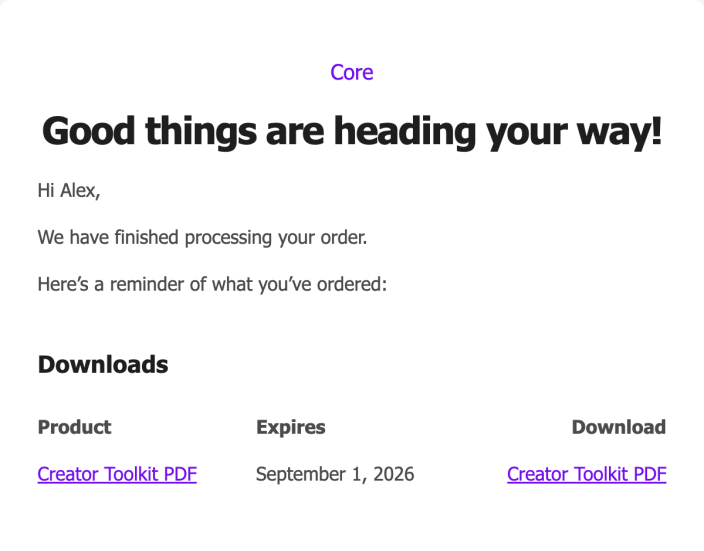
If your Completed order emails do not include download links, there may be a database issue. See the guide on completed order emails missing download links for troubleshooting steps.
Manage orders with downloadable line items
↑ Back to topYou can view and edit a customer’s access to a purchased downloadable product from the order screen. Follow the steps below to manage download permissions:
- Go to WooCommerce > Orders and select the order you want to view or edit.
- Select Screen Options at the top right of the order edit screen.
- Select the Downloadable product permissions checkbox. The meta box appears on the order edit screen.
- Scroll down to the Downloadable product permissions meta box. This section displays the available downloads and how many times the customer has accessed each file.
- From here, you can revoke access, grant access to new downloads, or close the order.
Note:
As of WooCommerce 11.1, the Downloadable product permissions meta box is hidden by default on the order edit screen. Permissions for order items are granted automatically when the order status changes to Processing or Completed, so most stores never need to open this meta box. Use Screen Options to display it when you need to adjust permissions manually. This change affects visibility only. No download permissions are revoked or altered.

Troubleshoot rejected download links
You’ll need access to the affected order in WooCommerce. When a customer sees “Invalid download link,” check that the order, billing email, and downloadable permission match. WooCommerce 11.2 adds checks that reject malformed order or email details in download links. Links generated by WooCommerce use the supported formats.
Important: Regenerating download permissions deletes the existing permissions and their download logs, then creates new permissions. Download counts and logs from the old permissions are lost. Use this action only when you need to rebuild the order’s permissions.
- Ask the customer to open the current link from their order email or My Account > Downloads. Confirm that the order and billing email still match the customer’s purchase.
- On the order screen, check that the downloadable product permission is present and that the order billing email is correct. Correct the billing email before rebuilding permissions if it is wrong.
- If the permission is missing or does not match the order, select Regenerate download permissions in Order actions, then select Apply. After checking the permission, select Send order details to customer in Order actions, then select Apply to email a current download link.
Edit downloadable files after customers have purchased
↑ Back to topIf you change a downloadable product’s files after customers have already purchased it, the behavior depends on whether you edit an existing file or add a new one:
- Editing an existing download file row (changing the name, file URL, or both) updates the download links on past purchases but leaves the expiry date and remaining download count intact.
- Adding a new download does not affect past orders. Only new purchasers gain permission to download it.
If you sell products that grant lifetime access to all downloads added to a product, a subscription or membership extension may be more appropriate. You can also combine files into a single archive (zip). To restore the previous behavior where new files are automatically granted to past purchasers, a plugin is available on GitHub.
Download logs and reports
↑ Back to topWooCommerce tracks and logs downloads of digital products with unique IDs. You can view download activity in the Downloads report in WooCommerce Analytics.
Questions and support
↑ Back to topDo you still have questions and need assistance?
This documentation is about the free, core WooCommerce plugin, for which support is provided in our community forums on WordPress.org. By searching this forum, you’ll often find that your question has been asked and answered before.
If you haven’t created a WordPress.org account to use the forums, here’s how.
- If you’re looking to extend the core functionality shown here, we recommend reviewing available extensions in the WooCommerce Marketplace.
- Need ongoing advanced support or a customization built for WooCommerce? Hire a Woo Agency Partner.
- Are you a developer building your own WooCommerce integration or extension? Check our Developer Resources.
If you weren’t able to find the information you need, please use the feedback thumbs below to let us know.