
Coupons: Overview
↑ Back to topWooCommerce comes with built-in coupon creation and management tools. WooCommerce core offers fixed-cart, fixed-product, and percentage-based coupons. On this page, you’ll learn how to:
- Activate coupons in your store.
- Create a coupon.
- Set “Usage Restrictions” and “Usage Limits” for coupons.
Activating Coupons in WooCommerce
↑ Back to topYou need an administrator or shop manager account to manage coupons. Before creating your first coupon, enable coupon use in your store:
- Go to WooCommerce > Settings > General > Enable coupons
- Select the checkbox to Enable the use of coupon codes.
- Select Save changes.
(More info at: Configuring WooCommerce – General options.)
Creating/Adding a Coupon in WooCommerce
↑ Back to topThe first step to offering coupons to your customers is to create one. Follow these instructions to create a coupon in WooCommerce:
- Navigate to: Marketing > Coupons.
- If no coupons exist in your store yet, you’ll see a screen prompting you to create your first coupon.
- There’s also a button to learn more about coupons, which is how you might’ve ended up reading this document.
- If you’ve made a coupon previously, you will see a list of coupons, their type, discount, etc…
- Create a new coupon by selecting the Add new coupon button at the top of the screen.
- Enter or generate a Coupon code. This is the code your customers use on the cart or checkout pages to apply the discount. You have two options for generating a code:
- Create/Enter a code — Enter a coupon code in the Coupon Code field. You can include letters, numbers, and special characters (such as &, $, -, or @). Coupon codes aren’t case-sensitive, so “SAVE10” and “save10” will both work.
- Generate a random code — Select the Generate coupon code button if you want WooCommerce to auto-create a coupon code for you.
- Enter a Description (optional). This is information about the coupon for internal use (not seen by customers) like name of promotion/event, dates the coupon is valid, ticket number, customer name, etc.
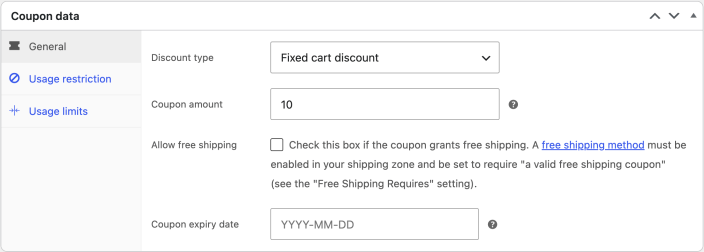
- Select the “Discount Type” from the dropdown menu. There are three choices:
- Percentage discount — A percentage discount for eligible products. For example, if the cart contains three (3) t-shirts @ $20 each = $60, a coupon for 10% off applies a discount of $6.
- Fixed cart discount — A fixed total discount for the entire cart. For example, if the cart contains three (3) t-shirts @ $20 each = $60, a coupon for $10 off gives a discount of $10.
- Fixed product discount — A fixed discount for each eligible item. For example, three (3) t-shirts @ $20 each with a coupon for $10 off applies a discount of $30.
- Enter the coupon amount. Enter the amount without currency (i.e. : $, £) or percent (%) signs, regardless of the discount type you chose in the previous step. If you want to offer a discount of 10%, enter 10 in the field.
- Check the box for “Allow Free Shipping” if applicable. You use this box when creating a “free shipping” coupon to use with the free shipping method. You can learn more about this option here.
- Set a coupon expiry date (optional). Coupons expire/cannot be used on the date that is set.
- Select the Publish button on the right-hand side if you do not need to add any usage restrictions or usage limits (covered in the next section).
Setting Coupon Usage Restrictions and Usage Limits
↑ Back to topCoupons have two other settings tabs used for the configuration of coupons: Usage Restrictions and Usage Limits. Below, we provide detailed descriptions of each of the options in these tabs.
Configuring Coupon Usage Restrictions
↑ Back to top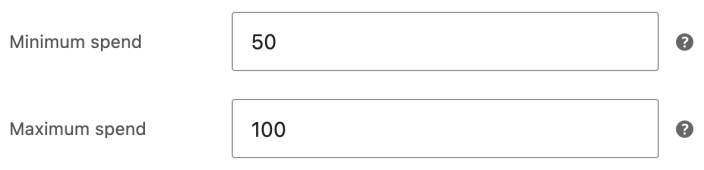
In the usage restrictions menu are options to restrict the use of the coupon to certain cart totals, products, and customers. Below, we describe each type of restriction that you can apply to a coupon:
- Minimum spend — Set the minimum cart subtotal needed to use the coupon. WooCommerce uses the displayed cart subtotal, including tax when your cart displays prices including tax.
- Maximum spend — Set the maximum subtotal allowed when using the coupon.
- Individual use only — Select the checkbox if the coupon cannot be used in combination with other coupons.
- Exclude sale items — Select the checkbox to exclude sale items from the discount. A fixed cart discount can still apply when the cart contains eligible items that are not on sale.
- Products — The coupon can be applied to these specific products, or these products must be in the cart for the coupon discount to apply.
- Exclude products — You cannot apply the coupon to these specific products, or these products cannot be in the cart for the coupon discount to apply.
- Product categories — The coupon applies to only these categories or requires specific categories in the cart for the discount to apply.
- Exclude categories — The coupon does not apply to these categories, or specific categories must not be in the cart for the coupon discount to apply.
- Allowed Emails/Email restrictions — These are email addresses that can use a coupon. Verified against customer’s billing email. WooCommerce also allows you to include a wildcard character (*) to match multiple email addresses, for example, `*@gmail.com` would allow any @gmail.com email address to use the coupon.
- Product brands — Restrict the coupon to products associated with the selected brands.
- Exclude brands — Exclude products associated with the selected brands.
In WooCommerce 11.2 and later, when you set both a minimum and a maximum spend, the minimum must be less than or equal to the maximum. If WooCommerce rejects the combination, lower the minimum or raise the maximum, then save the coupon again. For example, a minimum of 50 and a maximum of 100 is valid; a minimum of 100 and a maximum of 50 is not. Existing coupons with a minimum above their maximum still enforce the stored minimum. Correct both limits before relying on those coupons for a promotion.
Note:
Leaving Products and Exclude products empty removes those product-specific restrictions. Other restrictions, such as categories, brands, sale items, spend limits, and allowed emails, still apply.
Configuring Coupon Usage Limits
↑ Back to topUsage limits specify how many times customers can use a coupon. There are three ways to limit coupon usage:
- Usage limit per coupon — Each coupon has a usage limit indicating how many times all customers can use it before it becomes invalid.
- Limit usage to X items — Set the maximum number of qualifying items that can receive a percentage or fixed product discount. Leave this blank to discount all qualifying items. This setting does not limit a fixed cart discount.
- Usage limit per user — Each customer can use the coupon a certain number of times before it becomes invalid specifically for that customer.
Once you have configured the coupon, select Publish. To verify it before sharing the code, add eligible products to your storefront cart and apply the code. Check that the discount and total match your intended offer. Test a cart outside any spend, product, or customer restrictions to confirm the coupon is rejected there.
To make the coupon available later, select Edit beside the publish date in the Publish panel, enter the date and time, select OK, then select Schedule.
Sending a coupon
↑ Back to topSend your coupon code to customers by email, social media, or other marketing channels. Customers enter the code at cart or checkout to receive the discount; WooCommerce core does not apply coupon codes automatically.
For automated coupon emails, consider AutomateWoo or MailPoet.
Applying a coupon
↑ Back to topAt cart or checkout, customers open the coupon field, enter their code, and select Apply. The order summary shows the coupon discount.
If a coupon cannot be applied, WooCommerce displays a message explaining why. Check the code, expiry date, spend range, product restrictions, billing email, and usage limits, then correct the coupon or test with an eligible cart.
Store managers can also add a coupon to an editable order by selecting Apply coupon below the order items. Enter the coupon code and check the recalculated order totals.
Here are a few important notes about coupon discounts and how they are applied:
- Taxes: Coupons apply to product prices before tax calculation to ensure accurate tax calculation, preventing rounding errors by splitting the discount between each product in the cart. This behavior is more noticeable with Fixed Cart Discounts.
- Shipping: Coupons do not affect shipping since they can only apply to cart items. Shipping is not a cart item. Therefore, if a customer has a coupon covering the entire cost of the products in their cart but your store charges a $10 shipping fee, they will still pay the $10 shipping fee. The only exception is when you create a coupon for free shipping.
If Calculate coupon discounts sequentially is enabled in WooCommerce > Settings > General, WooCommerce 11.2 and later uses the order customers entered their coupons to break a tie between coupons with the same calculation priority and the same item-usage limit. Entry order does not override a different calculation priority or item-usage limit.
Questions and support
↑ Back to topDo you still have questions and need assistance?
This documentation is about the free, core WooCommerce plugin, for which support is provided in our community forums on WordPress.org. By searching this forum, you’ll often find that your question has been asked and answered before.
If you haven’t created a WordPress.org account to use the forums, here’s how.
- If you’re looking to extend the core functionality shown here, we recommend reviewing available extensions in the WooCommerce Marketplace.
- Need ongoing advanced support or a customization built for WooCommerce? Hire a Woo Agency Partner.
- Are you a developer building your own WooCommerce integration or extension? Check our Developer Resources.
If you weren’t able to find the information you need, please use the feedback thumbs below to let us know.