
Use these examples to map your WooCommerce product data to Google for WooCommerce attributes. Before you start, install and connect Google for WooCommerce, and make sure the products and categories used in your rules exist. For the basics, see Attribute mapping.
Use case 1: Set one brand for all products
↑ Back to topIn your WordPress dashboard, go to Marketing > Google for WooCommerce > Attributes. Select Create attribute rule and choose Brand as the target attribute.
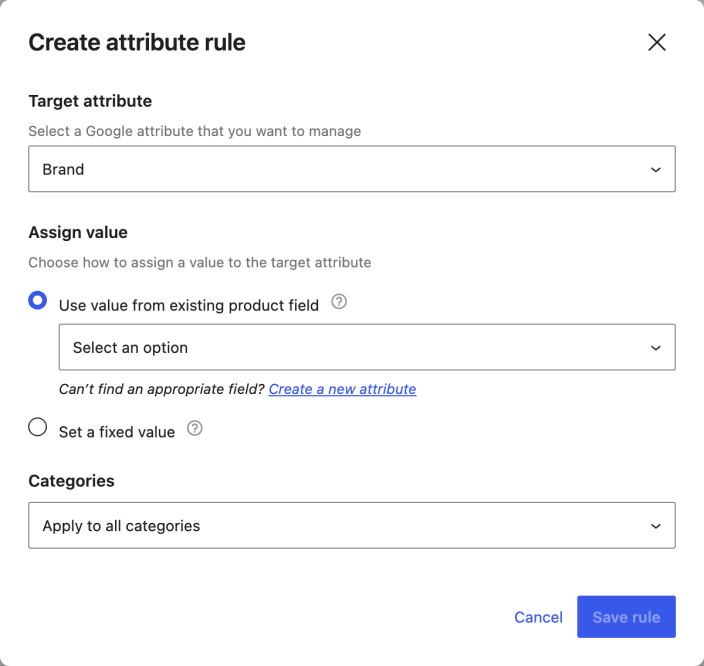
Under Assign value, select Set a fixed value and enter Acme.
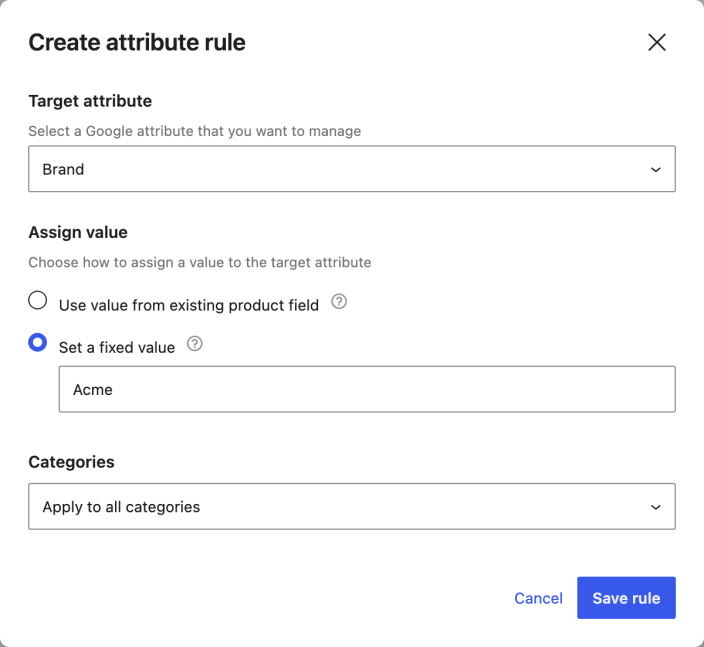
Leave Categories set to Apply to all categories.
Select Save rule. The rule appears in the attribute-mapping list.

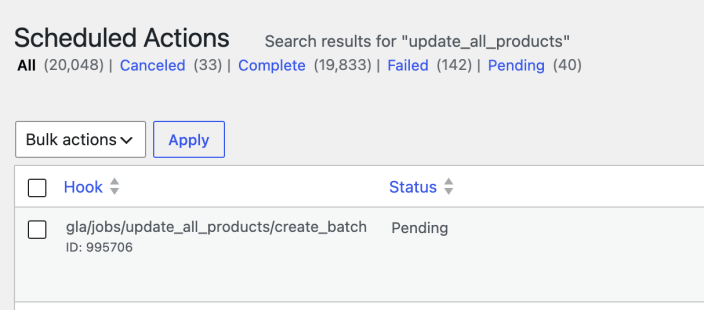
To check the scheduled resync, go to WooCommerce > Status > Scheduled Actions and search for update_all_products. A pending action indicates that the resync is scheduled.
Use case 2: Set a different brand for one product
↑ Back to topTo give one product a different brand, edit it under Products > All Products. In Product data > Google for WooCommerce, enter Woo in Brand, then update the product.
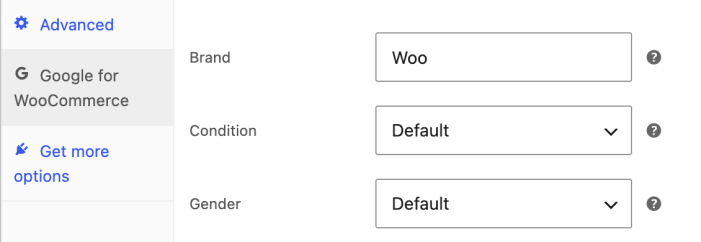
Create the all-category Acme Brand rule described in use case 1. The product-level Woo value takes precedence for that product; the rule supplies Acme for products without a product-level Brand value.
If you assign brands to products using WooCommerce product brands, you can map that taxonomy instead, as described in the next example.
Use case 3: Map product brands
↑ Back to topIf you use product brands, assign the appropriate brand to each product. Create an attribute rule and select Brand as the target.
Under Use value from existing product field, select Product brands in the Taxonomies group. Choose the categories covered by the rule and select Save rule.
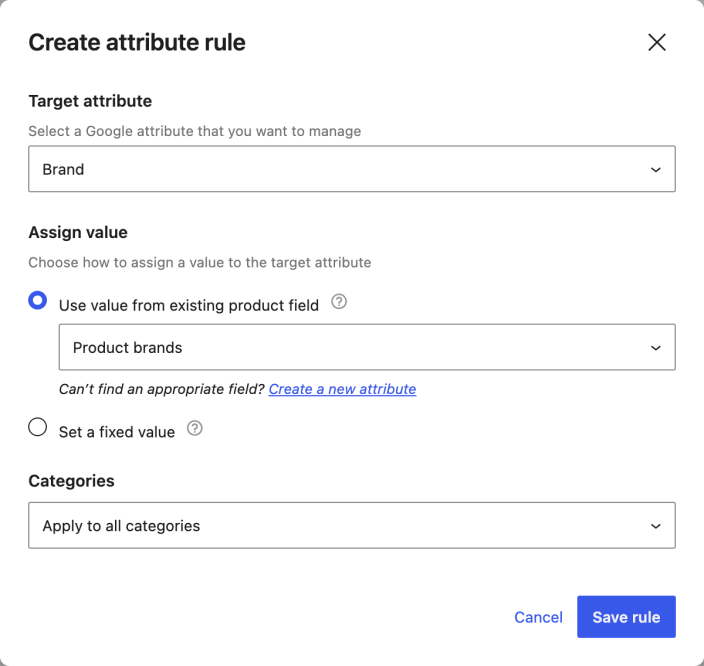
When products sync, the rule supplies their assigned product brand unless a product-level Google for WooCommerce Brand value takes precedence.
Use case 4: Map a Yoast GTIN
↑ Back to topFor new identifiers, consider using WooCommerce’s built-in GTIN, UPC, EAN, or ISBN field. See the GTIN migration guide before changing an existing identifier source.
If Yoast WooCommerce SEO is installed and your products use its GTIN field, create a rule with GTIN as the target. Under Use value from existing product field, select GTIN Field in the Yoast SEO group. Choose the applicable categories and select Save rule.
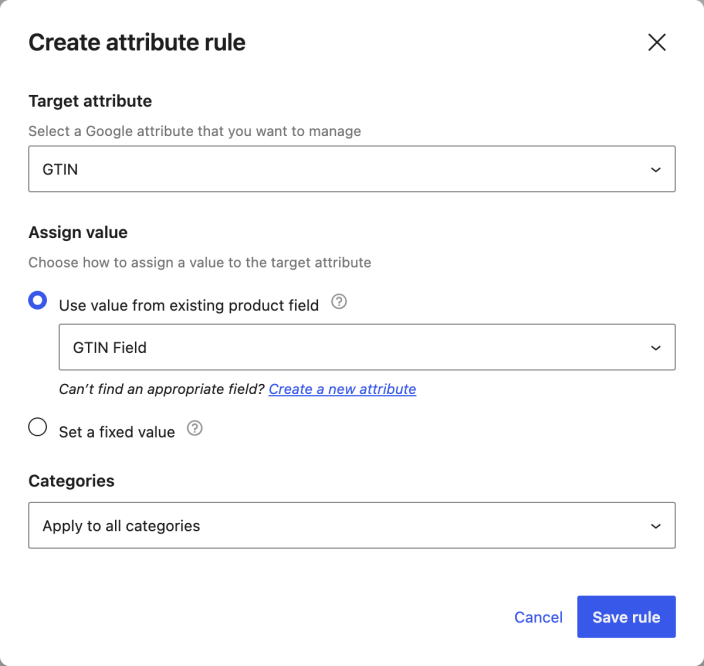
When a product syncs, the rule can supply its Yoast GTIN. If the product’s built-in WooCommerce GTIN, UPC, EAN, or ISBN field contains a value, that value takes precedence over the mapped GTIN.
Use case 5: Map product size for clothing
↑ Back to topCreate a global product attribute named Product Size and add values to the relevant products. Create a rule with Size as the target. Under Use value from existing product field, select Product Size in the Global attributes group.
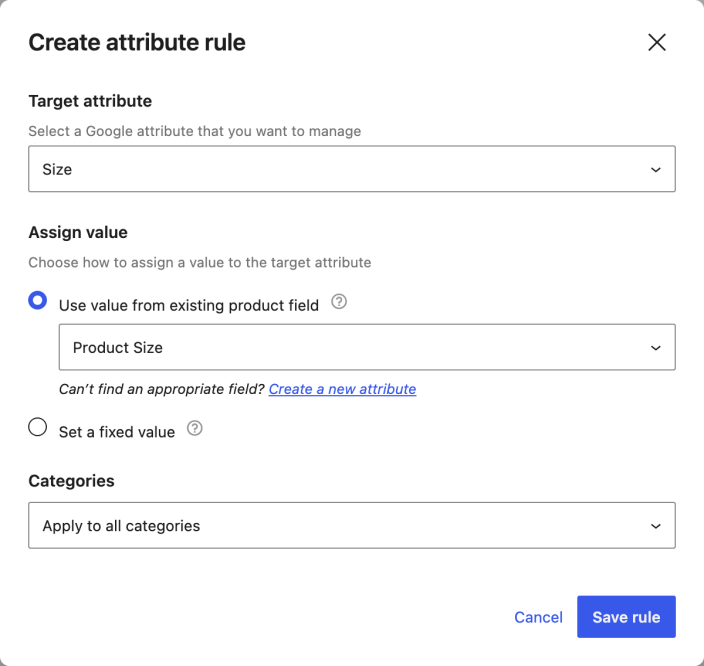
Under Categories, select Apply ONLY to these categories, then choose Clothing and each relevant subcategory, such as Hoodies. Select Save rule.
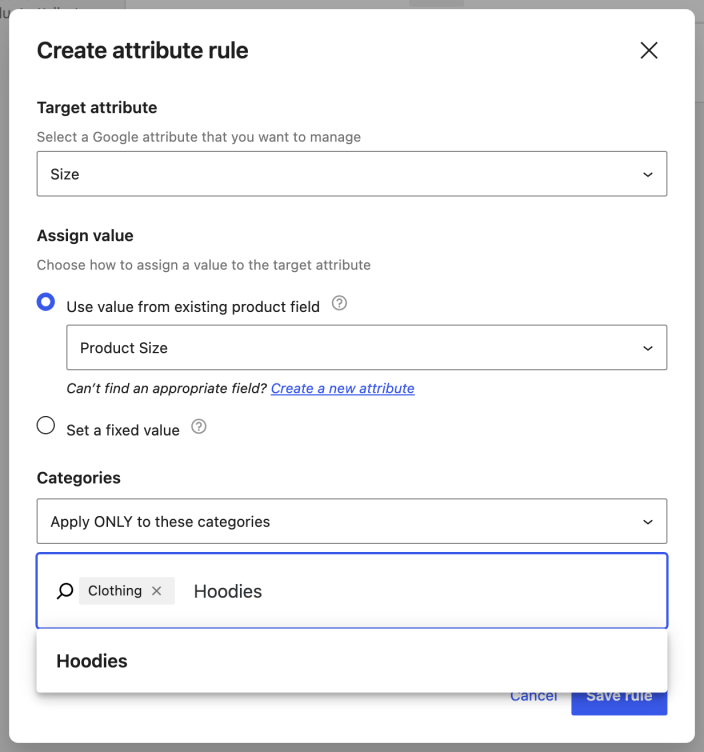
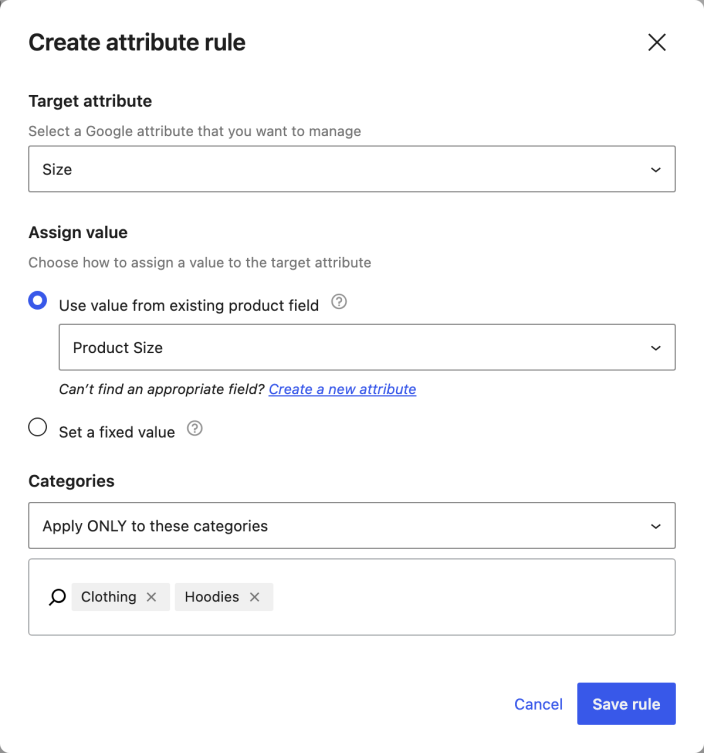
The rule applies the product’s Product Size value to products in the selected categories. It does not change products outside those categories.
Use case 6: Set age groups by category
↑ Back to topCreate the Women, Men, and Kids product categories and assign the relevant products to them.
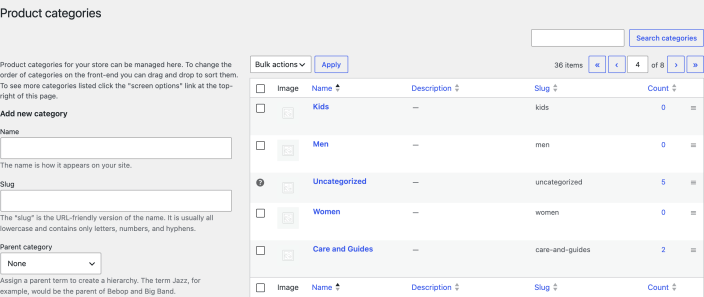
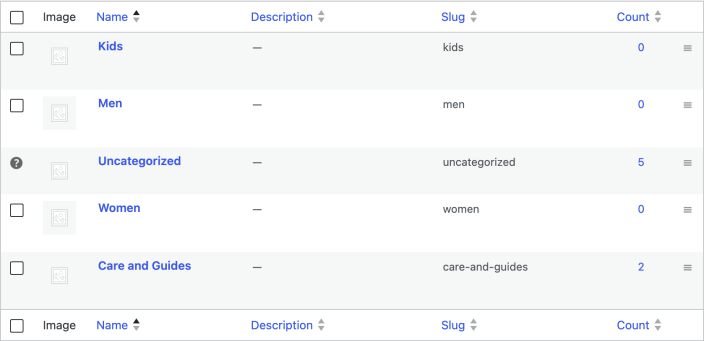
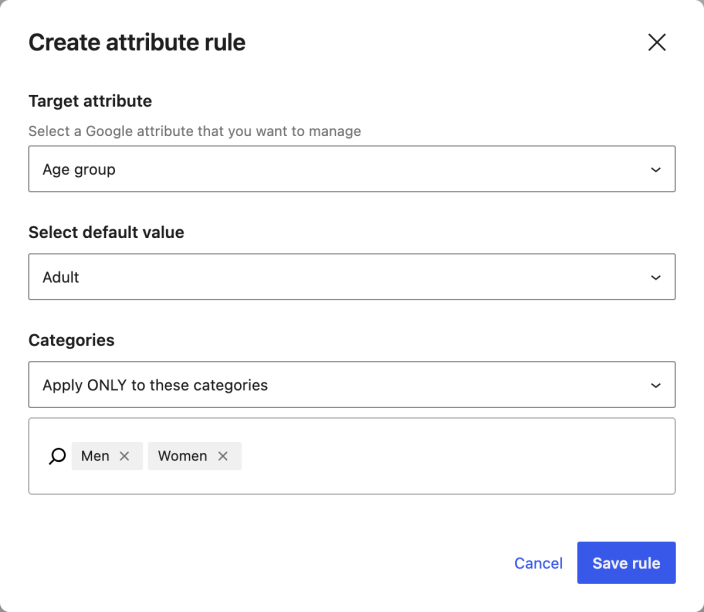
Create a rule with Age group as the target. Under Select default value, select Adult.
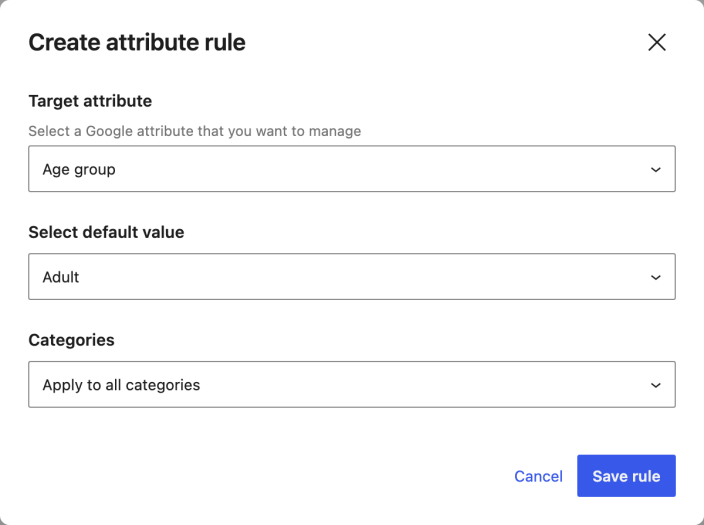
Select Apply ONLY to these categories, choose Men and Women, and save the rule. You can type a category name to find it.
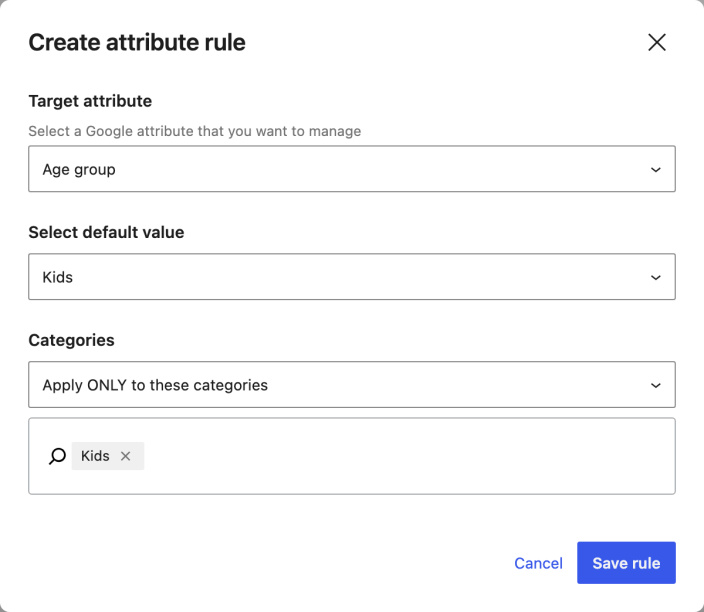
Create another Age group rule. Select Kids as the default, choose Apply ONLY to these categories, select Kids, and save the rule.
The saved rules appear in the attribute-mapping list:
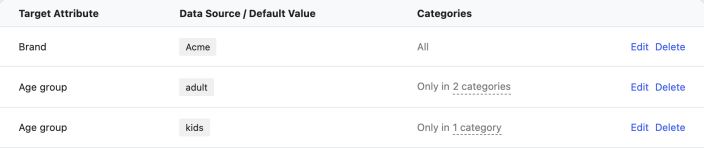
When products sync, these rules supply adult for products in Men or Women and kids for products in Kids, unless a product-level Age group value takes precedence. A product assigned to both sets of categories matches both rules, so avoid overlapping categories when the values must differ.
Use case 7: Map an existing custom field
↑ Back to topAn existing custom product field can be made available as an attribute-mapping source with a customization. A developer can follow Expose a custom field for Google for WooCommerce attribute mapping.
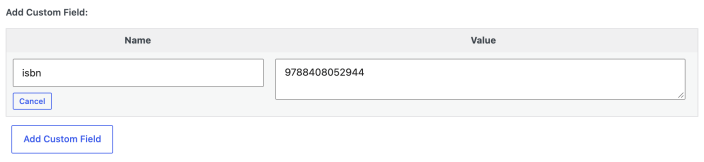
For example, a bookstore may already store ISBNs in a custom field. The next image shows an example custom field on a product.
Confirm that each relevant product has the expected custom field value before creating the mapping rule.
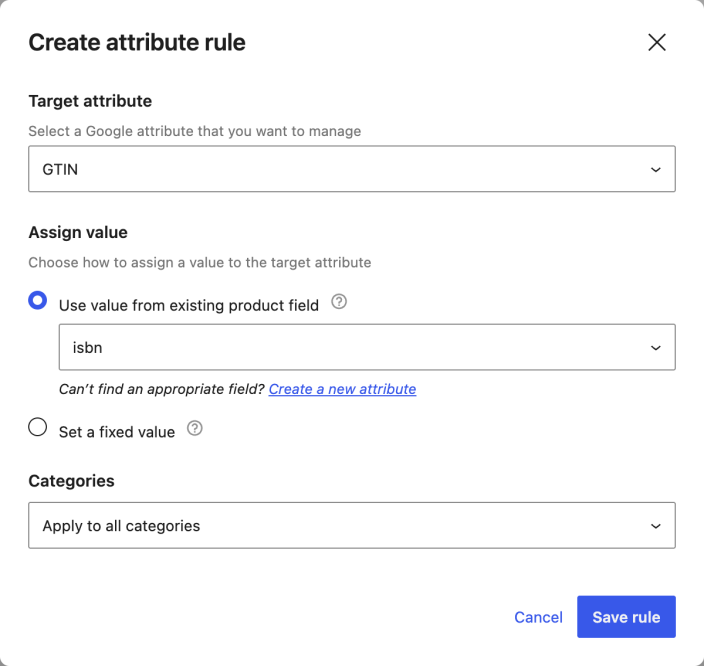
After the custom field has been made available, create a rule with GTIN as the target. Under Use value from existing product field, select the field in the Custom Attributes group, choose the applicable categories, and save the rule.
If the field does not appear, ask your developer to check that the customization is active and the field key matches the product data.
The built-in WooCommerce GTIN, UPC, EAN, or ISBN field takes precedence when it contains a value. Check that field if the synced identifier differs from the custom field.
Questions and support
↑ Back to topDo you still have questions and need assistance?
- Get in touch with a Happiness Engineer via our Help Desk. We provide support for extensions developed by and/or sold on WooCommerce.com, and Jetpack/WordPress.com customers.
- If you are not a customer, we recommend finding help in the WooCommerce support forum or hiring a Woo Agency Partner. These are trusted agencies with a proven track record of building highly customized, scalable online stores. Learn more about Woo Agency Partners.