This document explains how to connect WooCommerce Bookings to your Google Calendar.
To connect WooCommerce Bookings to your Google Calendar, you need:
- WooCommerce Bookings installed and active
- A Google account—new or existing
WooCommerce Bookings provides two different methods that you can use to connect to your Google Calendar:
- Calendar Connection: The connection method provided by WooCommerce.com. This option is simpler and quicker to set up and is explained in this document.
- Connect with a custom Google Calendar App: This method requires a few more steps, using your Google app credentials but offers more control.
Connect your calendar
↑ Back to topTo connect your Google Calendar to Bookings using the provided connection method:
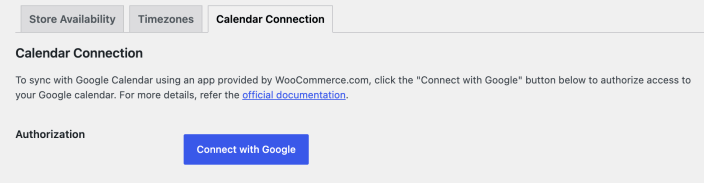
- Access your WordPress site’s admin dashboard and ensure you’ve already installed and activated WooCommerce Bookings.
- Navigate to Bookings > Settings.
- Select the Calendar Connection tab.
- Select Connect with Google under Calendar Connection. This takes you to a different screen to choose a Google account.
- Choose the Google account that has access to the calendar you want to use.
- Follow the authorization prompts, review the requested calendar access, and approve the connection.
- If prompted, verify your store URL and continue. Return to your store after authorization.
- You will now see a new section with the calendar settings. Select a Calendar from the dropdown to sync Bookings to.
- Set Sync Preference. See the section Sync Preference below to learn the difference.
- Save changes.
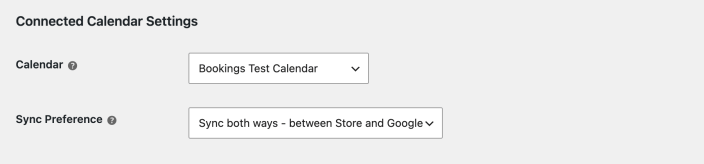
Sync Preference
↑ Back to topChoose Sync one way or Sync both ways to control how WooCommerce Bookings and Google Calendar share information.
Sync one way
- The store pushes bookings created via WooCommerce Bookings to the connected Google Calendar, where you can view them.
Sync both ways
- The store pushes bookings to the connected Google Calendar, where you can view them (just as with the Sync one-way option).
- When you create events in the connected Google Calendar, the store pulls them into its Store Availability rules, creating a store-wide unavailable rule for the event. Other availability rules can override it depending on priority. This is useful for store owners who want to ensure no bookings can be made during periods when they are unavailable (e.g., a dentist appointment) by creating an event on the connected Google Calendar. The store will periodically check the connected Google calendar for updates: Newly created appointments should appear in the store after a few minutes.
- Events created in the connected Google Calendar will show up within the visual calendar found at Bookings > Calendar.
When do Bookings sync to the connected Google Calendar?
↑ Back to topBy default, Bookings are synced to the connected Google Calendar when they have the status: Complete, Confirmed, and Paid.
Note:
Events created within Google Calendar are synced to the Bookings Store Availability with a priority of 10.
If you collect payment after the booking, a developer can include unpaid bookings in the calendar sync. This customization does not record payment.
Scope of support:
We are unable to provide support for customizations under our Support Policy. If you need to customize a snippet or extend its functionality, we recommend working with a Woo Agency Partner or a WooCommerce developer on Codeable.
Can I sync past bookings to Google Calendar?
There currently is no option to sync past bookings to Google Calendar. You can make a feature request on the WooCommerce Bookings feature request page.
Information synced to Google Calendar
↑ Back to topWhen a new booking has been made on your site the following information is synced to the Google Calendar either in the title or the event description:
In the title:
- the billing details first and last name
- the title of the bookable product
- the booking status, when available
- the booking ID
In the event description:
The store sends and saves booking information (e.g., number of people and Resource) in the description. If you use multiple Person Types, the total number of persons for that booking is included, but it doesn’t specify the different types (e.g., a booking with 2 ‘Adults’ and 2 ‘Children’ will show as “Persons: 4”).
Note: If you are using the Product Add-Ons added options are specifically listed in the description field and include the name and quantity for each add-on.
Note:
To block store availability with a Google Calendar event, add the event to the connected calendar and select Sync both ways.
Editing/modifying synced Booking information
↑ Back to topIf you have sync enabled and are creating bookings in both Google Calendar and via WooCommerce Bookings, you’ll need to be mindful of where you edit each. Let’s take a look:
- Bookings created via Google Calendar: If you create appointments in Google Calendar, you must make any necessary changes directly in Google Calendar. Once you make changes, the updates will reflect in the store’s Store Availability within a few minutes.
- Bookings created via WooCommerce Bookings: You can only edit bookings that originate from your store (whether through customer purchase or manual creation) in your store’s admin. Bookings sync to Google Calendar for viewing purposes only, and any changes you make to the associated events in Google Calendar will not sync back to the store. To manage billing and availability correctly, you must add, modify, or delete bookings from the store’s admin interface. This functionality remains the same whether the store is set to sync one way or both ways.
Overwrite Booking Description:
The “Overwrite Description” setting field controls Google event description coverage (disabled by default).
When you enable this setting, you must make any changes to the event description from the WooCommerce Bookings event. If you make changes directly to the event description in Google Calendar, the next data sync will overwrite them.
View Bookings in your Google Calendar
↑ Back to topAfter setup, check the selected Google calendar for a booking event. Open the event to review its time and booking details.
Customer Experience – Add booking to their calendar
↑ Back to topThe Booking reminder notification email includes an .ics file that allows customers to add Bookings to their personal calendar easily. You can also attach this file to a manual notification.
Syncing Bookings to Multiple Calendars
↑ Back to topCurrently, WooCommerce Bookings only allows one Google Calendar to connect to a site from the admin account. This means that the site syncs all bookings to a single Google Calendar, and you cannot sync them to other calendars. If you have staff that need access to bookings in their personal calendars, or if you run a store that includes Product Vendors, this can be limiting.
There is a workaround to this using the WooCommerce Zapier plugin. We explain the process in detail here: WooCommerce Zapier (Multiple Calendar Integration).
Additionally, if you’d like to see this as a core feature of WooCommerce Bookings, you can add your vote to the existing feature request for this functionality.
What to do if bookings are not showing on the Google Calendar
↑ Back to topDouble-check that you completed steps of the integration process: Connect your calendar.
You can also enable logging in Bookings > Settings > Calendar Connection, and then go to WooCommerce > Status > Logs to see if there are errors in the connection.
Disconnect a calendar
↑ Back to topIf you previously connected a Google calendar and wish to disconnect it:
- Go to Bookings > Settings.
- Select Disconnect.
- Save changes.
Connect a different calendar
↑ Back to topIf you previously connected a calendar and wish to connect Bookings to a different calendar on the same Google account:
- Go to Bookings > Settings.
- Select a Calendar from the dropdown.
- Save changes.
Should you wish to connect Bookings to a different Gmail/Google account, disconnect (in the above section) and go through the setup again to connect and authenticate.
Troubleshooting
↑ Back to topGoogle Calendar “Connect” Button Disabled or 403 Calendar Errors
↑ Back to topIf the connection button is disabled or you see a 403 error, check that you are using the intended Google account and that it has access to the calendar. Enable logging in Bookings > Settings > Calendar Connection, then check the logs under WooCommerce > Status > Logs. If the problem continues, contact support and share the relevant error details.
Google Calendar Keeps Disconnecting
↑ Back to topIf your WooCommerce Bookings custom calendar connection is disconnecting intermittently, it is likely due to limitations imposed on Google OAuth tokens when using a custom calendar connection with a Google Cloud project that is still in Testing mode. When a project is in Testing mode, Google limits OAuth authorizations by test users to 7 days. After 7 days, the refresh token expires, and the user must re-authorize the app to re-establish the connection.
When your Google Cloud project is still in Testing mode:
- Test users can only authorize access for up to 7 days. After this period, the refresh token expires, which results in the calendar connection being lost.
- The user will need to re-authorize the app to restore the connection.
This limitation does not apply if your app requests only basic profile data (such as name, email, and user profile), but it does apply if you request more advanced scopes like calendar access. To prevent these disconnections, move your Google Cloud project to Production mode. This eliminates the 7-day expiration limit for refresh tokens and allows a more stable connection.
Google Events Not Syncing Back to the Store
↑ Back to topCheck that the connected calendar and Sync Preference are correct and that two-way sync is enabled. Allow several minutes for changes to appear under Bookings > Settings > Store Availability.
If events still do not appear, enable logging in Bookings > Settings > Calendar Connection and check for errors under WooCommerce > Status > Logs. Contact support with the relevant error details if the issue continues.
Questions and support
↑ Back to topSomething missing from this documentation? Still have questions and need assistance?
- If you have a question about a specific extension or theme you’d like to purchase, contact us to get answers.
- If you already purchased this product and need some assistance, get in touch with a Happiness Engineer via our support page and select this product’s name from the Product dropdown.