
This page covers setup and usage for Lightspeed Retail R-Series. If you’re on X-Series, see X-Series setup and usage →. For installation steps, see the overview page →
Connect to Lightspeed R-Series
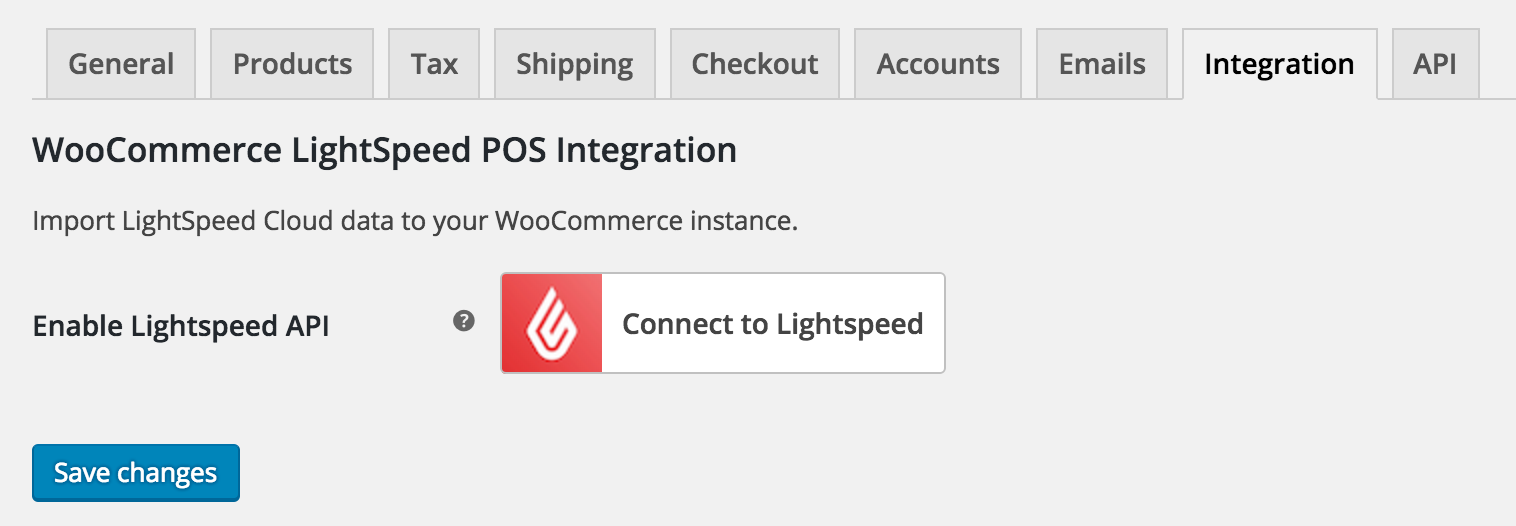
↑ Back to top- Go to Lightspeed > Connection.
- Select R-Series from the series dropdown.
- Click Connect to Lightspeed R-Series.
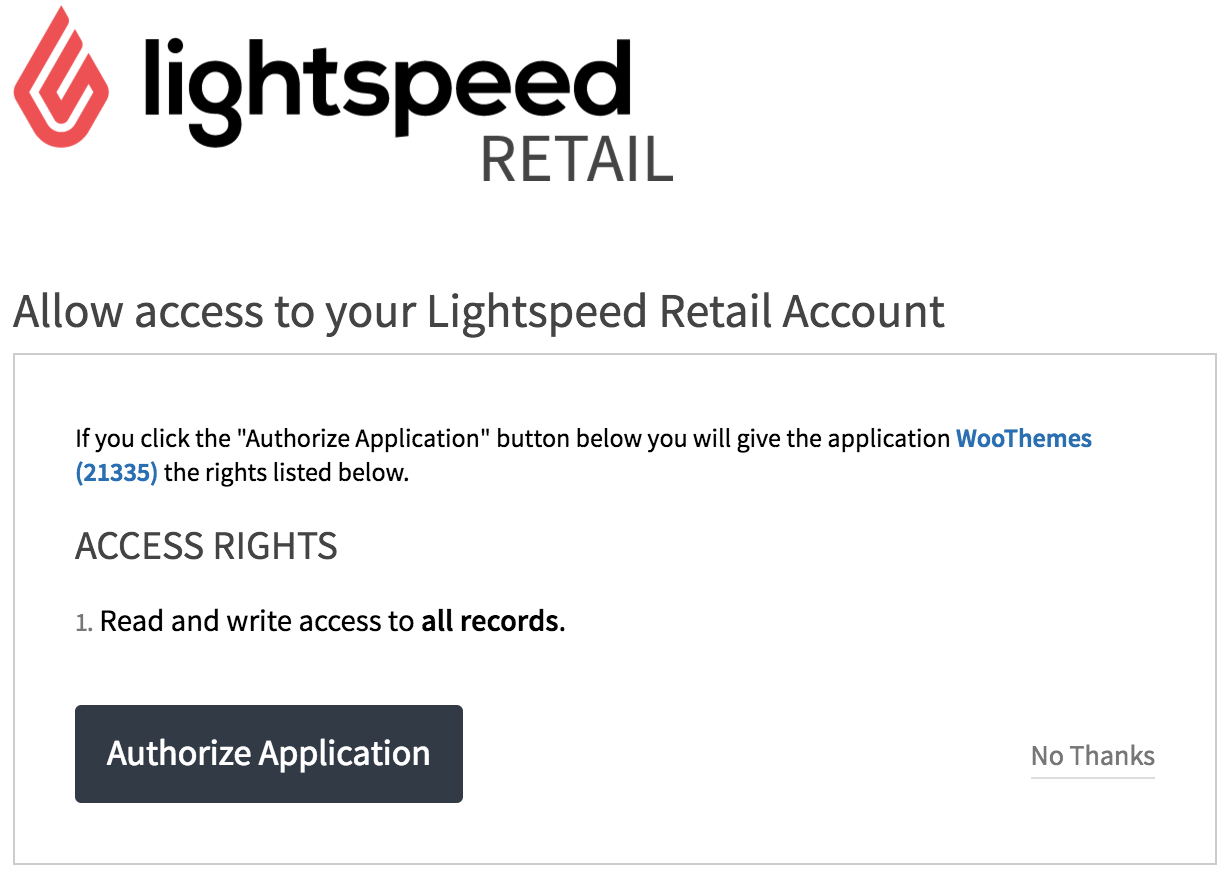
- Log into Lightspeed when redirected and click Authorize Application.
- Confirm your site when the WooCommerce API connector prompts you.
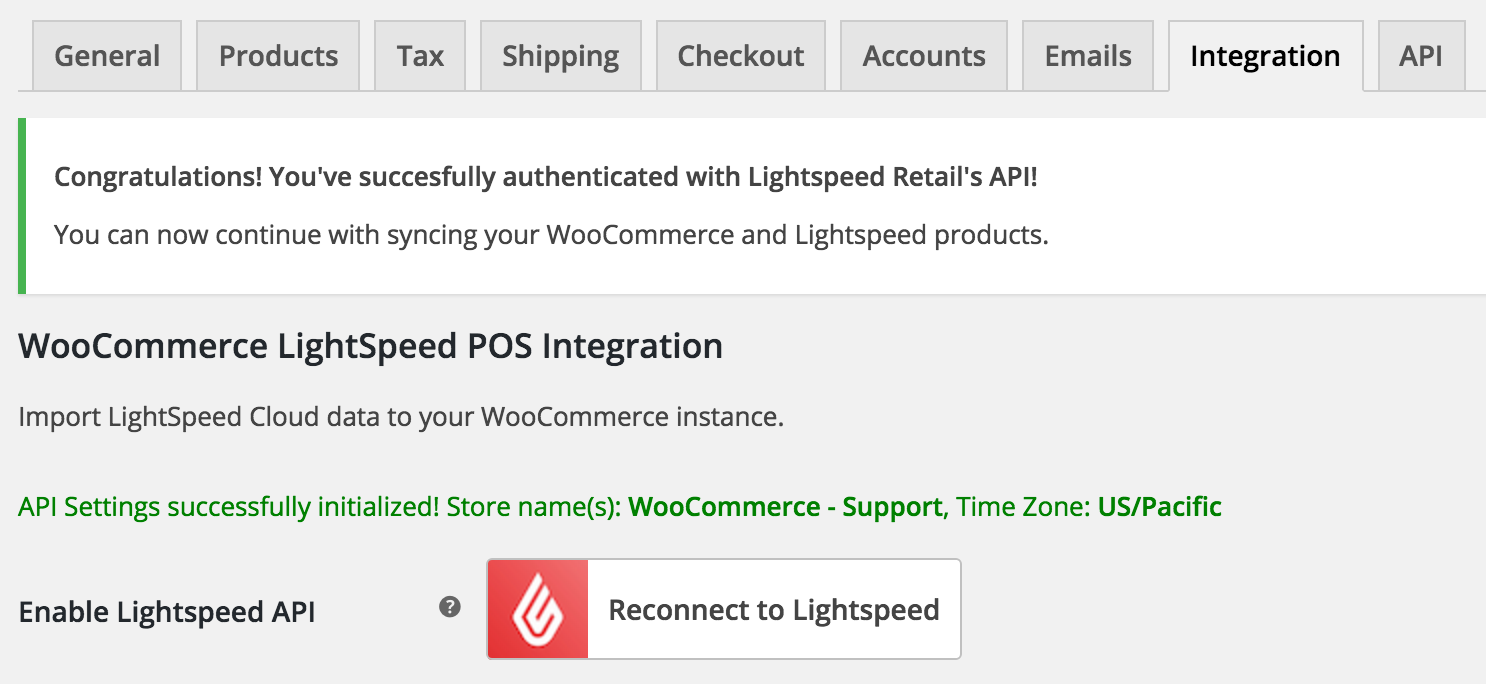
- Once complete, a success message and your store name appear on the Connection page.

The Lightspeed employee account used to authorize must have inventory privileges.
To verify the connection is working, go to Lightspeed > Product Importer and click Search Lightspeed. If products appear, you’re connected.
Enable stock management
↑ Back to topGo to WooCommerce > Settings > Products > Inventory and enable Enable stock management. This allows WooCommerce to adjust inventory automatically as orders are placed, refunded, or cancelled — and lets the plugin know when to trigger sync events back to Lightspeed.
Settings
↑ Back to topStore settings
↑ Back to topPrimary inventory store
If your Lightspeed account has multiple locations, you must select one as the primary inventory store. The plugin reads inventory from this store and syncs inventory values back to it.
Go to Lightspeed > Settings > Store Settings, tick the store you want as primary, and save.
WooCommerce does not support multiple inventory locations natively. Only your primary store’s inventory is synced.
Report errors
Enabling this sends plugin errors to the development team. No personal data is collected. Errors are purged within 60 days.
Woo product sync settings
↑ Back to topProduct status on import
Sets the default WooCommerce status when a product is first imported from Lightspeed. Options: Draft (default), Published, or Private.
Variation products inherit status from their parent. If the parent is already published, new variations are published regardless of this setting.
SKU strategy
Choose which Lightspeed SKU field to use when importing:
| Option | Behavior |
|---|---|
| Custom SKU | Uses the custom SKU field in Lightspeed |
| Manufacturer’s SKU | Uses the manufacturer SKU field |
| System SKU | Uses Lightspeed’s internal system ID (always unique) |
| Plugin Default | Tries Custom SKU first, then Manufacturer’s SKU, then System SKU |
If the selected field is empty in Lightspeed, the SKU comes in empty in WooCommerce. If you’re seeing duplicate SKU errors, System SKU resolves them since system IDs are always unique.
Image compression
Images are downloaded from Lightspeed via Cloudinary. Options: low, better (eco), or best. Plugin default uses eco — smaller files, slightly lower visual quality. Images larger than 2MB or over 2000px in either dimension may cause WordPress image processing to time out.
Set empty sale price on zero
When enabled, if a Lightspeed product’s sale price is $0.00, the WooCommerce sale price is set to empty rather than zero.
Selective sync for WooCommerce products
↑ Back to topThe first import pulls all product properties from Lightspeed. After that, you can limit which properties get updated on each sync — useful if you want to manage fields like descriptions or images directly in WooCommerce without Lightspeed overwriting them.
| Property | Notes |
|---|---|
| Name | Lightspeed’s “description” field maps to the WooCommerce product title |
| SKU | Follows your SKU strategy setting |
| Regular price | The “Default” price in Lightspeed |
| Sale price | Requires a “Sale” price level in Lightspeed (see FAQ) |
| Stock quantity | The “In Stock” value under the Details tab in Lightspeed |
| Images | All Lightspeed images download to WooCommerce; the first becomes the featured image |
| Attributes | For Matrix products, converts to WooCommerce product attribute taxonomy terms when enabled |
| Tags | New tags are added; existing tags are not removed |
Prune deleted variations: When enabled, clicking Manual Update via Lightspeed on a product automatically removes any variations that have been deleted from the Matrix in Lightspeed.
Ignore archived products: When enabled, archived Lightspeed products are excluded from the import table. Archiving a product in Lightspeed sets its WooCommerce inventory to 0.
Selective sync for Lightspeed products
↑ Back to topControls which WooCommerce changes sync back to Lightspeed. This applies globally to all linked products. Changes that trigger a sync back:
- Saving a product in the WooCommerce admin
- Bulk product updates
- Stock changes after checkout, refund, or cancellation
Product Importer
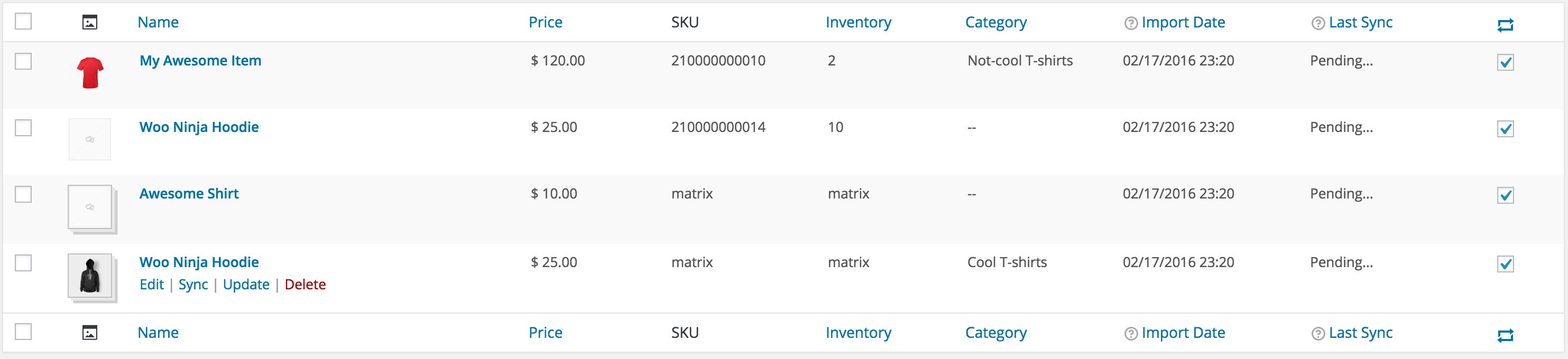
↑ Back to topGo to Lightspeed > Product Importer. This is the staging area for your Lightspeed catalog — products must be loaded here before they can be imported into WooCommerce.
Import categories before importing products if you plan to use Lightspeed categories.
Step 1: load products into the importer
↑ Back to topSearch for specific products
- Click Search Lightspeed.
- Search for Single or Matrix products by name, SKU, or other fields.
- Tick the products you want and click Apply.


Bulk load all products
- Click Load Products from Lightspeed.
- A progress indicator shows while all products load.
- Do not close the browser tab until complete — if you do, you’ll need to start over.


Step 2: import and link with WooCommerce
↑ Back to topWith products in the importer table:
| Action | What it does |
|---|---|
| Import & Link with Woo | Imports into WooCommerce, publishes it, and establishes an active sync link |
| Remove | Removes from the importer table only — does not delete from Lightspeed or WooCommerce |
To bulk import, use the checkboxes and Bulk Actions > Import & Link with Woo > Apply.
Once imported, the available actions change:
| Action | What it does |
|---|---|
| Edit | Opens the WooCommerce product editor |
| Update via Lightspeed | Manually pulls the latest data from Lightspeed and updates the product |
To remove a product from the importer table, delete it from WooCommerce and empty the trash first.
Matrix (variable) products
↑ Back to topIn Lightspeed, Matrix products are equivalent to WooCommerce variable products. They display with a stacked appearance in the importer and show “-” for SKU and inventory columns. Import them the same way as single products.
On import, WooCommerce creates:
- Featured image and image gallery
- Product title
- Variation attributes and values
- Variation products with: variation image, SKU, stock quantity, regular price, and sale price (if a “Sale” price level is configured in Lightspeed)
After import, inventory changes on any variation push to Lightspeed. The scheduled sync job picks up Lightspeed changes and updates variations on the configured interval.
A variation’s stock status is automatically set to “In stock” when inventory is greater than zero.
Merging products in Lightspeed isn’t supported. Delete the associated WooCommerce products and re-import the merged result.
Categories
↑ Back to topGo to Lightspeed > Settings > Categories to import your Lightspeed category hierarchy into WooCommerce in one step.
Category import is a one-time operation. Categories and tags are applied to products on import, but are not removed from WooCommerce if you delete them in Lightspeed. To update categories, use Delete Category Cache to clear stored categories and re-import — this does not affect categories already applied to products or the WooCommerce category table.
Sibling subcategories (sharing the same parent) must have unique names. WordPress requires unique URL slugs; Lightspeed does not have this restriction.
When importing a product that has Lightspeed categories assigned, the plugin removes the “Uncategorized” WooCommerce category from that product. Products with no category in Lightspeed stay under “Uncategorized” — WooCommerce requires at least one category per product.
Background sync jobs
↑ Back to topThe plugin runs three background jobs via WooCommerce’s Action Scheduler:
| Job | Default | What it does |
|---|---|---|
| Lightspeed product changes | Configurable | Detects product changes in Lightspeed (inventory, SKU, pricing, images) and updates WooCommerce |
| New Lightspeed products | Configurable | Finds newly created products and optionally imports them |
| Lightspeed attribute sets | Configurable | Finds new product attribute sets and creates them under Products > Attributes |
Each job can be enabled/disabled independently and set to intervals from 5 seconds to 1 hour.
Lightspeed uses a leaky bucket rate limit. Setting sync intervals too short can cause rejected requests. If you see 429 errors, increase your sync interval.
Action after auto-loading new products — when the new products job is enabled, choose what happens when a new product is detected:
- Loaded into Product Importer — staged for review, not imported yet
- Imported, but not linked — added to WooCommerce but not actively syncing
- Imported and linked — added to WooCommerce and actively syncing
When auto-loading Matrix products, the parent product is only detected if it already has at least one variation. A Matrix parent with no variations won’t appear in the New Products job.
Go to Tools > Scheduled Actions to view and manually run pending jobs. Filter by “wclsi” to see only Lightspeed jobs.

Manual sync
↑ Back to topTrigger a manual product sync in two ways:
- Product Importer: click Update via Lightspeed in the product row.
- Product editor: click Manual Update via Lightspeed in the Lightspeed Settings metabox in the sidebar.


When syncs trigger
↑ Back to topInventory and product data sync between Lightspeed and WooCommerce in three ways:
- Background polling — the background sync jobs run on a configurable interval and detect changes in Lightspeed automatically.
- Product save — saving a WooCommerce product triggers a sync for that item immediately.
- Before checkout — the plugin checks current inventory in Lightspeed immediately before an order is placed. If stock is zero, or if the quantity ordered exceeds what’s available in Lightspeed, the order is blocked and the customer sees an out of stock error.
Relinking a product
↑ Back to topIf a WooCommerce product loses its link to Lightspeed, click Relink with Lightspeed in the Lightspeed Settings metabox on the product edit page. The plugin first checks the import table, then falls back to an API search by SKU to re-establish the link.

Sending a WooCommerce product to Lightspeed
↑ Back to topIf a product exists in WooCommerce but not in Lightspeed, click Create this product in Lightspeed in the Lightspeed Settings metabox on the product edit page. This sends SKU, images, inventory, and pricing to Lightspeed once. After that, Lightspeed becomes the source of truth.
Lightspeed’s API supports a maximum of 3 attributes for Matrix items. Syncing a variable product with more than 3 attributes returns an error. Bulk sending from WooCommerce to Lightspeed is not supported.
Clear all loaded products
↑ Back to topLightspeed > Product Importer > Clear All Loaded Products removes all product data from the plugin’s database tables and destroys all sync relationships. It does not delete products from WooCommerce or Lightspeed.
Back up your database before using this. All sync relationships will be lost.
Troubleshooting
↑ Back to topCannot connect to Lightspeed
↑ Back to topMake sure the Lightspeed employee account used to authorize the connection has inventory privileges.
Products are not syncing
↑ Back to topIf the sync was previously working, try changing the sync interval, saving, then reverting — this can unstick the process.
Getting 429 “Rate Limit Exceeded” errors
↑ Back to topThe plugin reschedules failed requests via Action Scheduler and retries up to 20 times before surfacing the error. Save the affected product again to trigger a fresh sync attempt.
Matrix products not syncing correctly
↑ Back to topConfirm the product is a Matrix in Lightspeed, not a simple product with options. Check that all matrix items have Custom SKUs in Lightspeed. The parent product must be imported first — variations populate after. If variations appear as individual products instead of grouped, archive them in Lightspeed, delete both the WooCommerce products and the import table records, then re-load.
A product is linked but not updating
↑ Back to topThis typically happens when a product is archived in Lightspeed and a new product is created to replace it. The plugin tracks products by internal ID, so it continues syncing to the archived version.
Fix option 1: Delete the WooCommerce product and its import record, reload products, and import the new product.
Fix option 2 (Custom SKU): Add an _archived suffix to the archived product’s Custom SKU in Lightspeed (e.g., SKU1234_ARCHIVED), delete its record from the import table in WooCommerce, then click Relink with Lightspeed on the product. The plugin searches by SKU and links to the new product.
PHP fatal error: Call to a member function set_status() on null
↑ Back to topA product was originally loaded as a single item in Lightspeed but has since been merged into a Matrix. The plugin can no longer find it because the itemMatrixId changed from 0 to a non-zero value. Find the product via logs or your database and delete it from the Lightspeed import table.
E_ERROR related to Matrix attribute terms
↑ Back to topA Lightspeed Matrix attribute term name conflicts with a WordPress reserved term. Go to Lightspeed > Inventory > Matrix Attribute Sets, find the conflicting term, and rename it. See the WordPress reserved terms list for the full reference.
cURL error 6 or cURL error 28 — could not resolve api.merchantos.com
↑ Back to topThese errors indicate a networking or DNS issue on your server — not a plugin problem. Your server cannot reach Lightspeed’s API endpoint. Contact your hosting provider and provide the full error message from wclsi-errors.log. They can diagnose DNS resolution failures, firewall rules, or outbound connection blocks.
Lightspeed API 400 error: Cannot set attribute on an Item with ItemAttributeSet
↑ Back to topFull error: “Cannot set attribute1 on an Item with ItemAttributeSet type Size” (or similar). This is a known Lightspeed API bug that occurs when the number of attributes on a Matrix product has been reduced. For example, a Matrix previously had 3 attributes and now has 2 — Lightspeed’s API continues to expect the original attribute count. There is no workaround on the plugin side. Contact Lightspeed support and reference this as a known API bug with Matrix attribute reduction.
Lightspeed is slow or not responding
↑ Back to topIf syncs are timing out or API calls are consistently slow, check whether Lightspeed is experiencing an outage before investigating the plugin:
- Lightspeed status page
- AWS health dashboard — Lightspeed runs on AWS, and regional outages can affect API availability
FAQ
↑ Back to topHow is pricing synced?
↑ Back to topLightspeed’s “Default” price maps to WooCommerce’s Regular Price. To enable sale price sync, you need a pricing level named exactly “Sale” in Lightspeed. To set it up:
- In Lightspeed, go to Settings > Pricing Levels.
- Click New Pricing Level.
- Name it exactly
Sale(case-sensitive). - Save and activate the pricing level.
If this level doesn’t exist, you’ll see a 404 Unknown PriceLevel error in the logs. When you activate the Sale pricing level, Lightspeed pre-fills all Sale values with the Default price — on the next sync, WooCommerce sale prices will be overwritten with those values. This won’t trigger a WooCommerce sale automatically, but any manually-set WooCommerce sale prices will be replaced.
Do WooCommerce orders sync to Lightspeed?
↑ Back to topYes. Order sync creates a corresponding sale record in Lightspeed when an order is placed in WooCommerce.
Can I selectively import products by category?
↑ Back to topYes. Load all products into the importer, filter by category, and use Bulk Actions to import that group.
What’s the maximum sync throughput?
↑ Back to topThe auto-sync handles up to 100 changes every 5 seconds. For bulk edits larger than that, break them into batches of 95 or fewer.
Developer reference
↑ Back to topWP-CLI commands
↑ Back to top# View pending sync jobs
wp action-scheduler list --status=pending --group=wclsi
# Run pending jobs manually
wp action-scheduler run --group=wclsi
# View failed jobs
wp action-scheduler list --status=failed --group=wclsiAction Scheduler job hooks
↑ Back to top| Hook | What it does |
|---|---|
wclsi_poll | Checks for product changes in Lightspeed (inventory, SKU, pricing, images) |
check_for_new_ls_prods | Checks for newly created products in Lightspeed |
wclsi_poll_ls_attribute_sets | Checks for new product attribute sets |
Database tables
↑ Back to topThe plugin installs these tables on activation:
| Table | Purpose |
|---|---|
wp_wclsi_items | Core product data and sync state |
wp_wclsi_item_attribute_sets | Product attribute set data |
wp_wclsi_item_categories | Category data |
wp_wclsi_item_images | Image data |
wp_wclsi_item_prices | Price data |
wp_wclsi_item_shops | Store/location data |
Key columns in wp_wclsi_items:
| Column | Description |
|---|---|
item_id | Lightspeed’s internal item ID |
wc_prod_id | WooCommerce post ID (NULL if not imported) |
wclsi_import_date | Date/time of initial import |
wclsi_last_sync_date | Date/time of last sync |
wclsi_is_synced | 1 = active sync link; NULL = not linked |
Find all products loaded but not yet imported:
SELECT * FROM wp_wclsi_items WHERE wc_prod_id IS NULL;The “Last updated” timestamp in the importer table reflects Lightspeed’s own timestamp, not your local server time.

