
With Remote Tap-to-Pay, you can use an Android phone as a wireless card reader for your WooCommerce POS tablet. The two devices communicate over your store’s Wi-Fi network — no Bluetooth card reader needed.
Any merchant with a tablet running Woo POS and a Tap-to-Pay-eligible Android phone can start accepting in-person card payments without purchasing additional hardware.
NOTE: Remote Tap-to-Pay is currently available on Android only. Cross-platform support (e.g. iPad and Android phone) is planned for a future release.
How it works
↑ Back to topRemote Tap-to-Pay connects an Android phone (acting as the card reader) to your Woo POS tablet (running the checkout) over your store’s local Wi-Fi network.
- The tablet handles the checkout — product selection, cart, totals, and payment capture.
- The phone handles the card tap — it prompts the customer to tap their contactless card or digital wallet.
From the tablet’s perspective, the phone appears in the card reader list alongside Bluetooth card readers.
Remote Tap-to-Pay (Card Reader Mode)
With Remote Tap-to-Pay, you can use an Android phone as a wireless card reader for your WooCommerce POS tablet. The two devices communicate over your store’s Wi-Fi network — no Bluetooth card reader needed.
NOTE: Remote Tap-to-Pay is currently available on Android only. Cross-platform support (e.g. iPad and Android phone) is planned for a future release.
How it works
↑ Back to topRemote Tap-to-Pay connects an Android phone (acting as the card reader) to your Woo POS tablet (running the checkout) over your store’s local Wi-Fi network.
- The tablet handles the checkout — product selection, cart, totals, and payment capture.
- The phone handles the card tap — it prompts the customer to tap their contactless card or digital wallet.
From the tablet’s perspective, the phone appears in the card reader list alongside Bluetooth card readers.
Requirements
↑ Back to topGeneral requirements
↑ Back to top- Two Android devices — a phone and a tablet.
- Same Wi-Fi network — both devices must be connected to the same local Wi-Fi network.
- Same WooCommerce store — both devices must be signed into the same store in the Woo Mobile App.
- WooCommerce Mobile App version 24.8 or later on both devices.
- WooPayments or Stripe installed and activated on your store.
Phone requirements (Card Reader Mode)
↑ Back to topThe phone acting as the card reader must meet all Tap to Pay on Android requirements.
Tablet requirements (POS)
↑ Back to topThe Android tablet must meet the standard Woo POS requirements.
Country availability
↑ Back to topRemote Tap-to-Pay is available in countries where both Woo POS and Tap to Pay on Android are supported. Currently, the combination of TTP and POS is supported only in the US and the UK.
Limitations
↑ Back to topAll standard Tap to Pay limitations apply, including maximum transaction amounts.
Setting up Remote Tap-to-Pay
↑ Back to topStep 1: Enable Card Reader Mode on the phone
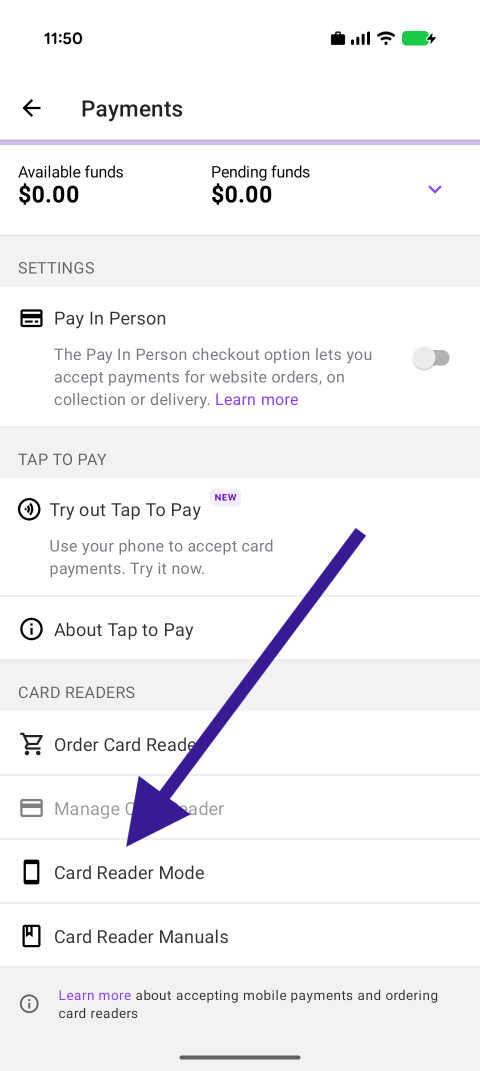
↑ Back to top- Open the WooCommerce mobile app on the Android phone.
- Navigate to Settings > Payments > Card Reader Mode.
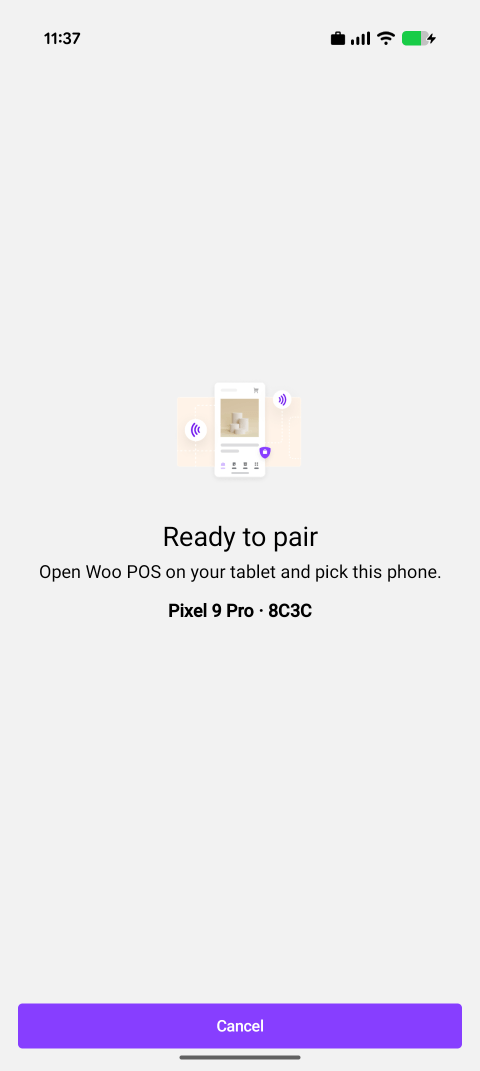
- Grant location permission when prompted.
- The phone will display a 4-digit pairing code.
Step 2: Connect from the POS tablet
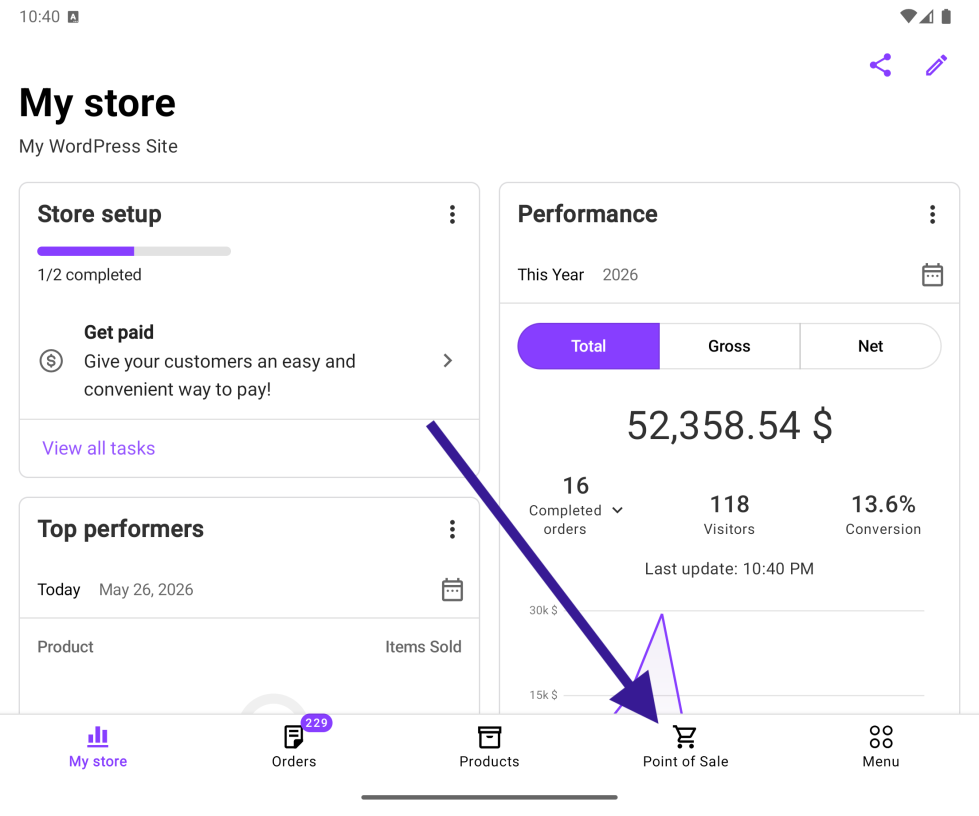
↑ Back to top- On the tablet, open Woo POS (Menu > Point of Sale Mode).
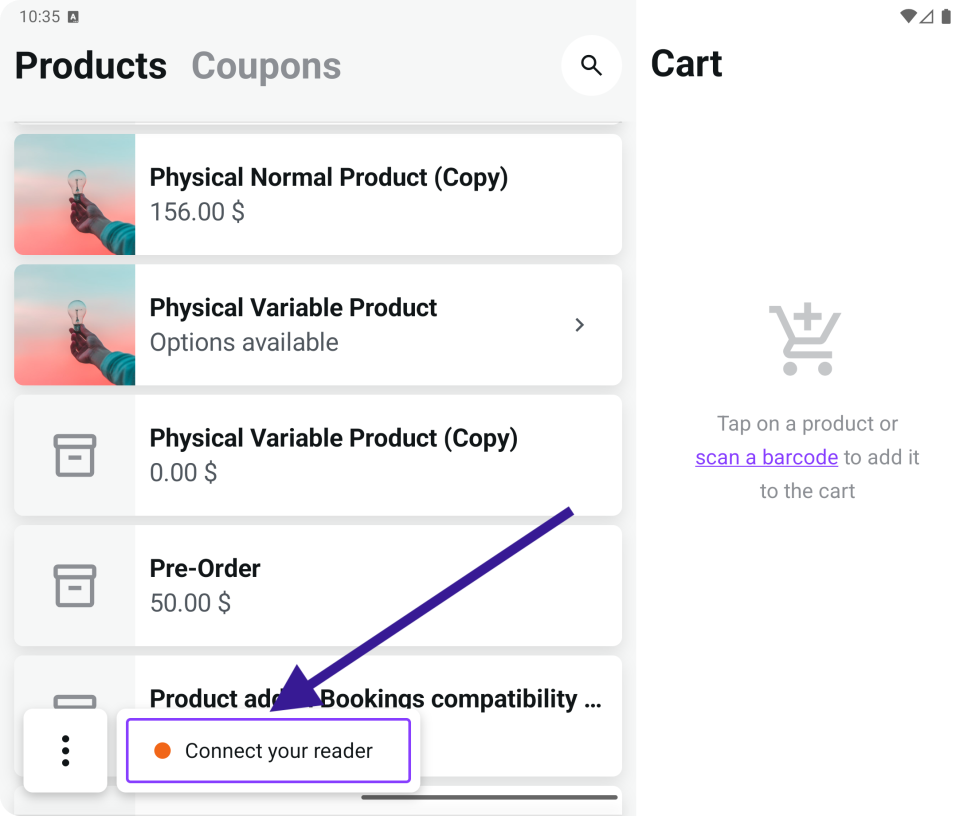
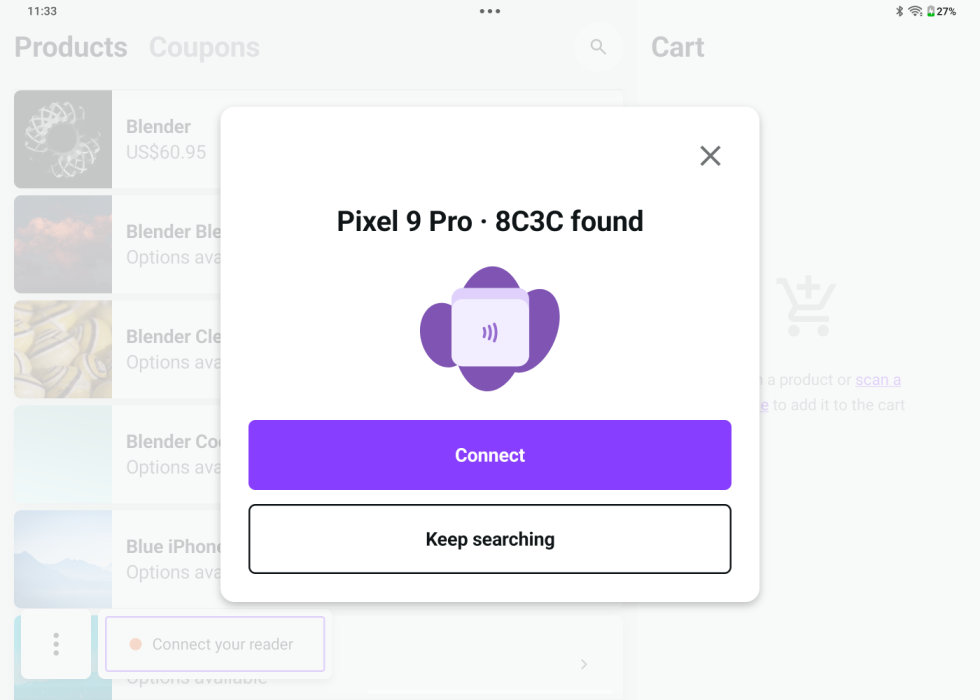
- Tap Connect your reader
- Follow the on-screen prompt to grant required permissions.
- The phone will appear in the discovered readers list, displaying the same 6-digit pairing code.
- Tap the phone entry and verify the pairing codes match on both screens.
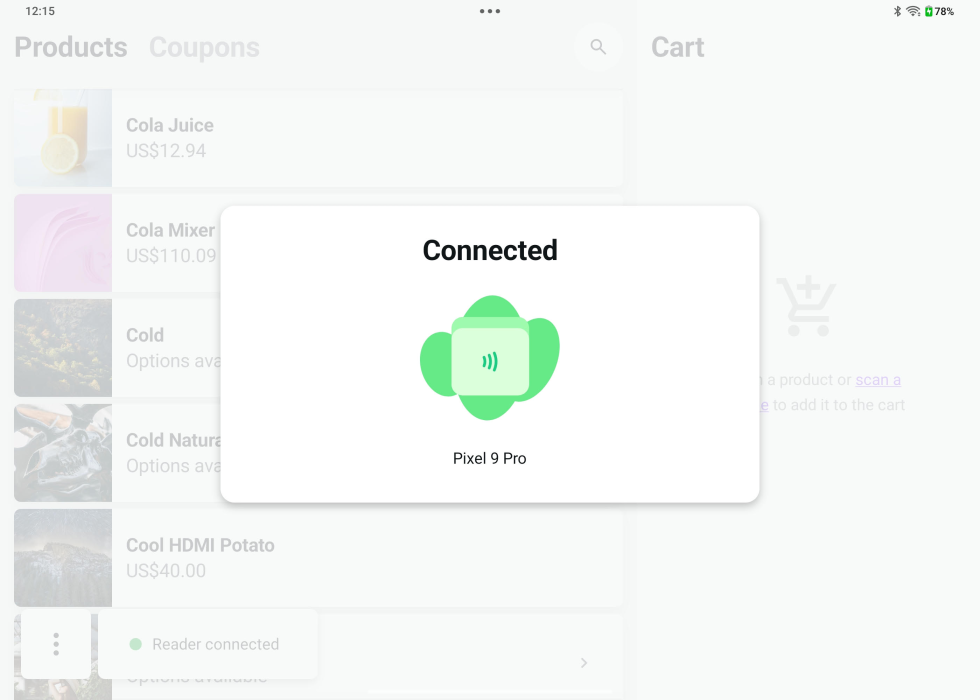
- The tablet will show Connected once pairing is complete.
Step 3: Accept a payment
↑ Back to top- On the tablet, add items to the cart as usual.
- Tap Check out
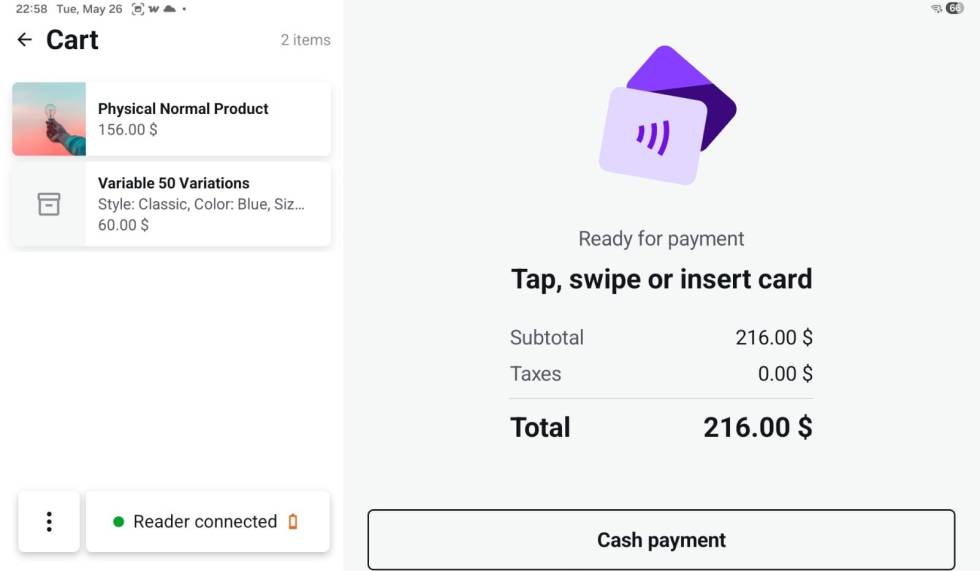
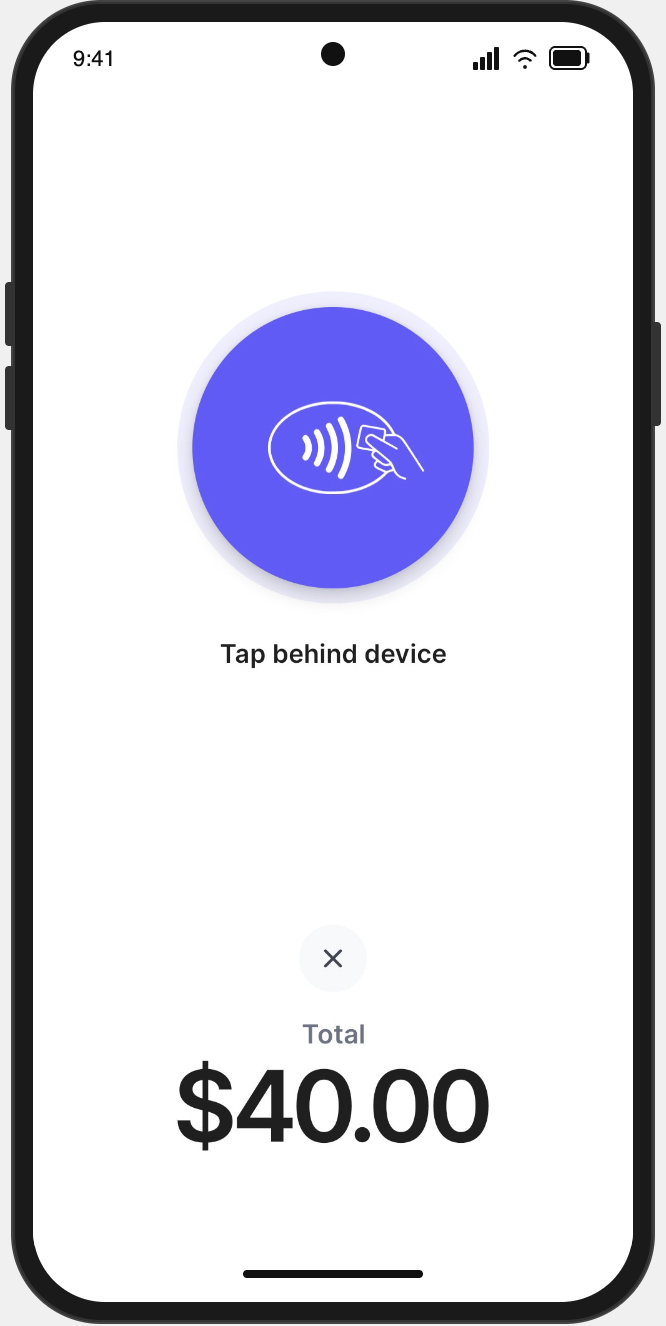
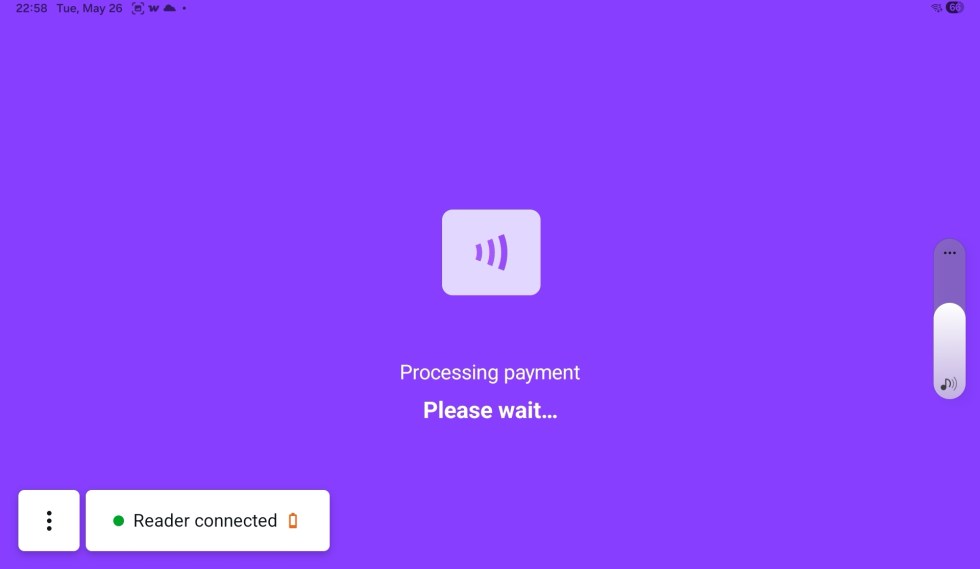
- The tablet shows a “ready for payment” status. The phone prompts the customer to tap their card.
- The customer taps their contactless card or digital wallet on the back of the phone.
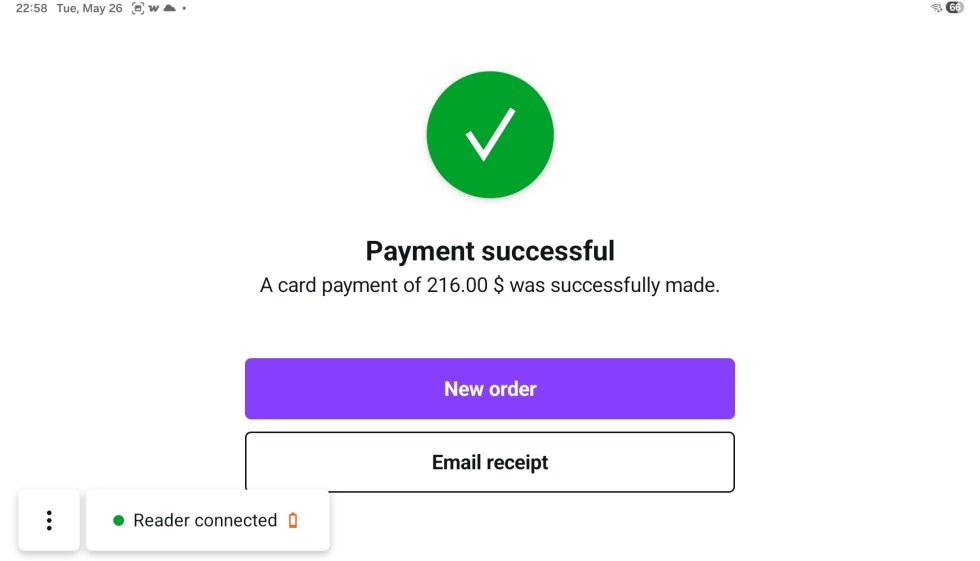
- The tablet shows payment success.
Troubleshooting
↑ Back to topPhone doesn’t appear in the reader list
↑ Back to top- Confirm both devices are on the same Wi-Fi network.
- Confirm both devices are signed into the same WooCommerce store.
- Confirm the phone has Card Reader Mode active and is displaying a pairing code.
- Confirm the phone meets all Tap to Pay on Android requirements.
Pairing codes don’t match
↑ Back to topIf the codes displayed on the phone and the tablet don’t match, do not proceed. Cancel and restart Card Reader Mode on the phone, then rediscover from the tablet.
Frequently asked questions
↑ Back to topCan I use an iPad with an Android phone?
↑ Back to topNot yet. Remote Tap-to-Pay currently requires both devices to be Android. Cross-platform support is planned for a future release.
Does this replace my Bluetooth card reader?
↑ Back to topNo — it’s an alternative. If you already have an M2 or WisePad 3 Bluetooth card reader, it continues to work as before. Remote Tap-to-Pay gives you an additional option that requires no extra hardware. Note that all standard Tap to Pay limitations apply, including maximum transaction amounts.
Can I use Remote Tap-to-Pay outside of POS mode?
↑ Back to topNo. Card Reader Mode is designed to work with Woo POS on a tablet. For standalone in-person payments on a phone without a tablet, use Tap to Pay on Android directly.
Which countries are supported?
↑ Back to topRemote Tap-to-Pay is available in countries where both Woo POS and Tap to Pay on Android are supported. Check the availability table on the Getting Started with In-Person Payments page. Currently, this includes only the US and the UK.
Does it work with the Stripe gateway?
↑ Back to topYes. Remote Tap-to-Pay works with both WooPayments and the Stripe payment gateway.