
Use Twilio SMS Notifications (purchased separately) with WooCommerce Bookings to send booking reminders, cancellations, confirmations and follow-up texts. You can choose which notifications go to store administrators and which go to customers.
Before you start, activate both extensions and configure your Twilio account and sending number using the Twilio SMS Notifications setup guide. Customer notifications also need the customer’s billing phone number and SMS opt-in on the booking’s order.
Configure booking SMS notifications
↑ Back to top- Go to WooCommerce > Settings > SMS, then select Bookings.
- Review Opt-in Checkbox Label. This is the booking-specific label shown for the customer’s SMS opt-in at checkout.
- Under Admin Notifications or Customer Notifications, select the notifications you want to send. Enabling a notification reveals its settings.
- For an admin notification, enter Notification recipient(s), including the country code. Separate multiple numbers with commas. Customer notifications use the billing phone number from the booking’s order.
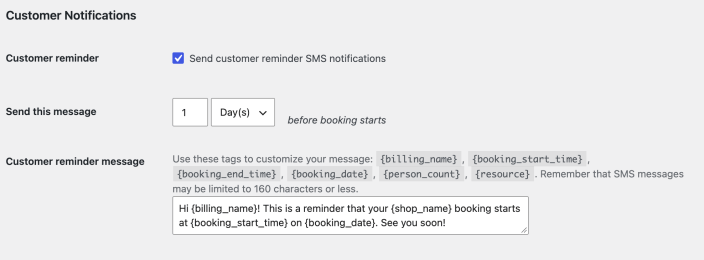
- For a reminder or follow-up, set Send this message to the required number and unit. Reminders are sent before the booking starts; follow-ups are sent after it ends. Reminder settings are limited to 48 hours before the start.
- Review the message template. Keep the default message or customize it using the replacement tags displayed with the field. Keep the message concise and check how it reads with actual booking details.
- Select Save changes, then reload the page and confirm that the notification and timing remain selected.
For example, the following customer reminder is enabled for 1 Day(s) before the booking starts. The same pattern applies to admin reminders, with an additional recipient field.
Choose notification types
↑ Back to topChoose only the messages that suit your booking process. Each notification has its own enable setting and message template.
| Notification | When it sends |
|---|---|
| Admin reminder | Before the booking starts; choose the reminder timing. |
| Admin cancellation | When the booking is canceled. |
| Customer reminder | Before the booking starts; choose the reminder timing. |
| Customer follow up | After the booking ends; choose the follow-up timing. |
| Customer cancellation | When the booking is canceled. |
| Customer confirmation | When the booking changes to Confirmed. |
Cancellation and confirmation notifications are triggered by booking status changes; they do not have a timing field. A confirmation message is tied to Confirmed status, so do not assume that every paid booking triggers it.
Override notifications for one product
↑ Back to topTo use different messages or timing for one bookable product, edit the product and open Product data > SMS Notification. For each notification, choose Use global settings, Override global settings, or Don’t send. An override lets you enter that product’s message and, where available, timing. Select Update to save it.
Check the booking and delivery
↑ Back to topBefore relying on the messages, make a controlled booking with a phone number you can check, select the SMS opt-in at checkout, and test the notification types you enabled. Check the received message, recipient and timing. Saving settings alone does not confirm SMS delivery.
If a customer message is missing, check the billing phone number and SMS opt-in on the order, the notification’s global setting, and any product override. For a reminder, also check the booking status and start time: reminders are scheduled as bookings become paid or confirmed. Review your Twilio configuration and delivery records using the setup guide if the message still does not arrive.
Questions and support
↑ Back to topSomething missing from this documentation? Still have questions and need assistance?
- If you have a question about a specific extension or theme you’d like to purchase, contact us to get answers.
- If you already purchased this product and need some assistance, get in touch with a Happiness Engineer via our support page and select this product’s name from the Product dropdown.

