
Smart Coupons provides a powerful, all-in-one solution for gift cards, store credits, discount coupons, and vouchers, extending the core functionality of WooCommerce coupons.
This document explains how to create a BOGO setup within a few minutes using the Smart Coupons presets.
To find the detailed documentation, you can refer here.
Steps to create a BOGO coupon
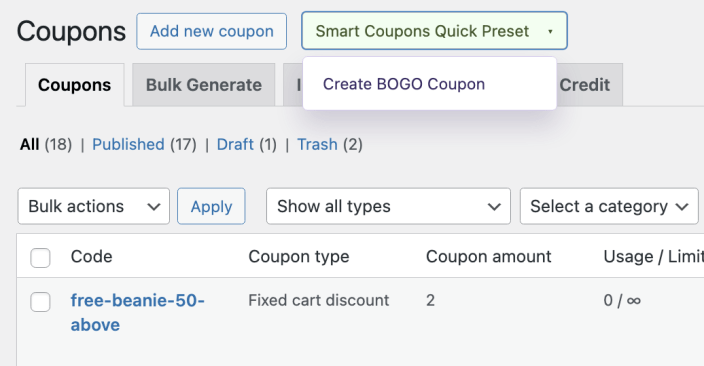
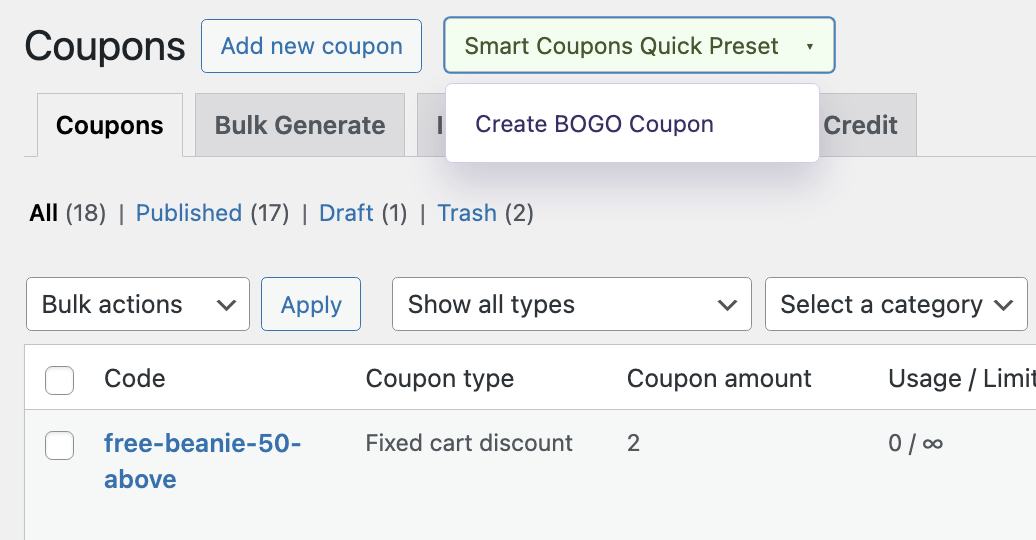
↑ Back to top- Navigate to Marketing > Coupons dashboard
- Click on the “Smart Coupons Quick Preset” dropdown.
- Select “Create BOGO Coupon”.
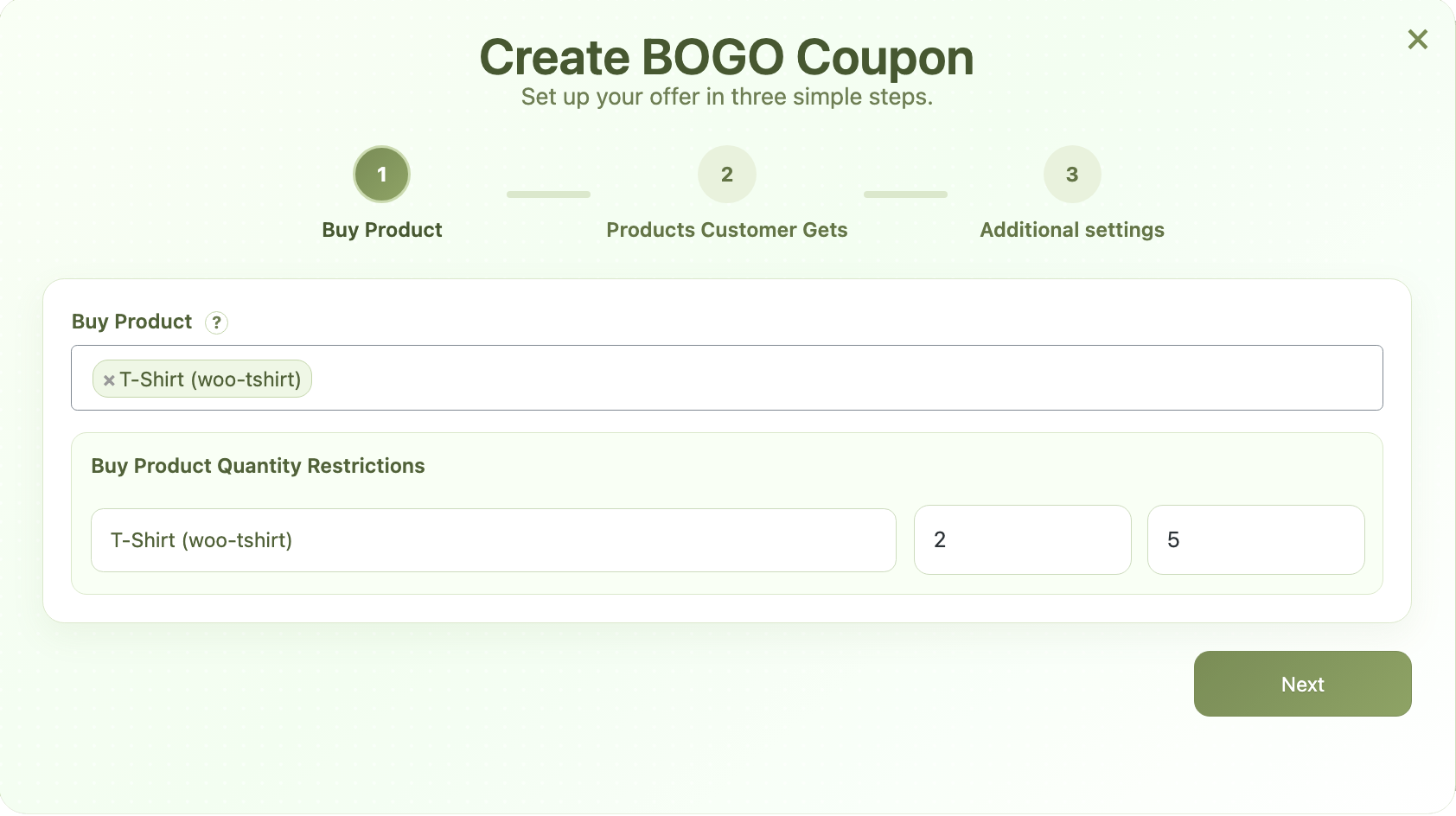
- Step 1:
a. In the Buy Product field, add a product that you want the BOGO coupon to be applied to or, when this product is available in the cart, the coupon to be applied.
b. Add any Quantity Restrictions if necessary (optional).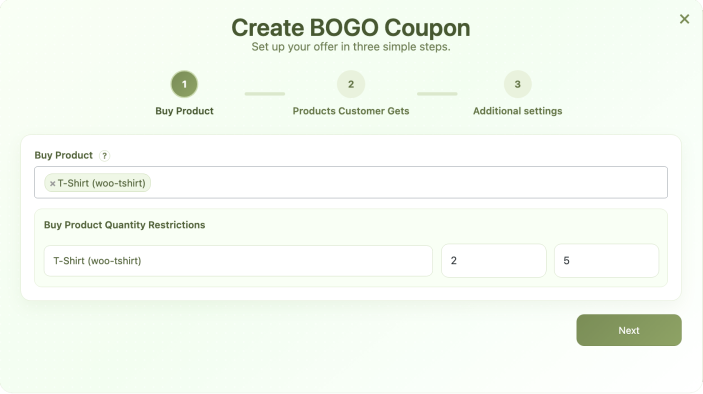
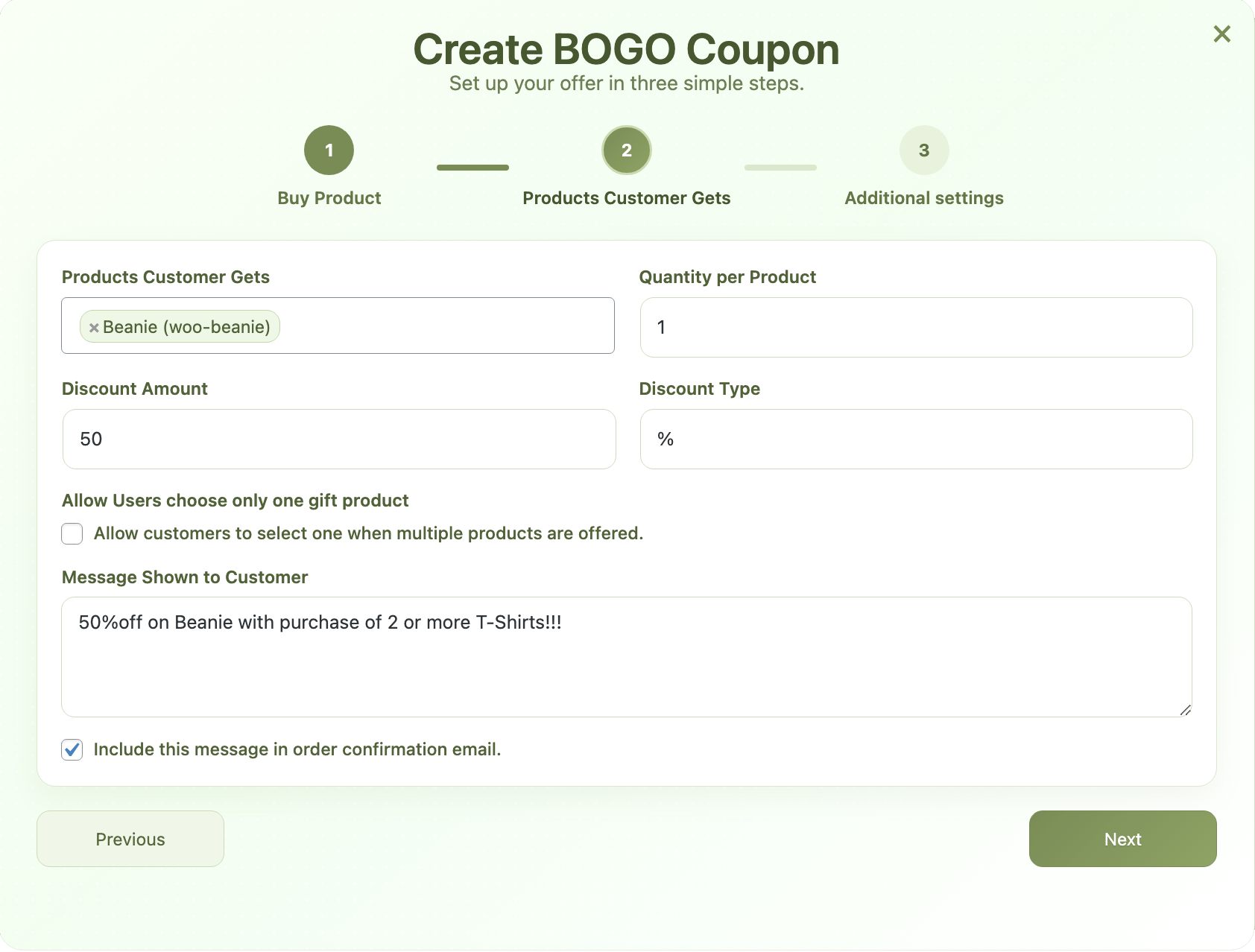
- Step 2:
a. In the “Products Customer Gets” field, add the product that the customer receives when the product from step 1a is available in the cart.
b. Include the quantity and discount amount and select the discount type as fixed/percentage for the product that the customer receives.
c. Include any message that needs to be displayed to the customer. (Optional)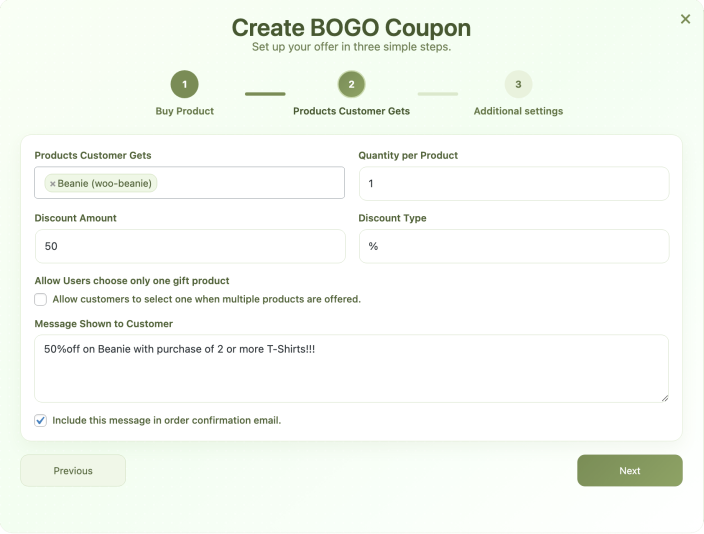
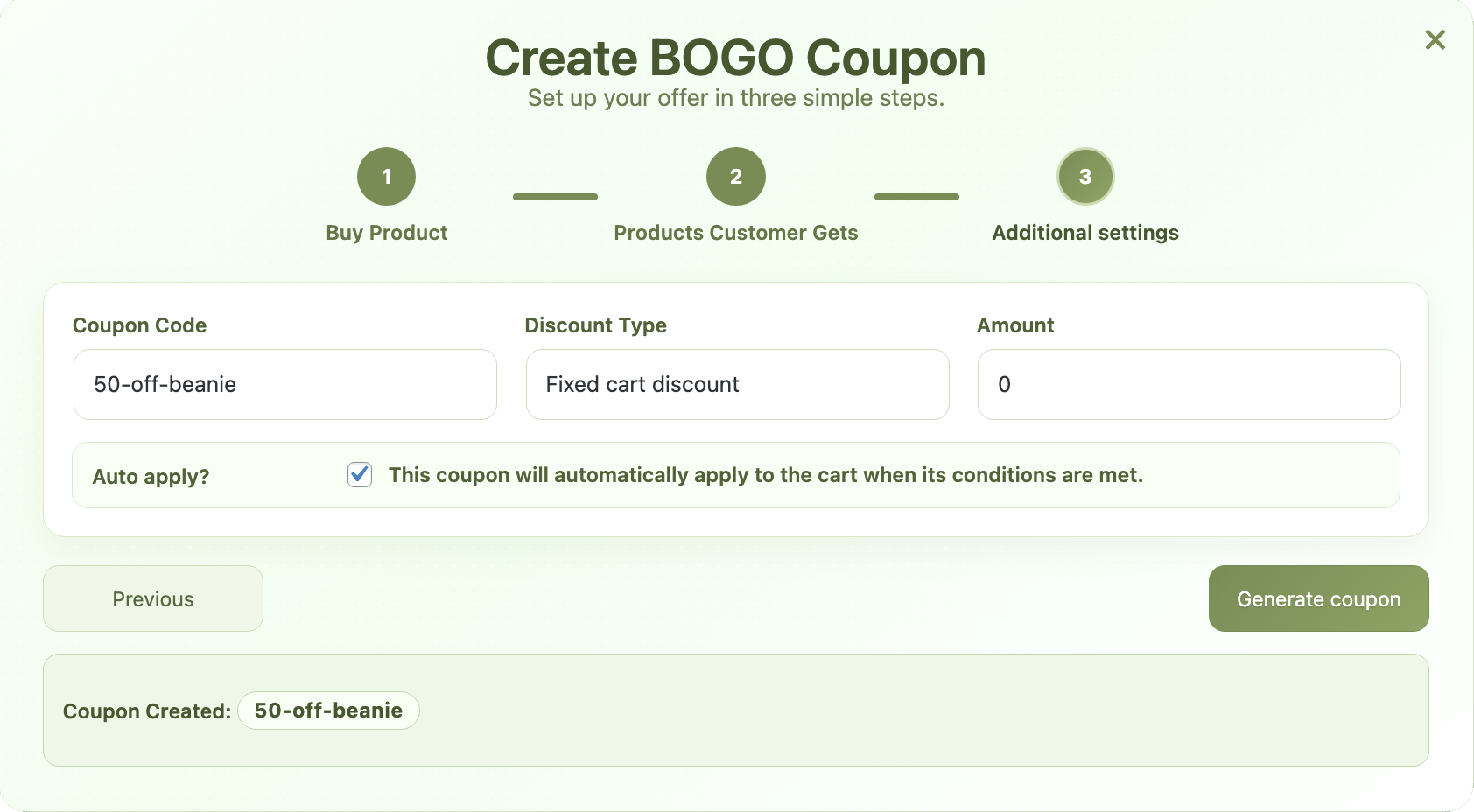
- Step 3:
a. Click the next button to add a coupon code. (Leave it empty to auto-generate any coupon code).
b. Select a discount type and amount. (The discount will be applied to the cart total.) - Click on the Generate coupon button.
That’s it!

