WooCommerce Subscriptions uses scheduled events to process renewals and other time-sensitive tasks. A working WordPress cron system helps those events run when they are due.
Check WordPress cron status
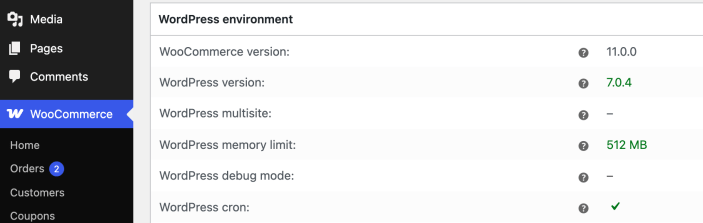
↑ Back to topUse WooCommerce System Status to confirm whether WordPress cron is enabled on the site.
- Go to WooCommerce > Status > System status.
- Find the WordPress cron row in the WordPress environment section.
- Confirm that the row shows WordPress cron is enabled.
What the result means
↑ Back to topIf WordPress cron is enabled, WordPress can trigger scheduled events when the site receives traffic. This does not guarantee that every scheduled subscription action will complete successfully, but it confirms that cron has not been disabled in WordPress configuration.
If WordPress cron is disabled, check the site’s wp-config.php file or ask the host whether DISABLE_WP_CRON is set to true. Some hosts disable the built-in visitor-triggered cron and replace it with a server-level cron job. In that setup, confirm with the host that the server cron is configured and running often enough for subscription renewals.
If subscription events still do not run
↑ Back to topAfter confirming WordPress cron is enabled, check scheduled subscription events directly.
- Go to WooCommerce > Status > Scheduled Actions and look for pending or failed subscription actions.
- Use the Testing Subscription Renewal Payments guide to run a controlled test renewal on a staging site.
- Use the Subscriptions Scheduled Action Errors guide if subscription actions are failing or remaining pending.
- For developer-level troubleshooting, see the Complete Guide to Scheduled Events with Subscriptions.