
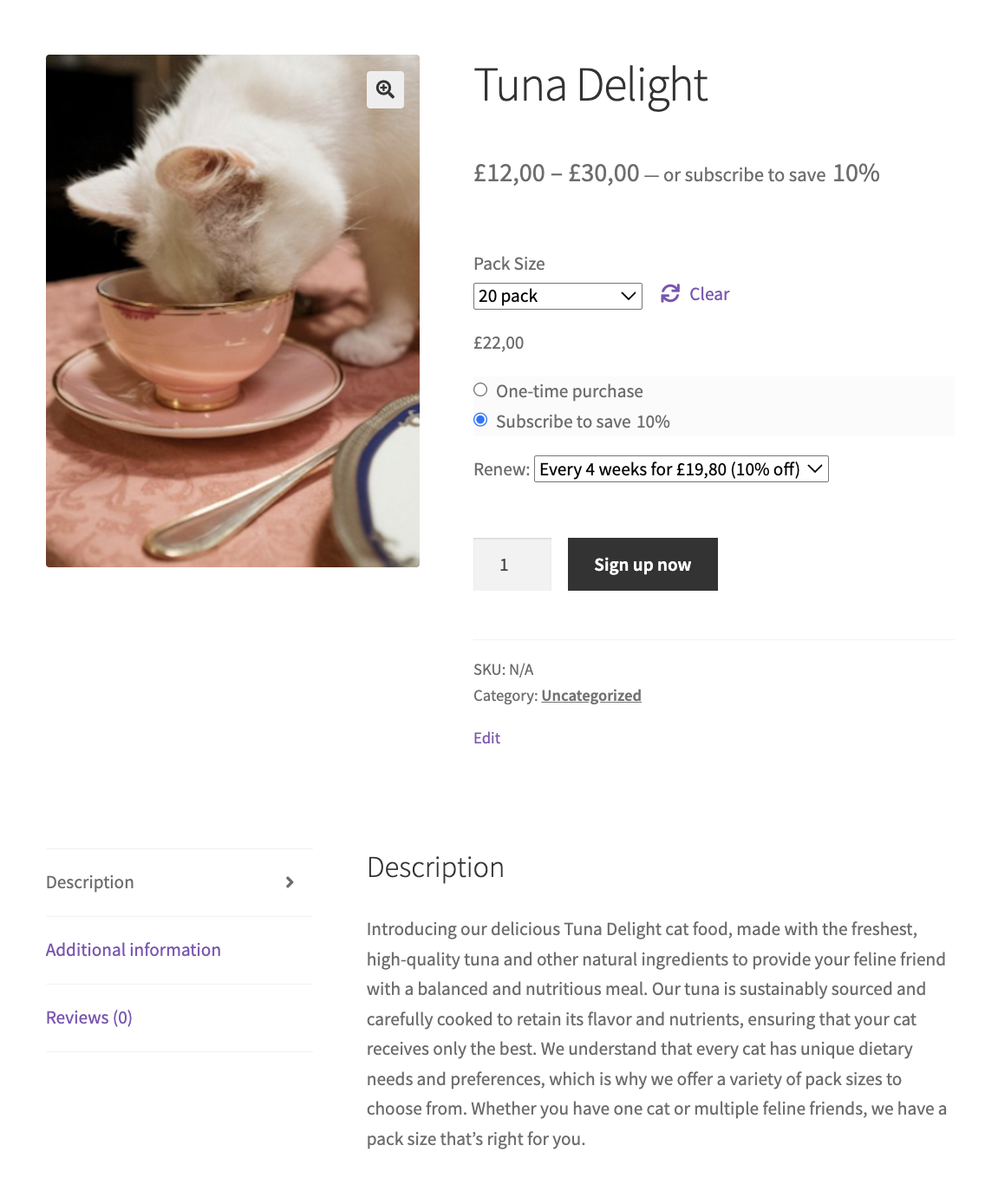
Scenario
↑ Back to topPet owners like to choose exactly what their pets get and how often it arrives. With subscription plans in WooCommerce Subscriptions, you can let customers choose options such as flavor or pack size, set a price for each, and offer a discount for subscribing. Pet owners get a personalized, hassle-free delivery, and your store stands out from competitors.
In this guide, we’ll set up a pet food product that customers can buy once or subscribe to, with a discount for subscribing. Our example is a cat food called Tuna Delight. It comes in 10, 20 and 30 packs and can be delivered every 2, 4 or 6 weeks.
Requirements
↑ Back to top- WooCommerce
- WooCommerce Subscriptions 9.0 or later
- A payment gateway that supports subscriptions, such as WooPayments, Stripe for WooCommerce or PayPal Payments
Setup
↑ Back to top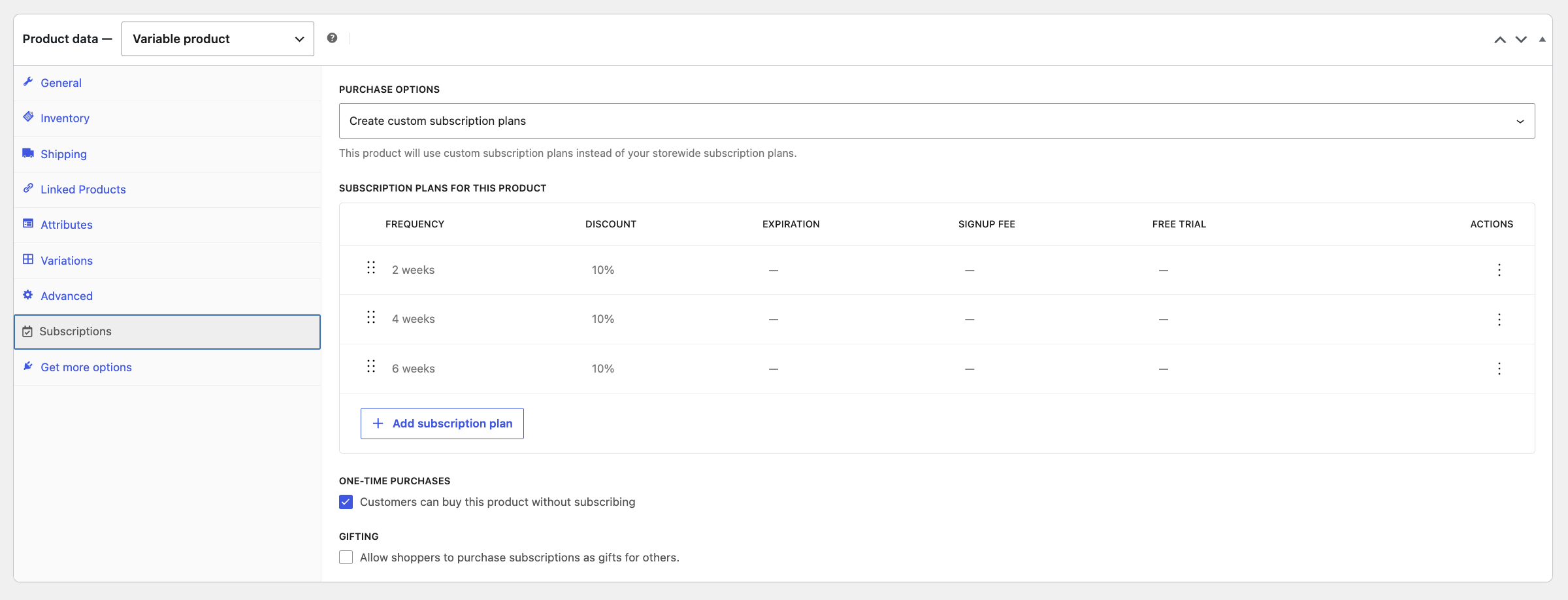
Create the product and its pack sizes
↑ Back to top- Go to Products > Add New.
- Enter the product name (Tuna Delight), a description and product images.
- In Product data, select Variable product.
- Open the Attributes tab.
- Add an attribute called Pack Size with the values 10 pack | 20 pack | 30 pack.
- Tick Used for variations and click Save attributes.
- Open the Variations tab and click Generate variations. Confirm when asked.
- Open each variation and enter its Regular price (e.g. £12, £22 and £30).
- Fill in SKU, stock and shipping details as needed.
- Click Save changes.
Add the subscription plans
↑ Back to top- Open the Subscriptions tab in Product data.
- Under Purchase options, select Create custom subscription plans. It’s set to Sell one-time only by default.
- Click Add subscription plan and set it up:
- Frequency: every 2 weeks
- Align renewal (optional): renew on a set day
- Price: Discount the product price, Discount: Percentage, 10
- Expire subscription after a set number of payments, Signup fee and Free trial: optional, leave blank for this example
- Save the plan, then add two more for every 4 weeks and every 6 weeks with the same 10% discount.
- Make sure One-time purchases: Customers can buy this product without subscribing is ticked, so customers can also buy it once. It’s ticked by default. Untick it to sell this product as a subscription only.
- Click Publish.
The plans apply to every variation, and the discount follows each variation’s price.
What customers see
↑ Back to topOn the product page, customers choose a pack size, then pick One-time purchase or Subscribe to save 10%. Subscribers choose a delivery schedule from the Renew dropdown. For example, the 20 pack every 4 weeks is £19.80 instead of £22.
At checkout, the order shows the recurring total and the first renewal date. The customer is then charged the same price on each renewal.
Tip: If you sell many pet food products with the same delivery options, set the plans up once in WooCommerce > Settings > Subscriptions. Then on each product, choose Use storewide subscription plans under Purchase options. You can offer all of them or pick specific ones.
Conclusion
↑ Back to topWith subscription plans, one variable product can be bought once or on a regular schedule, with a discount for subscribing. You don’t need separate subscription products for each pack size and delivery schedule. Pet owners get the options they want, and you get a simple setup and reliable recurring payments.