
The Cart and Checkout pages are a critical part of the shopping experience. The WooCommerce Cart and Checkout blocks provide customers with a seamless process for reviewing and finalizing their purchases in a low-friction way that maximizes conversion. Here we cover the templates and blocks associated with these pages along with details around upgrading to the new experience, customization, and configuration so their appearance and functionality match your store’s design and needs.
Customizing the Cart Page
↑ Back to topThe Cart template displays the items selected by the customer for purchase, including quantities, prices, and discounts. It allows customers to review their choices before proceeding to checkout. The Cart block is the main component of this template, combining multiple WooCommerce blocks to display products, order totals, shipping, and checkout options.
For detailed guidance on accessing the Cart template, configuring the Cart block, and reverting to the Classic Cart, see Customizing the Cart Page.
Customizing the Checkout Page
↑ Back to topThe Checkout template guides customers through the final steps of the purchase process. It enables customers to enter shipping and billing information, select a payment method, and review order details. The Checkout block is the main container block of this template, bringing together all the key steps of the checkout process.
For detailed guidance on accessing the Checkout template, configuring the Checkout block and its header, and reverting to the Classic Checkout, see Customizing the Checkout Page.
Using the Cart and Checkout Blocks
↑ Back to topFor WooCommerce stores started after the release of version 8.3 in November 2023, the Cart and Checkout blocks are the default experience, no setup is required to put the cart and checkout blocks in place, if your site is using a block theme you can get right to customizing the templates to fit your needs. No customization is required for the block cart and checkout to function.
Replacing the existing Cart and Checkout shortcodes
↑ Back to topIf you’re upgrading an established store to use the blocks experience, or if you’ve removed the blocks and would like to switch back, expand the section below for directions on how to upgrade to the block cart and checkout!
Reverting to the classic Cart and Checkout
- If using a block theme: Go to Appearance -> Editor -> Pages -> Select Cart or Checkout -> click the Edit icon
localIf using a non-block theme: Go to Pages -> All Pages, and then locate and edit the Cart/Checkout page. - Open the List View and select the Cart or Checkout block.
- Click the “Transform” button, which is leftmost in the block toolbar
- Choose “Classic Shortcode”.
- The block will be transformed into a Classic Shortcode placeholder block.
- Save your changes by clicking the Save button in the top bar.
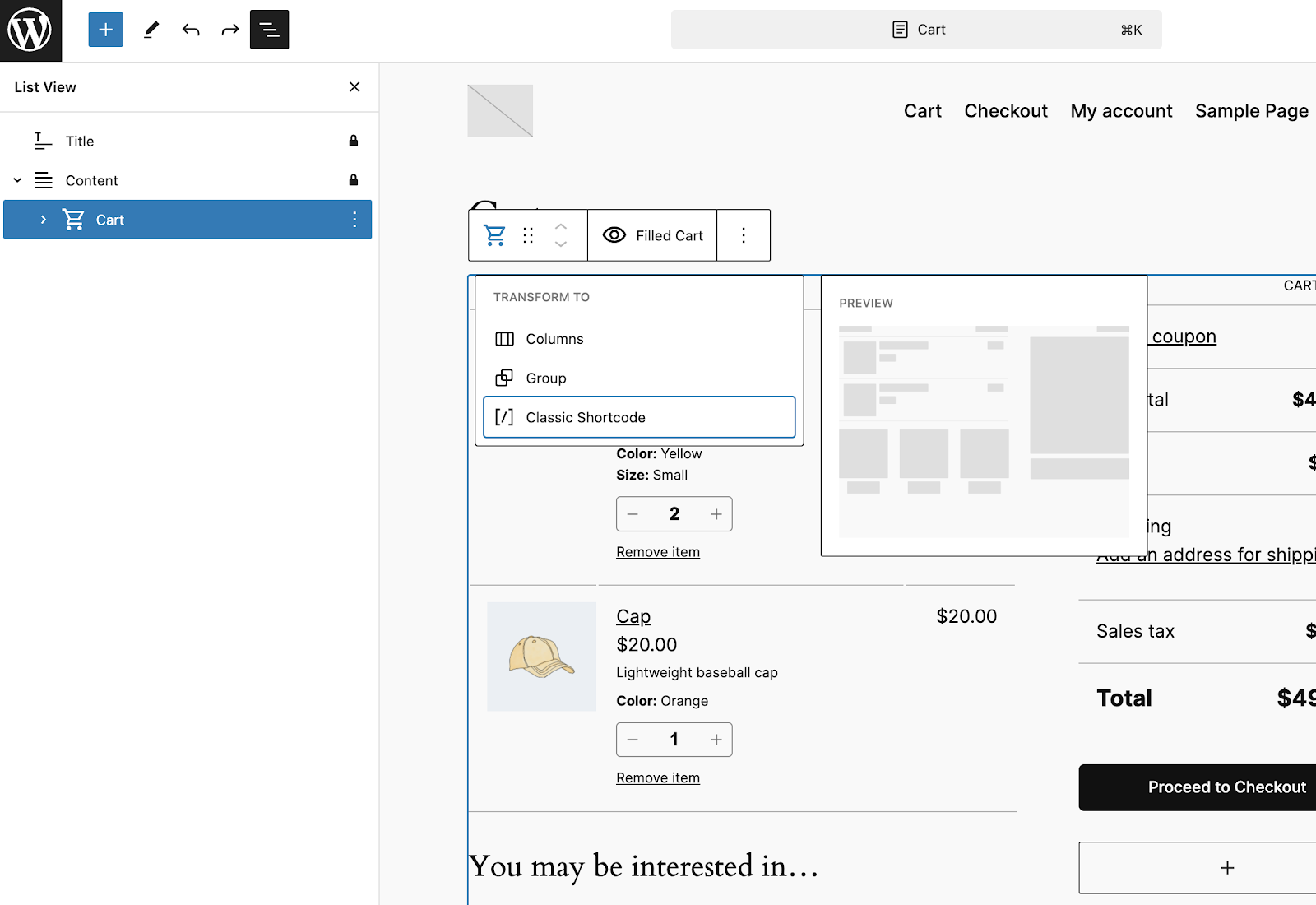
Note: Since the cart and checkout blocks work together, if you’re reverting to the classic version of the cart and checkout experience, you’ll want to revert both the cart and checkout to the classic shortcode version.
Reverting to the Classic Cart and Checkout
↑ Back to topBoth the cart and checkout blocks can be transformed back to the classic version using the transform button in the block toolbar. For step-by-step instructions, see:
Store Notices Block
↑ Back to topBoth the cart and checkout page templates use the Store Notices block. The Store Notices block is where your shop displays shopper-facing notifications generated by WooCommerce or extensions. For example when an item is successfully added to the cart, the notification will show here. The store notices block can be added to any page or template of your site.
Block Styles
↑ Back to topSince notifications of different types each have their own styling, there are no style settings for this block.
Mini Cart Block
↑ Back to topThe Mini Cart Block gives customers a quick overview of their cart contents from any page on your store. The guide below explains the functionality of the Mini Cart Block and provides instructions for customizing its appearance and behavior to ensure a smooth and convenient shopping experience.
Explore the settings and options for customizing the Mini Cart block.
Mini-Cart Drawer Template Part
↑ Back to topThe Mini-Cart block uses a template part to display the contents of the Mini-Cart. Check the Mini-Cart page for more details on accessing and editing that template part.
Compatible Extensions
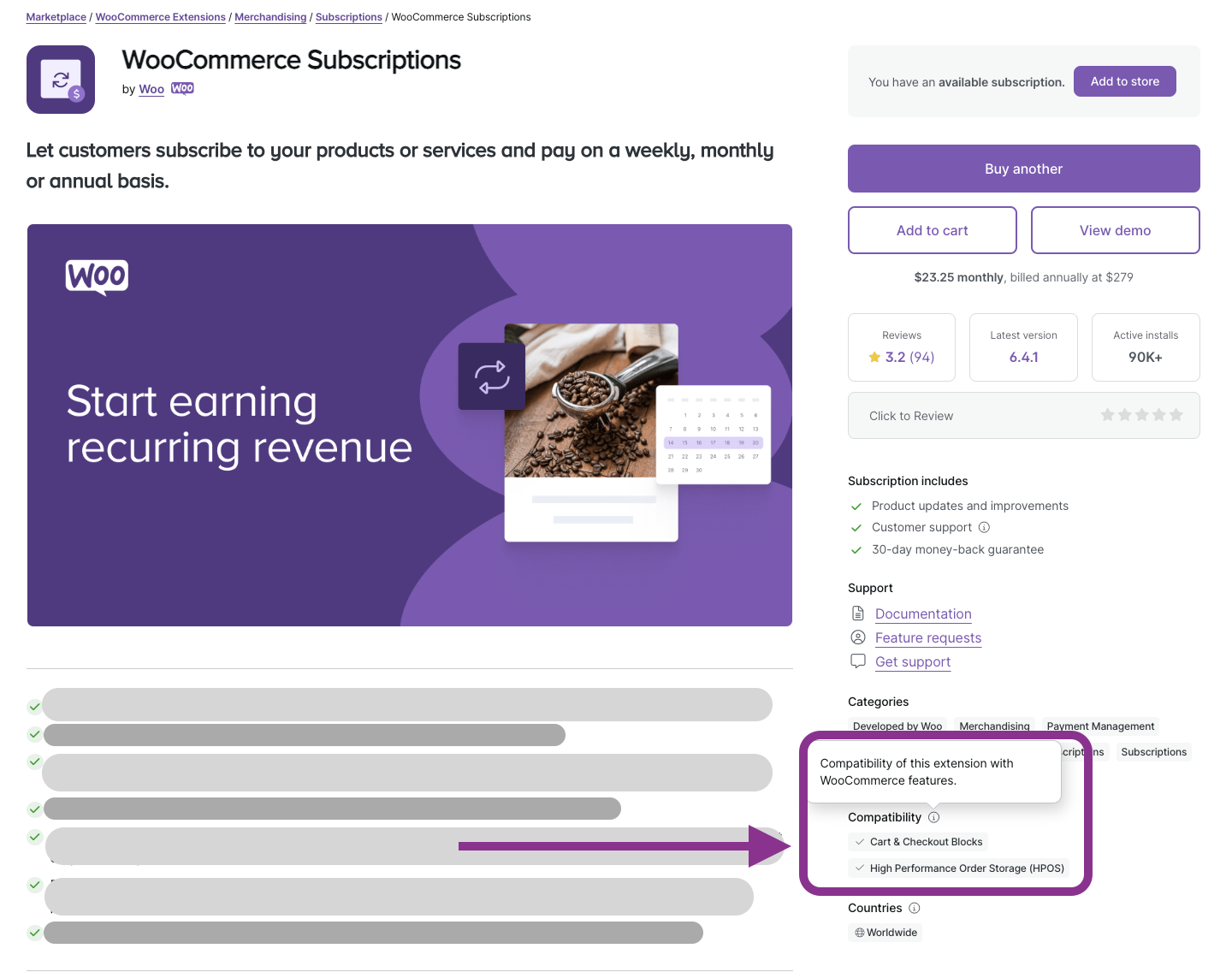
↑ Back to topCompatibility with the Cart and Checkout blocks for extensions on WooCommerce.com is marked on the product page. Look for the Compatibility section on any product to see if it’s compatible with the Cart and Checkout blocks.
Incompatible Extensions
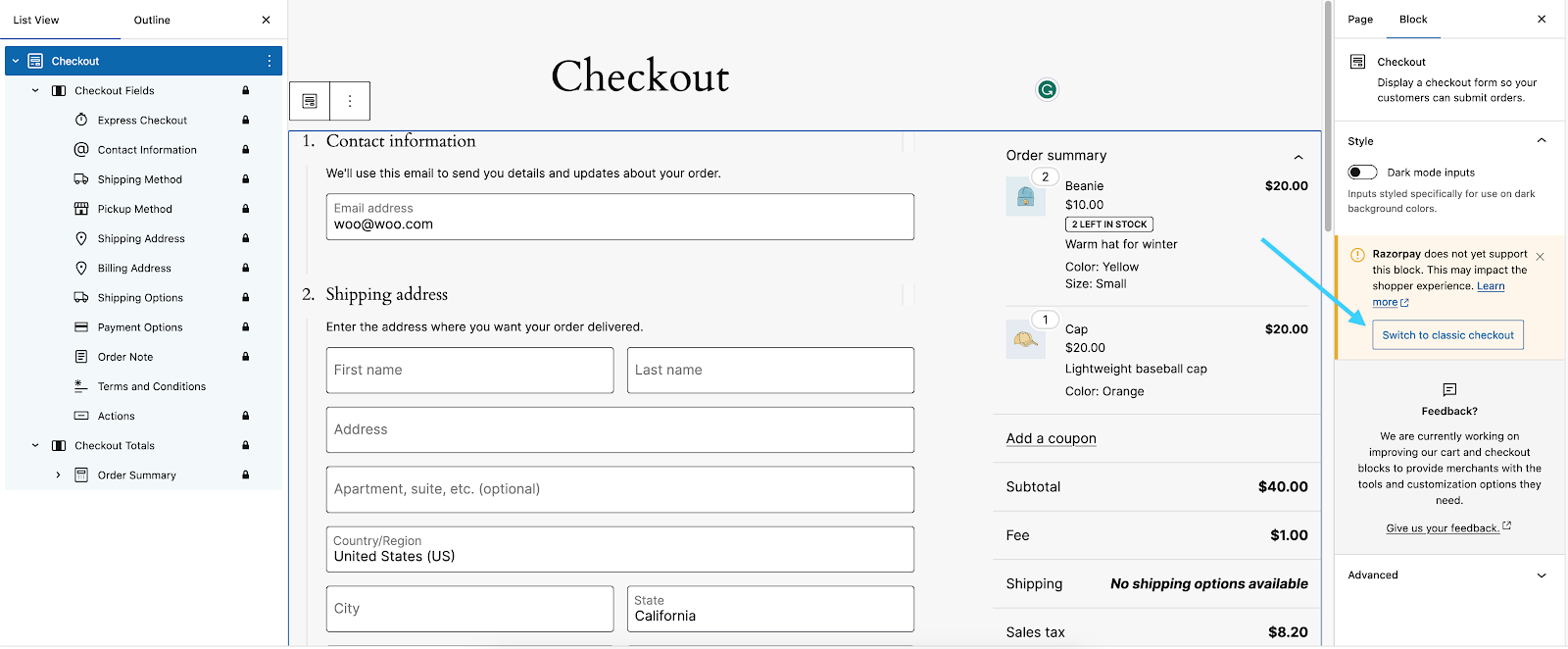
↑ Back to topIf you use an incompatible extension which has declared its incompatibility, a warning and a button to switch to the Classic Checkout with one click will appear in the settings sidebar when the Checkout Block or any of its inner blocks are selected.
Incompatible extensions may cause elements of the checkout to not be available as expected. For example if your payment gateway isn’t compatible with the block version of the checkout, it may not appear as a payment option on the checkout page.
If you are using a plugin that does not work as expected with the Cart and Checkout Blocks, please get in touch with its developers and let them know that you would like to use the new, block-based checkout. To assist developers in this effort, we have published documentation and resources on integrating existing plugins with the Cart/Checkout Blocks and Store API.
If you have a third-party plugin that you believe is incompatible, you can contact the plugin developer and refer them to our guidance on declaring compatibility with this new default. Plugin developers should mark their plugins as (in)compatible so users aren’t left to troubleshoot and figure that out themselves.
See our primer on using Blocks for more information about swapping back to classic templates if you encounter any incompatibility issues.
Why are my customers seeing “There are no payment methods available” at checkout?
↑ Back to topIf you’re using the checkout block, and only have incompatible payment gateways installed and active, there won’t be any payment methods available at checkout, and so a warning is displayed on the checkout page.
In the block settings sidebar of the Payment Options inner block of the Checkout Block, you’ll see an option to switch back to the classic checkout with a single click.

Extensibility – Developers
↑ Back to topExtensibility interfaces for the Cart and Checkout Blocks are still under active development. If you are developing extensions or customizations that integrate with the WooCommerce cart and checkout, we highly encourage you to follow our progress and provide feedback on GitHub.
Extensions that use hooks to render additional markup in the cart or checkout pages – for example, custom checkout fields – usually require integration work to support the Cart and Checkout Blocks.
Found a plugin on WooCommerce.com that appears to be incompatible? Please open an issue to help us measure demand and prioritize extensibility work on our end.
Questions and support
↑ Back to topDo you still have questions and need assistance?
This documentation is about the free, core WooCommerce plugin, for which support is provided in our community forums on WordPress.org. By searching this forum, you’ll often find that your question has been asked and answered before.
If you haven’t created a WordPress.org account to use the forums, here’s how.
- If you’re looking to extend the core functionality shown here, we recommend reviewing available extensions in the WooCommerce Marketplace.
- Need ongoing advanced support or a customization built for WooCommerce? Hire a Woo Agency Partner.
- Are you a developer building your own WooCommerce integration or extension? Check our Developer Resources.
If you weren’t able to find the information you need, please use the feedback thumbs below to let us know.