
In addition to the main Product Catalog (Shop) template, WooCommerce also provides templates for product groups such as categories, tags, attributes, or brands. These archive templates are applied automatically depending on the context, for example, when a customer views a category page.
Each of these templates is powered by the Product Collection block, which dynamically loads the right products. You can edit them in the Site Editor to customize layouts, apply styles, and add supporting blocks like Product Filters.
Products by Attribute Template
↑ Back to top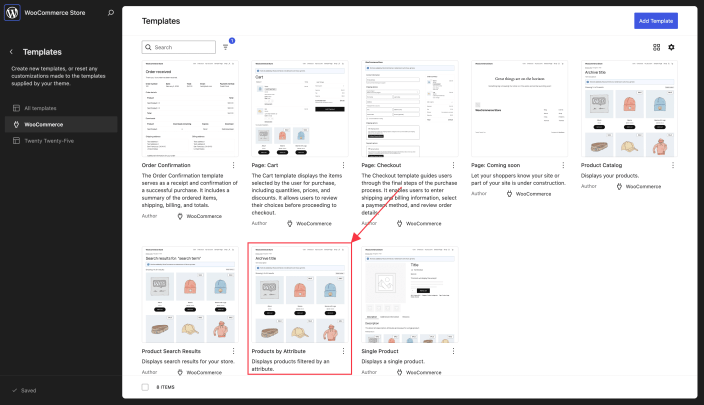
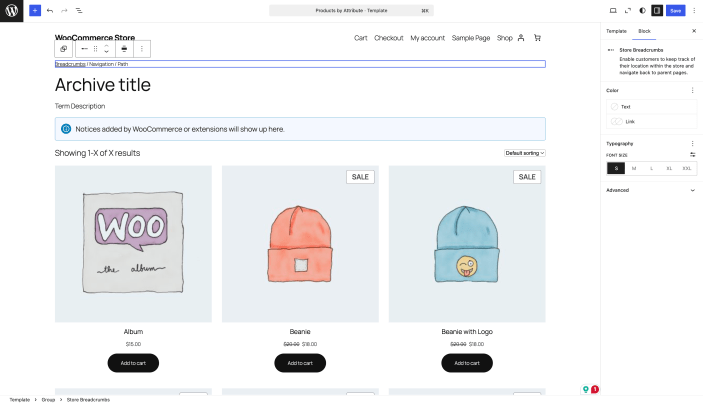
The Products by Attribute template handles product listing pages generated by attributes like size, color, or material. To edit this template, follow the steps below:
- From your WordPress dashboard, go to Appearance > Editor
- Select Templates > WooCommerce
- Choose Products by Attribute
- The Site Editor will open the template for editing
Note: For this template to work, you need to enable archives for each attribute. Go to Products > Attributes, click the attribute name, and check “Enable Archives?“. If this setting is disabled, customers visiting the attribute page will see a 404 error.
Products by Category Template
↑ Back to top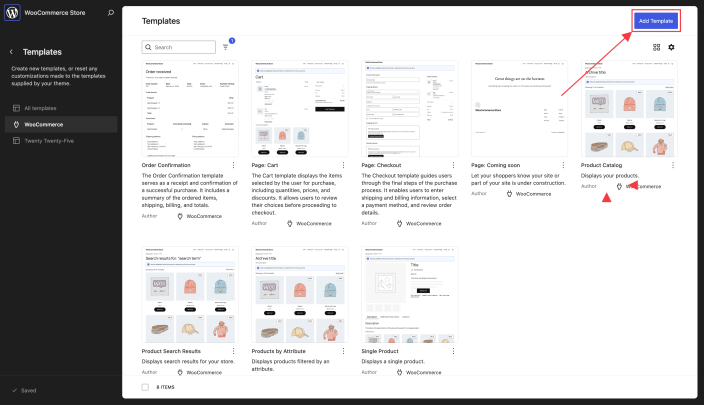


The Products by Category template controls the layout for category archive pages (e.g., “Clothing” or “Shoes”). To edit this template, follow the steps below:
- From your WordPress dashboard, go to Appearance > Editor
- Select Templates > WooCommerce
- In the top-right corner, click Add Template
- Choose Products by Category
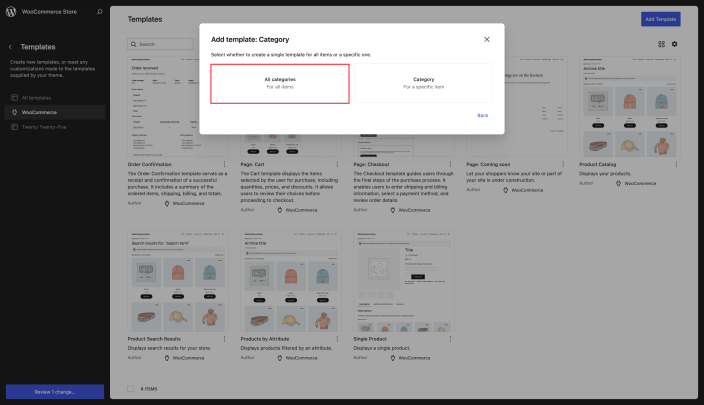
- In the modal window, select one of the following:
- All Categories: Create a default layout that applies to every product category.
- Specific Category (e.g., “Shoes”): Create a template for just that category.
- Once selected, the Site Editor will open a new blank template.
- Start with a prebuilt pattern that includes the Product Collection block, preconfigured to display products from the chosen category or all categories based on your step 5 selection.
- You can customize the template further by adding blocks or adjusting styles.
Products by Tag Template
↑ Back to top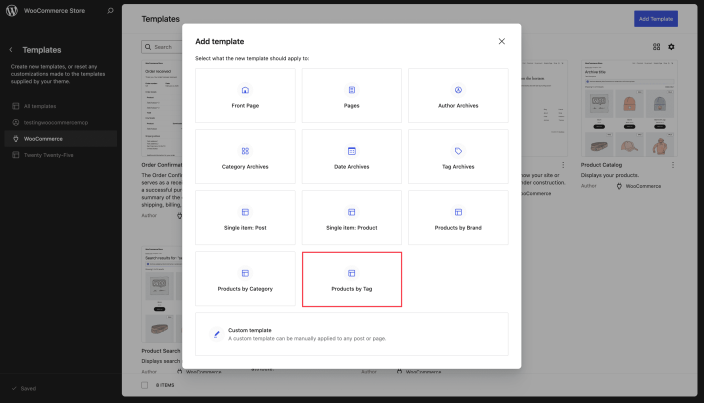
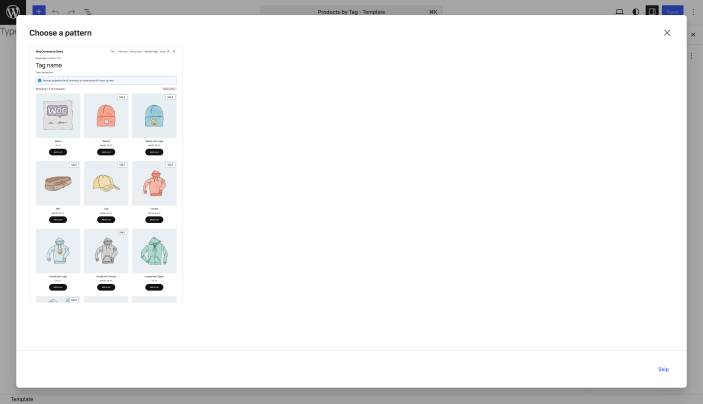
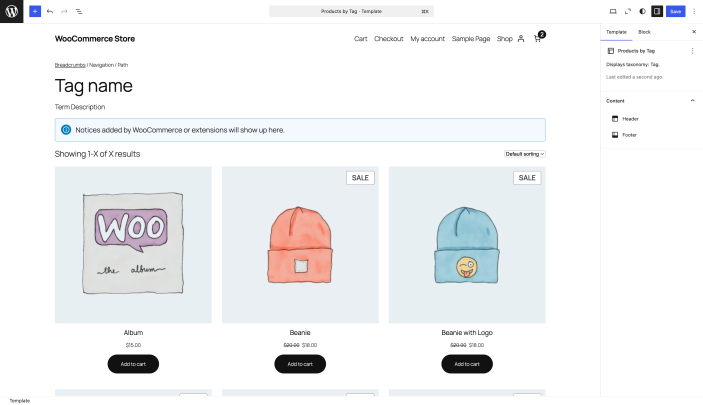
The Products by Tag template controls how products are displayed on tag archive pages. To edit this template, follow the steps below:
- From your WordPress dashboard, go to Appearance > Editor
- Select Templates > WooCommerce
- In the top-right corner, click Add Template
- Choose Products by Tag
- Once selected, the Site Editor will open a new blank template
- Start with a prebuilt pattern that includes the Product Collection block, preconfigured to display products by tag.
- You can customize the template further by adding blocks or adjusting styles.
Products by Brand Template
↑ Back to top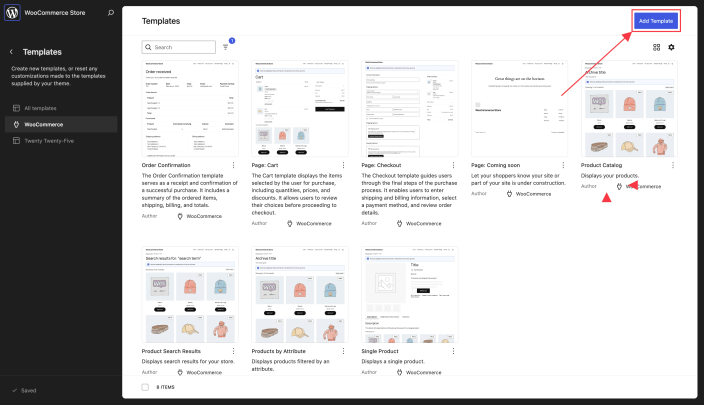

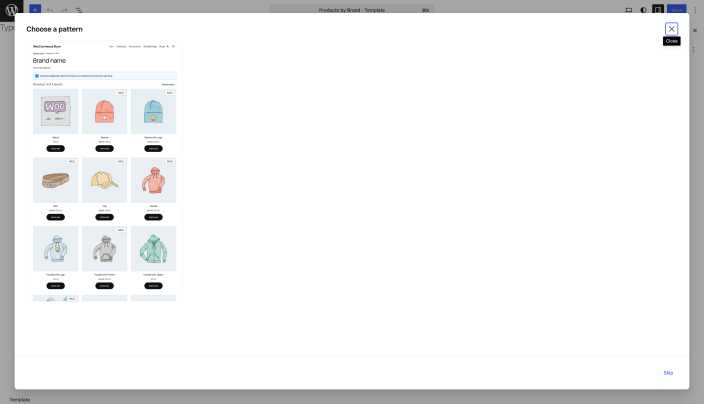
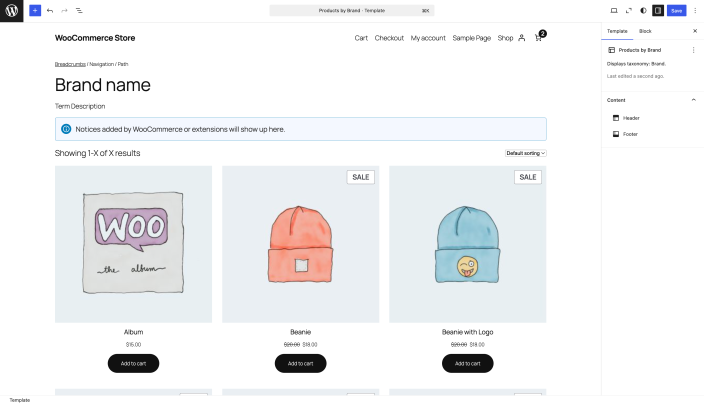
The Product by Brand template controls the layout and design for brand-specific product archive pages. To edit this template, follow the steps below:
- From your WordPress dashboard, go to Appearance > Editor
- Select Templates > WooCommerce
- In the top-right corner, click Add Template
- Choose Products by Brand.
- Once selected, the Site Editor will open a new blank template
- Start with a prebuilt pattern that includes the Product Collection block, preconfigured to display products by brands.
- You can customize the template further by adding blocks or adjusting styles.
Inner Blocks of Archive Templates
↑ Back to topProduct archive templates (Category, Tag, Attribute, Brand) share the same inner block structure as the Product Catalog (Shop) template.
Please refer to the Inner Blocks of the Product Catalog Template to learn more about it.
Adding Product Filters
↑ Back to topTo improve navigation and help shoppers find products faster, add the Product Filters block to your Product Catalog template. Customers can refine products by:
- Price range
- Product Rating
- Attributes
- Stock Status
- Category
- Brand
- Tag
Questions and support
↑ Back to topDo you still have questions and need assistance?
This documentation is about the free, core WooCommerce plugin, for which support is provided in our community forums on WordPress.org. By searching this forum, you’ll often find that your question has been asked and answered before.
If you haven’t created a WordPress.org account to use the forums, here’s how.
- If you’re looking to extend the core functionality shown here, we recommend reviewing available extensions in the WooCommerce Marketplace.
- Need ongoing advanced support or a customization built for WooCommerce? Hire a Woo Agency Partner.
- Are you a developer building your own WooCommerce integration or extension? Check our Developer Resources.
If you weren’t able to find the information you need, please use the feedback thumbs below to let us know.