
The Single Product template controls how an individual product is displayed in your WooCommerce store. It combines a collection of WooCommerce blocks that allow customers to view product images, information, pricing, variations, and purchase options, all in one customizable layout.
This template can be edited in the Site Editor, where you can rearrange, style, or replace any of the included blocks to match your brand and improve the product browsing experience.
Access the Single Product Template
↑ Back to topYou can access this template from your WordPress Dashboard by going to:
- Appearance > Editor
- Click Templates, select WooCommerce > Single Product
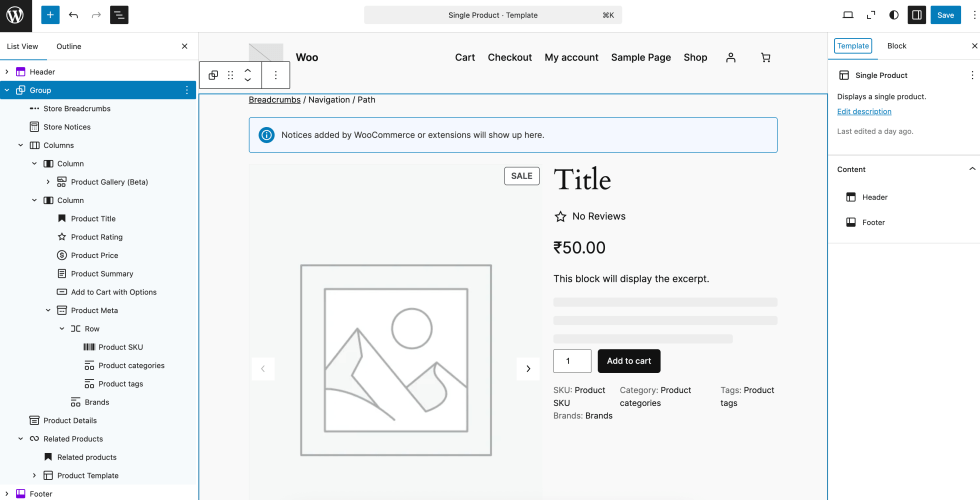
Inner Block Structure of Single Product Template
↑ Back to topThe Single Product template is made up of several inner blocks, each serving a specific purpose.
| Inner Block | Purpose |
|---|---|
| Store Breadcrumbs | Displays a navigation trail for easy browsing. |
| Store Notices | Displays shopper-facing notifications from WooCommerce or extensions. |
| Product Gallery | Display product media in gallery view |
| Product Title | Shows the name of the product. |
| Product Rating | Displays the average customer rating. |
| Product Price | Displays the current product price. |
| Product Summary | Shows a short product description. |
| Add to Cart with Options | Displays a button so the customer can add a product to their cart. |
| Product Meta | Displays additional details like SKU, categories, and tags. |
By editing the Single Product template, you can fully customize how your product pages appear to your customers, ensuring they align with your brand and provide the best shopping experience.
Creating a Template for a Specific Product
↑ Back to topYou may want a product to have its own unique layout, different from the default Single Product template. This is possible by creating a template for a specific product.
Creating a product-specific template lets you tailor the design and content for special cases, such as highlighting a flagship or premium product, providing more detailed descriptions, showcasing custom images, or adding unique calls to action.
To create a product-specific template, please follow the steps below:
- In your WordPress dashboard, go to Appearance > Editor
- Select Templates > WooCommerce
- In the top-right corner, click the Add Template button
- Choose “Single item: Product“
- A modal window will appear where you can select the product for which you want to create a unique template.
- Once selected, the Site Editor will open a blank template for you.
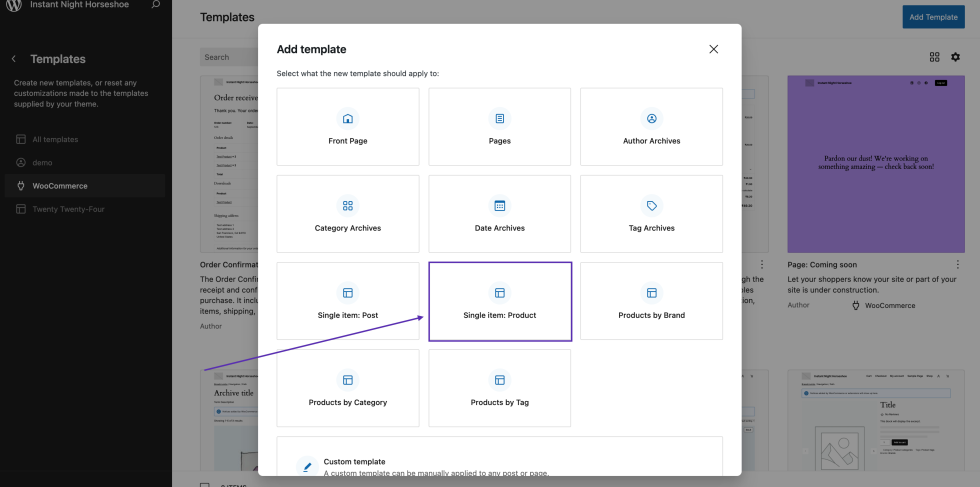
You can use the Single Product Block, patterns, style the layout to match your brand, add custom content that applies only to this product, and rearrange blocks as needed.
Questions and support
↑ Back to topDo you still have questions and need assistance?
This documentation is about the free, core WooCommerce plugin, for which support is provided in our community forums on WordPress.org. By searching this forum, you’ll often find that your question has been asked and answered before.
If you haven’t created a WordPress.org account to use the forums, here’s how.
- If you’re looking to extend the core functionality shown here, we recommend reviewing available extensions in the WooCommerce Marketplace.
- Need ongoing advanced support or a customization built for WooCommerce? Hire a Woo Agency Partner.
- Are you a developer building your own WooCommerce integration or extension? Check our Developer Resources.
If you weren’t able to find the information you need, please use the feedback thumbs below to let us know.