
Blurry product images in WooCommerce are usually caused by theme styling that specifies image dimensions incompatible with your uploaded images. This guide explains how to identify the correct image dimensions for your theme, adjust your WooCommerce image settings, and regenerate thumbnails to resolve blurry images.
Note: Any time you activate a new theme or change image dimension settings, you need to regenerate previously created thumbnails. Go to WooCommerce > Status > Tools and click Regenerate next to Regenerate shop thumbnails.
Image types
↑ Back to topWooCommerce uses three types of product images, each displayed at different sizes depending on context:
- Single product image: The largest image on the individual product details page. This is sometimes called the main or featured image.
- Catalog image: A medium-sized image used in product loops, such as on the shop page, product category pages, related products, upsells, and cross-sells.
- Product thumbnail: The smallest image, commonly used in the cart, for widgets, and in gallery images beneath the single product image.
Standard image dimensions
↑ Back to topAs of WooCommerce 3.3, product image settings are in the Customizer. Go to Appearance > Customize > WooCommerce > Product Images. The screenshot below shows the default settings in the Storefront theme. Other themes may change or add options.
Note: The Customizer path (Appearance > Customize) applies to classic themes. If you use a block theme, go to Appearance > Editor and adjust image dimensions within the relevant template or template part. Consult your theme’s documentation for specific guidance.

The images you upload are resized to match the values you enter. For example, if your settings are 100×100 pixels and you upload a 300×600 pixel image, WooCommerce resizes it to 100×200 pixels.
You can also choose to hard-crop your images. This forces them to the exact size specified in the settings, cropping rather than distorting the image.
Check image resolution and dimensions
↑ Back to topIf your images appear blurry, the issue is often that your uploaded images are too small or your WooCommerce image size settings are too low. Follow these steps to verify and correct your image resolution:
- Open the Media Library in your WordPress dashboard and click on one of your product images.
- In the Attachment Details panel, check the listed dimensions. The original image should be at least 800×800 pixels for most themes.
- If the original image is smaller than 800×800 pixels, replace it with a higher-resolution version. Click Delete permanently, then upload the new image via Media > Add New.
- Re-assign the new image as the product’s featured image by editing the product and selecting the replacement image under Product image.
- Confirm your image dimensions in Appearance > Customize > WooCommerce > Product Images match or exceed the largest dimension your theme renders (see Find your theme’s product image dimensions below).
- After uploading replacement images or changing dimension settings, go to WooCommerce > Status > Tools and click Regenerate next to Regenerate shop thumbnails.
Find your theme’s product image dimensions
↑ Back to topYour theme determines the maximum size at which images display. You need to know the dimensions your theme renders images at so you can set your WooCommerce image settings correctly.
Catalog images
↑ Back to topFirst, determine where your theme renders catalog thumbnails at the largest size. In many cases, this is the shop page. Use your browser’s developer tools to find the rendered image dimensions:
- Open your shop page in your browser.
- Right-click a product image and select Inspect or Inspect Element.
- Note the image dimensions displayed in the developer tools panel.
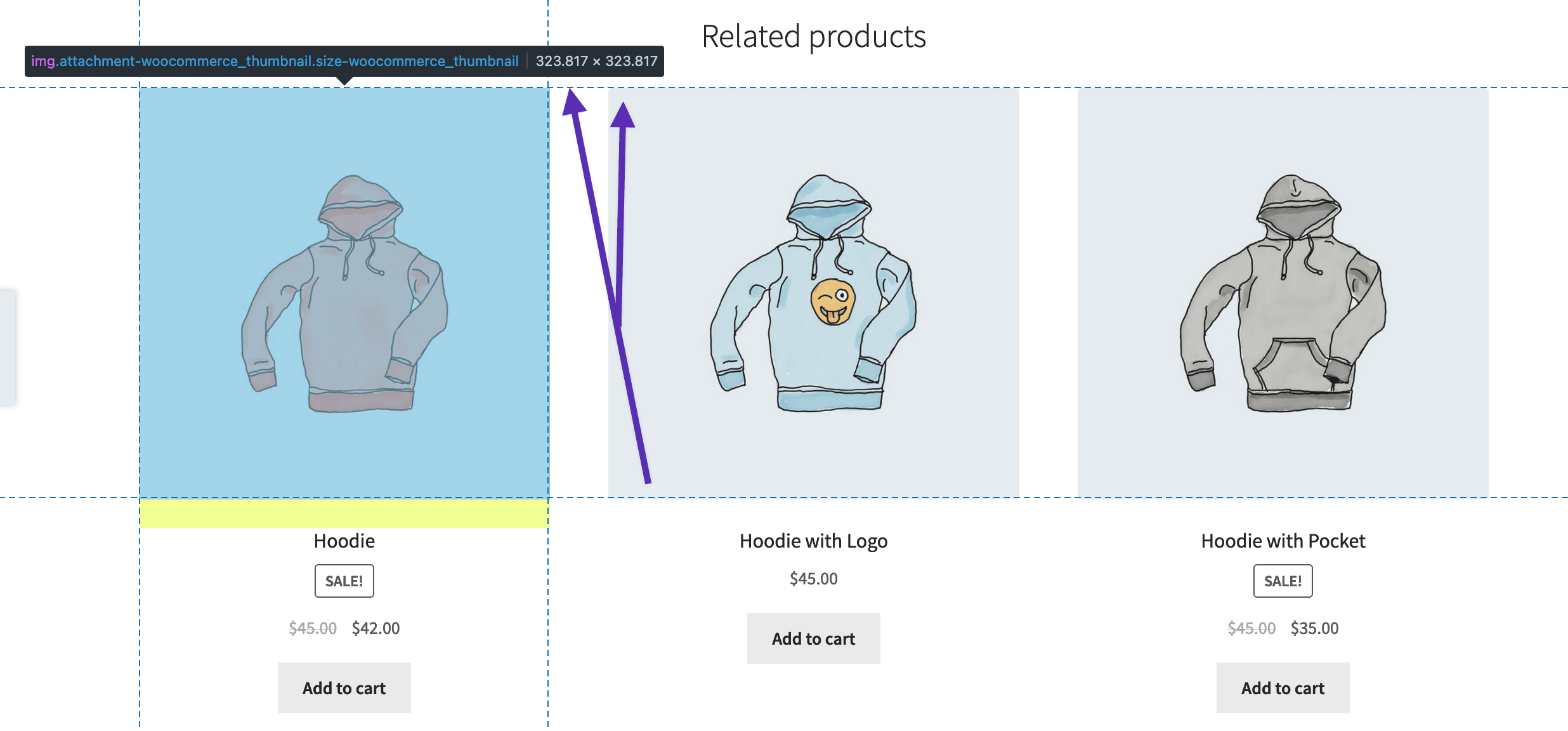
In the example above, the largest catalog images render at 324×324 pixels.
Single product images
↑ Back to topRepeat the inspection process for the single product image, which is usually the largest image on a product page.
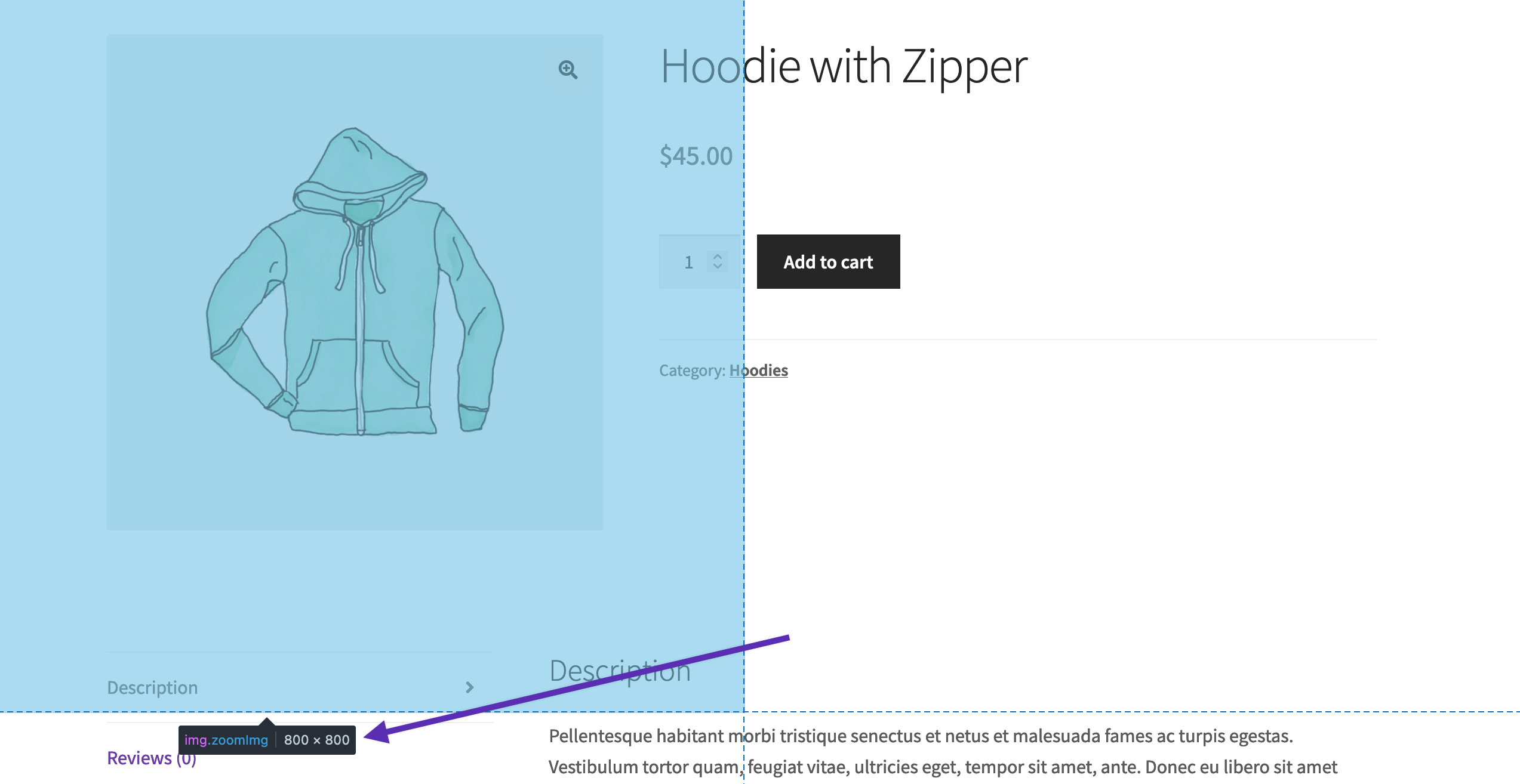
In Storefront, the largest single product image is 800×800 pixels. Although the image does not visibly render at that size, this dimension is required for the zoom effect.
Product thumbnails
↑ Back to topThe smallest product image required is likely the thumbnail in the product gallery. Repeat the same inspection process to find the dimensions.
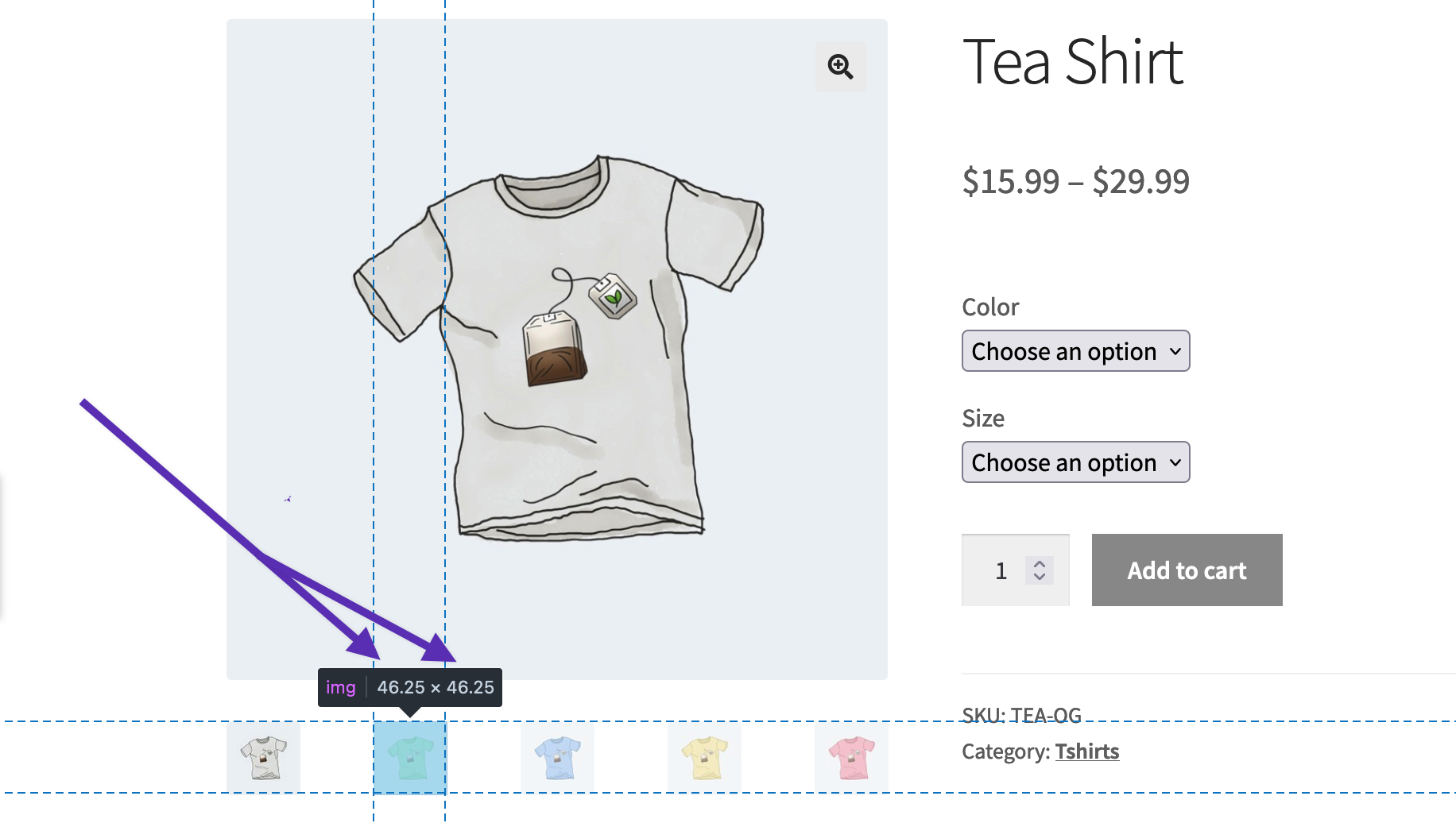
In Storefront, the product thumbnail renders at 46×46 pixels.
Adjust image dimensions and regenerate thumbnails
↑ Back to topNow that you know the image sizes your theme uses, you can upload images that exceed the largest dimensions and configure WooCommerce to generate thumbnails at the correct sizes. Follow these steps to update your settings and regenerate thumbnails:
- Go to Appearance > Customize > WooCommerce > Product Images.
- Set the Main image width to match or exceed the largest image dimension your theme renders.
- Click Publish to save your changes.
- Go to WooCommerce > Status > Tools and click Regenerate next to Regenerate shop thumbnails.
Any new product images you upload will use these settings. Previously uploaded images update after you regenerate thumbnails. Images should appear without distortion or blurriness.
Retina support
↑ Back to topHigh-DPI (HiDPI) displays, commonly known as retina displays, contain twice as many pixels (or more) as standard displays. For sharp imagery on retina displays, set your thumbnails to double the size rendered by your theme. For example, if your theme renders images at 80×80 pixels, set the dimension to 160×160 pixels.
Note: Doubling image dimensions can affect page load performance because larger images take longer to load. Review your analytics to see which devices and screen sizes the majority of your customers use before making this change.
Image improvements in WooCommerce 3.3 and later
↑ Back to topWooCommerce 3.3 introduced theme compatibility and improvements to image rendering and cropping that remain part of the platform today. These changes mean:
- Blurry images caused by theme incompatibility or overriding code should no longer occur.
- You can control the width and height of your main product images.
- Thumbnail resizing can be done automatically or manually.
- Images shown to customers look correct by default.
To learn how to use these features, see Adding and managing products and Adding product images and galleries.
Questions and support
↑ Back to topDo you still have questions and need assistance?
This documentation is about the free, core WooCommerce plugin, for which support is provided in our community forums on WordPress.org. By searching this forum, you’ll often find that your question has been asked and answered before.
If you haven’t created a WordPress.org account to use the forums, here’s how.
- If you’re looking to extend the core functionality shown here, we recommend reviewing available extensions in the WooCommerce Marketplace.
- Need ongoing advanced support or a customization built for WooCommerce? Hire a Woo Agency Partner.
- Are you a developer building your own WooCommerce integration or extension? Check our Developer Resources.
If you weren’t able to find the information you need, please use the feedback thumbs below to let us know.