
Active installs
1K+
Product comparison
Subscription includes
Support
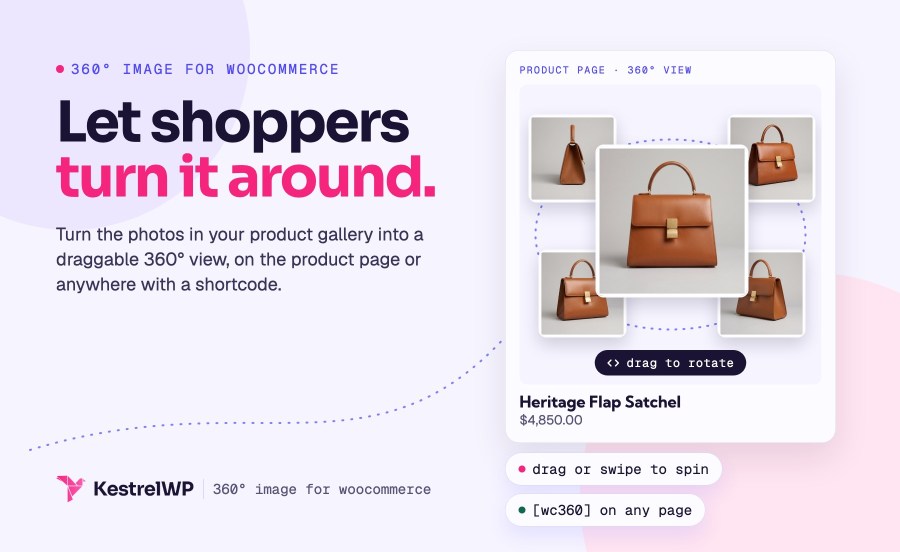
360° Image for WooCommerce adds a 360° product viewer to your store: shoppers drag or swipe to spin the photos you already have, so they can check every side of a product without leaving the page. It works with classic and block themes. A single photo can’t show the back of a chair, the sole of a shoe or the clasp on a necklace. Tick one box on a product, or drop a shortcode into any page, and the spin is live.
On the product page, the spin replaces the image gallery. Shoppers turn the product with a mouse drag or a swipe on their phone, and pinch to zoom in on stitching, grain or engraving. It works with the classic product template and WooCommerce’s Product Image Gallery block, so block themes are covered, and shop and category pages keep showing the featured image. Shoppers see the side a single photo can’t carry, and you answer the “what does the back look like?” question before anyone has to ask it.
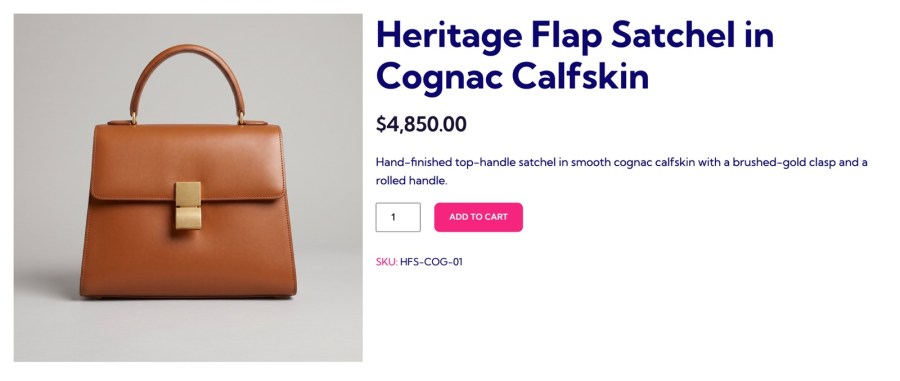
Open a product and tick Replace Image with 360 Image in the WC 360 Image Settings box. The frames come from the product’s gallery, in the order the gallery shows them. The featured image isn’t a frame, so it stays your shop, search and social sharing image. Turn it on product by product, only where you have the photos, and leave every other product as it is. Click Update and the product page shows the spin in place of the usual gallery; there’s no separate editor, importer or frame manager to learn.
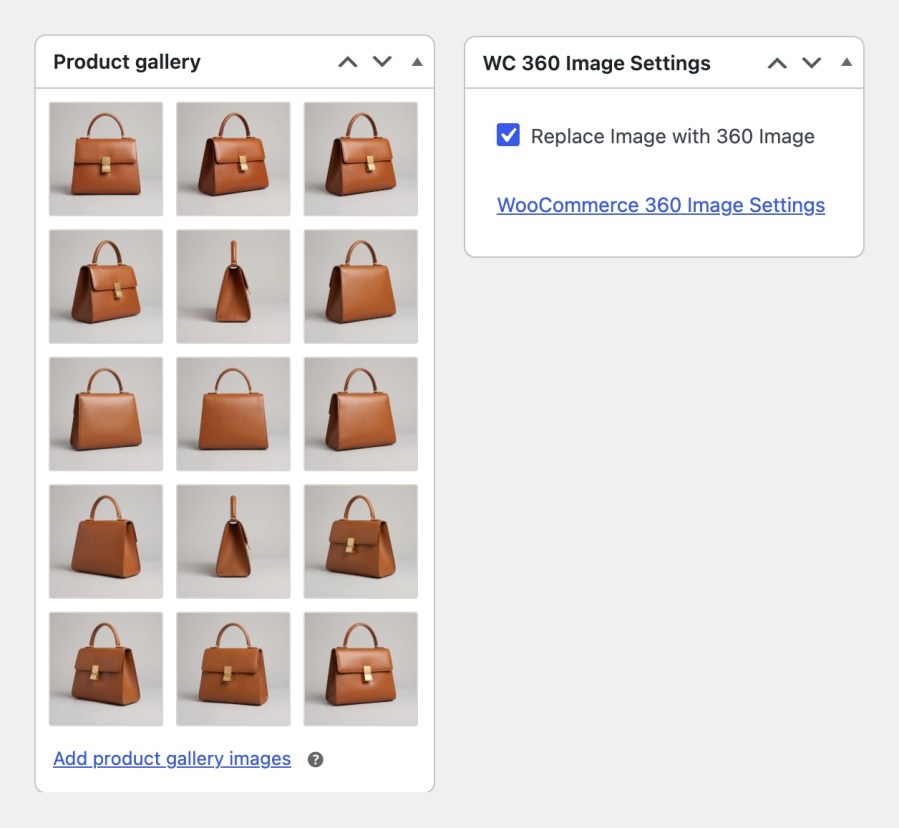
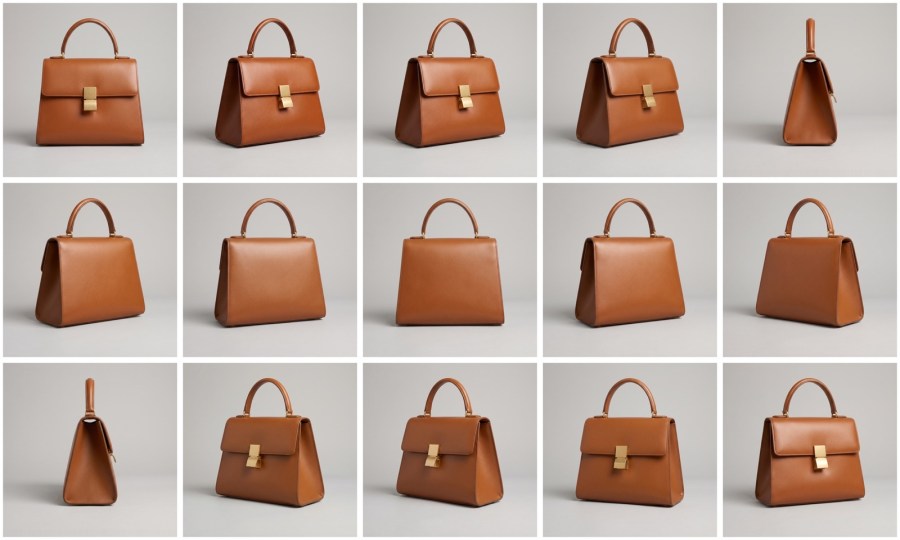
Shoot the product on a turntable at evenly spaced angles, keep the lighting and framing the same, and upload 12 to 36 photos. More frames make a smoother turn. Frames load at WordPress’s large size and are lazy-loaded (stores that installed before 2.0 keep their previous frame size), so product pages stay light; if yours still feel slow, an image optimization plugin or a CDN helps. Export frames at the size you’ll show them, because every extra frame adds page weight. The viewer plays back the photos you give it, so the result is only as good as the shoot.
The [wc360] shortcode shows a product’s spin anywhere shortcodes work: a product description, a landing page or a blog post about the product. It doesn’t need the checkbox, so your normal gallery can stay in place and the spin can sit further down the page. Use it more than once on a page when a story needs two products turning side by side. Shoppers meet the spin where they’re already reading, whether that’s a buying guide, a launch post or the description under your gallery.
id="123" to the shortcode to show a different productwidth in pixels or any CSS width, such as 100%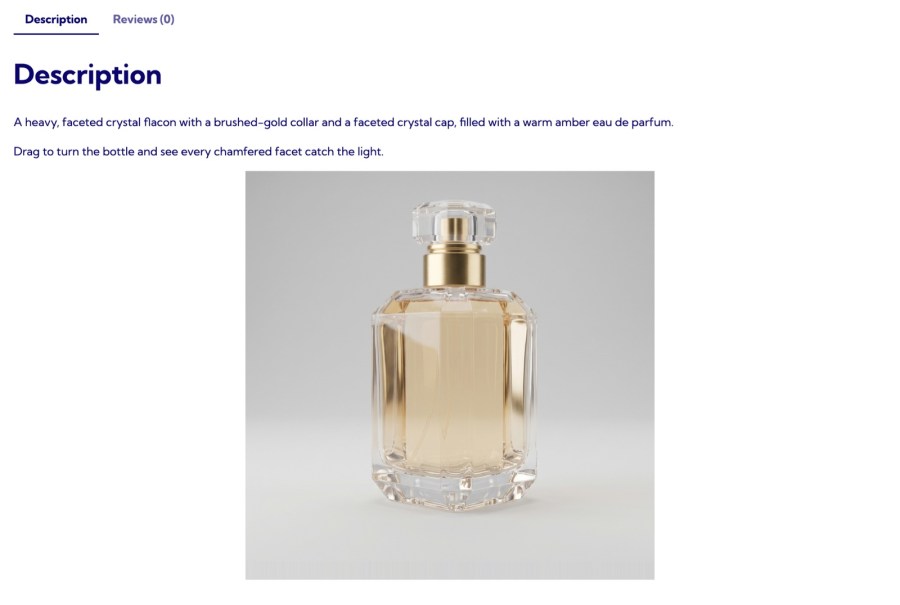
Two settings under WooCommerce » Settings » Products » 360 Images apply to every spin in your store, so you set the look once and every product follows. Defaults are already sensible: navigation controls are on and full screen is off. The viewer takes the place and size of your theme’s product gallery, so it fits without width tweaks. Choose whether shoppers get a full-screen button for a closer look, and whether they can turn the product with the keyboard. Developers can go further with filters for auto-rotation, rotation speed, dragging and frame size.
wc360_js_spin, or set its speed with wc360_js_speed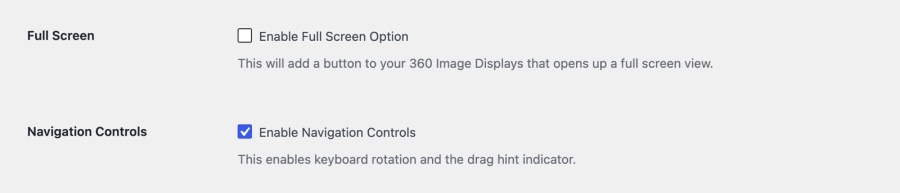
360° Image fits the rest of your product page. Use the checkbox to replace the gallery with the spin, or the shortcode to keep both; it works with the classic product template and WooCommerce’s Product Image Gallery block, and a theme that builds its own gallery can use the shortcode in the product description. Shop and category pages keep showing the featured image, so Product Badges for WooCommerce can flag a sale or a new arrival on the grid that leads shoppers to the spin. Renting out gear, furniture or equipment? A spin lets renters look at every side before they book, and Rental Products for WooCommerce adds the booking form to the same product page.
Built and supported by Kestrel, a long-time WooCommerce extension developer.

Take 12 to 36 photos at evenly spaced angles all the way around the product. You can use fewer, but more frames make a smoother turn and add page weight, so export them at the size you'll show them.
Yes, but every variation shows the same spin. The viewer uses the product's shared gallery, and separate photo sets per variation aren't supported. If each color or size needs its own spin, it needs its own product.
Yes, with the shortcode. Leave the checkbox off, keep the normal gallery and add [wc360] to the description. With the checkbox on, the spin replaces the gallery on the product page.
No. It plays back photos you've already taken, turning a gallery of evenly spaced photos into a spin. It doesn't build 3D models, and it doesn't capture or generate the photos, so you shoot the product on a turntable first.
It can add weight, depending on how many frames you use. Frames load at WordPress's large size and are lazy-loaded (stores that installed before 2.0 keep their previous frame size), so keep to 12 to 36 photos, export them at the size you'll show them, and add an image optimization plugin or a CDN if pages still feel slow.
Yes, with the classic product template and WooCommerce's Product Image Gallery block. If your theme builds its own gallery and the spin doesn't appear, add the [wc360] shortcode to the product description instead.
Categories
Extension information
Quality Checks
Countries