Active installs
300+
Product comparison
Subscription includes
Support
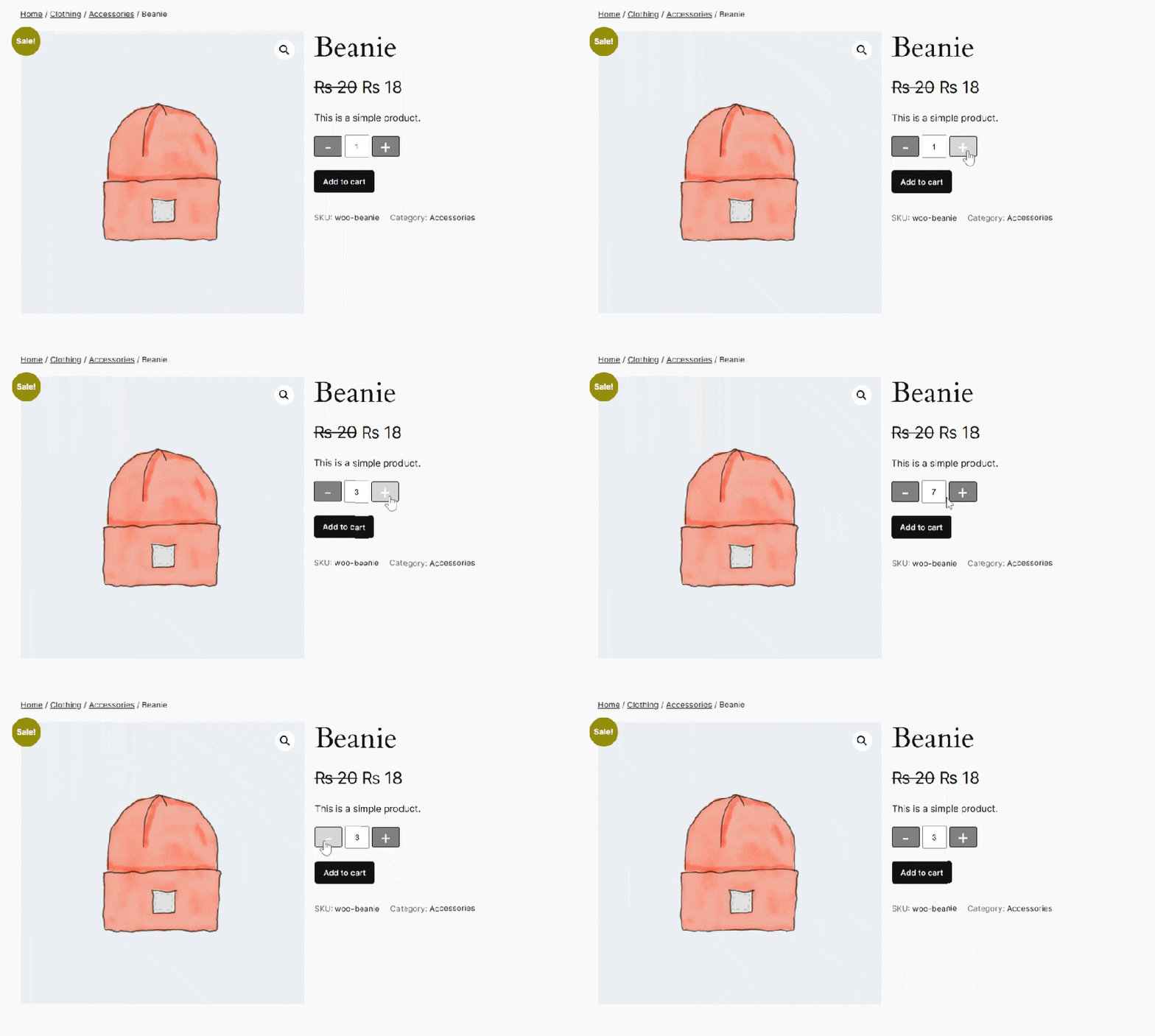
Make it easy for customers to choose the right quantity without frustration. Quantity Buttons for WooCommerce replaces the default number field with clear plus and minus buttons, quantity range sliders, and smart quantity controls directly on your shop, product, and cart pages.
With full customization options, you can set minimum and maximum quantity limits, define increment steps, and apply rules to specific products or categories. Encourage larger orders, manage stock more effectively, and deliver a smoother, more user-friendly shopping experience with powerful quantity controls built for WooCommerce.
The WooCommerce Quantity Plus Minus plugin allows you to replace the default quantity selector with a customizable quantity plus minus button. Display the button on the product, shop, cart, and checkout pages.
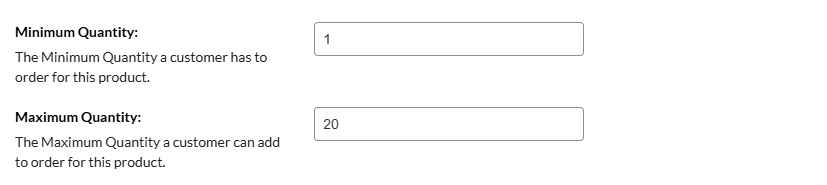
Increase average order value by setting the minimum and maximum quantity required for placing an order. The WooCommerce Quantity Increment plugin allows store owners to set a minimum or maximum product order quantity and customize the error messages for quantity limits. This encourages customers to purchase products in larger quantities.
The WooCommerce Quantity Plus Minus plugin lets you define how quantities increase for specific products. For example, set the step value to 5 to let customers purchase in multiples like 5, 10, 15, and more, making it perfect for products sold in sets or bulk quantities.
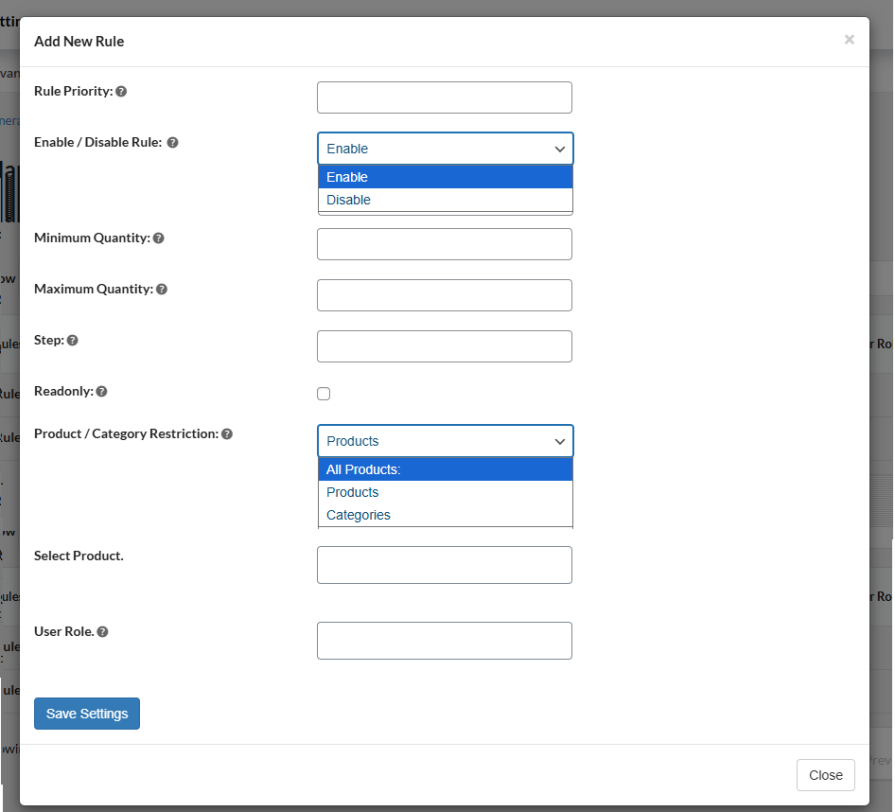
The WooCommerce Quantity Buttons plugin allows you to create multiple rules to manage the display of the quantity increment button. By creating rules, you can control:
Personalize the quantity increment button to match your store’s theme. You can choose the button style as Classic or Modern. Easily customize the color of the quantity button, font, hover, and border. Also, customize the border width, radius, font size, and field width.
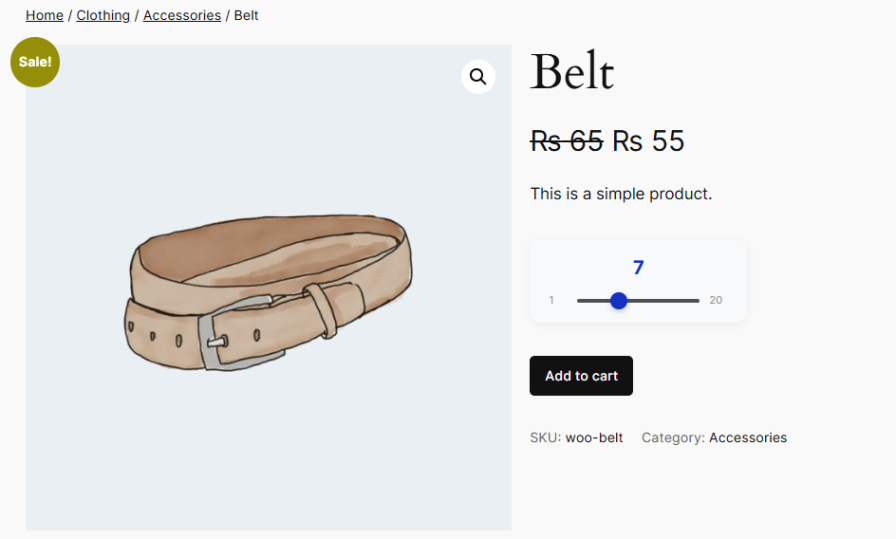
Add a quantity slider next to or instead of the plus and minus buttons, allowing customers to adjust quantities quickly and smoothly. Use both the buttons and slider together, or enable only one option based on your store’s needs.
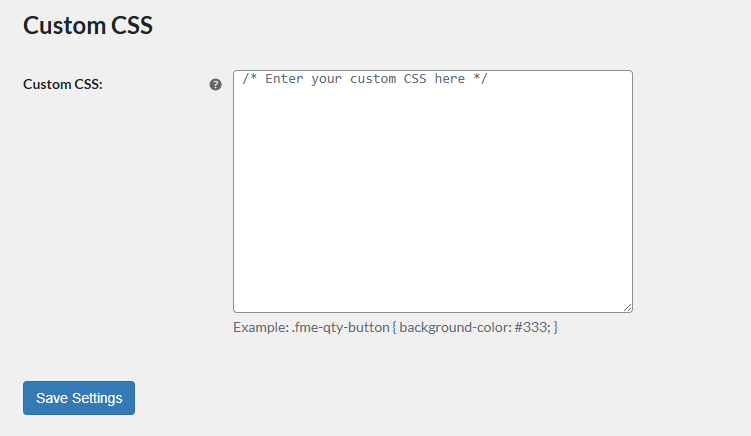
The WooCommerce Quantity Plus Minus Plugin allows store owners extensive customization by adding custom CSS. You can add your own custom CSS styling to apply to the whole store. This way, you can have a more personalized user experience.
Yes! The plugin allows you to create rules to show the quantity buttons only for selected products, categories, or all products. You can even control which user roles see them.
Absolutely. You can define min/max quantities for each product, category, or rule. You can also customize the error message when a customer tries to exceed the limits.
Yes! You can define how quantities increase for each product or category. For example, setting a step of 5 lets customers buy 5, 10, 15, and so on—perfect for products sold in sets or bulk.
Yes. You can use both together or choose only one option, giving customers an easy and flexible way to select quantities.
Yes! You can choose between Classic or Modern styles and customize colors, borders, font, radius, hover effects, and field width to match your store theme.
Yes. The plugin can display quantity buttons on product pages, shop pages, cart pages, and even the checkout page.
Definitely. The plugin supports custom CSS so you can style the quantity buttons exactly how you want.
Categories
Extension information
Countries
Languages