Product Icon

Barcode and QR Code for WooCommerce

Generate product and order barcodes and QR codes, print custom labels on A4, Letter, or roll and thermal labels.
Choose a billing option
$49
Save 20%
$98 $78.40

Subscription includes

  • Product updates and improvements
  • Customer support
  • 30-day money-back guarantee

Print and Manage Barcode and QR Code for WooCommerce

Barcode and QR Code for WooCommerce makes it easy to create and manage barcodes and QR codes for your products and orders. Whether you need them for inventory tracking, order processing, warehouse operations, or retail labeling, the plugin helps you build a faster and more organized workflow across your entire store.

It supports 13 barcode protocols and seven generation methods, syncs with the native WooCommerce GTIN field, and can apply codes to new products and orders automatically. The upgraded label printing module lets you design labels for A4 and US Letter sheets or roll and thermal labels, choose from 14 product fields and 9 order fields, preview each label, and print in bulk, by product, or by order range. Shortcodes let your team scan products and orders on any page to update stock or order status, and REST API endpoints let POS, ERP, and mobile apps look up records by barcode.

If you need a WooCommerce barcode plugin that covers code generation, scanning, and label printing in one place, Barcode and QR Code brings it all together in one plugin.

Barcode and QR Code Plugin Features

  • Generate barcodes and QR codes for products and orders
  • Choose from 13 barcode protocols, including UPC, EAN 13, Code 128, QR Code, Data Matrix, PDF 417, Aztec Code, and more
  • Generate codes from Product SKU, Product ID, a prefix and suffix number sequence, a custom field, the product page URL, a custom URL, or the WooCommerce GTIN field
  • Sync barcodes to the WooCommerce GTIN field on generate, or bulk copy values in either direction
  • Build sequential barcode numbers with a custom prefix, suffix, and padding length
  • Encode the product page URL or any custom URL into a scannable code
  • Generate codes for all products, specific products, or selected categories with include and exclude options
  • Generate barcodes only for products and orders that do not have one yet
  • Auto-apply barcode settings to newly created products and orders
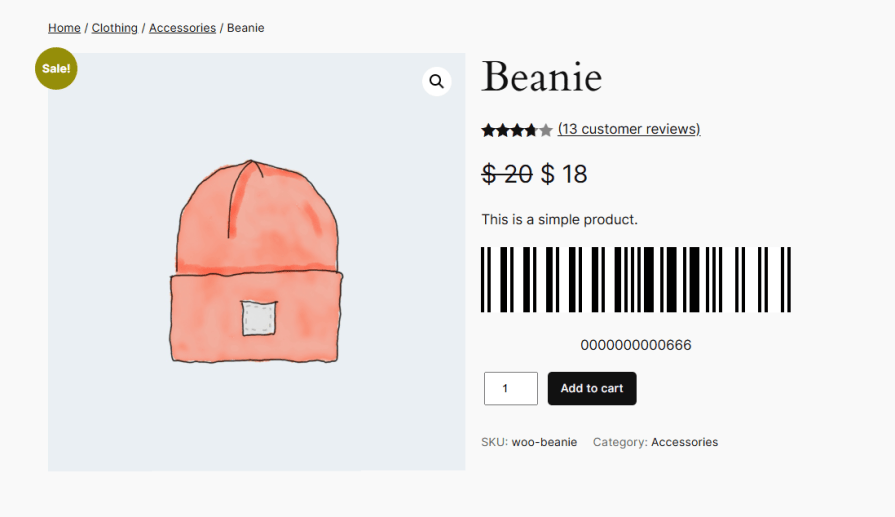
  • Display barcodes on single product pages in three placements and on the admin order page
  • Show the human-readable barcode value on the product page and in order emails
  • Include barcodes in order confirmation emails
  • Label presets for US Letter sheets, A4 sheets, and roll or thermal labels, plus fully custom layouts
  • Sheet and roll/thermal print modes with measurements in millimeters or inches
  • Page sizes including A4, Letter, Legal, A5, and custom, plus seven roll label sizes and custom sizes
  • Control columns, rows, label size, gaps, margins, inner padding, and borders
  • Style barcode size, QR code size, fonts, title lines, text alignment, and product image size
  • Live label preview and a printable test page for alignment checks
  • Choose from 14 product label fields and 9 order label fields, and drag and drop them into order
  • Print labels for all products, selected products, or a range of orders
  • Print one label per product, a fixed number per product, or one per unit in stock
  • Start printing at any label position to reuse partly used sheets
  • Download labels as PDF or print them directly
  • Product and order shortcodes for scanning on any page, with role-based access
  • Update stock levels or order statuses automatically on scan
  • Look up products and orders by barcode from POS, ERP, or mobile apps using REST API endpoints
  • Product-level settings to configure barcodes for individual products

Generate Barcodes for Products

Create barcodes and QR codes for your product catalog in a few clicks. Generate codes for every product at once, or only for products that do not have a barcode yet. When you build codes from the Product SKU or Product ID, you can also limit generation to specific products or categories. Turn on auto-apply to give every new product a barcode automatically, so your catalog stays consistent without extra manual work.
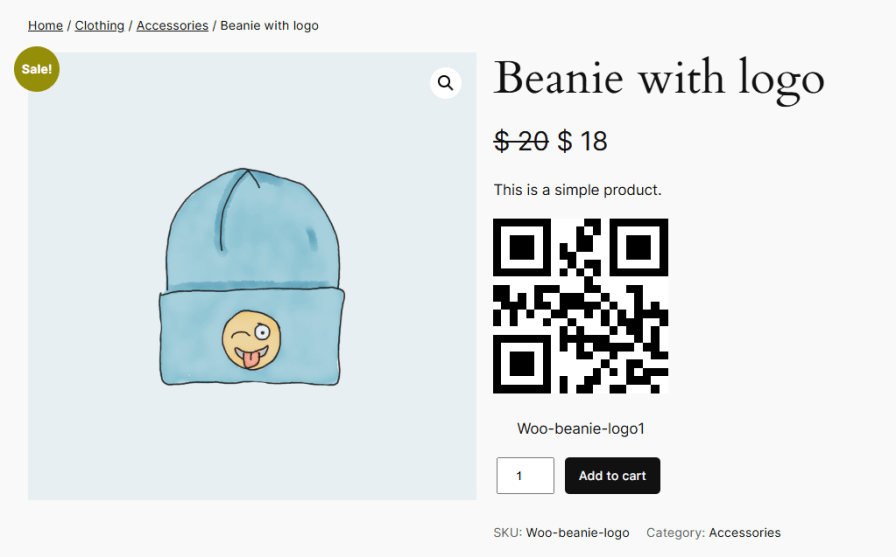
Generate Barcodes for Products

Generate Barcodes for Products

Generate Barcodes for Orders

Create order barcodes that make orders easier to track and verify throughout fulfillment. Choose a barcode protocol for orders separately from products, and build each code from the Order ID, the Order Number, or a custom field. Generate codes for all orders or only those missing one, auto-apply them to new orders, display them on the admin order details page, and include them in order confirmation emails.
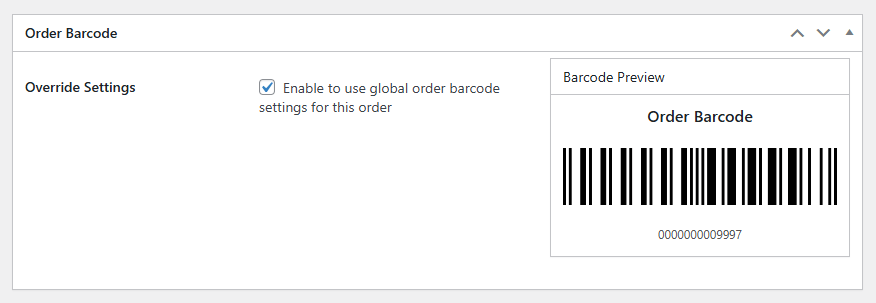
Generate Barcodes for Orders

Print Barcode Labels on Sheets or Thermal Printers

The redesigned barcode printing module gives you full control over how your labels are laid out. Start with a preset for US Letter sheets, A4 sheets, or roll/thermal labels and adjust any value afterwards, or choose Custom to build your own layout from scratch:
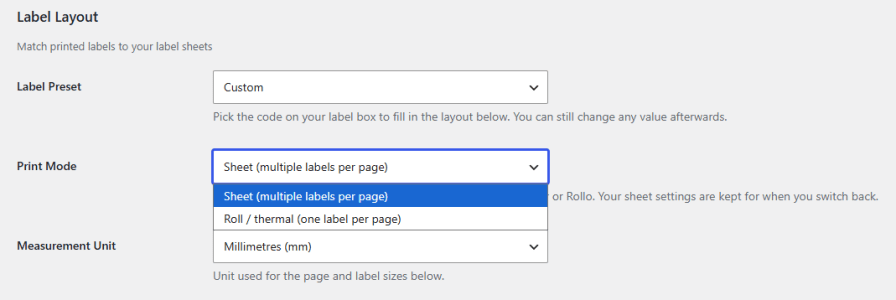
  • Print mode: Sheet (multiple labels per page) or Roll/Thermal (one label per page).
  • Measurement unit: Millimeters or inches.
  • Page size: A4, Letter, Legal, A5, or a custom size for sheet printing.
  • Roll label size: 2 x 1 in, 2.25 x 1.25 in, 3 x 2 in, 4 x 6 in (shipping), 50 x 25 mm, 40 x 30 mm, 57 x 32 mm, or a custom size.
  • Layout: Set page orientation, margins, number of columns, rows per page, label width and height, gaps between labels, inner padding, and an optional border around each label.

Print Barcode Labels on Sheets or Thermal Printers

Seven Ways to Build Your Barcode Values

Barcode values do not have to come from the SKU alone. Choose the generation method that matches how your store already identifies products:
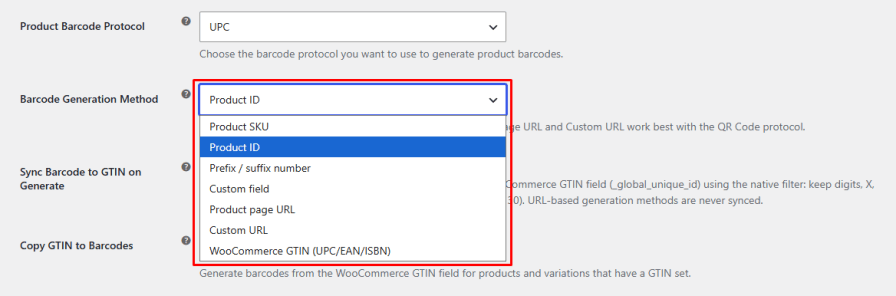
  • Product SKU or Product ID: Use your existing product identifiers as the encoded value.
  • Prefix/Suffix Number: Build structured codes such as EXT-000123-EU by combining a prefix, a zero-padded number, and an optional suffix. Draw the number from the product ID or from a sequential counter with your own starting value.
  • Custom Field: Encode any custom field value already stored against your products.
  • Product Page URL: Turn every product into a scannable QR code that opens its own product page, ideal for shelf tags, catalogs, and packaging inserts.
  • Custom URL: Point the code at any destination you choose, such as a landing page, a manual, or a reorder form.
  • WooCommerce GTIN: Generate the barcode straight from the GTIN, UPC, EAN, or ISBN value stored in WooCommerce.

Seven Ways to Build Your Barcode Values

Keep Barcodes and GTIN Values in Sync

The plugin works directly with the native WooCommerce GTIN field, so your product identifiers stay consistent without duplicate data entry. Copy each newly generated barcode into the GTIN field automatically, or run a bulk copy in either direction: generate barcodes from existing GTIN values for products and variations, or copy existing barcode values into the GTIN field. Values are filtered the same way WooCommerce admin filters them (digits, X, and hyphens only), and URL-based codes are never synced.
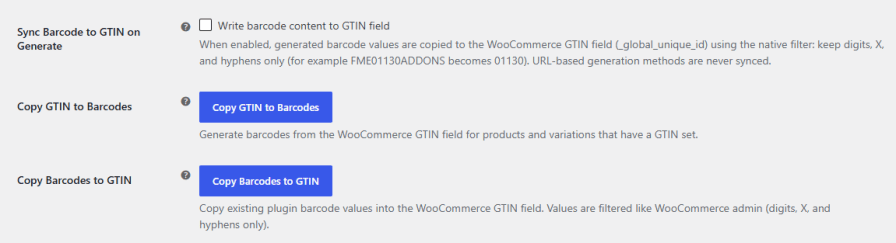
Keep Barcodes and GTIN Values in Sync

Control How Barcodes Display on the Product Page

Decide where the WooCommerce product barcode sits on the single product page instead of being locked to a fixed position. Pick the placement that fits your theme layout and how your team or customers use the code:

  • Before Add to Cart Button
  • After Add to Cart Button
  • After Product Meta

You can also turn on human-readable text to show the encoded value underneath the code on the product page and in order emails, so anyone can read or type it when a scanner is not available.
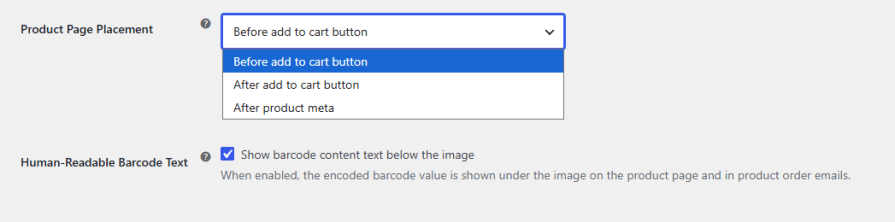
Control How Barcodes Display on the Product Page

Choose the Barcode Protocol That Fits Your Workflow

Select the barcode format that matches your scanning equipment, labeling requirements, and business processes. The plugin supports 13 widely used formats:

  1. UPC
  2. UPC-E
  3. EAN 8
  4. EAN 13
  5. Code 128
  6. Code 39
  7. Code 93
  8. ITF 14
  9. QR Code
  10. Data Matrix
  11. PDF 417
  12. Codabar
  13. Aztec Code

Set one protocol for products and another for orders, and change it for individual products whenever needed.
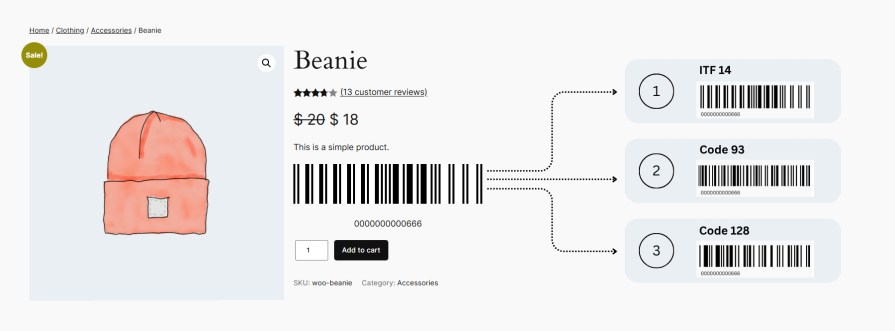
Choose the Barcode Protocol That Fits Your Workflow

Generate or Restrict Bar and QR Code Generation by Product and Category

Take control of which products get codes. When you generate barcodes from the Product SKU or Product ID, choose to cover all products, specific products, or selected categories, then use the include and exclude options to target exactly the items that need codes and skip the ones that do not. Combine this with the missing-barcodes-only option to fill gaps in your catalog without touching codes you already use.
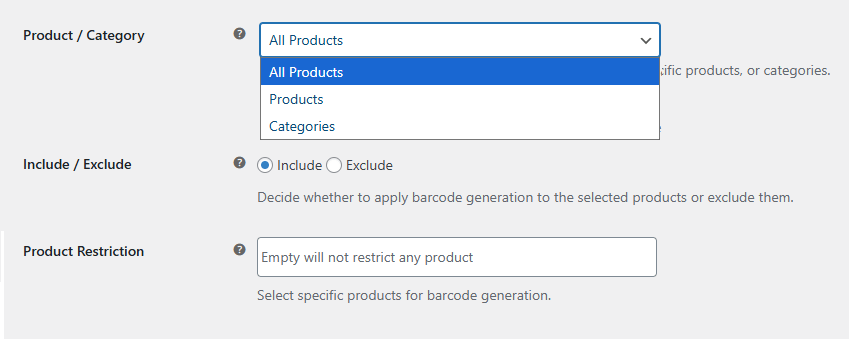
Generate or Restrict Bar and QR Code Generation by Product and Category

Scan Products and Orders on Any Page with Shortcodes

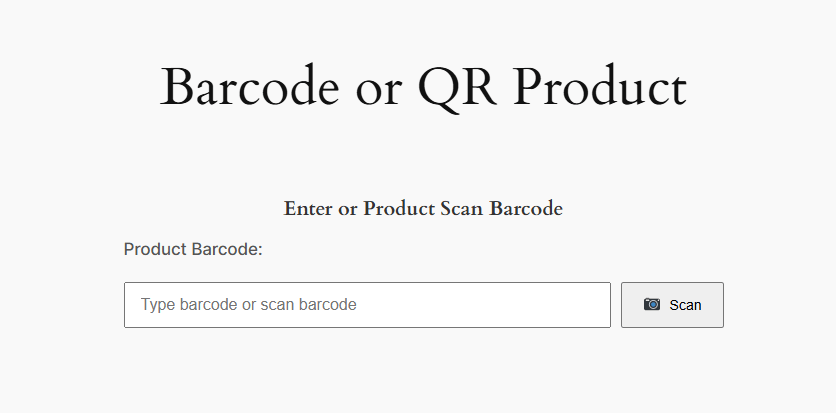
Add the [fme_product_barcode] and [fme_order_barcode] shortcodes to any page to scan products and orders right from your store. Choose which user roles can use each shortcode, from Administrator and Shop Manager to Customer and Guest, and decide what happens on every scan.

  • Product shortcode: Enable stock management, show an Add to Cart button, and choose whether each scan reduces stock, increases stock, or leaves it unchanged.
  • Order shortcode: Show Processing and Complete buttons, and choose whether each scan sets the order to Processing, sets it to Completed, or leaves the status unchanged.

Use it to receive new stock, adjust inventory, or move orders through fulfillment with a quick scan instead of manual edits.
Scan Products and Orders on Any Page with Shortcodes

Connect POS, ERP, and Mobile Apps with REST API Lookups

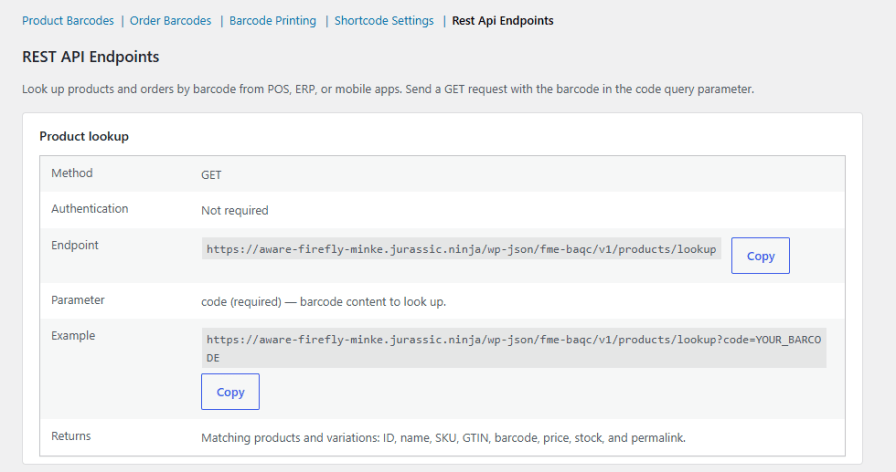
Scan a barcode outside of WordPress and still get the record back. The plugin adds two GET endpoints that look up records by barcode:

  • Product lookup: Returns matching products and variations, including ID, name, SKU, GTIN, barcode, price, stock, and permalink. No authentication is required.
  • Order lookup: Returns matching orders, including ID, number, status, total, currency, customer ID, and date created. Requests are authenticated with a WooCommerce REST API key.

Copy-ready endpoint URLs and example requests sit right in the settings, so your developer or POS vendor has everything needed to connect.
Connect POS, ERP, and Mobile Apps with REST API Lookups

Style Every Label to Fit Your Needs

Fine-tune how the content looks on each label so codes are sized correctly and details stay readable:
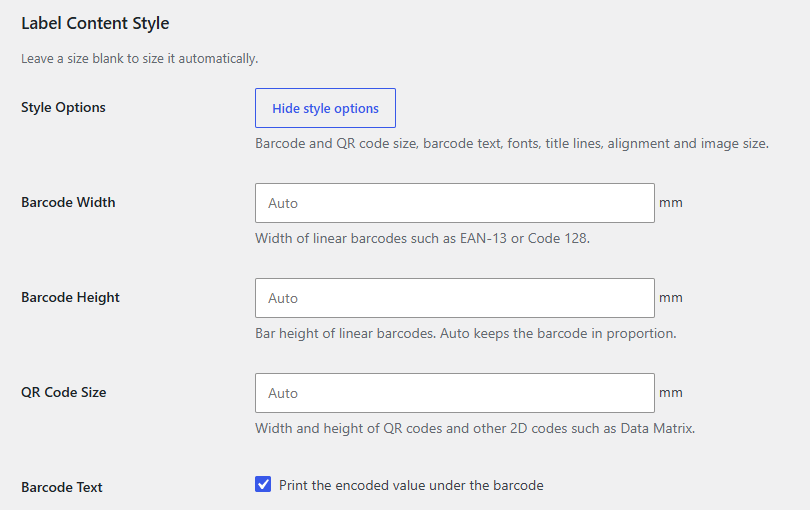
  • Set the width and height of linear barcodes such as EAN 13 or Code 128, or leave them blank for automatic sizing.
  • Set the size of QR codes and other 2D codes such as Data Matrix.
  • Print the encoded value under the barcode.
  • Adjust font sizes for the product title, SKU, price, short description, and barcode text.
  • Limit long product titles to 1, 2, or 3 lines, and choose a bold or normal title weight.
  • Align text, images, and barcodes to the center, left, or right.
  • Set the product image size, or print labels without images.

Style Every Label to Fit Your Needs

Preview Labels and Print a Test Page First

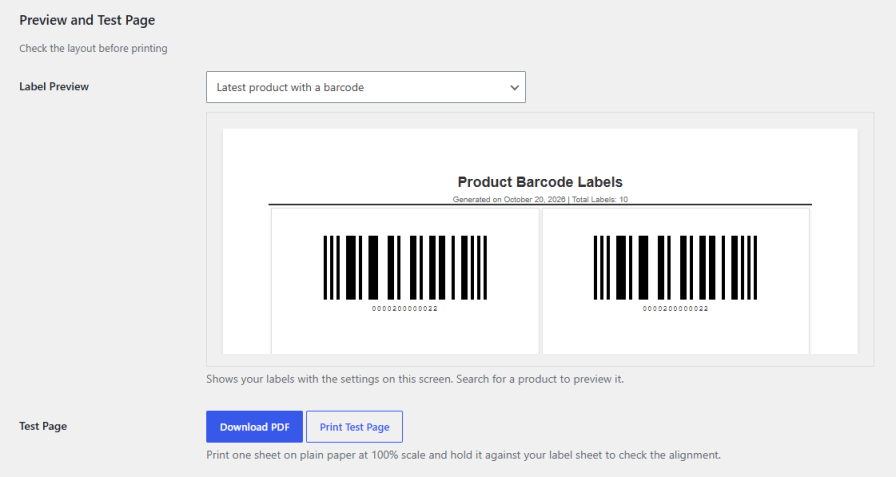
Check every layout before you use a single label. The label preview shows how any product’s label looks with your current settings, and you can search for any product to preview it. When the layout looks right, download or print a test page on plain paper at 100% scale and hold it against your label sheet to confirm the labels line up, so you do not waste label stock on misaligned prints.
Preview Labels and Print a Test Page First

Choose Exactly What Each Label Shows

Select the details to print on product and order labels, then drag the fields, or use the up and down arrows, to set the order they appear from the top of the label.
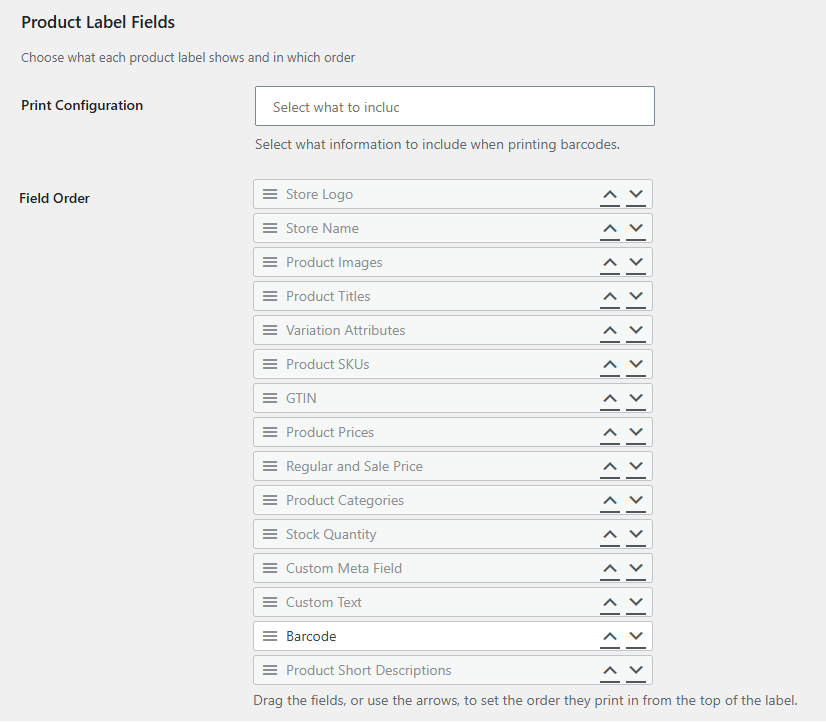
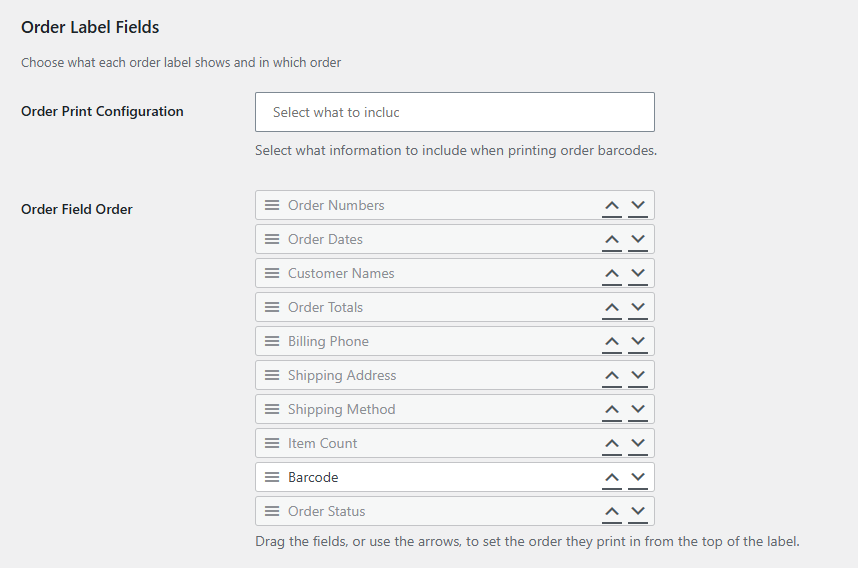
Product label fields:

  • Store Logo
  • Store Name
  • Product Images
  • Product Titles
  • Variation Attributes
  • Product SKUs
  • GTIN
  • Product Prices
  • Regular and Sale Price
  • Product Categories
  • Stock Quantity
  • Custom Meta Field
  • Custom Text
  • Product Short Descriptions

Product label fields

Order label fields:

  • Order Numbers
  • Order Dates
  • Customer Names
  • Order Totals
  • Billing Phone
  • Shipping Address
  • Shipping Method
  • Item Count
  • Order Status

Order label fields

Print Labels in Bulk, by Product, or by Order Range

Print exactly the labels you need, using your saved settings, as a downloadable PDF or straight to your printer:
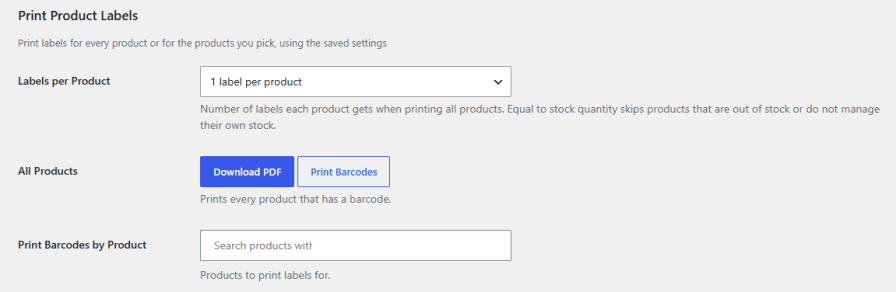
  • All products: Print labels for every product that has a barcode, with one label per product, a fixed number from 1 to 100 per product, or one label for each unit in stock.
  • Selected products: Search for and pick the products you want to print labels for.
  • Order range: Enter the first and last order IDs to print labels for every order in that range that has a barcode.
  • Start at label: Begin printing at any position on the sheet, so you can reuse label sheets that are already partly used.

Print Labels in Bulk, by Product, or by Order Range

Product-Level Barcode Configuration

In addition to global settings, manage barcodes for each product individually from the product edit screen. Show the barcode on that product’s page, enter barcode content manually, or enable a product-specific barcode with its own generation method and barcode protocol. Generate, print, or delete the barcode directly from the product data panel, without touching store-wide settings.
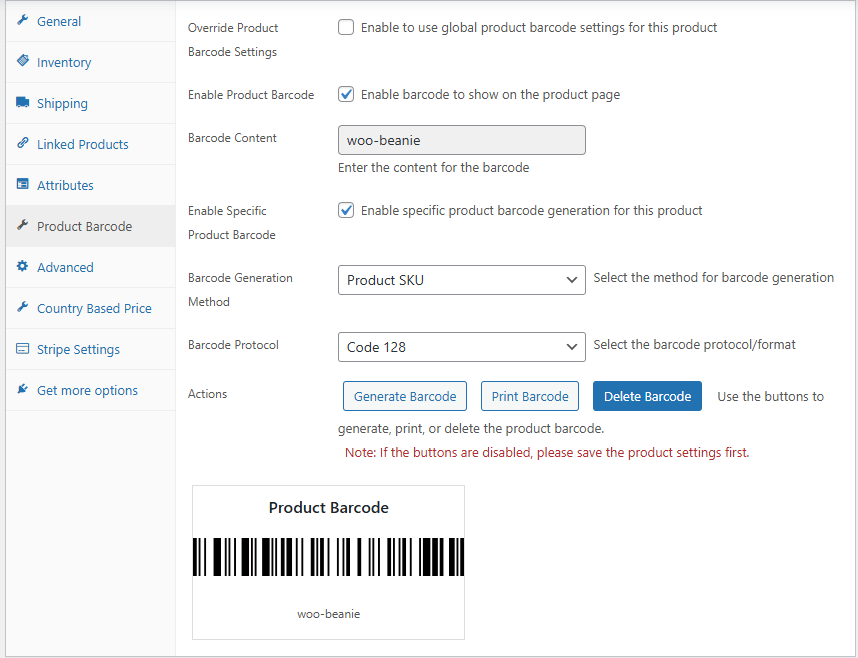
Product-Level Barcode Configuration


Frequently asked questions

Which barcode formats does the plugin support?

The plugin supports 13 barcode formats: UPC, UPC-E, EAN 8, EAN 13, Code 128, Code 39, Code 93, ITF 14, QR Code, Data Matrix, PDF 417, Codabar, and Aztec Code. You can select a different format for product barcodes and order barcodes, and for individual products.

Can I generate barcodes for specific products or categories only?

Yes. When you generate barcodes from the Product SKU or Product ID, you can cover all products, specific products, or selected categories, and use the include and exclude options to fine-tune the selection. You can also generate barcodes only for products that do not have one yet.

Does the plugin automatically generate barcodes for new products and orders?

Yes. You can enable auto-apply separately for products and orders. Once enabled, the plugin applies your barcode settings to every new product or order added to your store.

What can I use as the basis for barcode generation?

For products, you can generate barcodes from the Product SKU, Product ID, a prefix and suffix number sequence, a custom field, the product page URL, a custom URL, or the WooCommerce GTIN field. For orders, you can use the Order ID, Order Number, or a custom field.

Can I create sequential barcode numbers with a prefix?

Yes. Select the Prefix/Suffix Number method, then set your prefix, optional suffix, padding length, and number source. The number can come from the product ID or from a sequential counter with a starting value you define, producing codes such as EXT-000123-EU.

Which label sizes can I print on?

You can print on sheets in A4, Letter, Legal, A5, or a custom page size, or on roll and thermal labels in sizes such as 2 x 1 in, 3 x 2 in, 4 x 6 in, 50 x 25 mm, and 40 x 30 mm, plus custom sizes. Presets for US Letter sheets, A4 sheets, and roll/thermal labels fill in the layout for you.

Can I check the layout before printing labels?

Yes. Use the label preview to see how a product label looks with your current settings, and print a test page on plain paper to check that it lines up with your label sheet.

Can I print barcode labels for multiple products or orders at once?

Yes. You can print labels for all products that have a barcode, for selected products, or for a range of order IDs. Download the labels as a PDF or print them directly.

Can I print a label for every unit in stock?

Yes. When printing labels for all products, set Labels per Product to match stock quantity. Products that are out of stock or do not manage their own stock are skipped. You can also print one label or a fixed number of labels per product.

How do the barcode shortcodes work?

Add the product or order barcode shortcode to any page to scan products and orders. You control which user roles can use each shortcode, and whether a scan changes stock levels or sets the order status to Processing or Completed.

Can I manage barcode settings for individual products?

Yes. From the product edit screen, you can enter barcode content, set a product-specific generation method and barcode protocol, and generate, print, or delete the barcode for that product.

Related Products

Price $79 annually
Rated 3.4 out of 5 stars
Price $59 annually
Rated 3.1 out of 5 stars
Price $279 annually
Rated 3.9 out of 5 stars
Price $109 annually
Rated 2.8 out of 5 stars
Price $49 annually
Rated 4.1 out of 5 stars
Price $109 annually
Rated 2 out of 5 stars
Price $109 annually
Rated 2.3 out of 5 stars
Price $39 annually
Rated 2.8 out of 5 stars
Price $109 annually
Rated 2.6 out of 5 stars
Use of your personal data
We and our partners process your personal data (such as browsing data, IP Addresses, cookie information, and other unique identifiers) based on your consent and/or our legitimate interest to optimize our website, marketing activities, and your user experience.