
Product comparison
Subscription includes
Support
Sell to customers around the world in their own currency. This multi-currency plugin for WooCommerce lets you add unlimited currencies to your store, each with its own exchange rate, symbol, formatting, and rounding rules. Rates update automatically from a live provider, or you can set them manually for full control.
Detect where each visitor is coming from and switch them to their local currency automatically, or let customers choose from a currency switcher placed anywhere in your store. From checkout behavior to per-currency shipping costs, coupons, and payment gateway restrictions, every part of the buying experience adapts to the currency your customer is shopping in.
A built-in analytics dashboard converts revenue across every currency into your base currency, so you always know how the store is actually performing, no matter how many currencies you sell in.
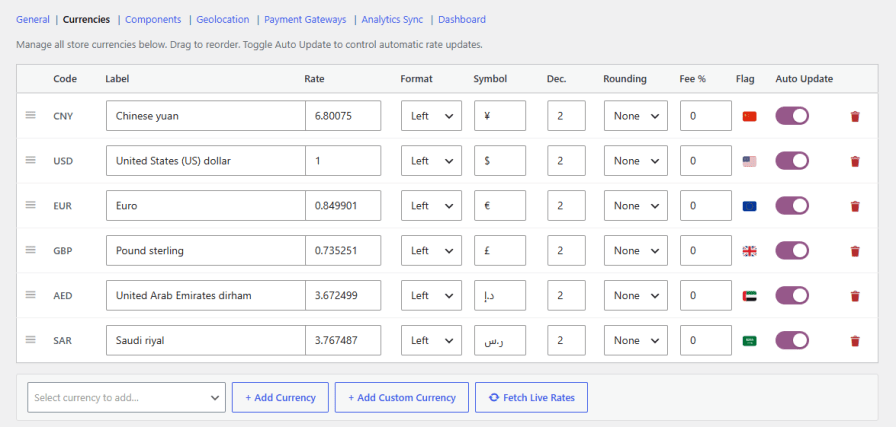
Add as many currencies as you sell in, including custom currencies not found in standard lists. Configure each one with its own exchange rate, symbol, currency format, decimal places, rounding rule, fee percentage, flag, and auto-update preference, so every currency behaves exactly the way you want it to.
 all
all
Choose the exchange rate mode that fits your store. Automatic mode fetches live rates on a schedule from your chosen provider, while manual mode lets you set and adjust every rate by hand.
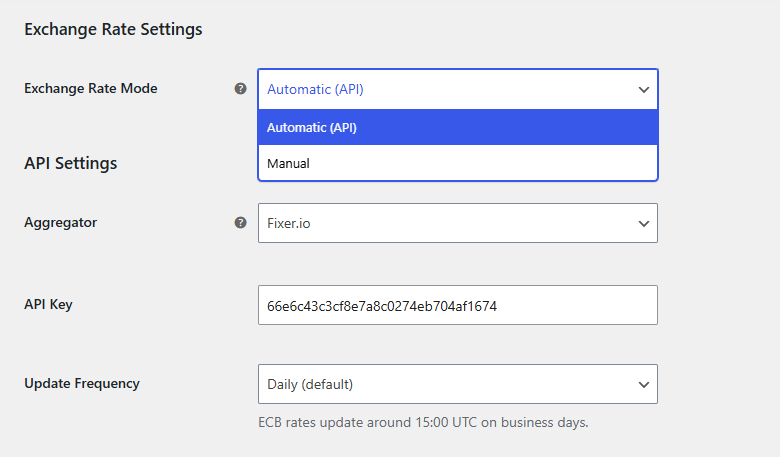
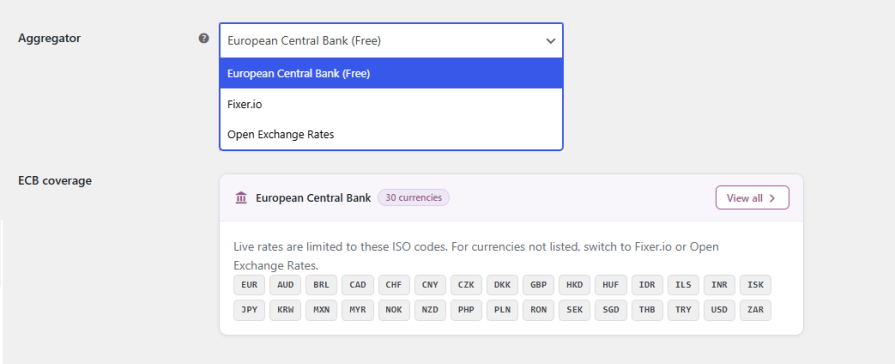
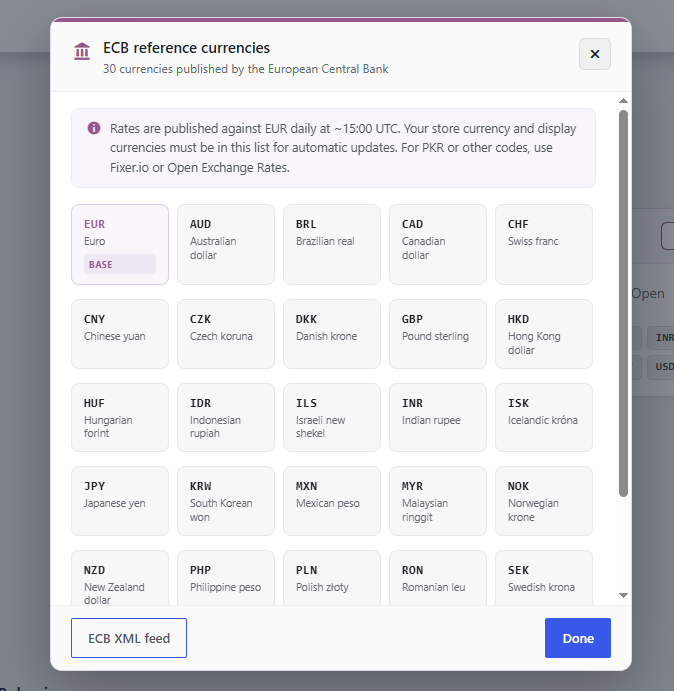
Pull live rates from the European Central Bank, completely free, covering 30 currencies updated daily, or connect Fixer.io or Open Exchange Rates with an API key for broader currency coverage and higher update limits.
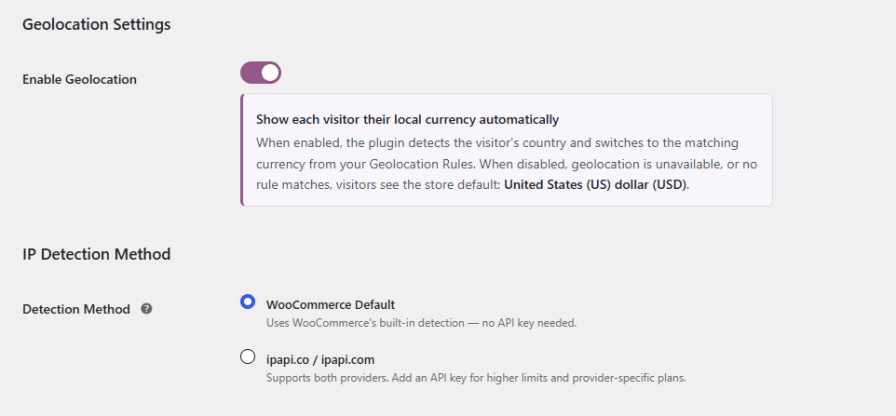
Detect a visitor’s country and switch them into their local currency automatically. Build your own geolocation rules mapping countries to currencies, and choose from multiple IP detection methods, including WooCommerce’s built-in detection or third-party providers for higher accuracy and volume.
Place a currency switcher wherever it makes sense for your store. The plugin includes 8 built-in switcher components, each independently configurable, so you can match the switcher to your theme instead of the other way around.
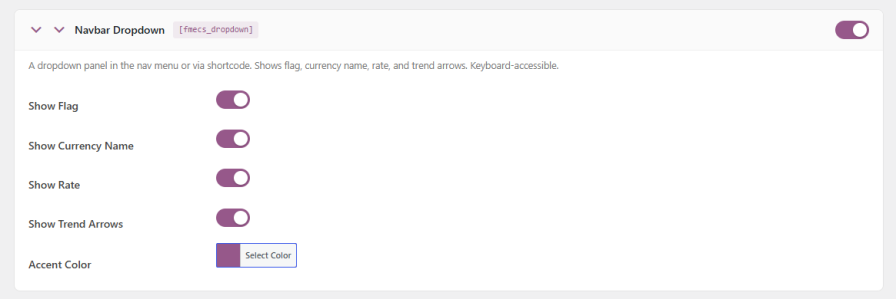
Add a dropdown panel to your navigation menu, or place it anywhere using a shortcode. Show flags, currency names, exchange rates, and trend arrows, with full control over the accent color.
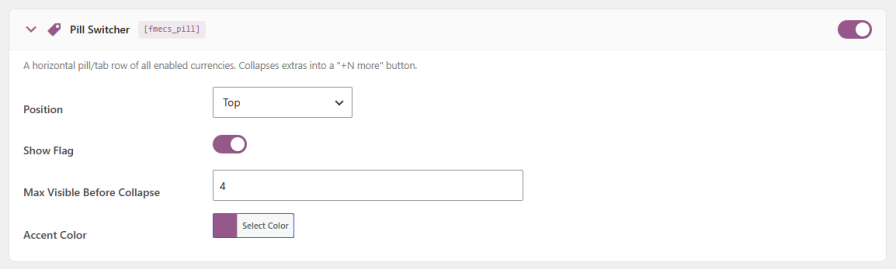
Display all enabled currencies as a horizontal pill or tab row. Set the position, show flags, choose how many pills are visible before extras collapse into a “+N more” button, and set the accent color.
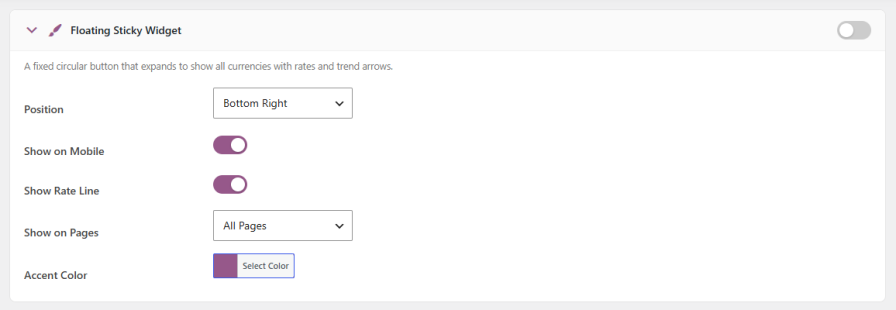
Show a fixed circular button that expands to reveal every currency, its rate, and trend arrows. Choose its position, control mobile visibility, decide whether to show the rate line, and limit it to specific pages like shop, product, or checkout.
Inject a dedicated currency switcher directly above the WooCommerce product grid, so customers can change currency without leaving the shop page.

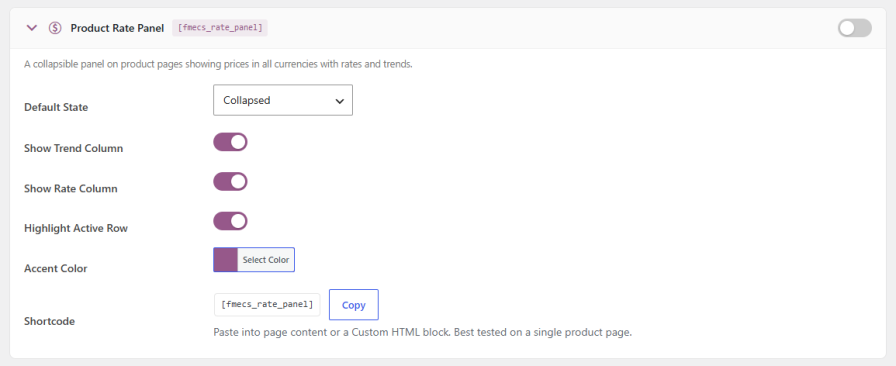
Add a collapsible panel to product pages showing prices in every enabled currency, along with rates and trends. Set it collapsed or expanded by default, choose whether to show the trend and rate columns, highlight the active row, and embed it anywhere with a shortcode.
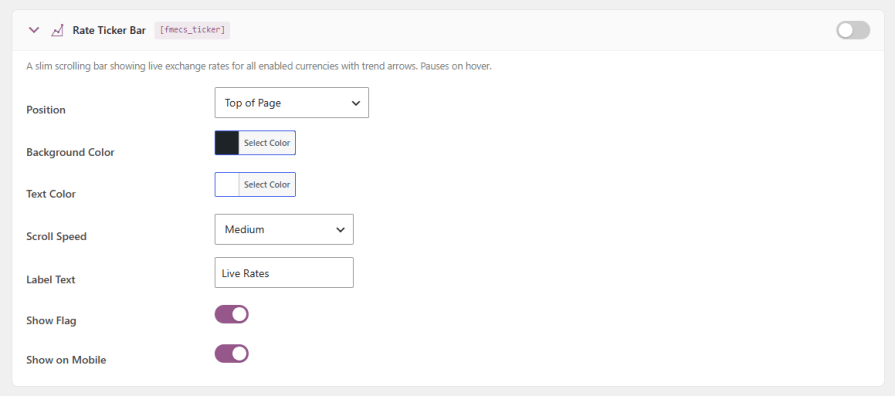
Show a slim scrolling bar with live exchange rates for every enabled currency. Set its position, background, and text colors, scroll speed, label text, and flag display. It pauses on hover so customers can actually read it.
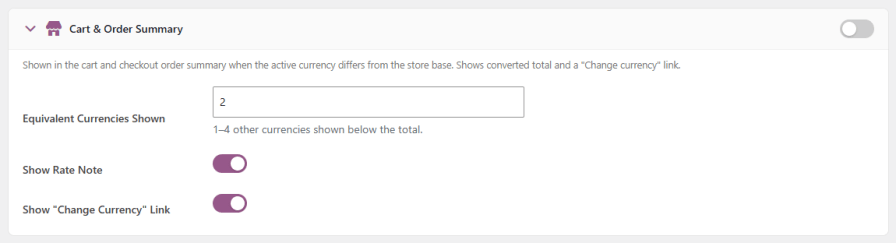
Show converted totals in the cart and checkout summary whenever the active currency differs from the store’s base currency, with an equivalent currency display, an optional rate note, and a “Change currency” link right where customers are reviewing their order.
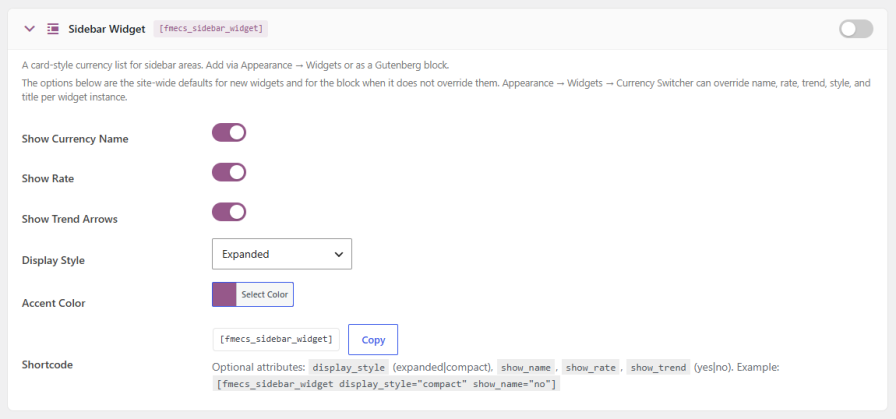
Add a card-style currency list to any sidebar using Appearance > Widgets, a Gutenberg block, or a shortcode. Toggle the currency name, rate, and trend arrows, choose expanded or compact display, and set a custom accent color.
Decide exactly which currency a transaction settles in. Use whatever currency the customer selected while browsing, force a single currency across all checkouts, or automatically force checkout currency based on the customer’s country.

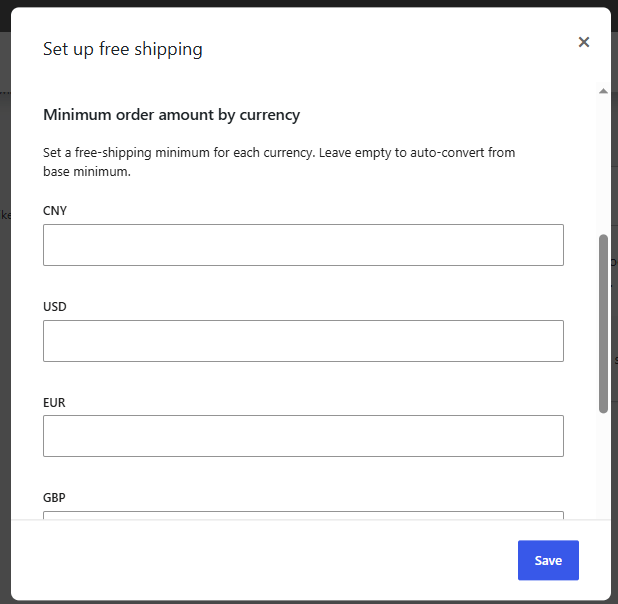
Give every enabled currency its own fixed shipping cost, right down to individual shipping classes, so shipping prices stay clean and predictable in every market instead of relying purely on live conversion. Leave a currency blank, and it falls back to automatic conversion from your base currency.

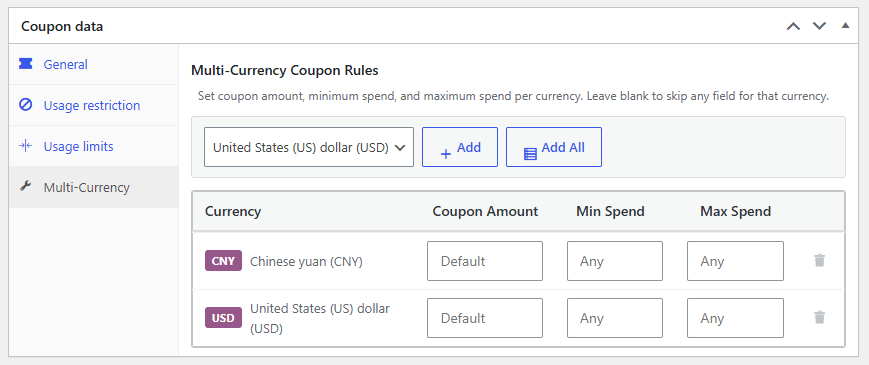
Configure coupon amount, minimum spend, and maximum spend independently for every currency you sell in. This keeps discounts fair across markets, since a fixed amount in one currency rarely converts cleanly into another at live rates.
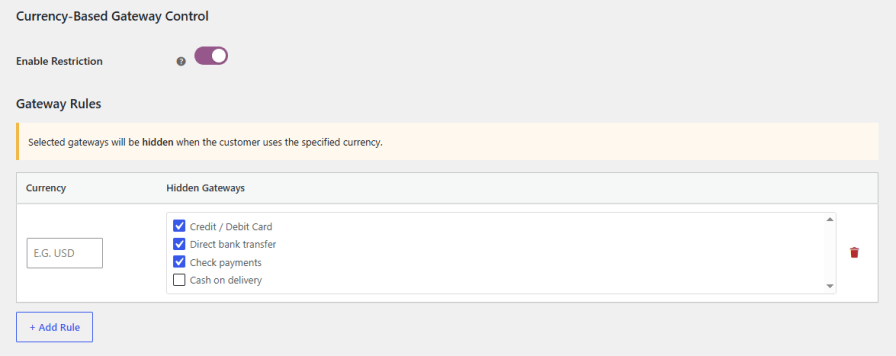
Make sure customers only see payment options that actually work for their currency. Create rules linking specific currencies to specific gateways, so the checkout experience always matches what your payment processor supports.
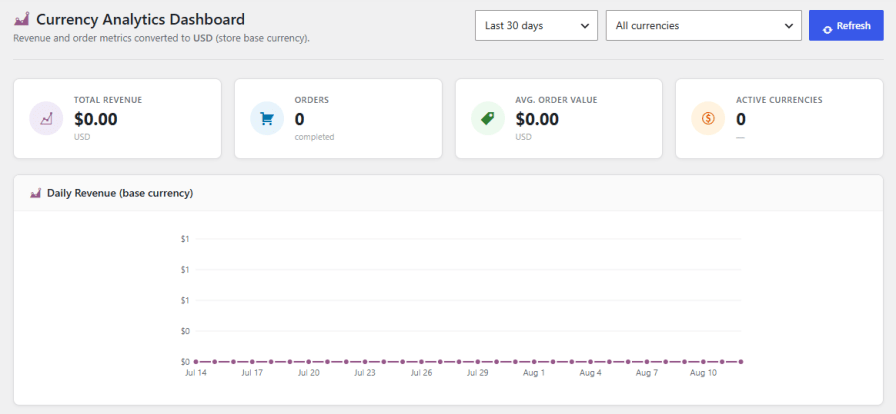
See exactly how your store performs across all active currencies from one dashboard. Monitor total revenue, order count, average order value, active currency count, daily revenue trends, and a full per-currency breakdown, including each currency’s share of total revenue, over the last 7, 30, or 90 days, last month, or the current month. Sync your historical orders into WooCommerce Analytics so past orders reflect accurate totals in your base currency too.
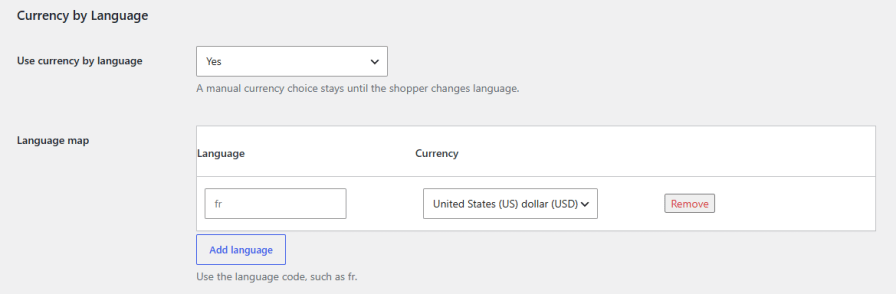
Assign a currency to each store language so shoppers see prices in the currency that matches their language. Works with WPML, Polylang, and TranslatePress, and switches automatically when shoppers change language. Manual currency choices are kept until the language changes.
Yes. Switch Exchange Rate Mode to Manual and set each currency's rate by hand, or use Automatic mode to pull live rates from the European Central Bank, Fixer.io, or Open Exchange Rates.
Yes, if you enable geolocation. The plugin detects a visitor's country and switches them into the currency mapped to that country through your geolocation rules.
Yes. Each coupon has a Multi-Currency tab where you can set a separate coupon amount, minimum spend, and maximum spend per currency, so discounts stay fair across markets instead of relying on a raw conversion.
You can, but you don't have to. Set a fixed shipping cost per currency for any shipping method, or leave a currency blank and it will auto-convert from your base currency at the current rate.
Yes. Create rules that link specific currencies to specific payment gateways, so customers only see payment options that are actually valid for their currency.
Yes, if you run Analytics Sync. It converts existing order totals from their original currency into your store's base currency and refreshes the Analytics cache, so historical reporting stays accurate.
Categories
Extension information
Quality Checks
Countries