
Active installs
400+
Product comparison
Subscription includes
Support
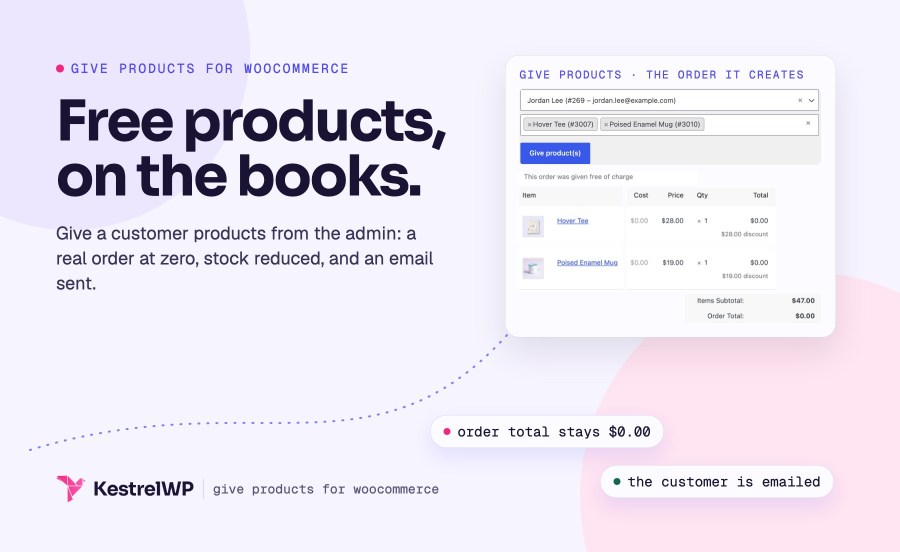
Give a free product to a customer without making them check out. Give Products for WooCommerce creates a normal order with a total of zero from your admin, reduces stock, grants download access and emails the customer, so every sample, replacement, prize or free download is on the books like any other order. It is not a BOGO or cart-rule plugin: you choose the customer and the products by hand.
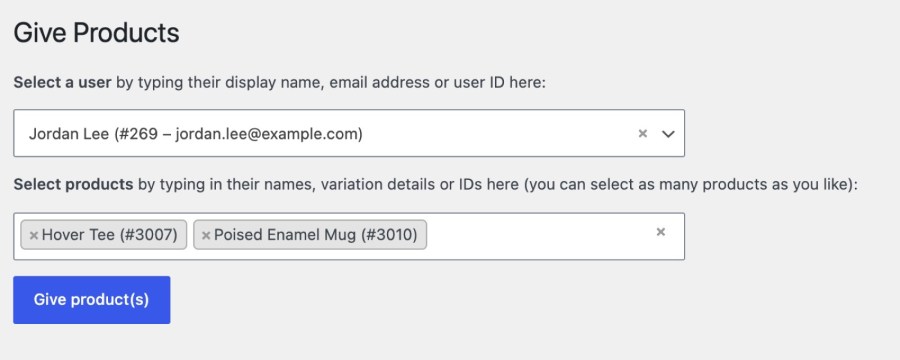
Open Products » Give Products and search for a customer by display name, email address or user ID. Then search for products and variations by name, variation details or ID, and add as many as you like to the same gift. A customer and one product are all it needs, so there is nothing to configure first. A variable product needs a specific variation chosen, which means you always know exactly which size or color you are giving away. Review the list, then click Give product(s).
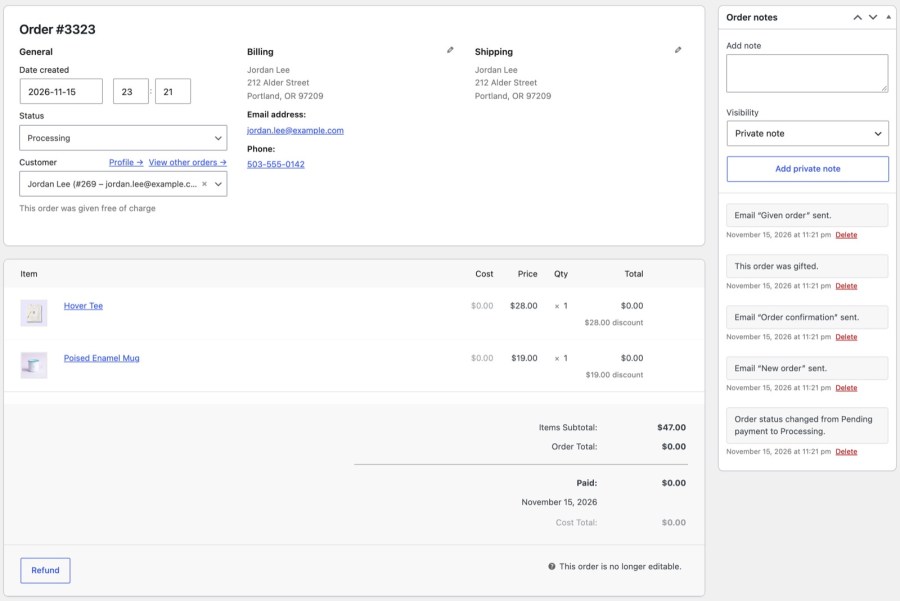
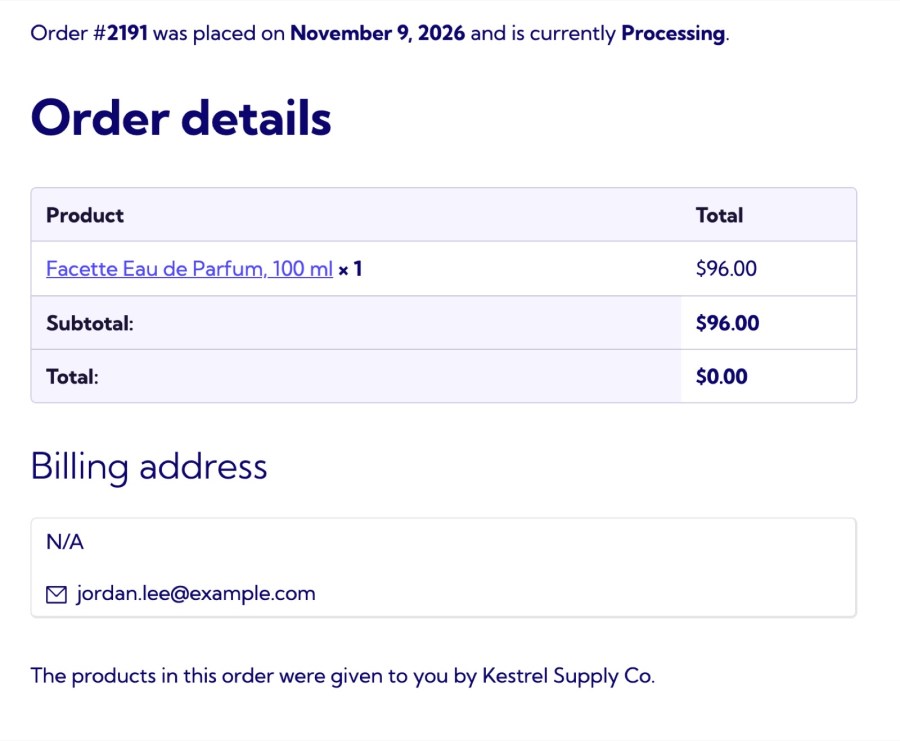
The extension creates a WooCommerce order for the customer with every line total at zero, filled from the billing and shipping details saved on their profile. When nothing in the order needs shipping, it is Completed, and when something does, it is Processing, so you fulfill it like any other order. The order carries the note “This order was gifted.”, which means free items never disappear into a spreadsheet and you can find them in your orders list months later. There is no coupon to create and no price to edit by hand.
Stock is reduced for products that manage it, so your inventory stays right when you give something away. Download permissions are granted straight away for downloadable products, which means a free ebook, license file or sample pack is ready for the customer to download as soon as you click Give product(s). You don’t adjust stock by hand, and you don’t create a download link yourself. The order does the work a normal checkout would have done, minus the payment, so the free item behaves like any other product you sell.
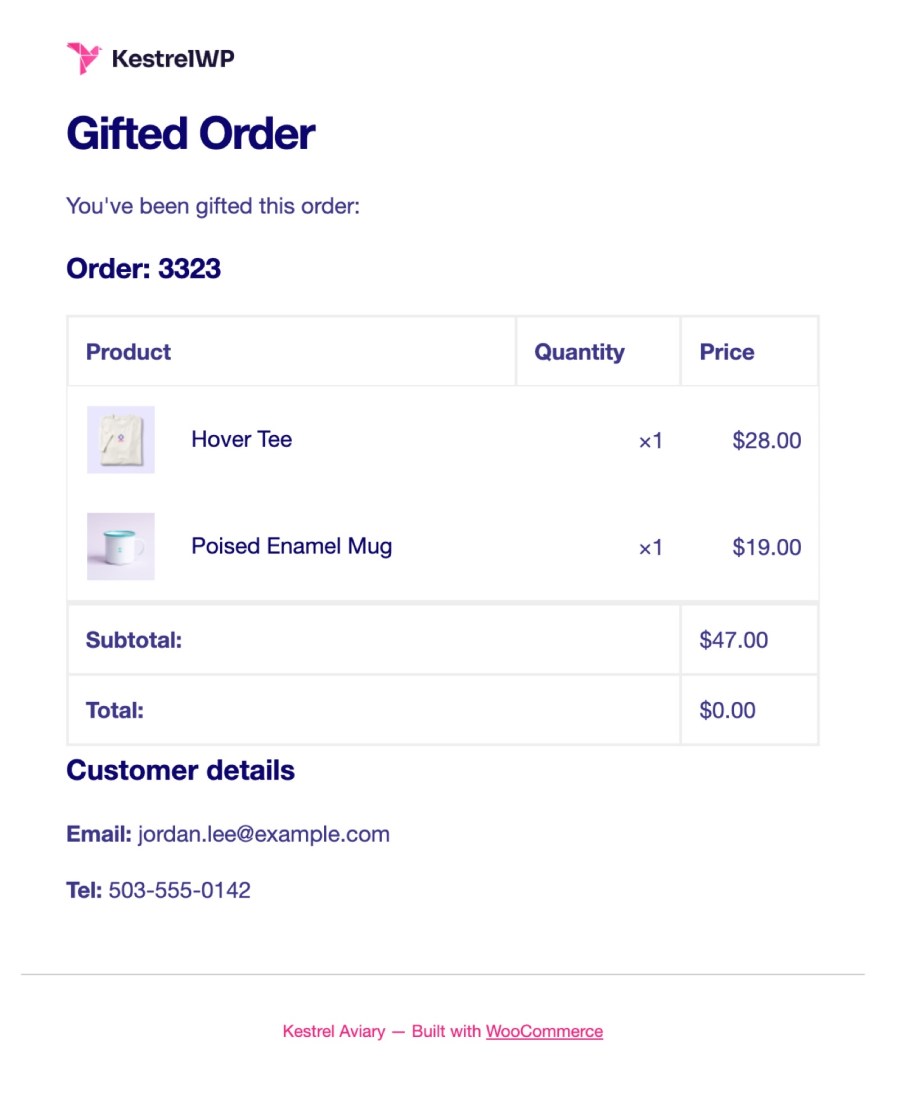
The Given order email goes to the customer’s billing email as soon as the order exists. Its default heading is “Gifted Order” and it opens with “You’ve been gifted this order:” and lists each product with its quantity and price, so the customer knows what is on its way. Change the subject, heading and format (HTML, plain text or multipart) under WooCommerce » Settings » Emails, or switch the email off if you’d rather tell the customer yourself. No email is sent when the customer has no billing email saved.
The order view in My Account carries a line saying the products were given to the customer by your store, so a free item never looks like a billing error. On the admin side, the order screen reads “This order was given free of charge”, and the order note records the gift. That keeps your own team clear on why an order totals zero when someone opens it later, without anyone having to remember the story, and the customer sees the same explanation.
Choose Store Credit when you would rather give a balance than a product; it sends credit to a customer by email. Give Products needs nothing else, because the result is a normal WooCommerce order in your orders list.
Setup details are in the Get started with Give Products guide. Built and supported by Kestrel, a long-time WooCommerce extension developer.

Open Products » Give Products, pick a customer and the products, and click Give product(s). The extension creates a free order for that customer, reduces stock and sends the Given order email. The customer doesn't go through checkout, and you fulfill the order like any other.
Yes. The customer must already be a WordPress user, so create one under Users » Add New with the Customer role first. The Given order email goes to the billing email saved on their profile, and no email is sent when there isn't one. Download permissions for downloadable products are granted as soon as the order exists.
Each product is added once per gift, at quantity 1. To give more, give the product again as a separate order, because WooCommerce locks the items on Processing and Completed orders.
Yes. It declares compatibility with High-Performance Order Storage and the Cart and Checkout blocks.
It gives one product at a time, by hand: you pick the customer and the products. It has no rules, so no buy-one-get-one, cart-amount or role conditions. It records any sample, replacement or prize as an order, with no scheduling and no bulk gifting.
No. Give Products is admin-only, with no gift cards, gift coupons or custom message to the recipient. To send a balance instead of a product, use Store Credit, which sends credit to a customer by email.
Categories
Extension information
Quality Checks
Countries