
Hypermarket is a modern WooCommerce theme built for stores that want the flexibility of the block editor with the polished structure of a professionally designed ecommerce layout. It is a Full Site Editing theme, which means you can edit not only the content of your pages, but also major parts of the site structure such as templates, headers, footers, and global design styles directly inside the WordPress Site Editor.
Hypermarket is designed for stores that need more than a simple blog theme with WooCommerce compatibility. It includes store-focused templates, starter patterns, layout blocks, and product presentation tools to help you build:
- a conversion-focused homepage
- category-driven shopping pages
- polished product pages
- branded content pages
- FAQ and support sections
- contact and store location pages
- a coming soon or pre-launch experience
Rather than relying on a large panel of theme options, Hypermarket uses the native WordPress editing experience. This makes the theme more visual, more flexible, and easier to scale as WordPress evolves.
Before You Start
↑ Back to topBefore customizing the theme, it helps to understand how Hypermarket is built.
How the theme works
↑ Back to topHypermarket is organized around four main building blocks:
Templates
Templates control the overall layout of different types of pages. For example, your homepage, product page, cart page, blog page, and archives all use templates.
A template is the structure around your content. It decides where the header appears, how the intro area behaves, how the page flows, and where the footer sits.
Template Parts
Template parts are reusable sections that are inserted into templates. In Hypermarket, the most important template parts are the Header and Footer, but there are also store-related parts used for WooCommerce layouts.
You edit these once, and the change can affect many parts of the site.
Patterns
Patterns are ready-made content sections or complete page layouts. They are designed to help you build faster. Instead of creating every section manually, you can insert a finished layout and replace the content with your own.
Hypermarket includes both page patterns and smaller section patterns.
Blocks
Blocks are the core editing units used in WordPress. Hypermarket includes standard WordPress blocks, WooCommerce blocks, and several custom theme blocks.
The custom blocks are especially important because they add store-specific features such as contact layouts, countdown timers, sharing buttons, category grids, team members, and video modals.
Installation
↑ Back to topTo start using a product from WooCommerce.com, you can use the “Add to store” functionality on the order confirmation page or the My subscriptions section in your account.
- Navigate to My subscriptions.
- Find the Add to store button next to the product you’re planning to install.
- Follow the instructions on the screen, and the product will be automatically added to your store.
Alternative options and more information at:
Managing WooCommerce.com subscriptions.
Install WooCommerce
↑ Back to topHypermarket is built specifically for WooCommerce. While some general content layouts can work without it, the store templates, product layouts, and many theme patterns depend on WooCommerce being installed and active.
If WooCommerce is not installed, WordPress or the theme setup flow may prompt you to install it.
To install it manually:
- Go to Plugins > Add New.
- Search for WooCommerce.
- Click Install Now.
- Click Activate.
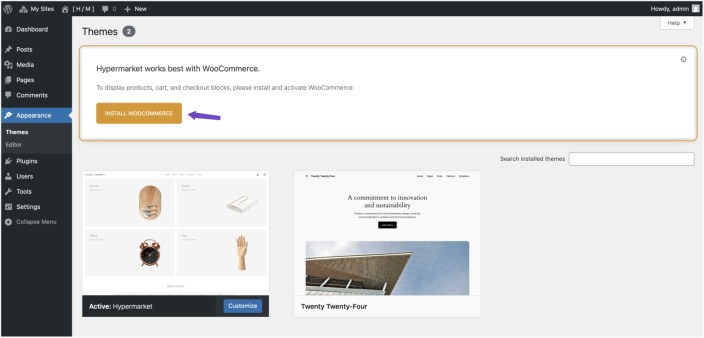
Once WooCommerce is active, Hypermarket’s product templates and commerce-related patterns can work as intended.
Recommended Plugins
↑ Back to topHypermarket works best with WooCommerce alone, but some design areas and demo-style sections are intended to work alongside a few additional plugins.
Contact Form Plugin
A contact form plugin is recommended for pages such as:
- Contact page
- Support page
- Coming soon page
- Notify me sections
The demo-style content you shared uses Contact Form 7. That is a suitable option if you want a free and lightweight contact form solution.
Newsletter Plugin
↑ Back to topThe theme footer includes a subscription area using a Mailchimp form block. To make that area functional, install MC4WP: Mailchimp for WordPress and create a form.
Example newsletter form:
<div class="hypermarket-inline-newsletter">
  <input type="email" name="EMAIL" placeholder="Your e-mail" required>
  <input type="submit" aria-label="Send">
</div>
This is especially useful if your store wants to:
- collect newsletter subscribers
- announce product launches
- promote offers
- capture leads before launch
Hypermarket Starter Setup
↑ Back to topAfter installing and activating the Hypermarket theme, a welcome notice appears on the Themes page with two optional actions:
- Launch Starter Setup
- Open Site Editor
To start the onboarding wizard:
- Click Launch Starter Setup from the notice, or
- Navigate to Appearance → Hypermarket Setup
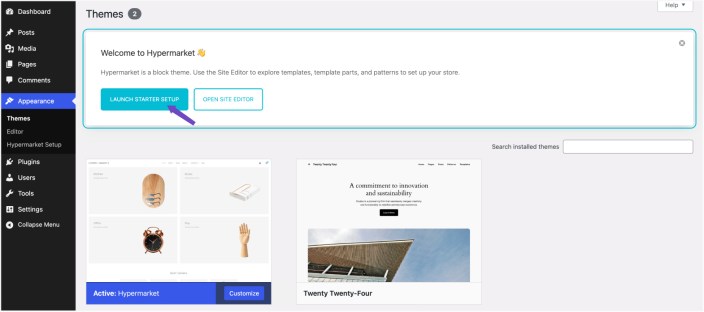
The setup wizard is designed to help prepare a WooCommerce store using guided steps and starter layouts.
Setup Steps
↑ Back to topThe Hypermarket Setup page includes six optional setup steps.
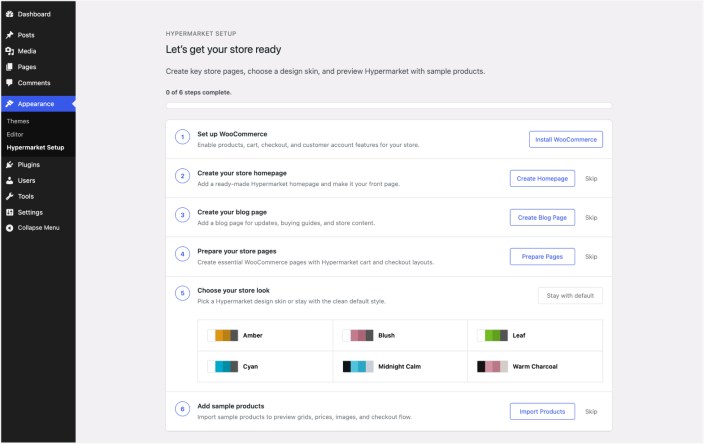
1. Set Up WooCommerce
Hypermarket is a WooCommerce-focused theme and requires the WooCommerce plugin.
Depending on your current setup:
- If WooCommerce is not installed, an Install WooCommerce button will appear
- If WooCommerce is installed but inactive, an Activate WooCommerce button will appear
Click the button to complete the WooCommerce setup before continuing to the next steps.
2. Create Your Store Homepage
This step creates a ready-made Hypermarket homepage and automatically assigns it as the site front page.
Click Create Homepage to:
- Import the homepage layout
- Assign it as the homepage
- Start editing it immediately with the Site Editor
If you prefer to build the homepage manually:
- Click Skip
- Use the included Landing Page Pattern later to create your own homepage layout
3. Create Your Blog Page
If using a fresh website, this step creates a dedicated blog page for store news, updates, guides, or articles.
Click Create Blog Page to:
- Generate a blog page
- Assign it automatically using WordPress reading settings
If your website already has a blog page assigned:
- The Hypermarket blog layout will automatically apply to it
- The page can still be customized later using the Editor and Templates
In this case, you can simply click Skip.
4. Prepare Your Store Pages
This step prepares the essential WooCommerce store pages using Hypermarket layouts.
Click Prepare Pages to configure:
- Cart page
- Checkout page
- Account-related WooCommerce layouts
This helps match the shopping experience shown in the Hypermarket demo sites.
5. Choose Your Store Look
Hypermarket includes multiple built-in color skins that can instantly change the appearance of the store.
Options include styles such as:
- Amber
- Blush
- Leaf
- Cyan
- Midnight Calm
- Warm Charcoal
To keep the default blue design click Stay with default.
The selected skin updates the global color appearance across the theme.
6. Add Sample Products
If using a fresh WooCommerce installation, this step allows importing sample products for testing and preview purposes.
Click Import Products to add demo products that help preview:
- Product grids
- Product cards
- Images and layouts
- Pricing displays
- Cart and checkout flow
If real products already exist on the site:Click Skip to avoid importing sample content
Optional Workflow
All setup steps are optional. You can skip any step, configure pages manually later, use Hypermarket Starter Patterns instead of generated pages, customize layouts entirely using the Site Editor. The setup wizard is designed to speed up the initial experience while still allowing complete flexibility for custom store setups.
Using the Site Editor
↑ Back to topBecause Hypermarket is a Full Site Editing theme, the main place you will work is:
Appearance > Editor
This is where you can edit:
- templates
- template parts
- patterns
- styles
- page layouts
- block-based site structure
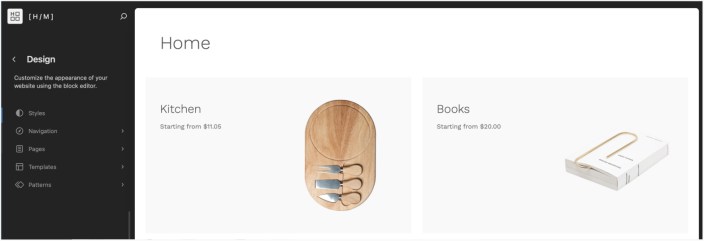
This is one of the biggest differences between Hypermarket and older WordPress themes. Instead of depending on a large set of theme options pages, you make changes visually and directly in the editor.
Creating Your Homepage
↑ Back to topRecommended homepage setup
↑ Back to topThe easiest and most complete way to build a homepage in Hypermarket is to create a new page and start from the Landing Page pattern.
Steps
- Go to Pages > Add New.
- When the Choose a Pattern modal appears, select Landing Page.
- Enter your page title.
- Replace the example text, headings, product selections, and images with your own content.
- Publish the page.
- Go to Settings > Reading.
- Set Front page displays to A static page.
- Choose the page you created as your homepage.
- Save changes.
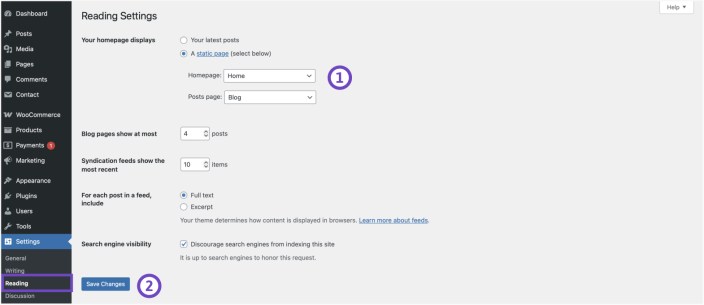
Your selected page will now be used as the homepage.
Why the Landing Page pattern matters
↑ Back to topThe Landing Page pattern is not just a decorative page layout. It is a structured homepage designed to support ecommerce browsing and promotion.
It can include sections such as:
- a hero or banner area
- category navigation
- featured collections
- promotional offers
- product highlights
- services or trust areas
- brand sections
- media or video sections
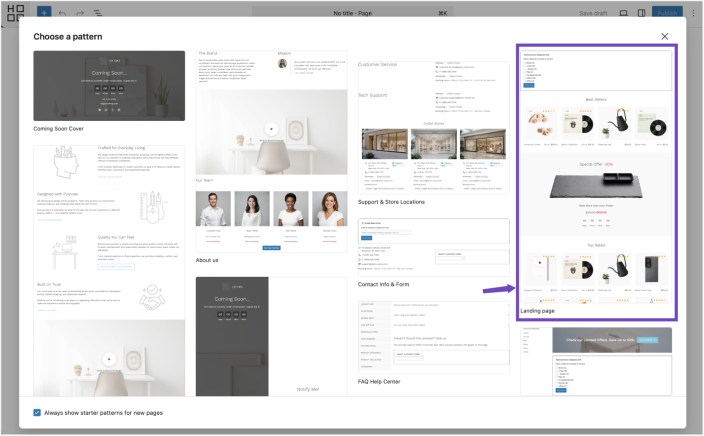
Using this pattern saves time and also gives your homepage a better commercial structure from the start.
Important note about category thumbnails
↑ Back to topIf your homepage displays product categories in visual tiles or cards, you must add thumbnail images to those categories in WooCommerce.
To do that:
- Go to Products > Categories.
- Edit the category you want to display.
- Add a Thumbnail image.
- Save the category.
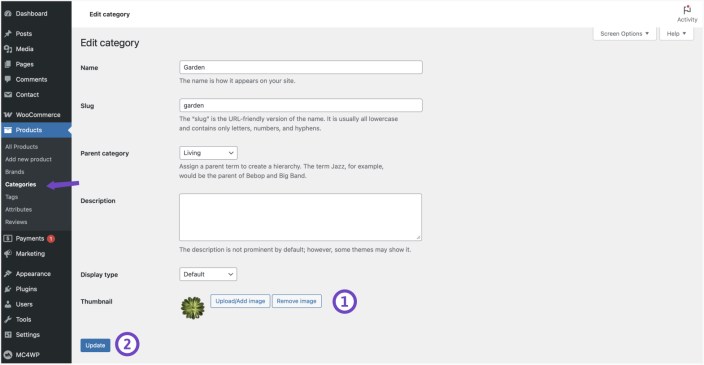
Without category thumbnails, visual category sections will not look complete.
Creating a Blog Page
↑ Back to topIf you want to publish blog posts in addition to running a store, create a second page for your posts archive.
Steps
- Go to Pages > Add New.
- Create a blank page, for example Blog.
- Publish it.
- Go to Settings > Reading.
- Under Posts page, select that page.
- Save changes.
This gives your site:
- one static homepage for store content
- one posts page for your blog archive
This is a common setup for ecommerce sites that publish guides, news, or brand content.
Global Styles and Design Settings
↑ Back to topWhere to edit site styles
↑ Back to topGo to:
Appearance > Editor > Styles
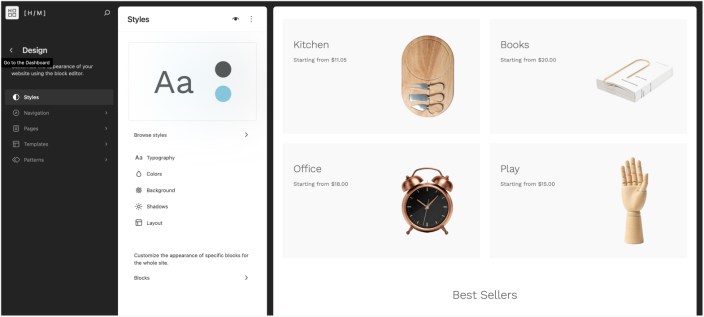
This is where you control the global appearance of the site.
What you can change in Styles
↑ Back to topFrom the Styles area, you can edit:
- color palette
- typography
- spacing
- block styles
- global design settings
- style variations
This is one of the most important areas in the theme because it affects the entire site consistently.
Style variations included in Hypermarket
↑ Back to topHypermarket includes several ready-made style variations:
- Default
- Amber
- Blush
- Leaf
- Cyan
- Midnight Calm
- Warm Charcoal
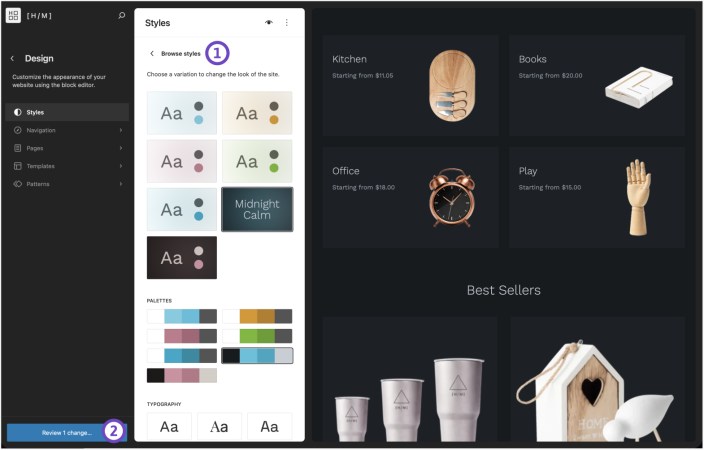
These style variations are helpful when you want to give the site a different visual mood without rebuilding the design from scratch.
For example:
- a calm or minimal store might suit Midnight Calm
- a warm lifestyle or fashion store might suit Blush
- a natural or organic store might suit Leaf
- a stronger promotional store may fit Amber
Why style variations are useful
↑ Back to topInstead of changing every heading, button, and background manually, style variations let you switch to a more cohesive preset.
This is especially helpful when:
- launching a site quickly
- deciding on brand direction
- refreshing the look of an existing store
- maintaining visual consistency across templates and pages
Template Parts
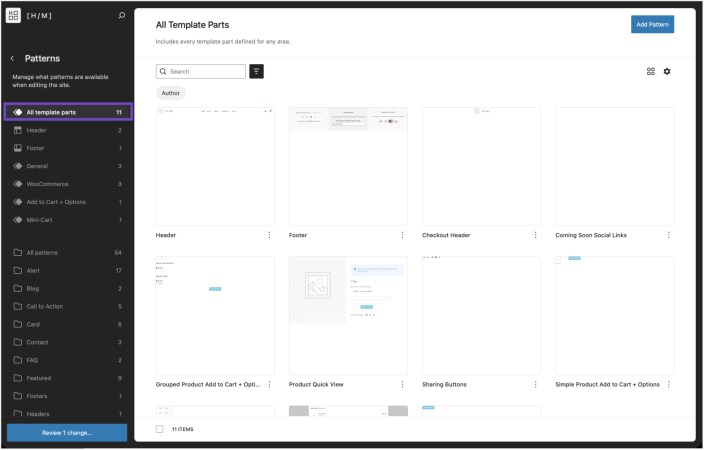
↑ Back to topTemplate parts are reusable site sections. In Hypermarket, the two most important ones are the Header and Footer.
Site Header
↑ Back to topWhat the header includes
Hypermarket’s main header includes:
- Site Logo
- Site Title
- Navigation
- Customer Account icon
- Mini Cart
This is a focused ecommerce header designed to keep the most important store tools within reach.
Why the header is important
The header is the first repeated interface your visitors interact with across the site. It affects:
- navigation clarity
- product discovery
- account access
- cart visibility
- brand identity
A good store header should not feel cluttered, but it also needs to keep store actions visible.
How to edit the header
- Go to Appearance > Editor.
- Open Patterns or the template parts area.
- Select Header.
- Edit the content.
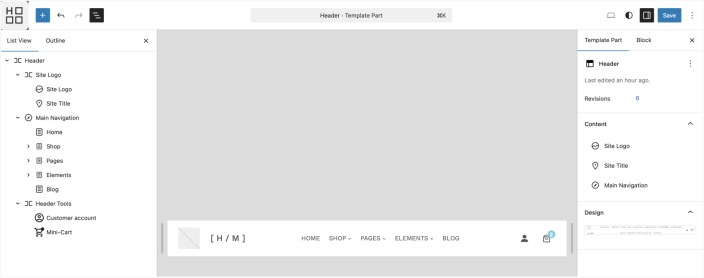
You can change:
- site logo
- site title visibility
- navigation menu
- position and surrounding spacing
- account icon area
- mini cart placement
Header customization tips
Logo
Use a transparent logo image when possible for the cleanest result. Make sure the size fits the header space well.
Site Title
You can keep the site title alongside the logo for a more text-forward brand identity, or hide it if your logo already contains your brand name.
Navigation
Keep the main menu focused on the most important destinations, such as:
- Shop
- Categories
- Offers
- About
- Contact
Avoid overcrowding the menu with too many links.
Account icon
This is especially useful for returning customers. Keep it visible if your store supports accounts, order tracking, or saved purchases.
Mini Cart
The mini cart is one of the most useful conversion-oriented parts of the header. It reminds users that items have been added and gives fast access to the cart.
Site Footer
↑ Back to topWhat the footer includes
The Hypermarket footer is structured as a three-column footer containing:
Support and social section
This area includes support text, phone details, social icons, and lower footer text.
Subscription section
This area includes newsletter text and a Mailchimp for WordPress form block.
Payment methods section
This area includes payment-related messaging and a payment methods image.
Why the footer matters
Many store owners treat the footer as an afterthought, but in Hypermarket it plays an important role in:
- support reassurance
- trust building
- subscriber capture
- payment confidence
A well-configured footer can help convert hesitant buyers and support returning visitors.
How to edit the footer
- Go to Appearance > Editor.
- Open Patterns or template parts.
- Select Footer.
- Replace the placeholder or demo content with your own.
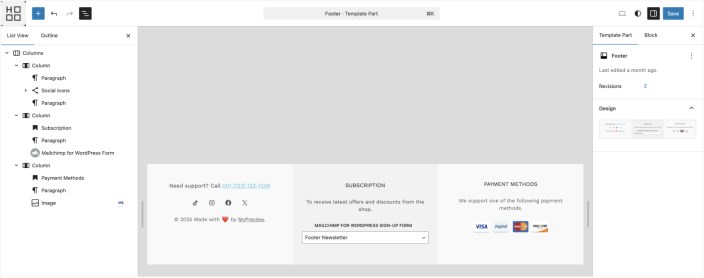
What to customize
Make sure you update:
- support phone number
- social media links
- newsletter wording
- Mailchimp form integration
- payment methods image if needed
- store copyright text
Newsletter area note
The subscription section depends on the Mailchimp for WordPress plugin. If that plugin is not installed or configured, the newsletter form may not function properly.
Footer newsletter form:
<div class="hypermarket-inline-newsletter">
  <input type="email" name="EMAIL" placeholder="Your e-mail" required>
  <input type="submit" aria-label="Send">
</div>
Product Quick View
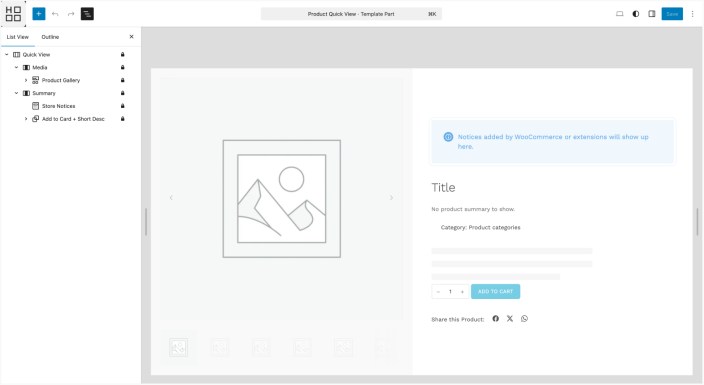
↑ Back to topThe Product Quick View feature allows customers to preview product details without leaving the current page. Instead of opening a full product page, the product information appears in a modal overlay.
This helps customers browse faster and compare products more easily, especially on shop and category pages.
Where to find it
↑ Back to topThe Product Quick View layout is managed as part of the theme’s template parts.
To access and customize it:
- Navigate to Appearance > Editor
- Open the Templates or Patterns / Template Parts section
- Locate the Product Quick View layout.
What you can customize
↑ Back to topYou can adjust the appearance and structure of the Quick View experience, including:
- Product image layout inside the modal
- Product title, price, and summary display
- Add to Cart button placement
- Spacing and alignment
- Visual styling through global styles
Changes will apply to all instances where Quick View is used across the store.
Templates
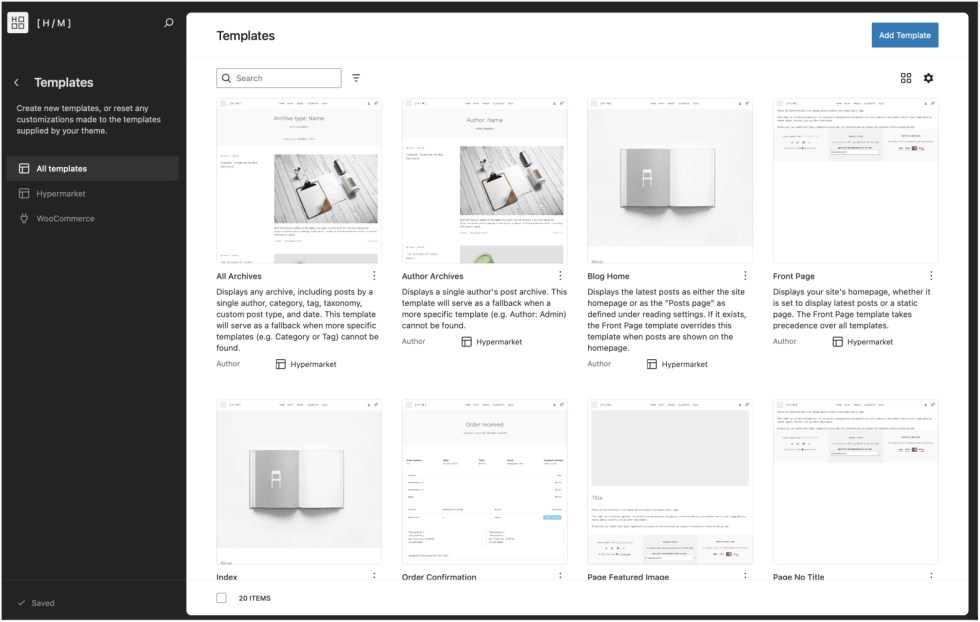
↑ Back to topHypermarket includes multiple site templates that control the appearance of key page types.
Understanding what each template does will help you customize the right area of the site.
Front Page Template
↑ Back to topThe Front Page template controls the homepage structure. If your homepage is set to a static page, this template wraps that page content with the theme’s overall structure.
This is important because your homepage page content and your homepage template work together:
- the page content contains sections like banners, products, and categories
- the template controls the page-level frame around that content
Best use case
Use the Front Page template when you want to change how the homepage behaves globally.
Blog Home Template
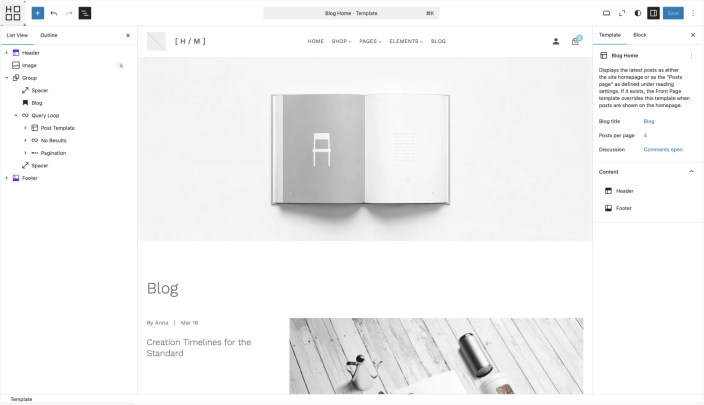
↑ Back to topThe Blog Home template is used for your posts archive page.
It controls how the list of latest blog posts is displayed and how the blog page fits into the theme’s overall structure.
Best use case
Use it to customize:
- blog archive layout
- intro area
- how posts are listed
- hero or page banner context for blog pages
All Archives Template
↑ Back to topThis is the fallback archive template used when a more specific archive template is not available.
It may apply to:
- author archives
- date archives
- tag archives
- category archives
- custom content archives
Best use case
Use it when you want a consistent default archive appearance across non-product archive pages.
Author Archives Template
↑ Back to topThis template is specifically for author archives.
Best use case
Useful for sites with multiple writers or branded editorial content.
Index Template
↑ Back to topThis is the fallback template used when no more specific template exists.
Best use case
You may not need to customize it often, but it serves as a safety net in the theme structure.
Pages Template
↑ Back to topThe Pages template is the standard default template for normal pages.
It is suitable for pages such as:
- About
- Shipping
- Returns
- Policies
- Contact
- FAQ
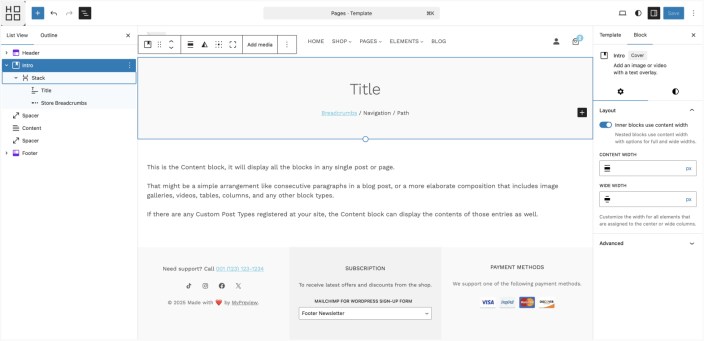
This template usually includes the theme’s standard page intro presentation.
Best use case
Use this template when you want a structured, conventional content page with normal page framing.
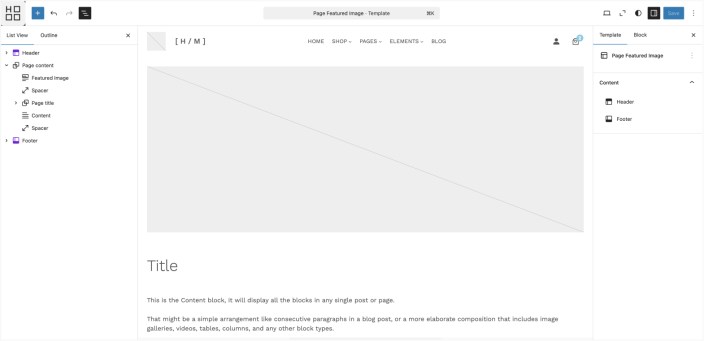
Page Featured Image Template
↑ Back to topThis template is designed for pages where the featured image should be shown prominently as a hero-style visual above the content.
Best use case
This works well for:
- About pages
- campaign pages
- visual storytelling pages
- brand pages
- editorial landing pages
Why use it
It helps pages feel more visual and premium without requiring you to build a full custom hero section manually.
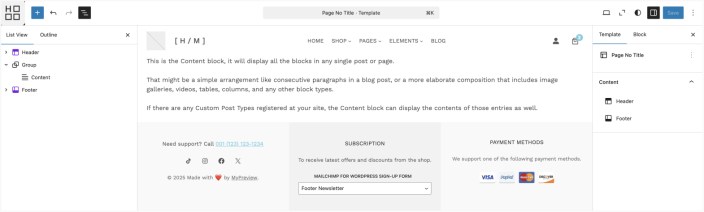
Page No Title Template
↑ Back to topThe Page No Title template removes the normal intro/title area and reduces the space between the header and the main page content.
This is one of the most useful templates in Hypermarket.
Best use case
Use it for pages where the content already includes its own visual introduction, such as:
- landing pages
- contact pages with embedded banner sections
- campaign pages
- pattern-based custom layouts
- pages where you want no duplicate title display
Why use it
It gives you a cleaner canvas and avoids the standard page header when it would interfere with a custom design.
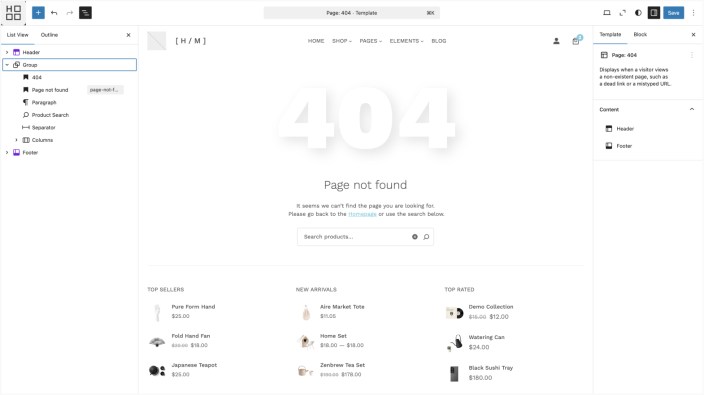
404 Template
↑ Back to topThis template controls the not-found page shown when visitors try to access a missing URL.
Best use case
Customize it so your 404 page feels branded and useful rather than empty or generic.
A good 404 page can include:
- a friendly message
- a search block
- links to popular categories
- a button back to the homepage
Product Catalog Template
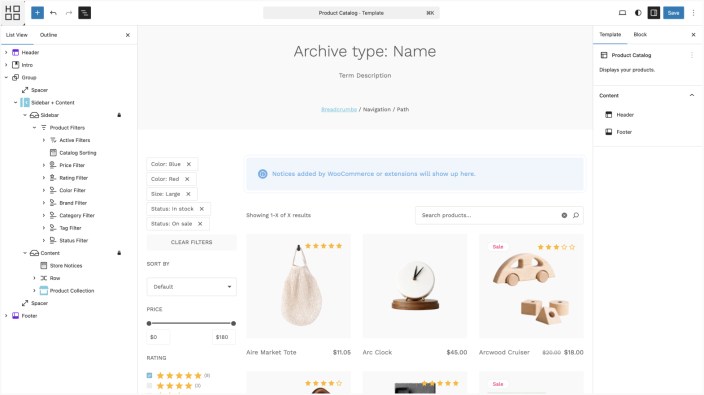
↑ Back to topThe Product Catalog template is used for the shop page and store archive presentation.
This is one of the most important templates in Hypermarket because it shapes the browsing experience for products.
The theme uses a layout that supports sidebars and filtering, making product discovery easier.
Best use case
Use it to refine how products are listed, how filters appear, and how the store browsing experience feels.
Product Search Results Template
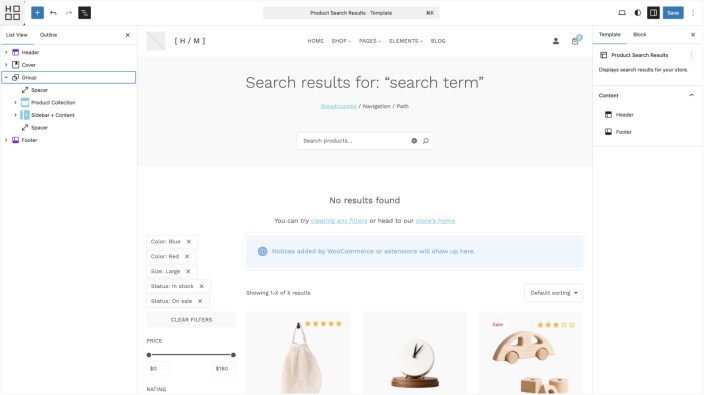
↑ Back to topThis template controls search results specifically for products.
Best use case
Useful for improving product search usability, especially if your store expects visitors to search directly for items.
Search Results Template
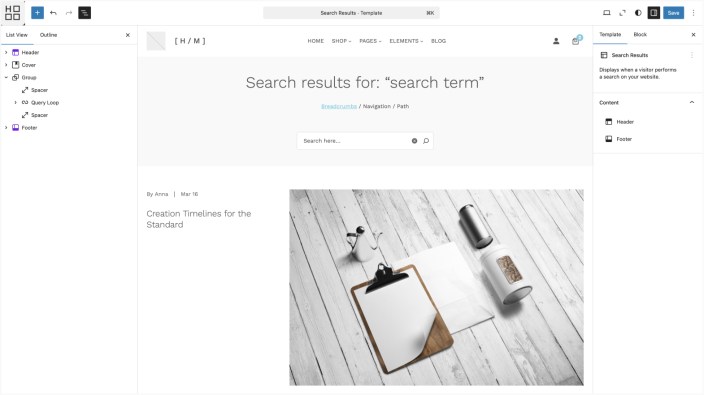
↑ Back to topThis handles general site-wide search results, not only products.
Best use case
Useful for sites that combine products and content, such as a store with blog posts, buying guides, and help pages.
Single Posts Template
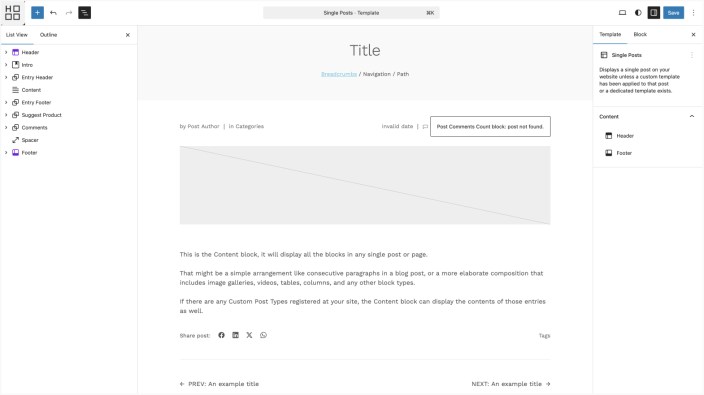
↑ Back to topThis template defines how individual blog posts are displayed across your site. It structures the full reading experience, including the post header, content area, navigation, and supporting sections.
It also includes a Best Sellers product block to surface relevant items, along with a comments section to support discussion and engagement directly on the post.
Best use case
Use this template to shape long-form content such as articles, guides, and editorial posts, while also connecting readers to products and encouraging interaction through comments.
Single Product Template
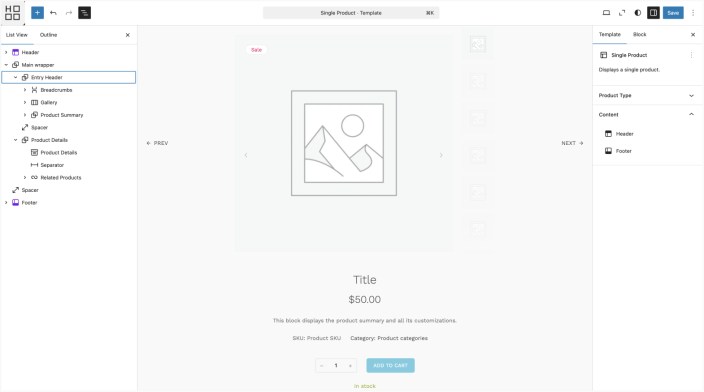
↑ Back to topHypermarket includes two product page layouts, each designed for a different type of product presentation.
The single product template is intentionally minimal. It places the product image at the center, followed by the title, price, short description, and key details in a clean vertical flow. The structure keeps distractions low and prioritizes focus on the product itself.
Below the main section, tabs organize additional information, while related products appear at the end to support cross-selling.
Best use case
Use this template for products that benefit from a calm, distraction-free layout; where the image and essential details should take the lead without added complexity.
Single Product – Modern Template
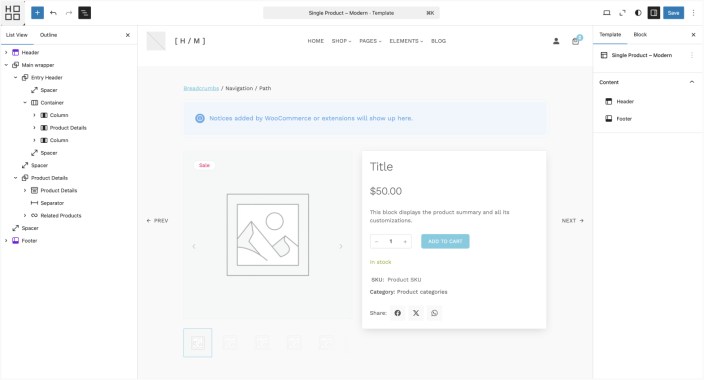
↑ Back to topThis layout introduces a more structured and content-rich presentation. It places the gallery and product summary side by side, creating a clearer visual hierarchy and more space for detailed content.
It includes:
- a prominent product gallery with side thumbnails
- a dedicated summary panel with price, description, and actions
- expanded sections for description and additional information
- integrated reviews with visible customer feedback
- a full review form to encourage user input
- related products presented in a structured grid
Best use case
Use this template for products that benefit from stronger visual presentation, detailed descriptions, and customer interaction.
- premium products
- hero products
- curated collections
- products with strong imagery
- products that need more storytelling
How to use it
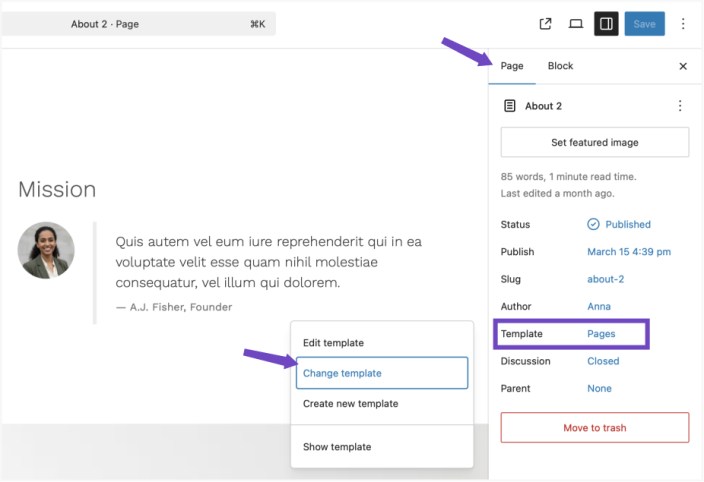
Edit a product and assign this template from the product template dropdown if you want that specific product to use the modern layout.
Order Confirmation Template
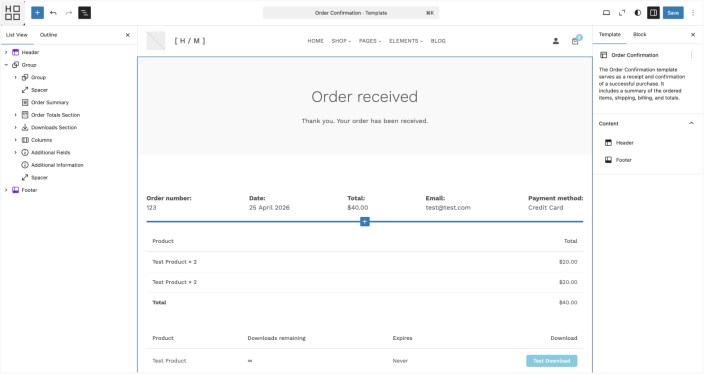
↑ Back to topThis template controls the page shown after a successful order.
Best use case
This page is important because it is part of the customer experience after purchase. Keeping it clean and trustworthy reinforces confidence.
Cart Template
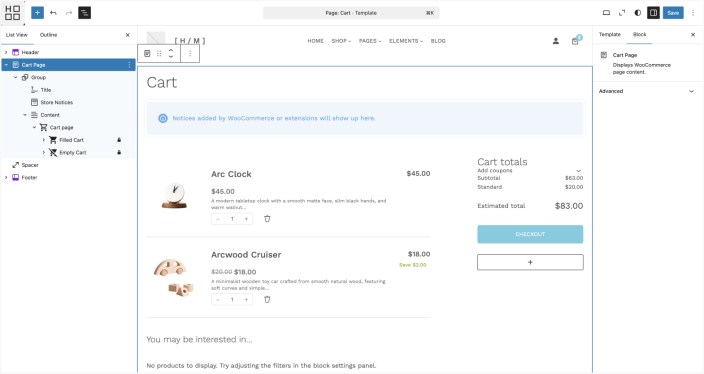
↑ Back to topThe Cart template is intended for WooCommerce’s modern cart experience.
Hypermarket recommends using the cart block rather than relying only on the old shortcode approach.
Best use case
Use the Cart Page pattern with WooCommerce blocks to match the design system of the theme.
Checkout Template
↑ Back to topThe Checkout template supports the WooCommerce checkout block layout.
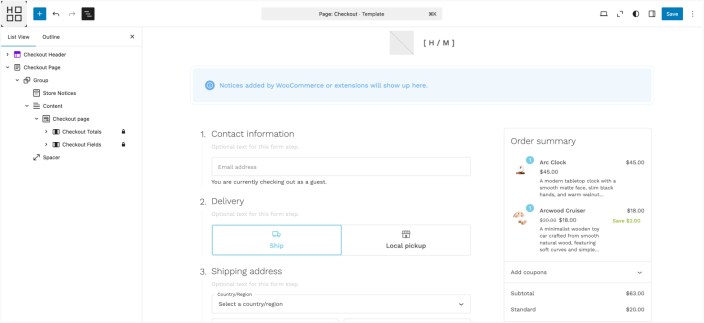
Best use case
↑ Back to topUse the Checkout Page pattern and block-based checkout for the most consistent theme styling.
Coming Soon Template
↑ Back to topThis template is used for pre-launch or under-construction stores.
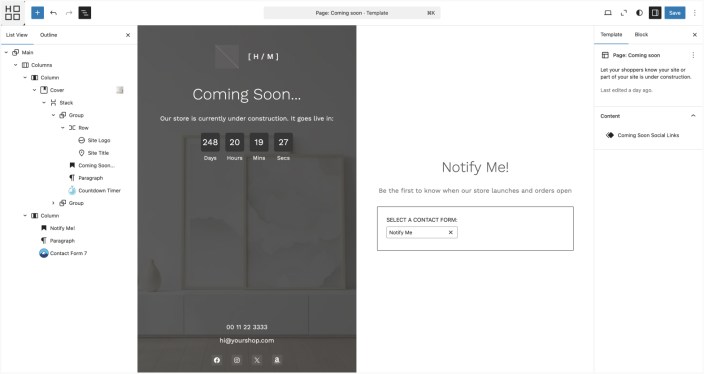
Best use case
Use it when your store is not live yet but you still want a polished, branded holding page.
Cart Page Setup
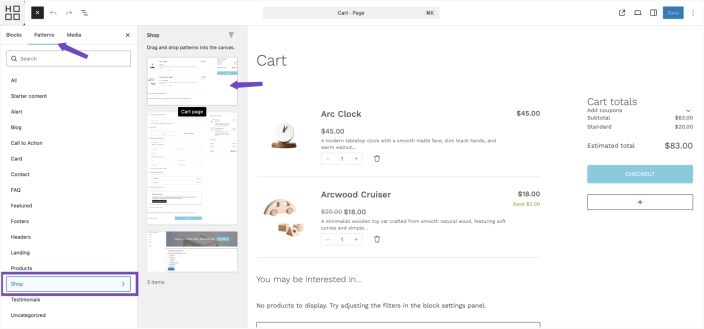
↑ Back to topHypermarket is designed to work best with the WooCommerce cart block and the theme’s matching pattern.
Steps
- Edit your Cart page.
- Remove the existing content.
- Click the + block inserter.
- Open Patterns.
- Open the Shop category.
- Insert Cart Page.
- Save the page.
Why this is recommended
↑ Back to topUsing the pattern gives you a more polished cart presentation and aligns better with the rest of the theme design.
Checkout Page Setup
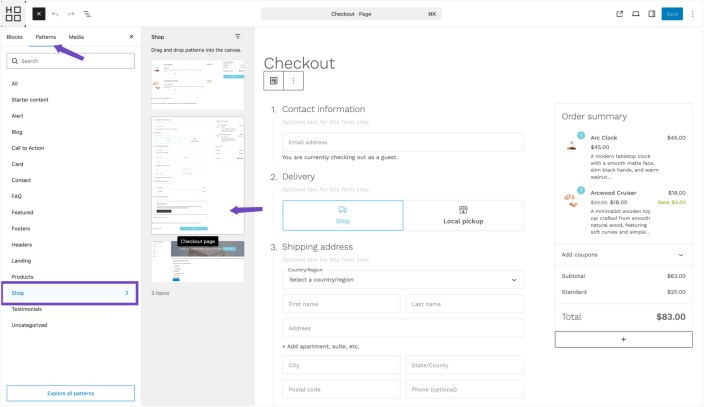
↑ Back to topThe same approach applies to checkout.
Steps
- Edit your Checkout page.
- Remove the existing content.
- Click the + block inserter.
- Open Patterns.
- Open the Shop category.
- Insert Checkout Page.
- Save the page.
Why this is recommended
↑ Back to topThe block-based checkout matches the theme styling better and aligns with WooCommerce’s modern direction.
Coming Soon Page
↑ Back to topWhat it is for
↑ Back to topHypermarket includes a dedicated Coming Soon template so you can prepare a store before launch while still presenting a polished brand presence.
This is useful when:
- products are not ready yet
- design work is still in progress
- you want to capture leads before launch
- you want to announce that the store is opening soon
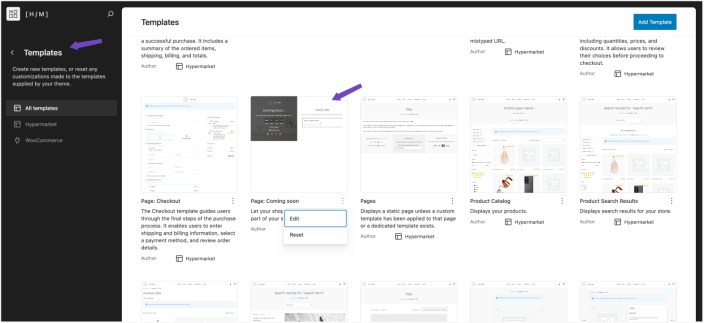
How to enable it
↑ Back to top- Go to WooCommerce > Settings > Site Visibility.
- Enable Coming Soon mode if that option is available in your WooCommerce setup.
- Go to Appearance > Editor > Templates.
- Open Page: Coming Soon.
- Customize the content.
What to include on a Coming Soon page
↑ Back to topA useful Coming Soon page can include:
- launch message
- short brand description
- subscription form
- contact form
- countdown timer
- social links
If you want a “Notify Me” style form, install Contact Form 7 or another form plugin and place the form into the page.
<label> Your name
    [text* your-name autocomplete:name] </label>

<label> Your email
    [email* your-email autocomplete:email] </label>

[submit "Submit"]
Patterns in Hypermarket
↑ Back to topPatterns are one of the strongest features of the theme because they reduce page-building time and provide ready-made layouts that already fit the theme style.
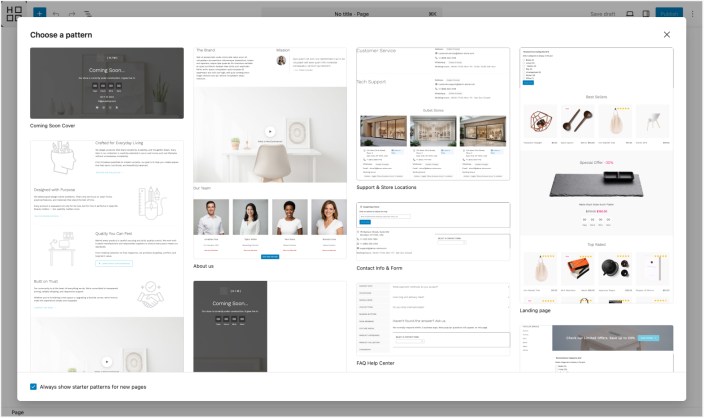
Landing Page Pattern
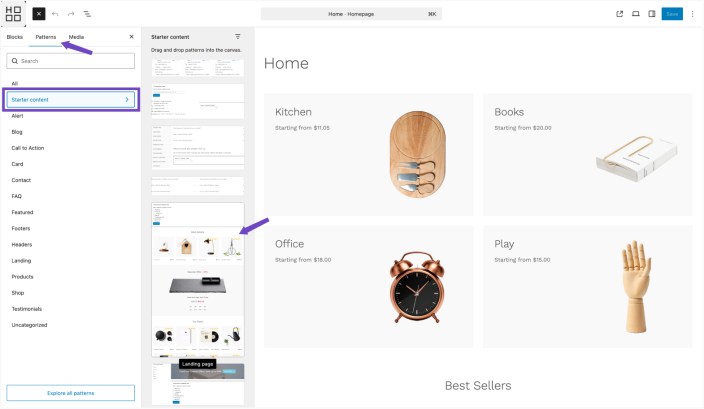
↑ Back to topThis is the primary starter layout designed for building a complete, high-converting homepage for your store.
After inserting the pattern, replace the placeholder images with your own product or brand visuals, update the text to reflect your messaging and promotions, and swap the demo product sections with your actual WooCommerce products or categories. You can also remove, reorder, or adjust any sections to better fit your store’s structure and goals.
What it is for
Provides a structured page made up of pre-designed sections such as hero banners, featured products, category highlights, promotional blocks, testimonials, and call-to-action areas. Each section is arranged to guide visitors from discovery to purchase, helping showcase both products and key messages in a clear flow.
Best use cases
Instead of starting from a blank page, this pattern gives a complete layout with proven structure. Sections are already organized for better user experience, making it easier to present products, highlight offers, and drive engagement.
Use it for:
- store homepage
- campaign landing pages
- seasonal offer pages
- promotional front pages
Why it helps
Instead of starting from an empty page, you begin with a complete layout and replace the content with your own.
About Us Pattern
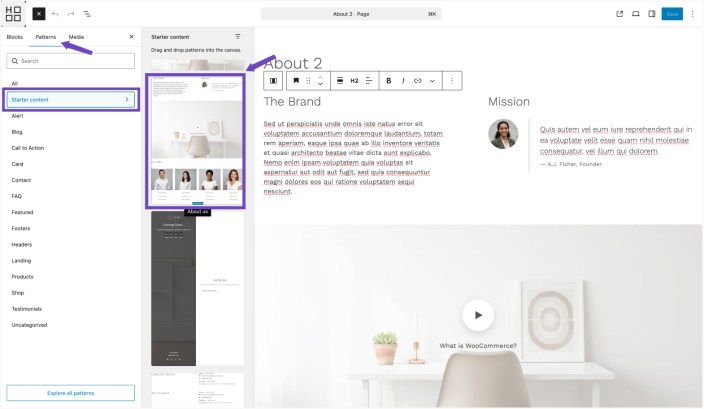
↑ Back to topWhat it is for
A structured About page that introduces the brand, includes storytelling sections, and can feature testimonials or team members.
Best use cases
Use it for:
- About page
- brand story page
- founder story page
Why it helps
It makes the About page feel intentionally designed rather than a simple wall of text.
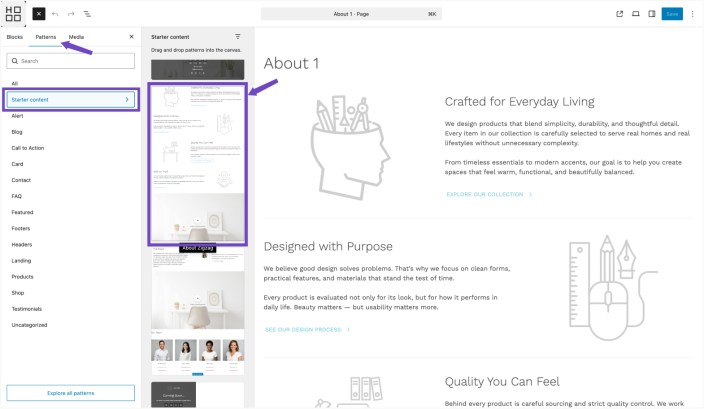
About Zigzag Pattern
↑ Back to topWhat it is for
A more dynamic About page with alternating visual/text sections and a stronger editorial layout.
Best use cases
Use it when your brand story relies more on visual pacing and modern layout rhythm.
Why it helps
It creates a more engaging reading experience and works well for visually driven brands.
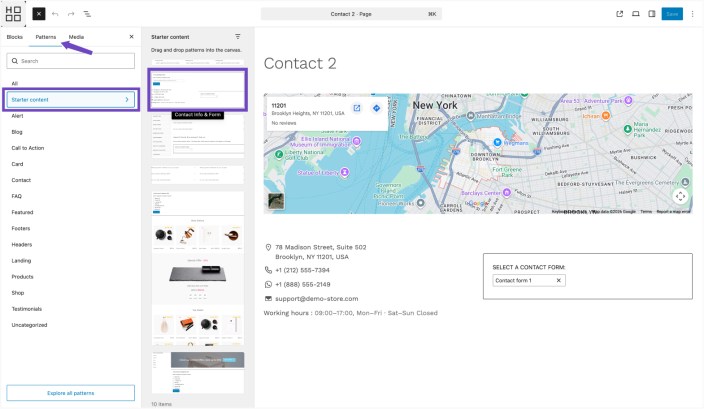
Contact Info & Form Pattern
↑ Back to topWhat it is for
A contact page layout with structured contact information and a form area.
Best use cases
Use it for:
- standard contact page
- support contact page
- sales inquiry page
Why it helps
It gives users both information and a clear way to contact you without making the page feel cramped.
Recommended note
This pattern works especially well with the Page No Title template, so the contact layout starts cleanly below the header.
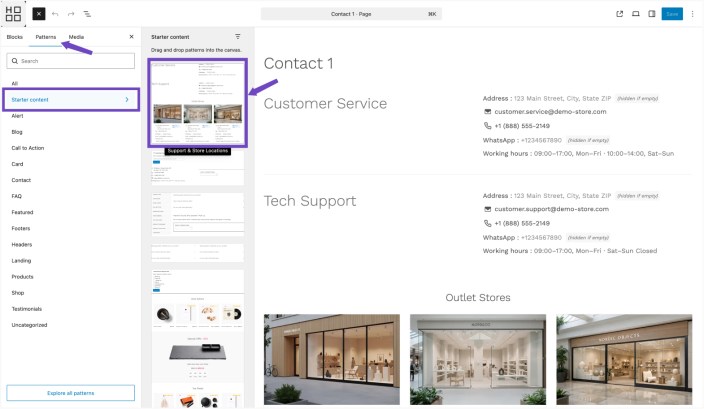
Support & Store Locations Pattern
↑ Back to topWhat it is for
A multi-section contact or support page that can include support categories and store locations.
Best use cases
Use it for:
- stores with physical branches
- support-heavy businesses
- multi-location brands
- showroom pages
Why it helps
It makes complex support or location information easier to understand.
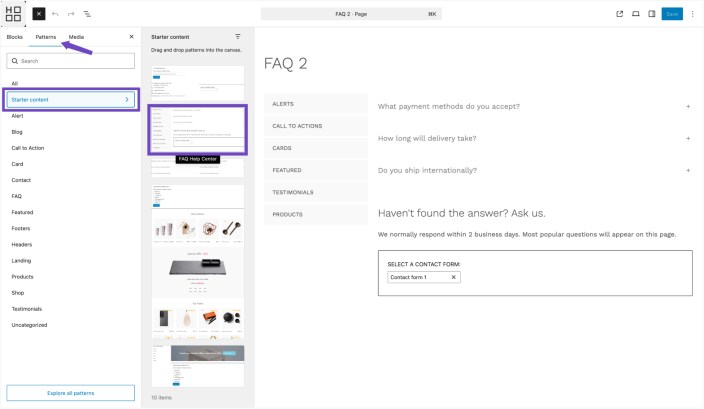
FAQ Help Center Pattern
↑ Back to topWhat it is for
A help-center style FAQ page with navigation and organized accordion sections.
Best use cases
Use it for:
- customer support FAQ
- policy explanation pages
- product help center
- pre-sales information
Why it helps
It presents questions in a structured format rather than a long plain-text list.
FAQ Two Columns Pattern
↑ Back to topWhat it is for
A balanced FAQ layout with two-column accordion presentation.
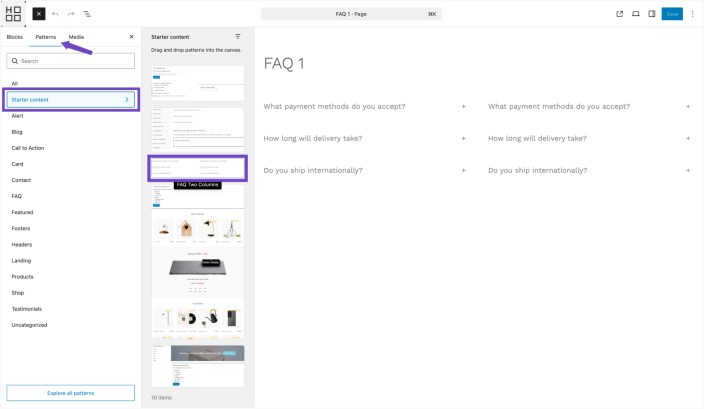
Best use cases
Use it when you want the page to look more visual and less like a support center.
Why it helps
It gives a cleaner and more symmetrical layout for shorter FAQ collections.
Shop Categories Pattern
↑ Back to topWhat it is for
A shopping-oriented category page layout with banner, sidebar, and categories grid.
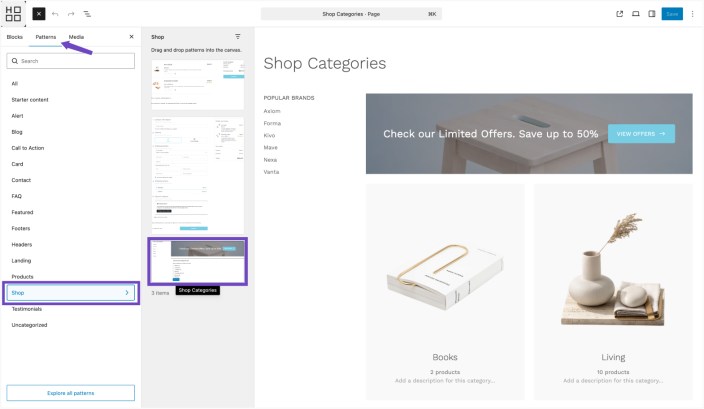
Best use cases
Use it for:
- category landing pages
- curated browsing pages
- product department overviews
Why it helps
It supports category discovery and merchandising more clearly than a plain archive page.
Element Patterns
↑ Back to topHypermarket also includes smaller content patterns that can be inserted into pages.
These are useful when you want to build custom pages but still keep the theme’s design language.
Alert Patterns
↑ Back to topThe theme includes multiple alert variations, including standard, outlined, and banner alert styles.
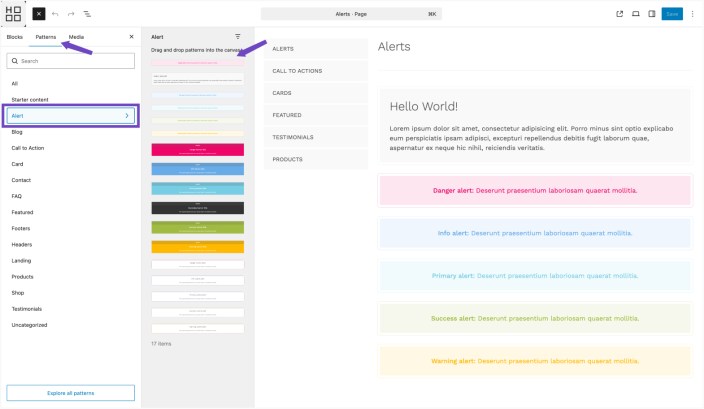
What they are for
Alert patterns are for important notices or short messages that need emphasis.
Best use cases
Use them for:
- sale announcements
- policy notes
- limited-time warnings
- seasonal updates
Why they help
They make short notices stand out clearly and more elegantly than a plain paragraph.
Call to Action Patterns
↑ Back to topHypermarket includes several CTA layouts such as centered banners, inline banners, and special offer sections.
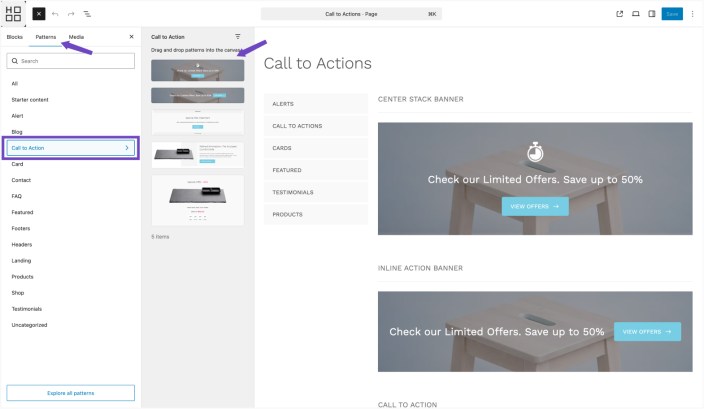
What they are for
CTA patterns are designed to move visitors toward a specific action.
Best use cases
Use them for:
- shop now sections
- promo campaigns
- collection highlights
- offer banners
- newsletter prompts
Why they help
They give your important actions more visual weight and can improve conversion when placed strategically.
Card Patterns
↑ Back to topThese include several card-based content layouts.
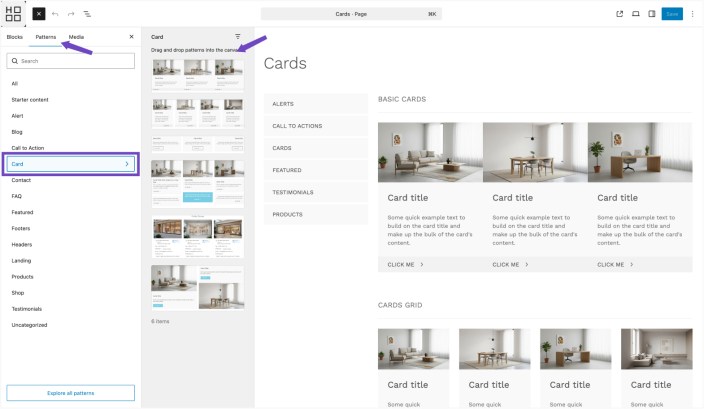
What they are for
Card layouts organize information into visual blocks.
Best use cases
Use them for:
- service highlights
- store benefits
- category previews
- brand features
- multiple location summaries
Why they help
They create a cleaner and more scannable layout than long mixed-content sections.
Featured Patterns
↑ Back to topThe theme includes featured product and featured content sections such as product highlights, brands, services, special offers, and video sections.
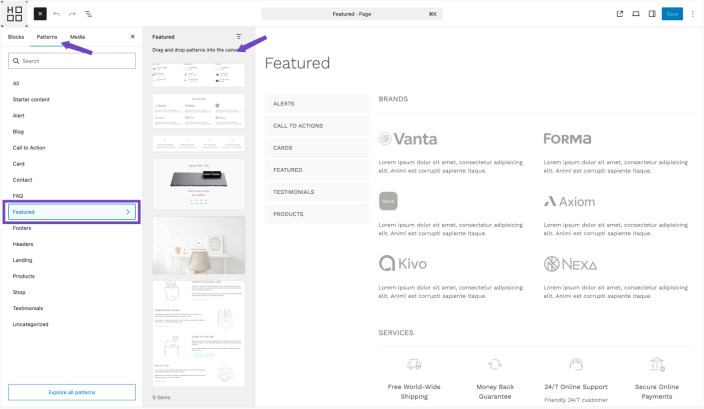
What they are for
These patterns are for merchandising and storytelling.
Best use cases
Use them for:
- homepage
- promotional pages
- seasonal campaign pages
- brand content pages
Why they help
They make the store feel more complete and professionally merchandised.
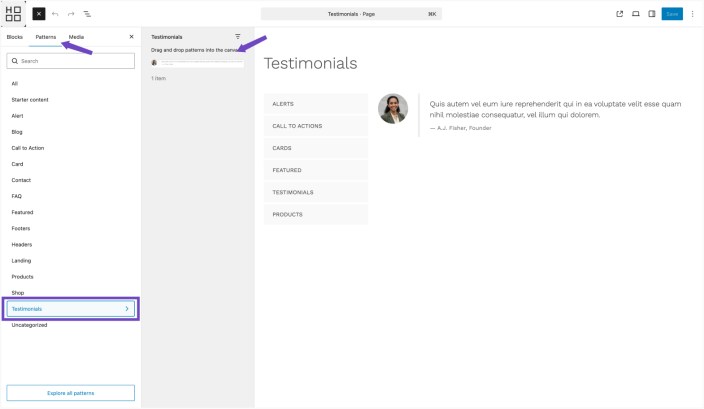
Testimonial Pattern
↑ Back to topWhat it is for
A testimonial layout with avatar and supporting text.
Best use cases
Use it for:
- homepage trust sections
- About page
- campaign pages
- post-purchase reassurance sections
Why it helps
It adds credibility and social proof.
Hypermarket Blocks
↑ Back to topHypermarket includes several aesthetic blocks that add theme-specific functionality and design capability.
Each one has a practical purpose and works best when used intentionally.
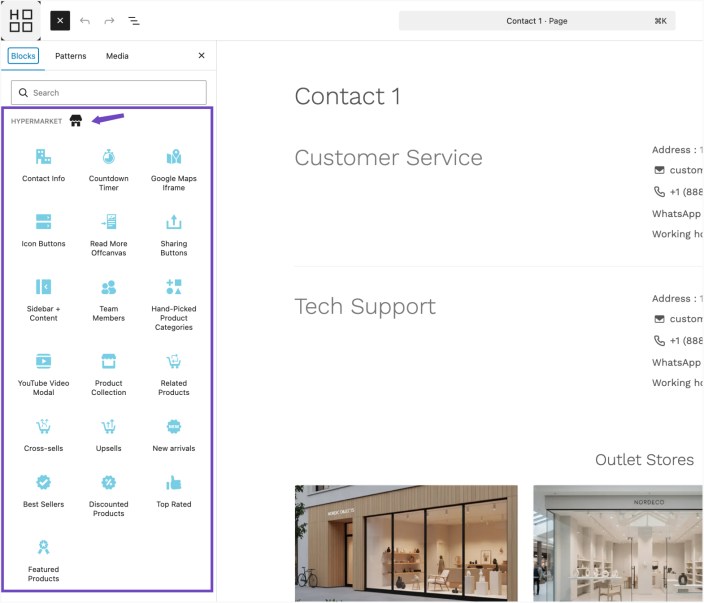
Contact Info Block
↑ Back to topThe Contact Info block allows displaying structured business contact details in a clean, organized format. It helps present important information such as address, phone number, email, WhatsApp, and business hours in a consistent and easy-to-scan layout.
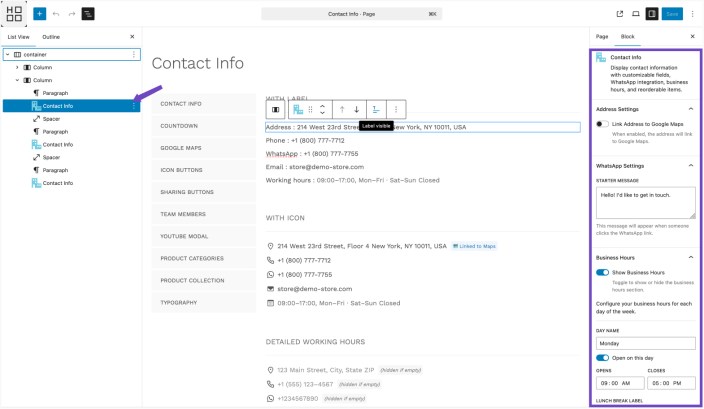
How it works
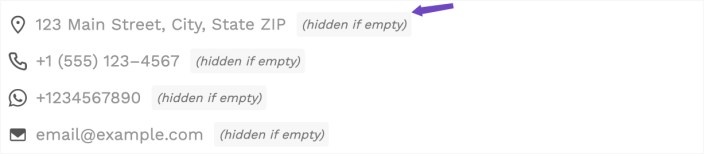
Each contact item is displayed as a row. If a row is left empty, it will not appear on the frontend, allowing full control over which details are shown.
Display options
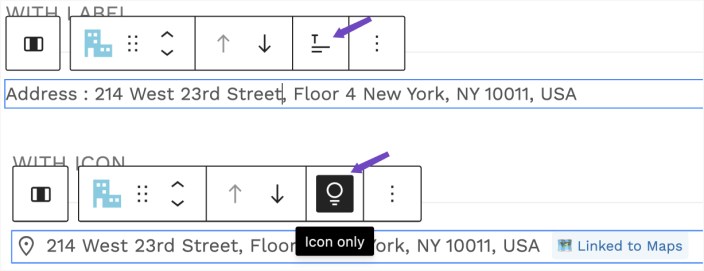
Each row can be shown with either a text label or an icon:
- Click on a row (for example, Address)
- Use the toggle icon next to the reorder arrows to switch between “Label visible” and “Icon Only”
- When set to “Label visible”, the text label is shown
- When set to “Icon Only”, the icon replaces the label for a more minimal look
Reordering items
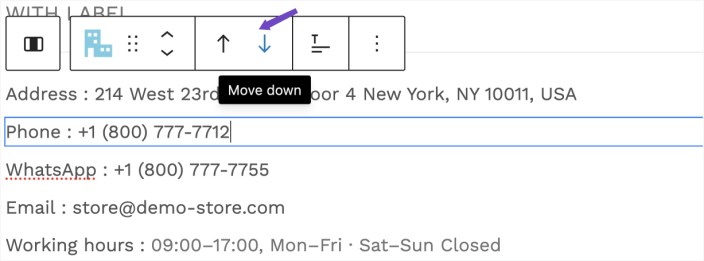
To change the order of contact details:
- Select the row you want to move
- Use the up or down arrows to reposition it
Block settings (sidebar)
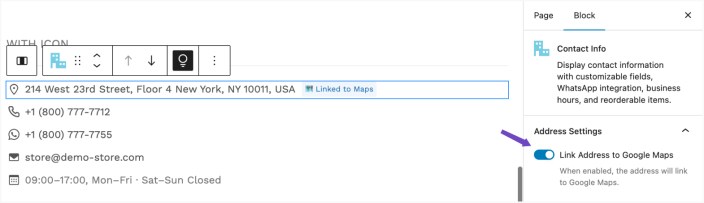
Address settings
You can enable linking the address to Google Maps. When enabled, clicking the address will open the location in Google Maps.
WhatsApp settings
If a WhatsApp number is added, you can define a starter message. This message will automatically appear when a visitor clicks the WhatsApp link, making it easier for them to begin a conversation.
Business hours settings
Enable the business hours toggle to display opening times. For each day of the week:
- Customize the day label
- Enable or disable “Open on this day”
- Set opening and closing times if enabled
- Optionally add a lunch break with a custom label
If a day is marked as closed, a custom “Closed” label can be displayed instead.
Why it’s useful
This block ensures contact details are consistent, structured, and easier to read compared to manually adding text, while also providing interactive features like map links and pre-filled WhatsApp messages.
Countdown Timer Block
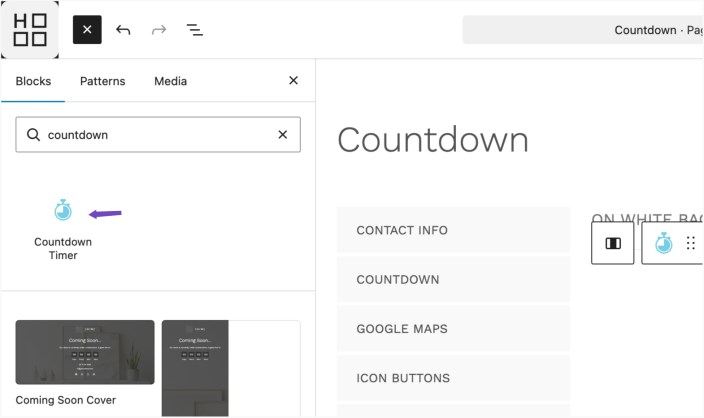
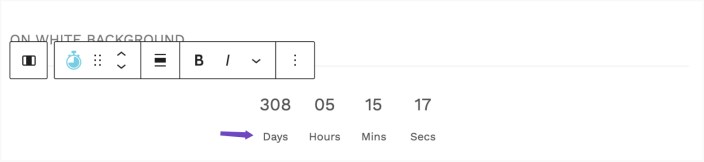
↑ Back to topThe Countdown Timer block adds a dynamic timer that counts down to a specific date and time, making it ideal for highlighting limited-time offers, product launches, or upcoming events.
How it works
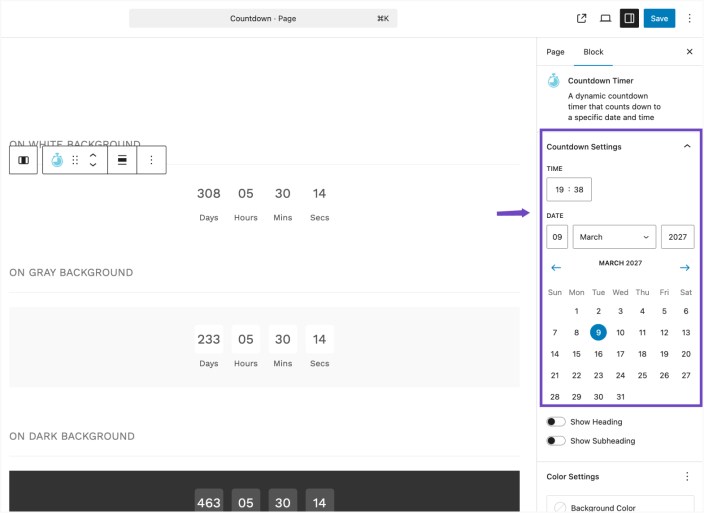
After adding the block, use the Countdown Settings in the sidebar to select the exact date and time the timer should count down to. Once set, the timer will automatically update in real time on the frontend.
Heading and subheading
You can optionally display a heading and subheading above the timer:
- Enable Show Heading to add a main title
- Enable Show Subheading to add supporting text
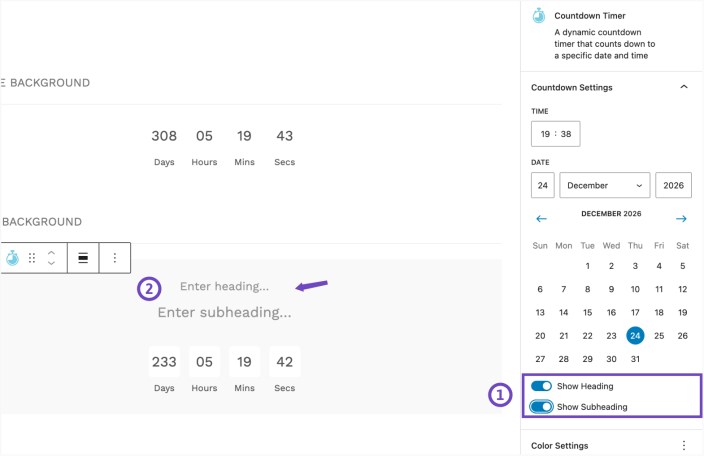
These are useful for adding context, such as announcing a sale or event.
Color settings
The block includes color controls for:
- Text color
- Background color

These settings help ensure the timer remains readable and visually consistent, especially when placed on darker or styled sections.
Customizing labels
The labels for time units (Days, Hours, Minutes, Seconds) can be edited directly within the block. Simply click on each label and replace it with your preferred wording, such as shorter versions or translations.
Why it’s useful
This block creates urgency and draws attention to time-sensitive content, helping increase engagement and conversions while remaining fully customizable to match your store’s design.
Google Maps Iframe Block
↑ Back to topThe Google Maps Iframe block allows embedding an interactive map directly into your page, making it easy to display a business location or point of interest.
How it works
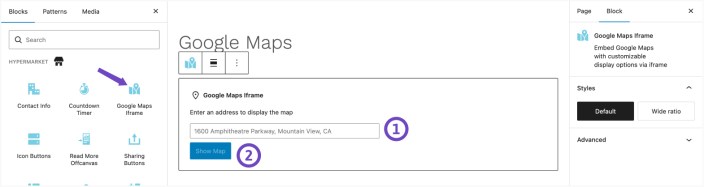
After inserting the block, enter the desired address in the input field and click Show Map. The block will generate and display the map based on the provided location.
Map settings (sidebar)
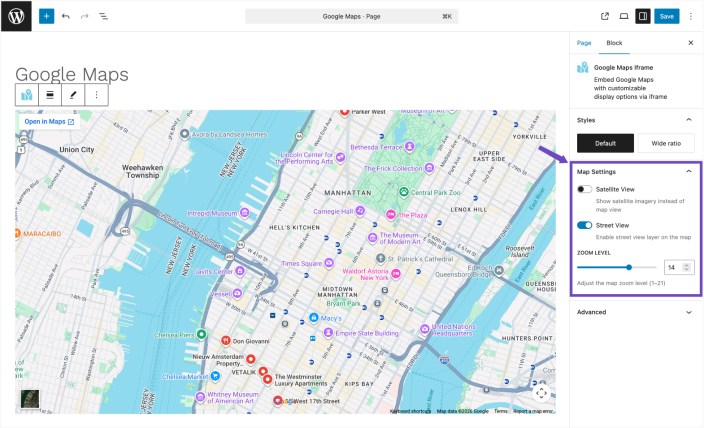
- Satellite View
Enable this option to display satellite imagery instead of the standard map view. - Street View
Street View is enabled by default, allowing users to explore the location at street level. This can be disabled if not needed. - Zoom Level
Adjust the zoom level of the map from 1 to 21, depending on how close or broad you want the view to be.
Styles
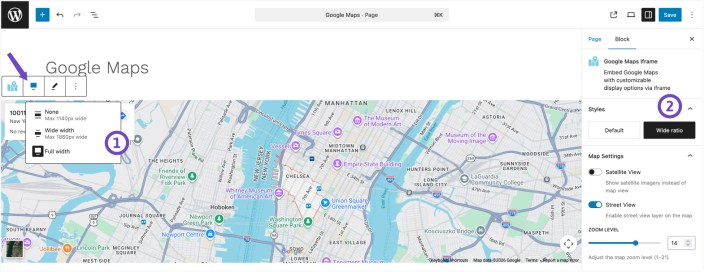
The block includes two style options:
- Default – Displays the map using the standard 16:9 aspect ratio.
- Wide ratio – Displays the map using a wider 32:9 aspect ratio.
The Wide ratio style is useful when the map is placed inside a wide or full-width section. It keeps the map visually wide while reducing its height, which helps it fit better in banner-style layouts.
Why it’s useful
This block provides a quick and flexible way to add location context to your site, improving usability for visitors looking to find your store or business.
Icon Buttons Block
↑ Back to topWhat it does
This block creates icon-based button groups or individual action buttons with more visual emphasis.
Best use cases
Use it for:
- support shortcuts
- promotional actions
- category jumps
- call/email buttons
- service shortcuts
Why it is useful
It helps important actions feel more noticeable and visually guided.
How to use it
Insert the parent Icon Buttons block and then add Icon Button items inside it. Set the text, link, icon, and style.
Read More Offcanvas Block
↑ Back to topWhat it does
This block opens post content inside an offcanvas panel using AJAX instead of loading the full single post page immediately.
Best use cases
Use it for:
- blog archive layouts
- guide/article previews
- magazine-style pages
- content browsing without leaving the listing
Why it is useful
It keeps users in browsing mode and creates a more interactive experience.
How to use it
Insert the block where a preview or “read more” action is needed within the Query Loop block, then style it as part of your layout.
Sharing Buttons Block
↑ Back to topWhat it does
This block adds social sharing buttons for multiple platforms.
Supported platforms include:
- Mastodon
- Tumblr
- Twitter/X
- Bluesky
- Telegram
- Threads
Best use cases
Use it on:
- single blog posts
- product pages
- campaign pages
- promotional articles
Why it is useful
It helps visitors share your content or products more easily.
How to use it
Insert the Sharing Buttons block and select the platforms you want to display.
Sidebar + Content Block
↑ Back to topWhat it does
This block creates a two-area layout with one sidebar area and one main content area.
It can also support offcanvas behavior depending on usage.
Best use cases
Use it for:
- shop layouts
- category pages
- help pages
- support layouts
- pages with filters or side navigation
Why it is useful
It creates better structure when content needs supporting navigation or filters.
How to use it
Insert the block and place supporting content in the sidebar area and primary content in the main area.
Team Members Block
↑ Back to topWhat it does
This block displays team members with image, name, role, and social links.
Best use cases
Use it for:
- About page
- team introduction page
- founder presentation
- trust-building sections
Why it is useful
It gives your brand a more human and polished presentation.
How to use it
Insert the Team Members block, choose the column layout, and add each member’s information.
Hand-Picked Product Categories Block
↑ Back to topWhat it does
This block displays selected product categories in a grid.
It supports:
- selected categories
- images
- product counts
- descriptions
- grid columns
Best use cases
Use it for:
- homepage category navigation
- collection landing page
- category promotions
- merchandising sections
Why it is useful
It lets you control which categories to highlight and how they appear visually.
How to use it
Insert the block, choose the categories, and configure how much category information to display.
YouTube Video Modal Block
↑ Back to topWhat it does
This block opens a YouTube video inside a modal popup.
It supports:
- video URL
- video ID
- optional caption
- autoplay
- custom cover image
Best use cases
Use it for:
- brand story video
- product demo
- promotional campaign
- homepage media section
- about page media section
Why it is useful
It keeps visitors on your site while still giving them access to video content.
How to use it
Insert the block, enter your video details, and choose whether to use a custom image or auto YouTube video cover.
Hypermarket Product Collections
↑ Back to topHypermarket includes multiple ready-to-use product collection types and related merchandising sections.
These include:
- Product Collection
- Related Products
- Cross-sells
- Upsells
- New Arrivals
- Best Sellers
- Discounted Products
- Top Rated
Why they matter
↑ Back to topThese are not only decorative product listings. Each serves a different merchandising purpose.
Product Collection
↑ Back to topUse for a general curated product section.
Related Products
↑ Back to topUse to help buyers continue shopping after viewing a product.
Cross-sells
↑ Back to topUse to promote complementary items and increase order value.
Upsells
↑ Back to topUse to guide users to higher-value or enhanced products.
New Arrivals
↑ Back to topUse to highlight fresh inventory and keep the storefront feeling active.
Best Sellers
↑ Back to topUse to build trust by showing what other customers buy most often.
Discounted Products
↑ Back to topUse for promotions, sales, or deal zones.
Top Rated
↑ Back to topUse to show products with strong customer approval.
Recommended Ways to Use Hypermarket
↑ Back to topHypermarket is most effective when used intentionally as a block-based store design system.
Recommended approach
↑ Back to top- Use the Landing Page pattern for the homepage.
- Use Page No Title for custom layouts and pattern-heavy pages.
- Use the Product Catalog template and Sidebar + Content structure for shop browsing.
- Use Single Product – Modern for hero or premium products.
- Use the Contact Info block instead of manually typed contact details.
- Use the Hand-Picked Product Categories block to improve category discovery.
- Use Countdown Timer in promotional sections and coming soon pages.
- Use YouTube Video Modal when product or brand storytelling needs video.
- Use block Cart and Checkout, not only shortcodes, for better theme consistency.
Troubleshooting
↑ Back to topThe homepage does not show the page I created
↑ Back to topCheck Settings > Reading and make sure:
- A static page is selected
- the correct page is assigned as the homepage
If posts are still showing on the homepage, the reading settings are likely still set to “Your latest posts.”
My category tiles do not show images
↑ Back to topEdit the product categories in Products > Categories and make sure each category has a Thumbnail image assigned.
The theme’s category layouts rely on those category images.
The newsletter section in the footer does not work
The footer uses a Mailchimp form block. Install and configure MC4WP: Mailchimp for WordPress or replace that block with another newsletter form solution.
Without the plugin, the subscription area may appear incomplete or non-functional.
Cart or Checkout does not look like the demo layout
↑ Back to topEdit the Cart or Checkout page and insert the correct pattern from Patterns > Shop.
If you are using only old shortcodes, the layout may not match the intended block-based theme design.
FAQs
↑ Back to topHelp customers by answering commonly asked questions.
Does Hypermarket require WooCommerce?
Yes. Hypermarket is built specifically for WooCommerce and many of its templates, blocks, and page layouts depend on WooCommerce being active.
Is Hypermarket a block theme?
Yes. Hypermarket is a Full Site Editing block theme built to work with the Site Editor.
Is Hypermarket suitable for beginners?
Yes. It’s designed to be easy to use while still offering flexibility for advanced customization, making it suitable for both beginners and experienced users.
Do I need design or coding skills to use this theme?
No. Hypermarket is built for the WordPress Site Editor (Full Site Editing), allowing visual customization of layouts, colors, and typography without writing code.
Can I customize colors and fonts?
Yes. You can switch between predefined color schemes and typography systems directly from the editor. Global styles ensure changes apply consistently across the entire site.
Can I edit the header and footer visually?
Yes. Both can be edited in the Site Editor as reusable theme parts or patterns.
Does Hypermarket include ready-made layouts or templates?
Yes. It includes pre-built patterns and starter page layouts such as About, Contact, FAQ, landing pages, and product sections to help you launch faster.
Can I use the Landing Page pattern on pages other than the homepage?
Yes. You can use it on any page. If it is not your homepage, Page No Title is usually the best matching template.
What is the difference between the default product page and Single Product – Modern?
The default product page is a more minimal layout. Single Product – Modern is more editorial, structured, and visually enhanced.
Why do some pages show a title area above my custom design?
That usually means the page is using the standard Page template. Switch it to Page No Title if the design already includes its own heading or intro.
Is Hypermarket compatible with WooCommerce features and extensions?
Yes. Hypermarket is built specifically for WooCommerce and supports core features like product variations, upsells, cross-sells, and checkout flows. It also works well with most standard WooCommerce extensions.

