
The Subscriptions Health Check tool scans your store for subscriptions that may need attention. For example: subscriptions set to manual renewal when they could be renewing automatically based on your customer’s payment method; subscriptions with missing or overdue renewal dates; or automatic subscriptions whose upcoming renewal is not scheduled to run.
The tool is read-only and diagnostic. It surfaces candidates for your review; no changes are made to your subscriptions automatically.
Where to find it
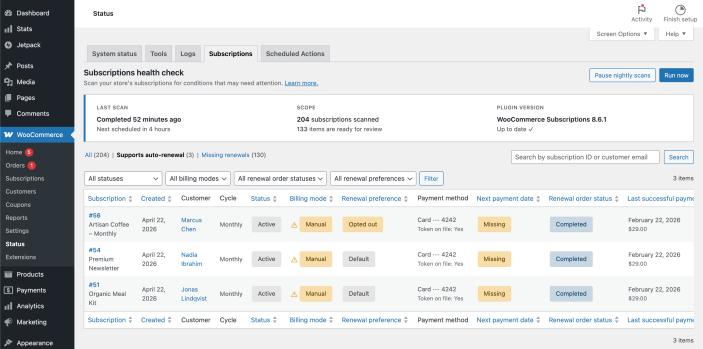
↑ Back to topGo to WooCommerce → Status in your WordPress admin, then click the Subscriptions tab.
Direct URL: /wp-admin/admin.php?page=wc-status&tab=wcs-health-check
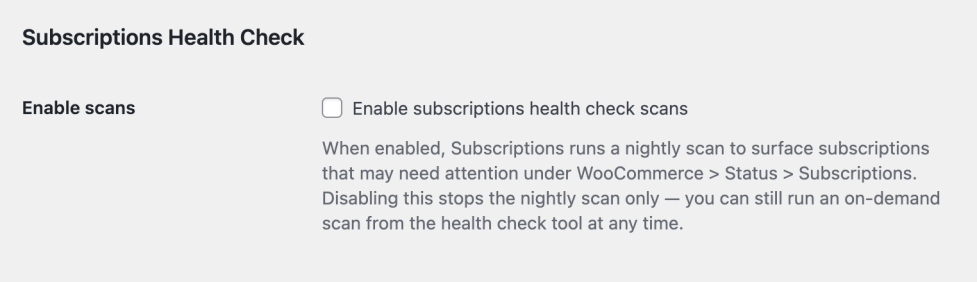
The tool runs a nightly scan automatically if enabled on WooCommerce → Settings → Subscriptions. You can also trigger a manual scan at any time using the Run now button.
Understanding your results
↑ Back to topSummary cards
↑ Back to top
At the top of the page, three cards give you a quick overview:
- Last scan — when the most recent scan completed, and when the next scheduled scan is due
- Scope — how many subscriptions were scanned and how many are ready for review
- Plugin version — your current WooCommerce Subscriptions version, with a prompt to update if a newer version is available
Tabs
↑ Back to top
The table has four filter views:
| Tab | What it shows |
|---|---|
| Supports auto-renewal (default) | Subscriptions flagged for manual renewal that have a valid saved payment token on a gateway that supports automatic renewal |
| Missing renewals | Subscriptions with a missing or overdue next payment date and no matching renewal order |
| Missing scheduled actions | Active subscriptions that renew automatically and have a next payment date in the future (and no end date on or before it), but no scheduled renewal payment action in WooCommerce > Status > Scheduled Actions. Without that action, the renewal would not run on its due date. Manual subscriptions and subscriptions whose payment gateway manages the renewal schedule are not included. Subscriptions whose next payment date is missing or already past are not included here. Added in version 9.4.0. Shows “Not scanned” until a scan has run on version 9.4.0 or later. |
| All | Every subscription in your store |
Columns
↑ Back to top| Column | What it means |
|---|---|
| Subscription | Subscription ID and product name, linked to the edit screen |
| Created | Date the subscription was created |
| Customer | Customer name, linked to their user profile |
| Cycle | Billing frequency (e.g. Monthly, Every 3 months) |
| Status | Current subscription status (Active, On hold, Pending cancel, etc.) |
| Billing mode | Whether the subscription is set to Manual or Automatic renewal |
| Renewal preference | Whether automatic renewal has been turned off for this subscription — either by the customer via My Account, or by the merchant |
| Payment method | Gateway name and last four digits of the saved payment token |
| Next payment date | Scheduled date of the next renewal, or a Missing badge if no date is set |
| Renewal order status | Status of the most recent renewal order |
| Last successful payment | Date and amount of the last completed automatic renewal |
You can show or hide columns using the Screen Options drawer at the top right of the page.
Badges
↑ Back to topBilling mode:
- Manual — subscription is currently set to manual renewal
- Automatic — subscription is set to automatic renewal
Renewal preference:
- Opted out — automatic renewal has been turned off for this subscription, either by the customer via My Account or by the merchant. Review the subscription history before changing it.
- Default — no explicit opt-out on record
Next payment date:
- A future date — a next payment date is set. If its renewal action is missing, the subscription appears in the Missing scheduled actions tab.
- Missing (—) — no next payment date is set
- A past date — the renewal date has passed with no matching order (if on the “Missing renewals” page)
What to do if subscriptions are flagged
↑ Back to topSupports auto-renewal tab
↑ Back to topThis tab shows subscriptions set to manual renewal that have a valid saved payment token — meaning they could renew automatically, but won’t until the billing mode is corrected.
Not every subscription on this list needs to be changed. Review each one before acting.
To review and correct a flagged subscription:
- Check the Renewal preference column before making changes:
- Opted out — automatic renewal has been turned off for this subscription, either by the customer or by the merchant. If you didn’t set this, check with the customer before changing it.
- Default — no explicit opt-out on record. This subscription is a likely candidate for correction.
- Check the Payment method column for the payment method on file
- Click the subscription ID to open its edit screen
- If the subscription should be renewing automatically
- Click on the edit billing details button
- Change the payment method from Manual Renewal to the payment method on file
- Save the subscription
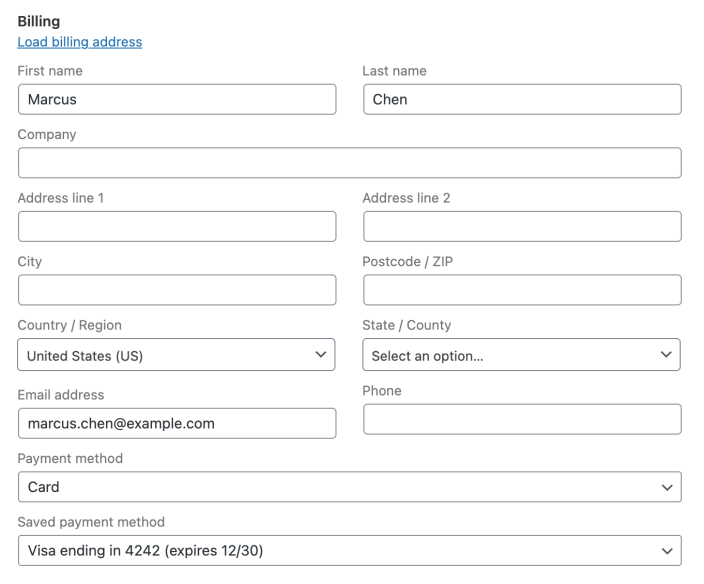
The nightly scan re-checks subscriptions within 24 hours. Corrected subscriptions drop off the list once resolved.
Changing billing mode to Automatic doesn’t trigger an immediate charge — the subscription will attempt automatic renewal on its next scheduled renewal date.
A note on customers with manual renewal subscriptions:
When a subscription is set to manual renewal, customers receive a renewal invoice email when their renewal date arrives (enabled by default in WooCommerce Subscriptions). If they didn’t complete that payment, their subscription may have lapsed. It’s worth reaching out directly — they may not know why access stopped.
Missing renewals tab
↑ Back to topThis tab shows subscriptions where the next payment date is missing or past due without a matching renewal order. These may indicate subscriptions stuck in an incomplete state. Common causes include plugin or custom code conflicts, server or migration issues, and scheduled actions not running correctly on your store.
For each flagged subscription:
- Open the edit screen and review the subscription’s history and status
- Check whether the subscription has reached its natural end date (in which case no action is needed)
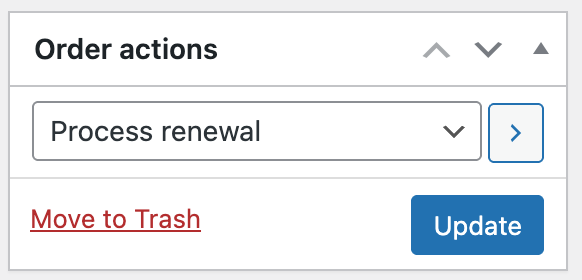
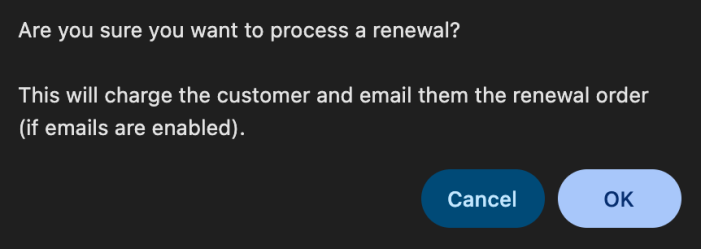
- If a renewal should have occurred, verify the payment method is still valid and there’s no pending renewal order. Then, manually trigger the renewal processing through order actions
- The subscription’s next payment date will be restored once the renewal order is successfully paid and marked as completed
Missing scheduled actions tab
↑ Back to topEach subscription in this tab is active, renews automatically and has a next payment date in the future. However, no renewal payment is scheduled for that date. If it isn’t fixed, the subscription won’t renew when the date arrives.
To fix a subscription, click Resolve on its row, then click Schedule renewal in the dialog. The tool adds the missing renewal payment action for the subscription’s existing next payment date and time. It doesn’t take a payment now, and it doesn’t change the subscription’s dates or status. The renewal is then processed automatically on its next payment date. A note reading “Health Check restored the scheduled renewal action for [date and time].” is added to the subscription.
If the subscription has changed since the scan (for example, it’s no longer active, or a renewal action now exists), it’s removed from the list and nothing is scheduled.
This check is only available when WooCommerce Subscriptions’ standard scheduler manages renewal payments. If a custom scheduler or another integration is in use, the tab shows a notice and no subscriptions are listed.
Until a scan has run on version 9.4.0 or later, the tab shows “Not scanned”. Click Run scan to check your store.
Scanning controls
↑ Back to topRun now — triggers an immediate scan outside the nightly schedule. Useful after making corrections when you want a fresh view.
Enable nightly scans / Disable nightly scans — controls whether the nightly scheduled scan happens. The Run now button still works while scans are paused. Use this if you notice performance issues on your store.
Tip for large stores:
Because each batch is scheduled one second after the last one finishes, a scan puts more load on your database while it runs. On stores with many subscriptions, start scans during low-traffic hours. Developers can slow scans down with the woocommerce_subscriptions_health_check_inter_batch_delay_seconds filter, which accepts a delay from 1 to 300 seconds between successful batches (default: 1).
Frequently asked questions
↑ Back to topWhat if I have a lot of subscriptions flagged?
Review a sample first to understand the pattern. Some may be legitimately manual — imported subscriptions, customers who opted out, or subscriptions on gateways that don’t support tokenization. Focus on the Supports auto-renewal tab with Renewal preference = Default, as those are the highest-confidence candidates.
Will changing billing mode to Automatic charge my customers right away?
No. It means the subscription will attempt automatic renewal on its next scheduled renewal date. Past missed payments are not charged retroactively.
Does Schedule renewal charge the customer?
No. Schedule renewal adds the missing renewal action for the subscription’s existing next payment date and adds a note to the subscription. It doesn’t change the date. The customer is charged on that date, as they would have been if the action had never gone missing.
My store has “Turn off automatic payments” enabled — what happens?
If your store has this setting enabled, all subscriptions are intentionally set to manual renewal. The tool will display a notice and pause scanning. To use the tool, disable that setting first under WooCommerce → Settings → Subscriptions.
Where can I get help?
If you’re unsure whether a subscription should be corrected, or you’re seeing unexpected results, contact WooCommerce Support.