
When Square is your Sync Setting, Square is the source of truth for your product catalog. Product data you manage in Square syncs automatically to WooCommerce at regular intervals.
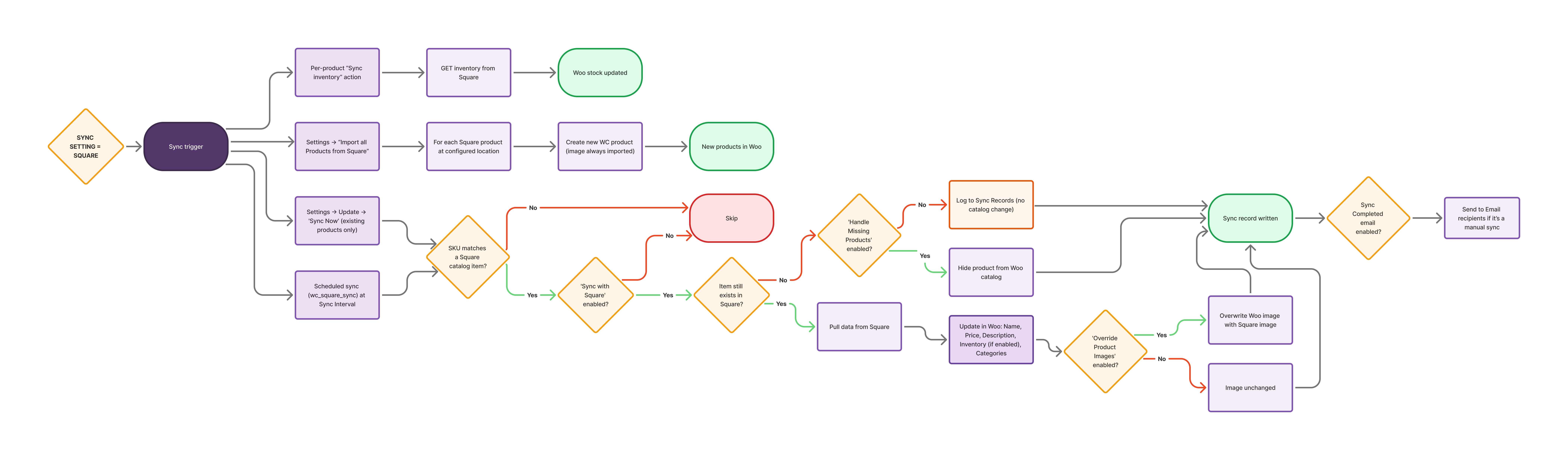
Configure Square-to-WooCommerce Sync
↑ Back to topGo to WooCommerce > Settings > Square to configure the following settings.

- Sync Settings: Set to Square. Product data syncs from Square to WooCommerce at the interval you configure.
- Sync Inventory: When enabled, WooCommerce fetches inventory counts from Square and updates stock for products that have Sync with Square ticked. See the FAQ page for more information on how WooCommerce decides when to update stock from Square.
- Override Product Images: When enabled, product images in WooCommerce are always updated to match Square. When disabled, images are only imported or updated when no Square-sourced image is already recorded on the product.
- Handle Missing Products: When enabled, synced products deleted from Square are hidden from WooCommerce shop listings. The product still exists in WooCommerce and is purchasable via direct URL – it is not deleted. When disabled, a notification is logged in Sync Records, and no action is taken on the product.
- Sync Interval: How often WooCommerce fetches product data from Square.
- Import Products: Click Import all Products from Square to import new products from Square that do not yet exist in WooCommerce. This is different from Sync Now. See Sync Now vs Import Products.
What Gets Synced
↑ Back to topWhen Square is the Sync Setting, the following fields sync from Square to WooCommerce on every automatic or manual sync:
| Field | Notes |
|---|---|
| Product Name | Syncs to the product name in WooCommerce. |
| Price | Square’s base price is imported as the Regular Price in WooCommerce. There is no separate sale price field in Square. |
| Description | Syncs to the product description in WooCommerce. |
| Product Image | New products imported from Square always have their image pulled from Square. For existing products, the image is only updated when “Override Product Images” is enabled; otherwise, the existing Woo image is left untouched. |
| Product Category | The primary (reporting) category from Square is synced to WooCommerce. If the product belongs to multiple categories in Square, only the first/reporting one is imported into WooCommerce. |
| Inventory Count | Syncs when “Sync Inventory” is enabled, for products with Sync with Square ticked. WooCommerce applies a count of zero only when Square confirms a stock count was previously recorded for the item. |
| Mark as Sold Out | The Square Mark as Sold Out field value is included in the inventory sync. A product is marked out of stock in WooCommerce only when Square confirms it genuinely sold out. When a product is back in stock, the sold-out state is cleared in Square too. |
| SKU | Used to match products between Square and WooCommerce. Both must have the same SKU. |
Note: Variation titles and images are not synced. Only the fields listed above are included.
Sync Now vs Import Products
↑ Back to topThere are two separate actions for bringing Square products into WooCommerce:
- Sync Now (WooCommerce > Settings > Square > Update tab): updates only existing synced products. It does not create new WooCommerce products for items that exist in Square but are not yet in WooCommerce.
- Import all Products from Square (WooCommerce > Settings > Square > Settings tab): Imports new products from Square into WooCommerce. Run this after adding products in Square that are not yet in WooCommerce.
Tip: Use Import all Products from Square when setting up a new store, switching to Square as the Sync Setting, or after adding products in Square. Once imported, future updates sync automatically.
How Automatic Sync Works
↑ Back to topWhen Square is the Sync Setting, the plugin pulls product data from Square to WooCommerce at the Sync Interval. This includes product names, prices, descriptions, categories, inventory counts, and images (if enabled).
Important: When Square is the Sync Setting, do not manually edit product data in WooCommerce. Any changes will be overwritten by Square’s data on the next sync. Manage all product data from the Square Dashboard.
If A Product Fails To Sync
↑ Back to topIf Square rejects one product because of a problem with that product’s own data, a name that is too long, for example, WooCommerce skips that product and carries on with the rest. The sync finishes and reports itself as completed with errors. The sync records name each skipped product, its SKU, and the reason Square gave.
Other kinds of failure stop the sync, on purpose. If Square is unreachable, times out, or rejects the request for a reason that is not about a single product, a location or permissions problem for example, the sync stops and reports the error instead of continuing. Carrying on in those cases risks creating duplicate items in Square, or quietly discarding stock updates for products that were never at fault.
A sync that skipped products can still show 100% progress. The progress figure counts products the sync has finished with, including skipped ones. Check the sync records for the completed-with-errors notice and the list of skipped products.