
WooCommerce Square keeps your product catalog and inventory counts aligned between WooCommerce and Square. You choose which platform the Sync Setting applies to; your choice determines which platform’s data overwrites the other during sync.
Before You Start
↑ Back to topFor sync to work correctly:
- Every product must have a SKU. SKUs are how the plugin matches products between WooCommerce and Square.
- Products must be assigned to the correct Square Location. Check WooCommerce > Settings > Square > Business Location.
- Background processing must be enabled on your server. This is required for automatic sync to run. Check WooCommerce > Status for any background processing errors.
Step 1: Choose Your Sync Setting
↑ Back to topGo to WooCommerce > Settings > Square, and choose the platform that serves as the source of truth under Sync Settings.
WooCommerce
(recommended for online-first stores)
Product data syncs from WooCommerce to Square. Inventory is still pulled from Square hourly to capture POS sales.
Square
(recommended for in-person-first stores)
Product data syncs from Square to WooCommerce. Use Import Products to bring new Square products into WooCommerce.
Step 2: Enable Sync Per Product
↑ Back to topSync must be enabled individually for each product you want to sync.
Enable sync for a single product:
- Go to Products > All Products.
- Edit the product.
- Check the Sync with Square checkbox.
- Click Update.
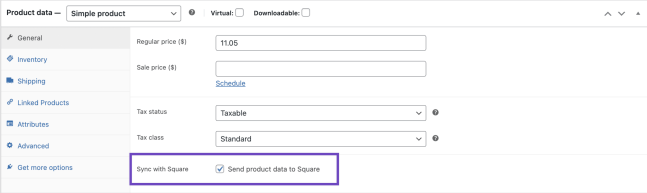
Enable sync for multiple products (bulk edit):
- Navigate to Products > All Products.
- Select the products you want to update.
- From the Bulk Actions menu, select “Edit” and click ‘Apply‘
- Update the Sync with Square? field to “Yes”.
- Click Update.
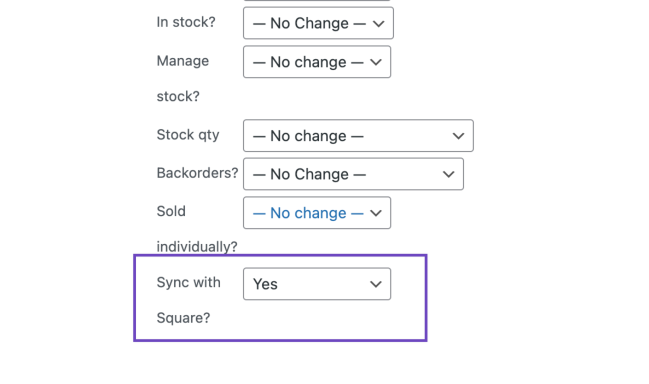
Variable Products
↑ Back to topVariable products are supported, but Square has limits on attributes and variations. For more information about these limits, refer to the Square documentation for CatalogItem and CatalogItemVariation objects.
| Setting | Description |
|---|---|
| Max attributes per product | 6 |
| Max terms per attribute | 250 |
| Max character length of attribute name | 65 |
| Max variations per product | 250 |
When Sync with Square is enabled on a variable product, WooCommerce displays a validation error when saving if any attribute or variation exceeds these limits. Only attributes used for variations are synced — unused attributes are excluded.
Capitalization of attribute values: Square treats two option values that differ only by capitalization as the same value, and does not allow both. So WooCommerce reuses the value Square already holds. If Square has “Blue” and WooCommerce has “blue”, the variation uses Square’s spelling. Your products stay grouped correctly, and no duplicate option is created in Square.
To use your own spelling, change the value in Square first, then run a sync so both platforms match.
Note: Variation titles and images are not currently synced between WooCommerce and Square.
Variation stock inherited from the parent product
↑ Back to topIf a variation is configured to use the parent product’s stock, WooCommerce uses the parent quantity for that variation. A stock count reported for the variation in Square may therefore not appear as a separate variation quantity in WooCommerce.
To track separate quantities, enable Manage stock for each variation and assign its own stock quantity, then sync again.
Stock Update Process
↑ Back to topSynchronization between WooCommerce and Square occurs at a set interval configured in the “Sync Interval” setting.
Negative stock and backorders
↑ Back to topWooCommerce can show a negative quantity when backorders are allowed and orders exceed available stock. Square does not represent negative inventory; it reports zero instead. This difference can be expected and does not by itself mean that sync failed.
If you need inventory behavior to match, review the product’s backorder settings and use the platform selected as your Sync Setting to manage the quantity.
For effective sync, ensure that the SKU (Stock Keeping Unit) matches between WooCommerce and Square products, that the Business Location is set correctly within WooCommerce > Settings > Square, and that you have enabled the “Sync with Square” setting at the product level.
Here’s how the process works:
- Automatic Sync: The plugin pushes updated product data to Square whenever:
- You make a change to a synced product via manual edit in WooCommerce, import, or API;
- The Sync Interval timer fires.
- Manual Sync: You can manually trigger a sync to immediately reflect changes made in your Sync Setting.
- Manual Fetching Stock at Product Level: You can manually fetch stock for a particular product by clicking “Sync Inventory” under the Product Data > Inventory tab. This button fetches stock even for a product you have excluded from automatic sync, because you are asking for it directly. The same applies to Import all Products from Square. To stop Square from changing a product’s stock, untick Sync with Square, and avoid these two actions for that product.
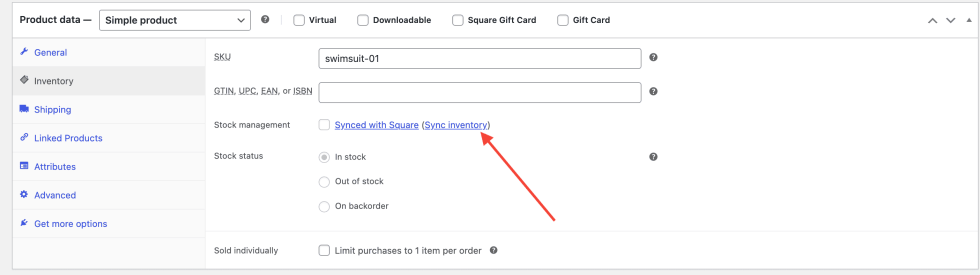
Manual Sync
↑ Back to topYou can manually sync products between WooCommerce and Square at any time to keep product data up to date. Before syncing, make sure the product is set to Sync with Square. Follow the steps below to manually sync your products:
- In your WordPress dashboard, go to WooCommerce > Settings > Square.
- Click the Update tab.
- Click Sync Now to start a manual sync.
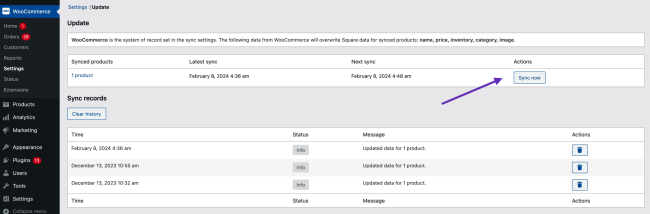
Track progress in the Sync Records section. You can also set up email notifications for sync completion under WooCommerce > Settings > Emails > Square Sync Completed.
When Sync with Square is enabled on a variable product, WooCommerce will display a validation error when saving if any attribute or variation exceeds these limits.
Receive Sync Email Notifications
↑ Back to topIf you have a large inventory, synchronizing your products between WooCommerce and Square may take a while. To keep you informed when a manual sync is completed, you can opt to receive a notification email.
- Go to WooCommerce > Settings > Emails.
- Click Square Sync Completed.
- Check the Enable checkbox.
- Enter the recipient email addresses, separated by commas.
- Click Save Changes.

Bulk manage synced products via CSV
↑ Back to topFor bulk updates, use the standard product fields in WooCommerce’s built-in importer/exporter or Product CSV Import Suite for WooCommerce. WooCommerce Square manages its Square catalog mappings automatically, so do not edit or copy Square catalog IDs in a CSV. After importing, enable Sync with Square for the products you want to synchronize and run a manual sync.
Best practices for bulk managing products via CSV
↑ Back to top- Give every product and variation a unique, non-empty SKU. SKUs are how the plugin matches to Square. No SKU means no sync.
- Import parents before variations, and don’t sync variable products until their variations exist. A single CSV containing both is handled correctly by the importer. If you split into two files, import parents first, and note that a variable product with zero variations will not sync to Square at all.
- Enable “Sync with Square” after the import completes, using Bulk Edit. This prevents half-imported rows from being pushed to Square.
- Don’t carry Square catalog IDs across Square accounts when migrating to another site. If the destination site is connected to a different Square account or sandbox than the source, reconnect to the destination account and run a sync so WooCommerce Square can create the correct mappings. Do not copy Square catalog IDs between accounts.
After the import, check a few products in WooCommerce and Square to confirm that names, prices, SKUs, and inventory match. If a product does not sync, review Sync Records for its name, SKU, and error, fix the product data, and run the sync again.

