
Whether your store is brand new or has been running the same PayPal setup for years, this guide gets you onto the latest PayPal Payments plugin without surprises.
PayPal is retiring PayPal Standard, the classic gateway many WooCommerce stores have used for years. The latest PayPal Payments plugin connects your store to PayPal’s modern, more secure REST API, unlocking more payment methods, stronger fraud protection, and faster support. Older integrations like PayPal Standard and PayPal Checkout will keep working for now if you do not upgrade immediately, but they will not receive new features, and they sit on connection technology that is being phased out. Moving to the latest plugin is the safe, supported path forward.
Starting with PayPal Payments 4.1.0, the move off PayPal Standard is handled for you: once you connect a PayPal account to the modern integration, PayPal Standard is automatically disabled and hidden so your checkout runs on one clean, modern integration. Active subscriptions are protected (more on that below).
If the idea of touching an older store makes you nervous, that is exactly what this page is built for. We will tell you what you are working with before you change anything, give you a clear route that matches your store, and put help one click away at every step.
Start here: run the Upgrade Readiness Tool
↑ Back to topBefore you update a single thing, run the tool. It looks at your store and tells you exactly where you stand.
The Upgrade Readiness Tool is a free helper plugin you run from inside your WordPress admin. It is read-only. It does not change your site, your settings, or your live checkout. It simply reads your current setup and reports back, giving you a simple upgrade path for your store.
Download the Upgrade Readiness Tool plugin
What it checks:
- Which PayPal integration you are on today. PayPal Standard (built into WooCommerce), PayPal Express Checkout (PPEC), PayPal Pro, or an existing PayPal Payments install.
- Your environment. Your WordPress, WooCommerce, and PHP versions, compared against what the latest plugin needs.
- Known conflicts. Plugins or themes that have caused checkout issues with PayPal Payments in the past.
- Subscriptions. Whether you have active recurring payments that need special care during the upgrade.
What you get back:
A plain-language result that tells you how straightforward your upgrade will be, whether you can complete it yourself in a few minutes, and exactly where to get help if your store needs a little preparation first. If anything looks risky, you find out before you start, not halfway through.
After the tool checks your store, it shows the readiness results and the next PayPal Payments step inside WordPress admin.
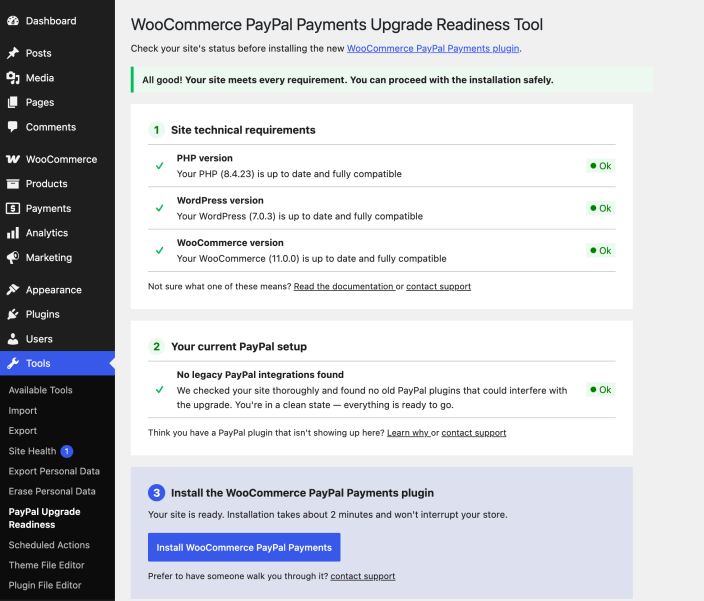
Installation and setup instructions are listed below, along with additional guidance on what to consider before you begin your upgrade to the latest PayPal Payments plugin.
Which of these sounds like your store?
↑ Back to topEvery store is a little different. Read the description that matches yours. The Upgrade Readiness Tool will confirm it for you and point you to the right next step.
If your store is already up to date
↑ Back to topYour WordPress, WooCommerce, and PHP versions are current, and nothing conflicts with the new plugin.
This is the smooth case. You install the latest PayPal Payments plugin (or update the version you already have), then connect your PayPal account. Most merchants finish in just a few minutes, on their own. Jump to the upgrade steps below.
If your store needs a few updates first
↑ Back to topYour store works fine today, but your WordPress, WooCommerce, or PHP version is older than the latest plugin needs, or the tool flagged a plugin or theme that could affect checkout.
Updating an older store can occasionally make something behave unexpectedly, and we take that seriously. You do not have to do this alone. If you would like a hand, the Readiness Tool passes your details straight to our support team so we can guide you through the updates in the right order and keep an eye out for anything that needs attention. You stay in control of your store the whole time.
If your store is complex, or you would rather we handle it
↑ Back to topYour store runs on older hosting, has significant custom development, sells subscriptions or memberships, or simply cannot be updated through the normal process.
Stores like these deserve a careful, hands-on approach, and that is completely fine. Start with the Readiness Tool rather than making changes blindly: it is read-only, changes nothing, and gathers the technical details our team needs so we can start helping right away, without a long back-and-forth. If your store needs preparation, our team can guide the updates in the right order so that nothing on your live store is put at risk.
Whichever description fits, you are never stuck. If a do-it-yourself step does not go the way you expect, you can request help from our team at any point.
What happens to PayPal Standard when you upgrade
↑ Back to topThis is the single most important thing to understand, and it is true for every store.
PayPal Standard is being retired. It has had no path forward in WooCommerce core since version 8.9 (May 2024), and it now survives only through legacy configuration. PayPal Payments 4.1.0 completes the move for you, and it does so gently:
- Updating to 4.1.0 changes nothing on its own. If you are still running PayPal Standard alongside PayPal Payments, the update alone leaves it exactly as it is.
- Connecting your PayPal account is the trigger. When you successfully connect a merchant account to PayPal Payments, PayPal Standard is automatically disabled and hidden from your checkout. Customers then land only on the modern integration. There is nothing to switch off manually.
- Active subscriptions are protected. If the plugin detects subscriptions still running on PayPal Standard, it leaves PayPal Standard in place rather than disabling it (see the subscriptions section below).
In short: the change only happens when you choose to connect, and never at the cost of breaking a working checkout.
You still reconnect your PayPal account once
↑ Back to topOlder PayPal integrations connect to your account using a legacy API username and password. The latest plugin connects using PayPal’s modern, more secure method (a Client ID and Client Secret you generate with one click during connection). There is no automatic way to convert the old connection into the new one. So as part of your upgrade, you will reconnect your PayPal account once.
What to expect:
- It takes a few minutes. You click Connect to PayPal, log in, approve, and you are done.
- Most of your existing PayPal settings carry over to the new plugin automatically where possible. You are reconnecting the account, not rebuilding your configuration from scratch. PayPal Payments also includes newer options that older integrations did not have, so review the optional features after the upgrade.
- If you would rather not handle the reconnection yourself, our team can guide and assist you the entire way. Every store needs to reconnect once because the old and new connection methods are not interchangeable, but the reconnection usually takes only a few minutes.
Your past transactions are unaffected by reconnecting. They continue to live in your PayPal account. Recurring payments need a little more explanation, which is covered next.
Selling subscriptions or memberships? Read this first
↑ Back to topRecurring payments are the one area where upgrading needs extra care. The reassuring headline is that your existing subscribers keep getting billed. The detail that matters is how each subscription keeps running, because that depends on how it was set up.
The plugin is built to protect active subscriptions. When PayPal Payments 4.1.0 detects that you have active or pending-cancel subscriptions still running on PayPal Standard, it deliberately leaves your legacy PayPal Standard option in place rather than disabling it, so existing renewals are never cut off. You then receive a notice telling you how many subscriptions are affected and where to find them. Nothing disappears the moment you connect.
Here is what happens to each kind of subscription:
Subscriptions billed directly by PayPal (legacy PayPal Standard agreements). PayPal holds these recurring agreements on its side, and they continue to renew. You do not move them anywhere. The plugin keeps PayPal Standard available specifically so these renewals are not interrupted, and they run on as they always have until they naturally end.
Subscriptions managed by the WooCommerce Subscriptions extension. Here it depends on which PayPal method was processing them:
- If they ran through PayPal Checkout (the older PPEC extension): the new PayPal Payments plugin can take these over, so renewals move onto the modern integration going forward.
- If they ran through PayPal Standard: the new plugin does not take these over, and that is okay. Your legacy PayPal Standard option stays available for as long as you have active subscriptions in WooCommerce, so those renewals keep processing without interruption while they wind down.
Our recommendation: if you sell subscriptions or memberships, let our team help rather than going it alone. Your subscribers keep getting billed, but the right setup depends on your particular mix of subscription types. A short check with us before and after the upgrade is the surest way to confirm that every renewal keeps flowing. The Readiness Tool will flag your subscriptions and connect you with our dedicated upgrade support team.
Before you begin
↑ Back to topA few minutes of preparation removes almost all of the risk.
- Back up your site. A complete backup (files and database) is essential before any plugin change. If anything goes sideways, you can restore in minutes. Don’t have a backup solution ready? Message your hosting provider or install a plugin like UpdraftPlus or BackWPup to create regular backups of your site.
- Note your current settings. Take a screenshot of your existing PayPal configuration so you have a reference for the specific configurations you may have applied in the past.
- Pick a quiet window. Schedule the upgrade during low-traffic hours to minimize customer impact.
Upgrade steps
↑ Back to topThe detailed, screen-by-screen instructions already live in the official WooCommerce documentation, and we keep those current. Use the guide that matches your situation:
- If you can’t use the official Upgrade Readiness Tool due to policy, check version and environment requirements: Compatibility
- Updating an existing PayPal checkout plugin or installing PayPal Payments fresh: PayPal Payments Upgrade Guide
- Connecting your PayPal account (full walkthrough): Account Setup and Onboarding
- Configuring the plugin after upgrade: Plugin Settings Guide
Download the official Upgrade Readiness Tool: PayPal Payments Upgrade Readiness Tool
The short version:
To install the Upgrade Readiness Tool, you can manually upload it and install it through the Plugins admin screen.
- Back up your site (see above).
- Download the Upgrade Readiness Tool plugin.
- Navigate to Plugins > Add New.
- Click the Upload Plugin button at the top of the screen.
- Select the zip file from your local filesystem.
- Click the Install Now button.
- When the installation is complete, you’ll see “Plugin installed successfully.” Click the Activate Plugin button.
- On the Plugins page, select the Upgrade Assistant link next to the Upgrade Readiness Tool plugin.
- Run the Upgrade Readiness Tool and follow the guidance it provides.
- If your store is ready for the latest PayPal Payments extension, the Upgrade Readiness Tool will send you to the PayPal Payments installation flow.
Requirements for the latest PayPal Payments plugin:
- a PayPal business or personal account
- WordPress 6.5+
- WooCommerce 9.6+
- PHP 7.4+
The Readiness Tool confirms whether you meet these before you start.
If something breaks, or you would rather not risk it
↑ Back to topYou do not have to troubleshoot alone, and you do not have to be technical to get this done.
- Hand off from the Readiness Tool. If the tool finds anything that needs preparation, it can send your store’s details (versions, active plugins, detected conflicts, current PayPal integration, and your upgrade scenario) straight to our support team with one click. They get everything they need to help and will get back to you with guidance, without asking you to dig for technical information.
- Talk to a Payments Specialist. Call (888) 429-3035 for guidance through any part of the upgrade.
Our promise: if your upgrade hits a wall, you can reach a real person at any step. The goal is a working checkout on the latest plugin, and we stay with you until you have one.
After you upgrade: optional features to review
↑ Back to topAfter the upgrade, review these optional PayPal Payments features.
Advanced fraud protection (anti-carding / reCAPTCHA)
↑ Back to topProtects your store against carding attacks by showing anti-bot verification (reCAPTCHA) dynamically, based on fraud scoring. Available by default on version 3.3.0 and later.
To configure: WooCommerce > Settings > Integration, select WooCommerce PayPal Payments reCAPTCHA, and enable both v2 and v3. (You will need a Google account to generate your keys. The default v3 risk threshold is 0.5.)
Fastlane – No account. No password. Just fast, secure checkout.
↑ Back to topFastlane is a fast and easy way for guest users to check out online. Buyers save their card and shipping info with Fastlane during their first checkout with any participating Fastlane store. Then, Fastlane prefills the buyer’s saved details on future purchases everywhere Fastlane is available. Buyers are always able to review their details before paying. See Fastlane in action or get more details in the FAQ section.
To configure: WooCommerce > Settings > Payments > PayPal Payments > Payment Methods, enable Fastlane by PayPal. Note: You will need to enable Advanced Credit and Debit Card Payments to use Fastlane.