
WooCommerce 11.0 includes an experimental abandoned cart recovery email. It lets you send one reminder to an eligible shopper with a link to finish paying for their order.
Note: Abandoned cart recovery is experimental and disabled by default. Test it before enabling automatic emails on a live store.
Enable abandoned cart recovery
↑ Back to top- Go to WooCommerce > Settings > Advanced > Features.
- Under Experimental features, select Abandoned cart recovery.
- Select Save changes.

Configure the recovery email
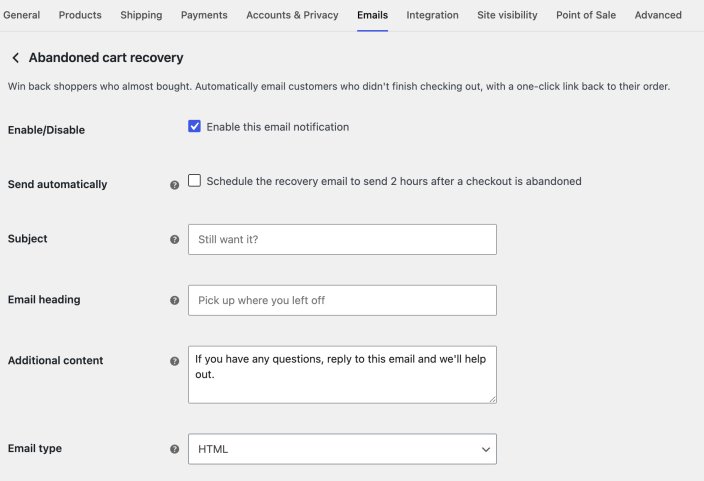
↑ Back to topGo to WooCommerce > Settings > Emails > Abandoned cart recovery. You can configure:
- Enable this email notification — Allows WooCommerce to send the recovery email.
- Send automatically — Schedules the email for eligible orders. This option is disabled by default.
- Subject and Email heading — Control the email subject line and main heading.
- Additional content — Adds your own message below the order details.
- Email type — Sends the message as plain text, HTML, or multipart email.
Use Email preview and Send a test email on the settings page to check your changes. For more information about these controls, see Email settings.
Eligible orders
↑ Back to topWooCommerce can send a recovery email when the order has a valid billing email address and the recovery notification is enabled.
- For a manual email, the order must be at least one hour old and have the Pending payment or an eligible Checkout draft status.
- For an automatic email, the order must be an eligible checkout order that remains in Pending payment for two hours.
WooCommerce sends no more than one recovery email for an order. It does not send the email if the order is no longer eligible, an email has already been sent, or the customer has unsubscribed from checkout recovery emails.
Send a recovery email manually
↑ Back to top- Go to WooCommerce > Orders and open an eligible order.
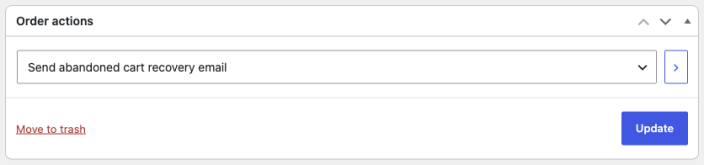
- In the Order actions panel, select Send abandoned cart recovery email.
- Select the arrow button to apply the action.
WooCommerce adds an order note after it sends the email.
Automatic recovery emails
↑ Back to topEnable Send automatically in the email settings to have WooCommerce schedule a recovery email two hours after an eligible checkout becomes a pending order.
If the order leaves Pending payment before the scheduled time, WooCommerce cancels the email. Sending the recovery email manually also prevents the scheduled email from sending a duplicate.
Customer experience and unsubscribing
↑ Back to topThe email includes the order number and date, your configured content, and a Finish checking out link. The link takes the customer to the order payment page.
Each message also includes an unsubscribe link. After a customer unsubscribes, WooCommerce does not send that email address any more checkout recovery emails from your store, either automatically or manually.
Use with AutomateWoo or MailPoet
↑ Back to topThe core WooCommerce feature sends a single transactional reminder. AutomateWoo, MailPoet, and other marketing tools can provide multi-step campaigns, segmentation, and additional automation.
When WooCommerce detects a supported recovery tool, the core notification starts disabled to reduce the chance of duplicate messages. Choose one recovery flow or coordinate overlapping flows intentionally.
Troubleshooting
↑ Back to topThe manual action is not available
↑ Back to topCheck that the feature and email notification are enabled, the order is at least one hour old, its status is eligible, and it has a valid billing email. The action also disappears after an email has been sent or the customer has unsubscribed.
An automatic email was not sent
↑ Back to topConfirm that Send automatically is enabled and that the order came from a shopper checkout. The order must remain in Pending payment until the scheduled send time. Check its order notes for a sent recovery email or a status change.