
Subscription includes
Support
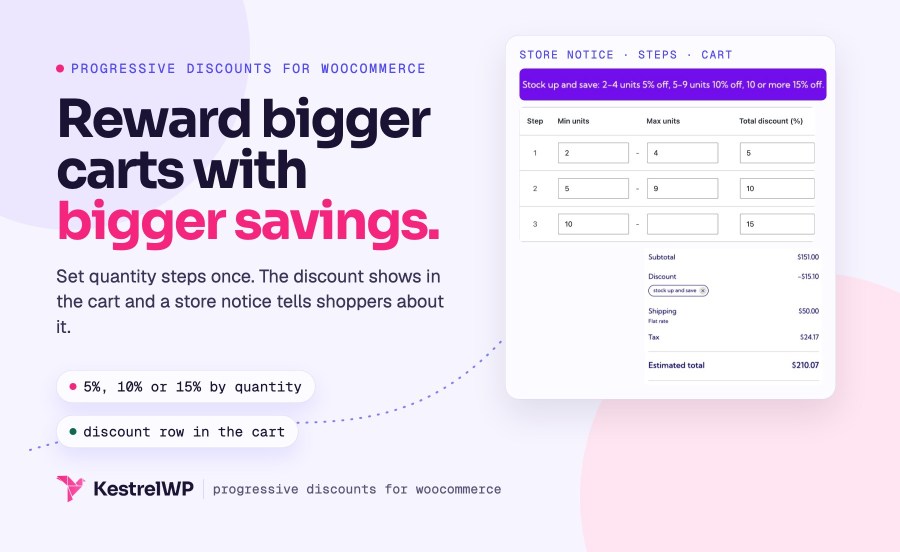
Offer WooCommerce bulk discounts that reward bigger baskets and apply themselves. Progressive Discounts for WooCommerce lets you offer 5% off at 2 items and 10% at 5, or a fixed amount off once the cart subtotal passes a set value. The discount is added to the cart as a coupon, shows as its own row in cart and checkout, and works across the whole store or only for products and categories you choose. It suits stores that want a quantity discount or a spend threshold without building coupons by hand. Built by Kestrel, a long-time WooCommerce extension developer.
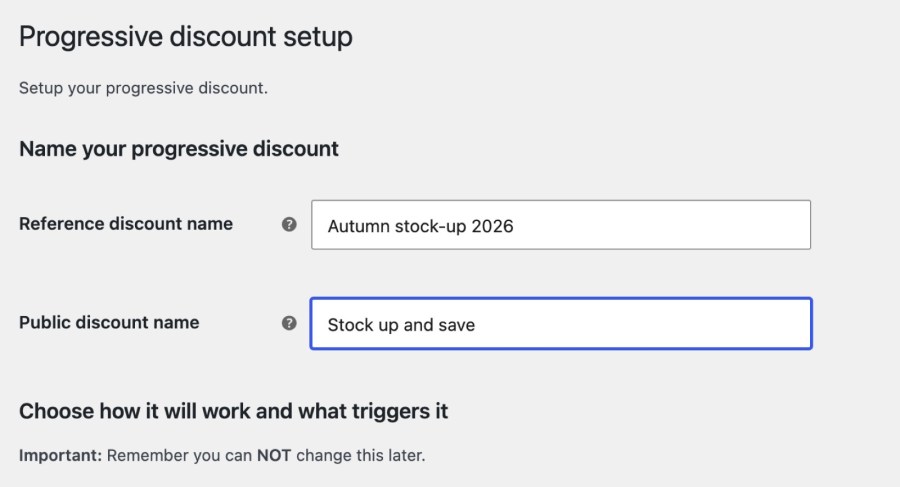
Pick a percentage or a fixed amount, then choose what counts toward the discount: the number of units in the cart, or the cart subtotal. Both choices are fixed when you create the promotion, so to change either you create a new one. Give the promotion a reference name for you and a public name your customers see in the cart, at checkout and in cart notices. A public name such as “Stock up and save” tells shoppers why the price dropped, which is half of what makes a discount feel earned.
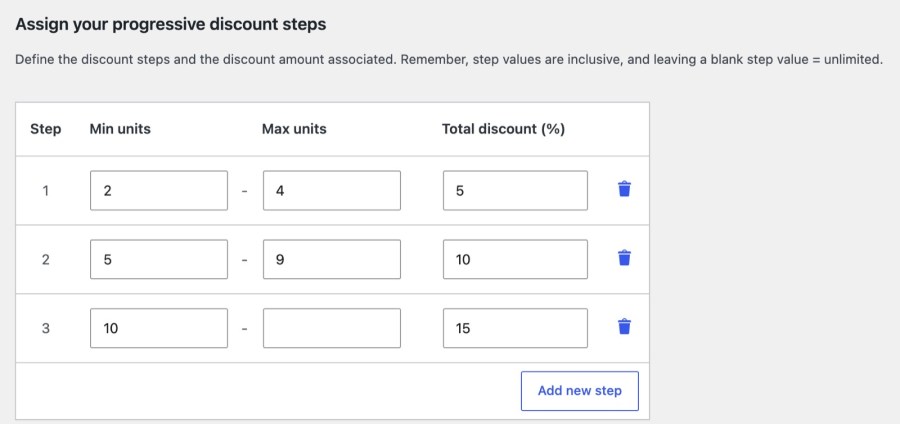
Add a table of steps, each with a minimum, a maximum and a discount. The discount grows with the basket: for example, 2 to 4 units get 5%, and 5 or more get 10%. Minimums and maximums are inclusive, each minimum must sit above the previous step’s maximum, and only the last step can leave its maximum empty. Percentages come off each covered product, while a fixed amount comes off once per cart, spread across the covered products, so you can predict what a shopper will pay at every step.
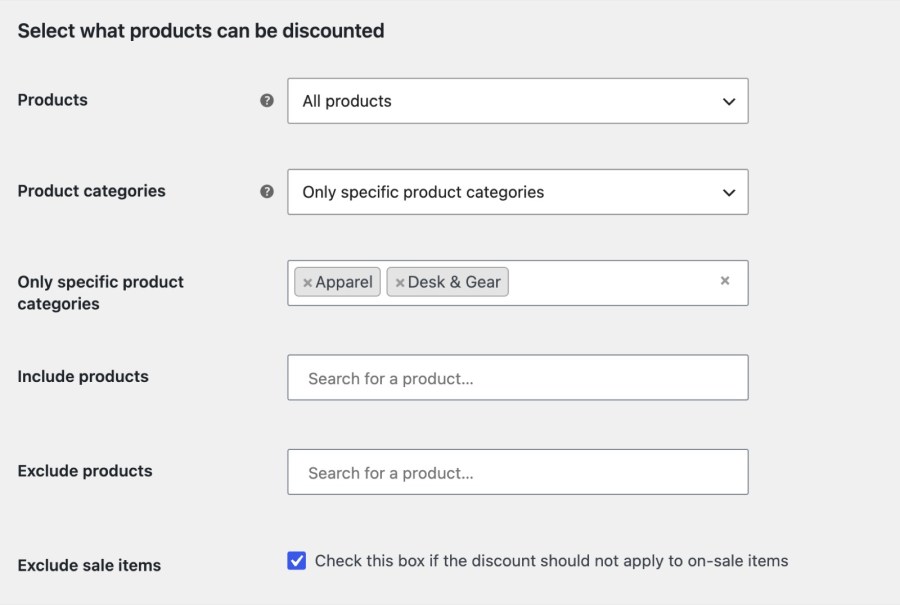
Apply the promotion to all products, to all except some, or to only some, by product or by category, and a category covers its subcategories. Exclude sale items if you don’t want to stack discounts. Only covered products count toward the trigger: their quantity, or their subtotal before tax and discounts. That means a quantity discount on one category isn’t triggered by a cart full of something else, which keeps the promotion aimed at the products you chose and stops it firing on unrelated items.
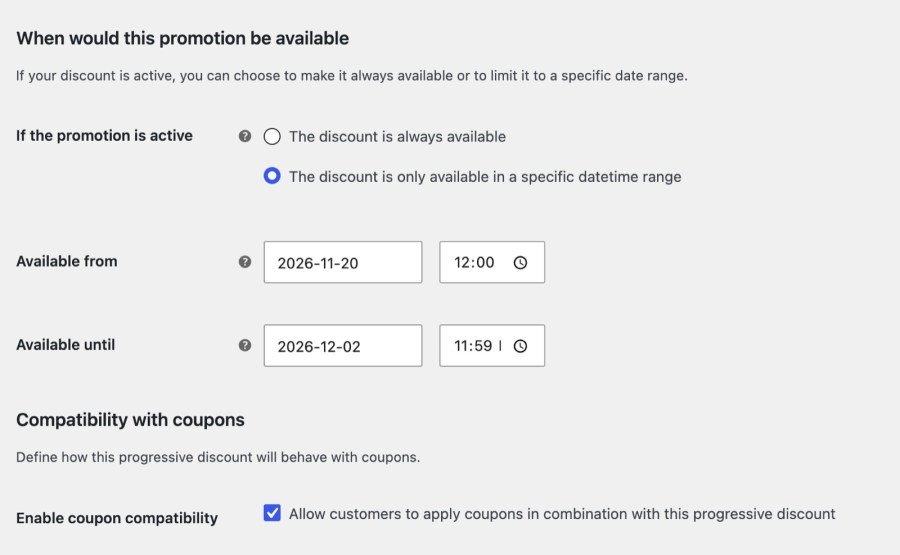
Keep the promotion always available, or set Available from and Available until with a date and time in your WordPress time zone. The discount stops applying when the end time passes, even mid-visit. Turn on coupon compatibility to let customers use other coupons with the promotion. With it off, applying a coupon removes the progressive discount, and it comes back if the coupon is removed. A coupon set to individual use also blocks it, so you decide whether the promotion stacks.
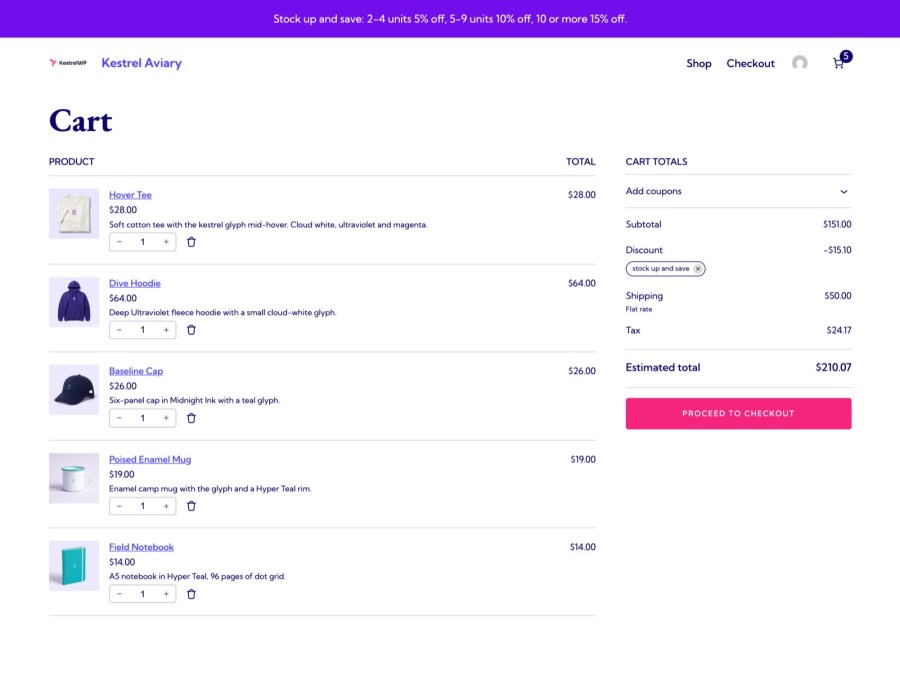
The discount is added to the cart and removed as the cart changes, with its own row in the totals. On the classic cart, customers see a message that they got the discount, and a message when it is no longer available. Add notice text and it appears as a banner across your store while the promotion is active and within its dates, so customers hear about it before they fill the cart. Outside those dates the banner disappears on its own.
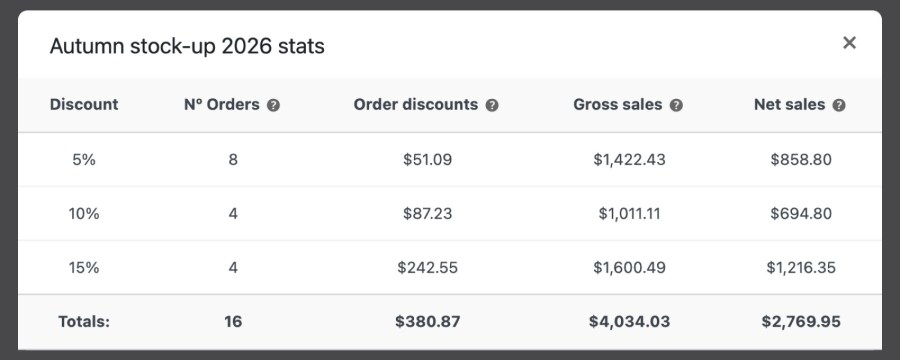
The discount appears as its own row in order totals on the order received page, in emails and My Account, and on the admin order screen, under the public name. Each promotion’s stats show orders, discounted amount, gross sales and net sales, with a row for each step, so you can see which tier your customers actually reach. Failed, refunded and cancelled orders are left out, which keeps the figures close to what you earned. Use them to decide whether to move a threshold for your next promotion.
Progressive Discounts works in the cart. To announce a bulk discount on the product page, Product Price Before and After Text can add a line such as “Buy 5, save 10%” beside the price, set for the whole store, a category or one product. Order Tags can label orders by order total, so you can filter the larger baskets the promotion brings in. The discount applies as a WooCommerce coupon, so Enable coupons must be on in WooCommerce » Settings » General; the plugin shows a notice if it isn’t.
Every setting is covered in the Get started with Progressive Discounts guide.
Built and supported by Kestrel, a long-time WooCommerce extension developer.

Yes. Choose units in the cart as the trigger and set steps, such as 5% off at 2 items and 10% at 5. The discount applies automatically when the cart reaches a step, and the customer sees it as its own row in the cart totals.
Yes. Choose the cart subtotal as the trigger and set steps by amount, with a percentage or a fixed discount. Only covered products count toward the subtotal, before tax and discounts.
Yes. Apply it to all products, all except some, or only some, by product or category, and exclude sale items. Only covered products count toward the steps, so the promotion stays aimed at what you chose.
No. Progressive Discounts works on the cart, not on the product page, so there is no per-product price table. The discount shows in the cart totals, at checkout and on the order, and a store notice can announce the promotion.
You choose. With coupon compatibility on, customers can use other coupons with the promotion. With it off, applying a coupon removes the progressive discount until that coupon is removed. A coupon set to individual use also blocks the discount.
No. Only one promotion is active at a time, and Save and activate pauses any other, though you can schedule one with Available from and Available until. It doesn't do buy-one-get-one, free gifts, bundles, attribute discounts or day-of-week schedules.
Categories
Extension information
Quality Checks
Countries
Languages