
NOTE
This product is no longer available on WooCommerce.com. This document has been left available for existing users, but will no longer be updated.
SMS Mobile API Order Notifications enables your WooCommerce store to send SMS and WhatsApp messages directly from your own mobile number, ensuring personalized communication with your customers.
Installation
↑ Back to topTo start using a product from WooCommerce.com, you can use the “Add to store” functionality on the order confirmation page or the My subscriptions section in your account.
- Navigate to My subscriptions.
- Find the Add to store button next to the product you’re planning to install.
- Follow the instructions on the screen, and the product will be automatically added to your store.
Alternative options and more information at:
Managing WooCommerce.com subscriptions.

Setup and Configuration
↑ Back to topGetting started
↑ Back to topInstallation
↑ Back to topGetting started with SMS Mobile API is quick and easy. Follow these steps to integrate and start sending SMS notifications from your personal mobile number:
- Download and Install the Plugin:
- Download the SMS Mobile API plugin and install it through the WordPress admin dashboard.
- Activate the plugin to begin configuring your settings.
- Download the Official Mobile App:
- Head over to Google Play or Apple Store and download the official Sms Mobile API mobile app.
- Install the app on your mobile phone.
- Generate Your API Key:
- Once the mobile app is installed, open it, and follow the prompts to generate your unique API key.
- This key is essential for linking your WooCommerce store with your mobile phone.
- Enter the API Key in the Plugin:
- Return to your WordPress dashboard and navigate to the SMS Mobile API settings page.
- Enter the API key provided by the mobile app into the designated field in the plugin settings.
- Save your settings to complete the integration.
- Start Sending SMS:
- With the plugin and mobile app linked, your WooCommerce store is now ready to send SMS notifications directly from your mobile phone.
- Every time a customer places an order or when their order status changes, a personalized SMS will be sent from your mobile number, allowing them to reply directly to you.
By following these steps, you can quickly and easily set up SMS Mobile API, ensuring seamless and direct communication with your customers through your personal mobile device
Advanced configuration
↑ Back to topUnlimited Message Customization with WooCommerce Meta Keys
Unlock the full power of WooCommerce meta keys to personalize your messages infinitely!
With this advanced feature, you can dynamically insert any data stored in the post_meta table, whether it’s a custom field, order details, or specific shop information.
📌 Key Benefits:
✅ Add custom fields tailored to your customers and orders
✅ Display unique shipping details
✅ Include advanced payment and order status information
💡 How It Works?
Simply use the following structure in your messages: [meta_key]
Example:
If an order contains from post_meta table:
META_KEY : _tracking_number
→ ABC123456
META_KEY :_custom_note
→ Urgent order, fast shipping!
A message template like:
Your order [order_id] has been shipped! Tracking: [_tracking_number]
. Note: [_custom_note]
📩 Customize your SMS, emails, and notifications without limits and automate your communications like never before!
Usage
↑ Back to top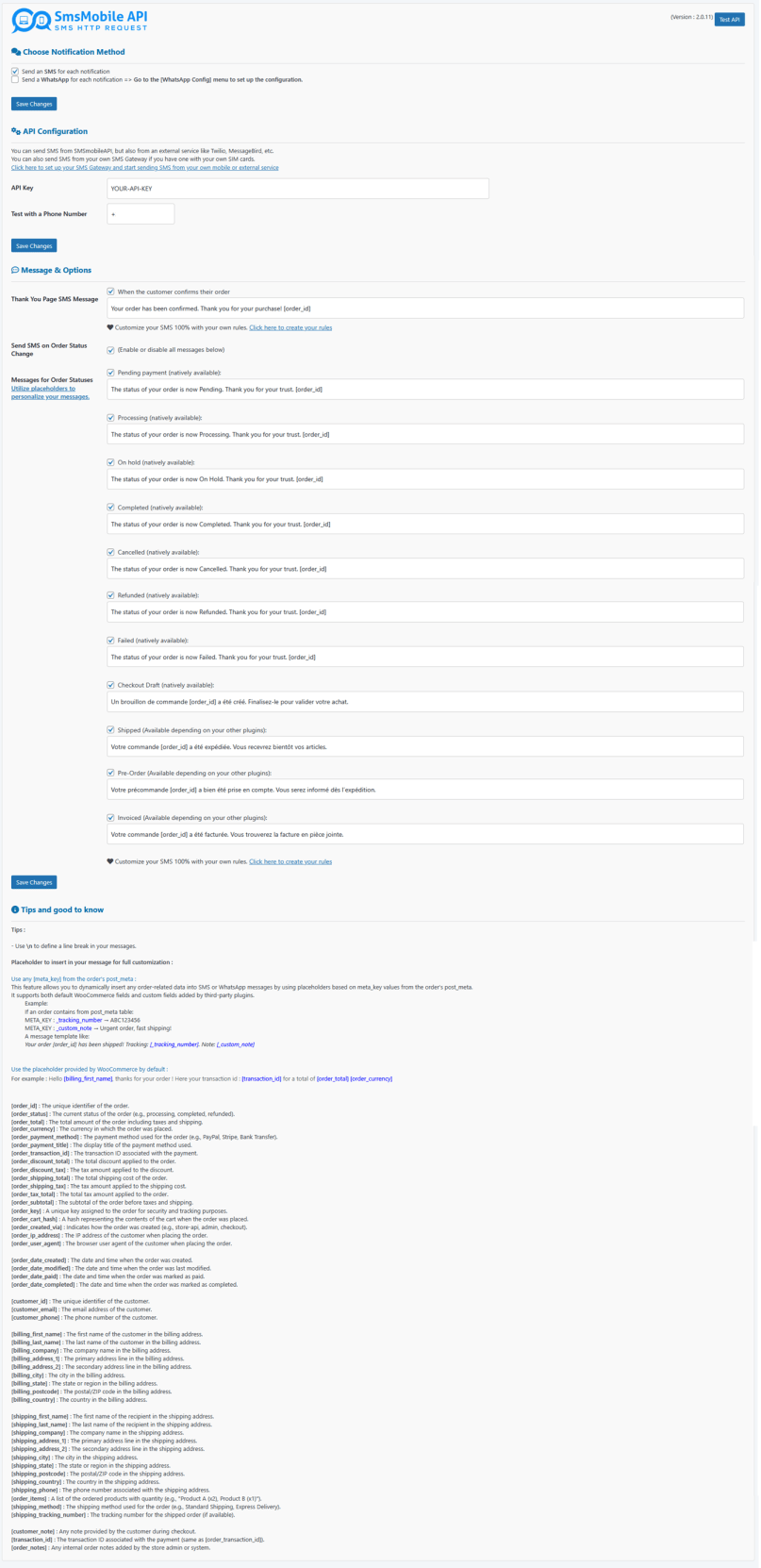
Troubleshooting
↑ Back to topIf an SMS is not sent, please check the following points:
- Make sure the mobile device connected to SMSMobileAPI has an active internet connection.
- Make sure the mobile device is still properly connected to the same SMSMobileAPI account linked to the API key entered in the WooCommerce plugin settings.
- Verify that the API key configured in WooCommerce matches the account currently connected in the SMSMobileAPI mobile app.
- If the SMSMobileAPI app is running in the background, a sending delay of up to 12 minutes may occur due to mobile operating system restrictions and battery optimization policies.
- If the SMSMobileAPI app is open and running in the foreground, SMS sending is usually processed immediately.
Important:
For the best performance and fastest delivery, make sure the mobile device is connected to the internet, linked to the correct account, and that the SMSMobileAPI app is active. Known errors or issues and how to solve them.
FAQs
↑ Back to top
How does it work?
* Install the SMS Mobile API app on your Android or iOS device.
* Create an account via mobile app or via our website
* Retrieve your API key from the app dashboard.
* Use the API to send SMS via HTTP requests.
Can I use my own phone number to send SMS?
Yes! SMS Mobile API uses your own mobile device to send SMS, meaning messages appear as if they were sent manually from your phone.
What is the SMSMobileAPI plugin for WooCommerce?
The SMSMobileAPI plugin for WooCommerce allows store owners to send SMS and Gateway messages for order notifications, customer updates, and more.
It works by using your own mobile device to send messages, ensuring reliability and cost efficiency
What can I do with this plugin?
With the SMSMobileAPI WooCommerce plugin, you can:
* Send Gateway messages for each order status updat
* Send SMS messages for each order status update.
* Send SMS from your own mobile or through your preferred SMS provider.
* Send SMS from your own SMS Gateway / Modem SIM
* Use custom keywords in SMS to personalize messages based on the order and customer details.
* Create rules and conditions to automatically trigger SMS based on order status, customer type, or other criteria.
* Send messages directly from a customer’s profile page for quick communication.
* Choose between SMS, Gateway, or both for message delivery.
* View detailed message logs to track sent messages.
* Contact technical support directly through the plugin.
Does it support Gateway messages?
Yes! You can also send Gateway messages via API by connecting your personal account.
How do I connect my external SMS service (e.g. Twilio, MessageBird, etc.) or my SMS gateway?
Go to your SMSMobileAPI account dashboard (accessible from the plugin), then select your preferred SMS service and enter your credentials for that provider.
An API key will be automatically generated by SMSMobileAPI — simply copy and paste that API key into the SMSMobileAPI plugin settings, and your connection is ready!
How can I receive SMS via the API?
Enable the Receive SMS feature in the app.
Use the API endpoint to fetch received messages in real-time.
How secure is SMS Mobile API?
End-to-end encryption protects API communications.
Your SMS are not stored on third-party servers.
You are in full control of your SMS and Gateway, as they are sent from your device.
Can I automate replies to incoming SMS?
Yes! You can set up an AI chatbot (powered by OpenAI) to automatically respond to SMS received on your phone.
How can I get support?
1) Email: support@smsmobileapi.com
2) Via the plugin, there is a menu dedicated to technical support where messages are sent directly to the support team through the SMS Mobile API plugin.
How do I customize SMS messages?
You can use custom keywords in your messages to personalize them. Example placeholders include:
{customer_name} → Inserts the customer's name {order_id} → Inserts the order number {total_price} → Inserts the total order price and 50 other keywords to use !
You can define and modify these templates in the plugin settings.
How do I set up custom rules for sending SMS?
The plugin allows you to create custom rules and conditions to trigger SMS messages based on:
Order status changes (e.g., Order Completed, Payment Failed, etc.). Customer type (e.g., new vs. returning customer). Specific products or categories. Any other conditions you define.
You can set up these rules in the SMS Automation Settings of the plugin.
Can I manually send messages to customers?
Yes! You can send an SMS or Gateway message directly from a customer’s profile page in WooCommerce. This is useful for quick updates, personalized support, or promotions.
Can I track sent messages?
The message content.
The recipient’s phone number.
The date and time of the message.
The delivery status.