If you allow switching on your site, customers can upgrade, downgrade, or cross-grade between the subscription options available to them via the View Subscription page.
The Switch Process
↑ Back to topTo switch subscriptions, the customer:
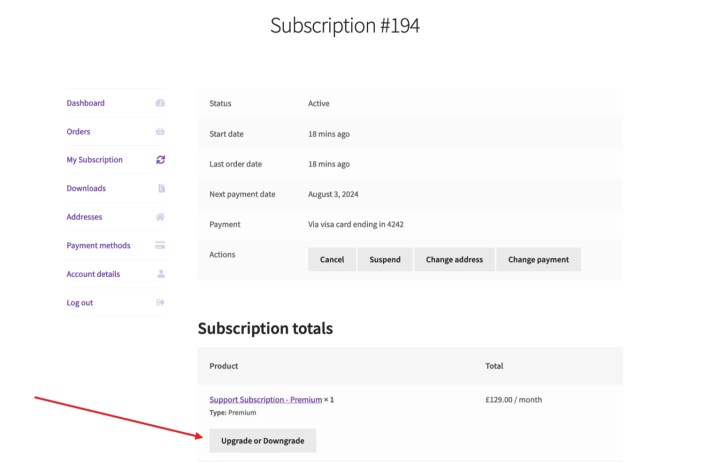
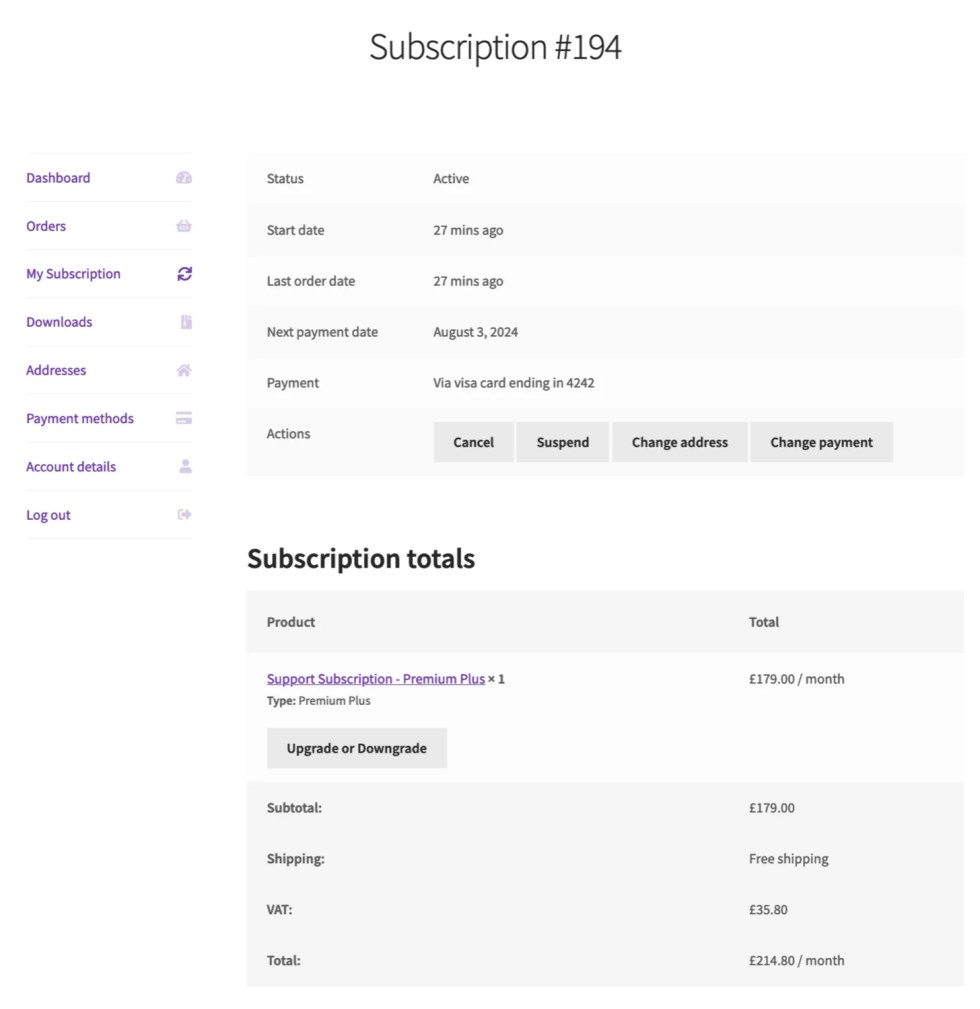
- Clicks on My Account > Subscriptions, and View next to the subscription they want to switch.
- Clicks the Switch button on the line item they want to switch.
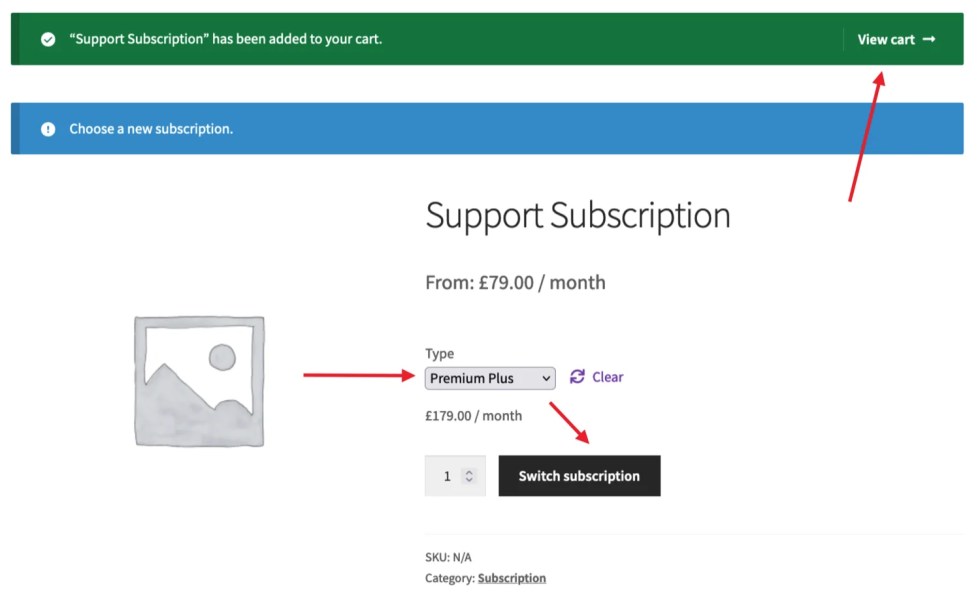
- Selects a new subscription product and clicks Switch subscription.
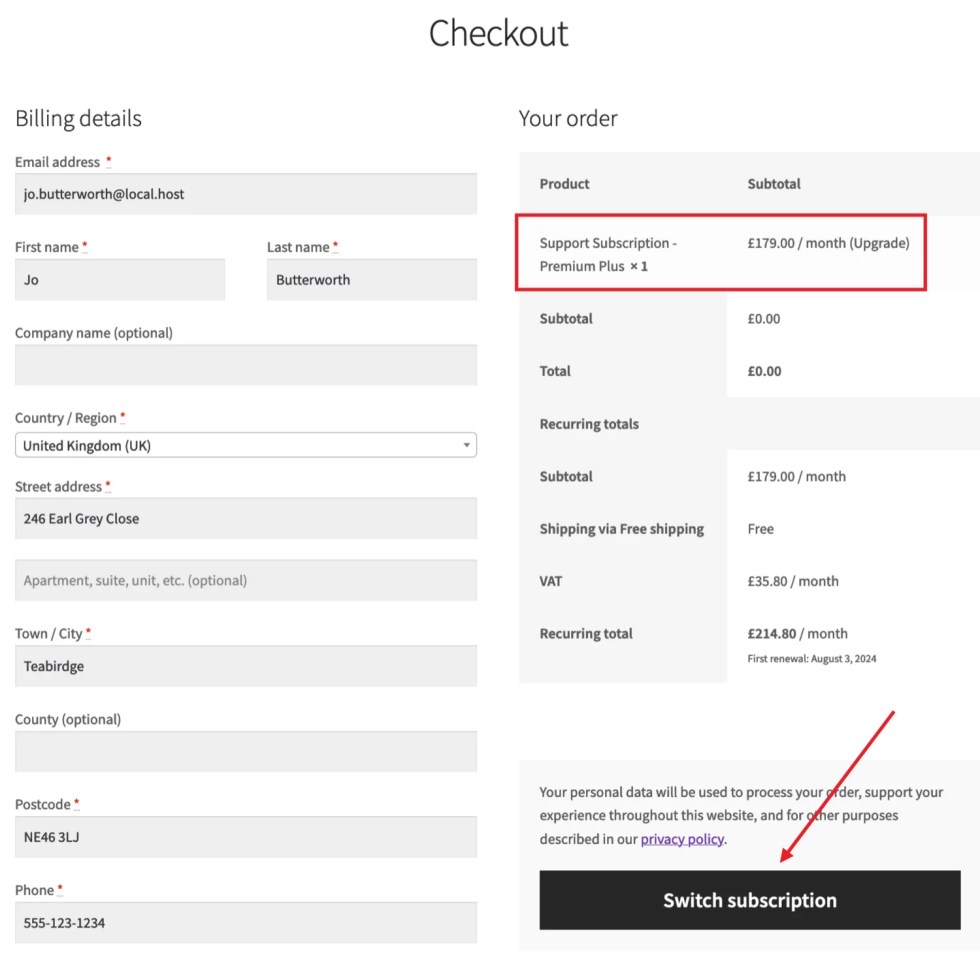
- This adds the subscription to the cart with “(upgrade) or “(downgrade) added to the product’s title. On the checkout page, a Switch Subscription button invites the customer to complete the checkout.
- Completes the checkout form for the new subscription.
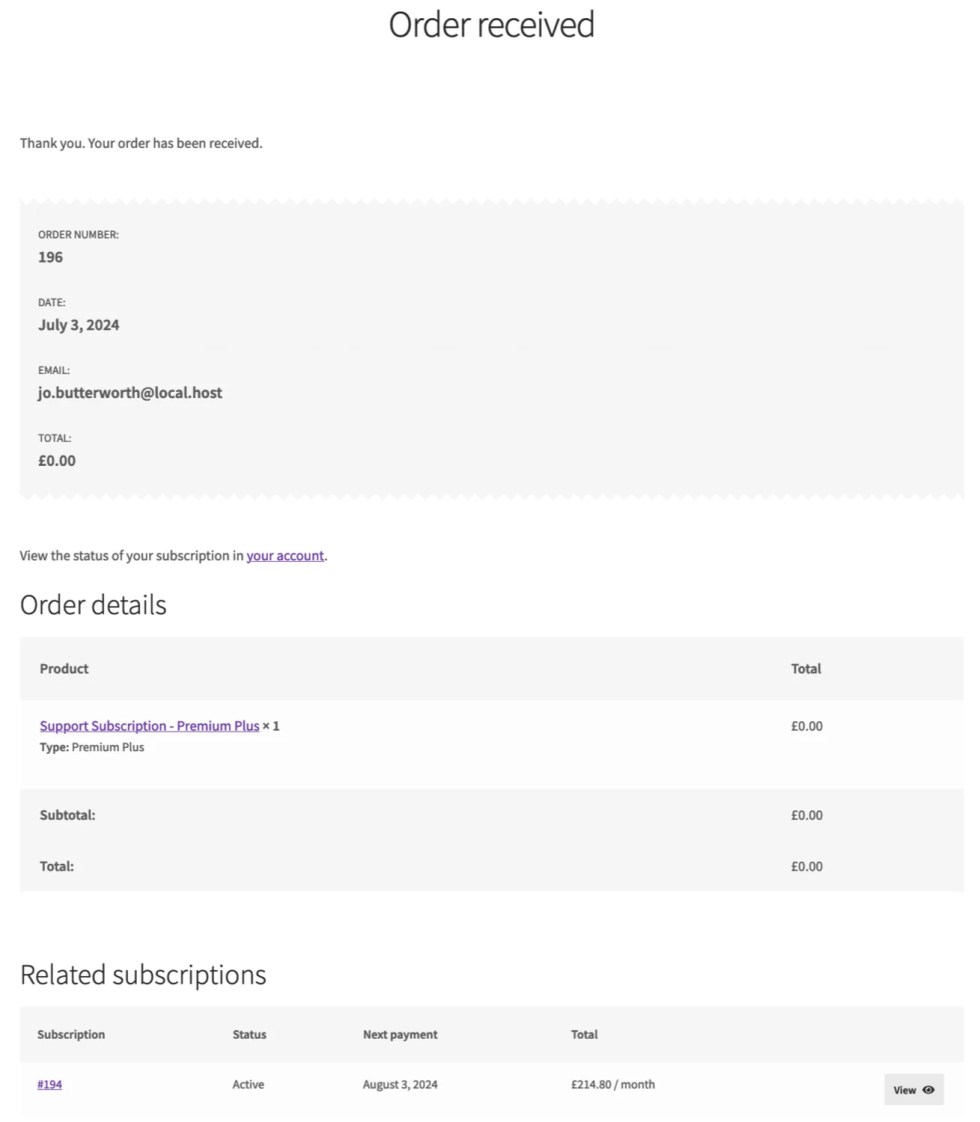
- This displays the standard Order Received page and displays details of any up-front/immediate payments and upcoming recurring payments.
- (Optional) Can return to the My Account page to view the new subscription line item and the updated recurring totals.
The screenshots below show a customer switching from one subscription variation to another as per the steps above.
Switchable Subscriptions
↑ Back to topIt’s not always possible, or necessary, for a customer to be able to switch to a new subscription. The Switch button displays if you allow switching AND the subscription:
- Belongs to a product type you’ve enabled for switching — a product with subscription plans, a variation of a variable product, or a product within a grouped product.
- Uses manual renewals or automatic renewals with a gateway that supports recurring amount and payment date changes
- The subscription has an active status. Customers must buy a new subscription if their subscription is expired or canceled.
- Has at least one completed payment (this includes manually added subscriptions).