Customers can upgrade and downgrade their subscriptions, as well as change the quantity of any items they are subscribed to, when you have the WooCommerce Subscriptions switching feature enabled.
The following documentation covers details of the switching process to help clarify what happens when you allow customers to switch between subscription products and how you can configure the Switch feature for your store’s requirements.
Switching Subscriptions
↑ Back to topOnce enabled, WooCommerce Subscriptions switching feature allows your customers to upgrade, downgrade or cross-grade between different subscription products.
Switching is possible between the subscription plans available on a product, between the variations of a variable product, and between products within a grouped product. It is also possible for shoppers to update the quantity of any product on their subscription.
Subscription Switching Settings
↑ Back to topEnable and manage the WooCommerce Subscriptions switching features by going to WooCommerce > Settings > Subscriptions, and scrolling down to the Switching section.
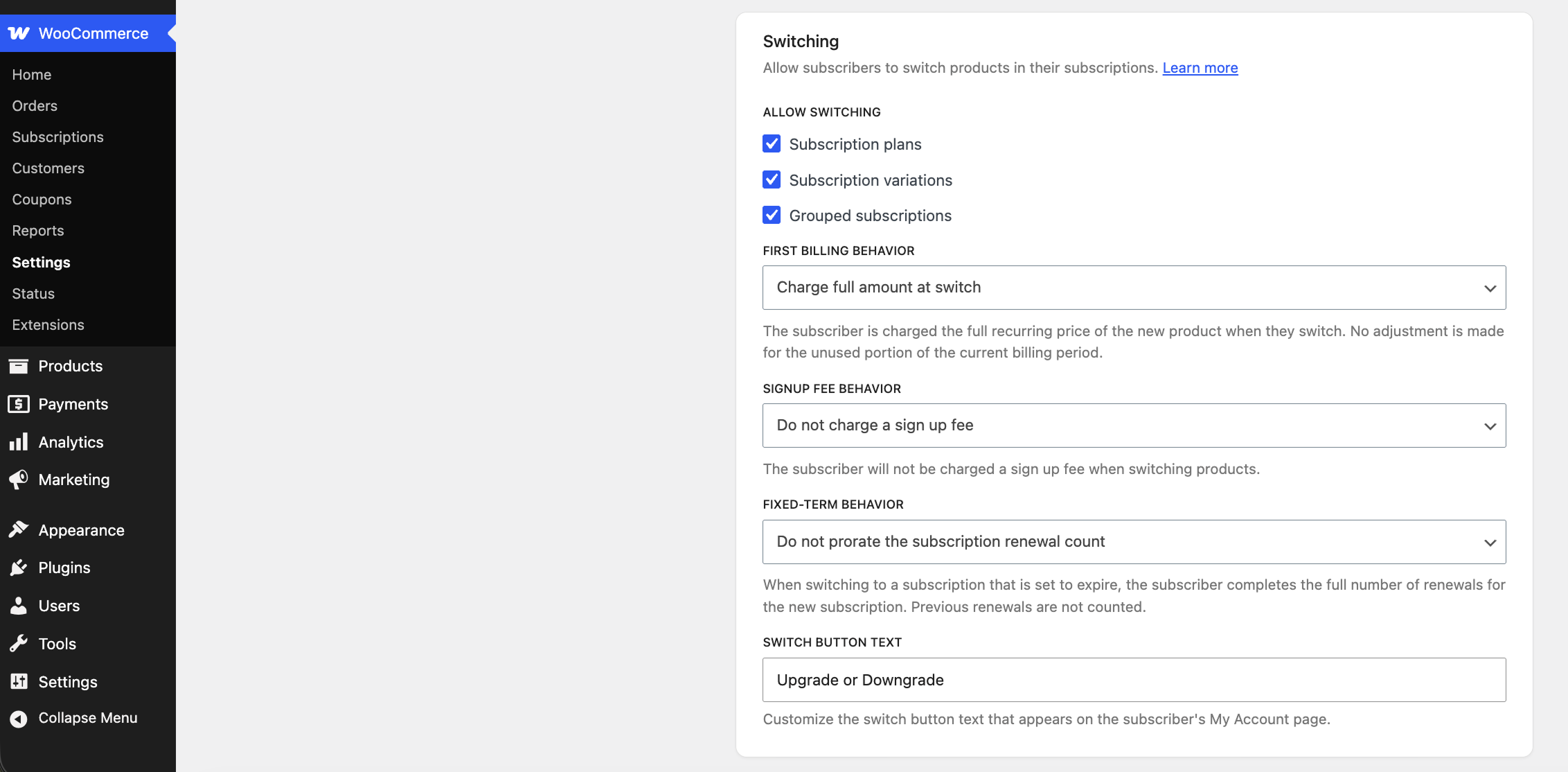
Allow Switching
↑ Back to topSwitching is off by defualt, and first needs to be enabled to allow customers to switch between subscriptions by default. Enable the WooCommerce Subscriptions switching feature by following these steps:
- Go to WooCommerce > Settings > Subscriptions.
- Scroll down to the Switching section.
- Select one or more of the product types customers can switch between
- Click Save changes.
The three different kinds of switching options allow your subscribers to:
- Subscription plans – switch between the subscription plans available on a product.
- Subscription variations – switch from one variation to another within the same variable product.
- Grouped subscriptions – switch between products within the same grouped product. Products must be published to be available as switching options.
In either case, products must be published to be available as switching options.
A subscription may be switched if it is active but will require payment if it is switched from a free to paid subscription, so future payments can be processed automatically (unless the store has disabled automatic payments). Customers cannot switch subscriptions that are in the on hold or pending cancellation statuses.
Note: If you’re using the WooCommerce Memberships extension integration to grant memberships to users who have active subscriptions, and want to prevent customers from having more than one active plan at a time, but still allow switching between membership plans, in this case enable Subscription variations but leave Grouped subscriptions unchecked. Then ensure customers can only have one active Subscription for your variable subscription product that’s tied to memberships using the limit subscriptions setting.
First billing behavior
↑ Back to top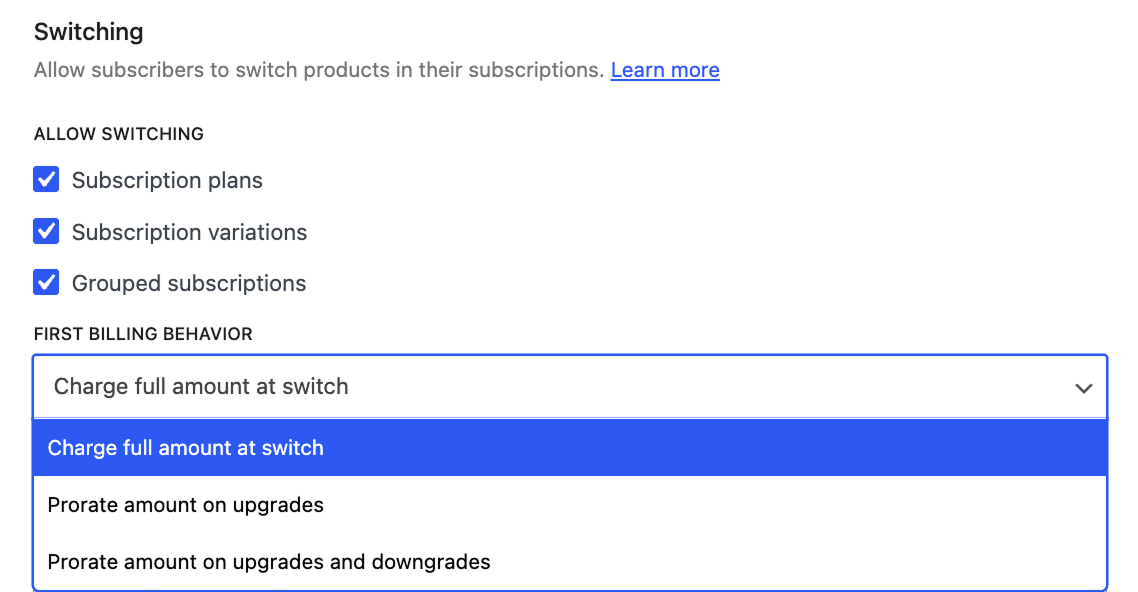
The First billing behavior setting controls how a subscriber is charged at the moment they switch. Choose one:
- Charge full amount at switch – The subscriber pays the full recurring price of the new product as soon as they switch, with no credit for the unused portion of their current billing period. Use this when a switch should simply start a fresh billing period.
- Prorate amount on upgrades – When a subscriber upgrades to a more expensive product, they’re credited for the unused portion of their current billing period and charged the prorated price of the new product for the time remaining until their next renewal. Downgrades are not prorated.
- Prorate amount on upgrades and downgrades – Proration applies in both directions. Whether the subscriber upgrades or downgrades, they’re credited for the unused portion of the current billing period and charged the prorated price of the new product for the remaining time.
When you choose either proration option, an Apply proration to setting appears. Select the product types proration should apply to — Virtual subscription products, Physical subscription products, or both. Any product type you leave unselected won’t be prorated, and at least one must be selected.
Subscription Switching Process and Costs provides in depth information about how a recurring payment is prorated.
Signup fee behavior
↑ Back to top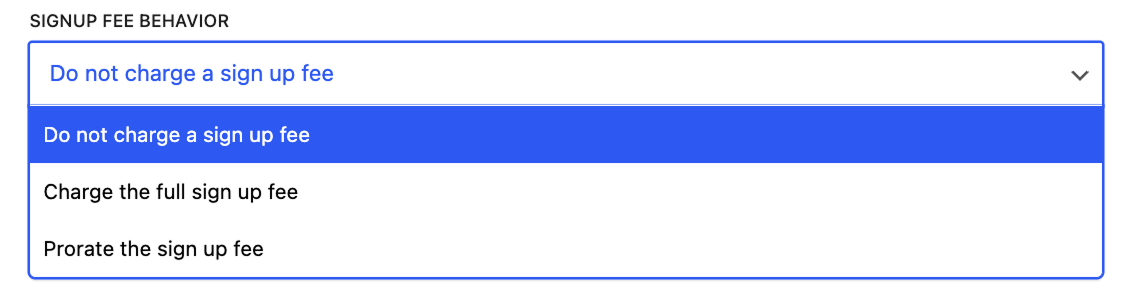
Signup fee behavior controls how sign-up fees are handled when switching. Choose one:
- Do not charge a sign up fee – The subscriber isn’t charged a sign-up fee when switching, regardless of whether the new product’s sign-up fee is higher or lower than any fee they’ve already paid. This is the default.
- Charge the full sign up fee – The subscriber is charged the full sign-up fee of the new product when switching, with no credit for any sign-up fee already paid on their current subscription. This is useful when the sign-up fee covers the cost of setting up a subscription — for example, shipping items required to use it.
- Prorate the sign up fee – The subscriber is only charged the difference when the new product’s sign-up fee is higher than the fee they’ve already paid. If the new sign-up fee is lower, no credit is applied.
Fixed-term behavior
↑ Back to topFixed-term behavior controls how completed renewals are handled when a subscriber switches to a subscription that is set to expire. Choose one:
- Do not prorate the subscription renewal count – The subscriber completes the full number of renewals for the new subscription; previous renewals are not counted. For example, switching to a 12-month subscription schedules 12 further payments regardless of how many were completed on the old subscription.
- Prorate the subscription renewal count – The renewals the subscriber has already paid count toward the new subscription, so fewer payments remain. For example, if 4 payments of a 12-month subscription were completed and the subscriber switches to another 12-month subscription, only 8 further payments are scheduled.
When the renewal count is prorated, choose which product types it applies to under Apply renewals to: Virtual subscription products and/or Physical subscription products. Product types not selected will not have previous renewals applied. At least one product type must be selected. Proration is based on the number of payments, not elapsed time. Off-schedule payments already processed are counted; skipped or missed payments are not.
Switch button text
↑ Back to topThe “Switch Button Text” option allows you to customize the text that will be displayed on the button that can be clicked to initiate a switch from your customer’s subscriber view in their account area. “Switch” is displayed by default, but you could change this to “Switch Subscription”, “Change Subscription”, or any other text that suits your store.
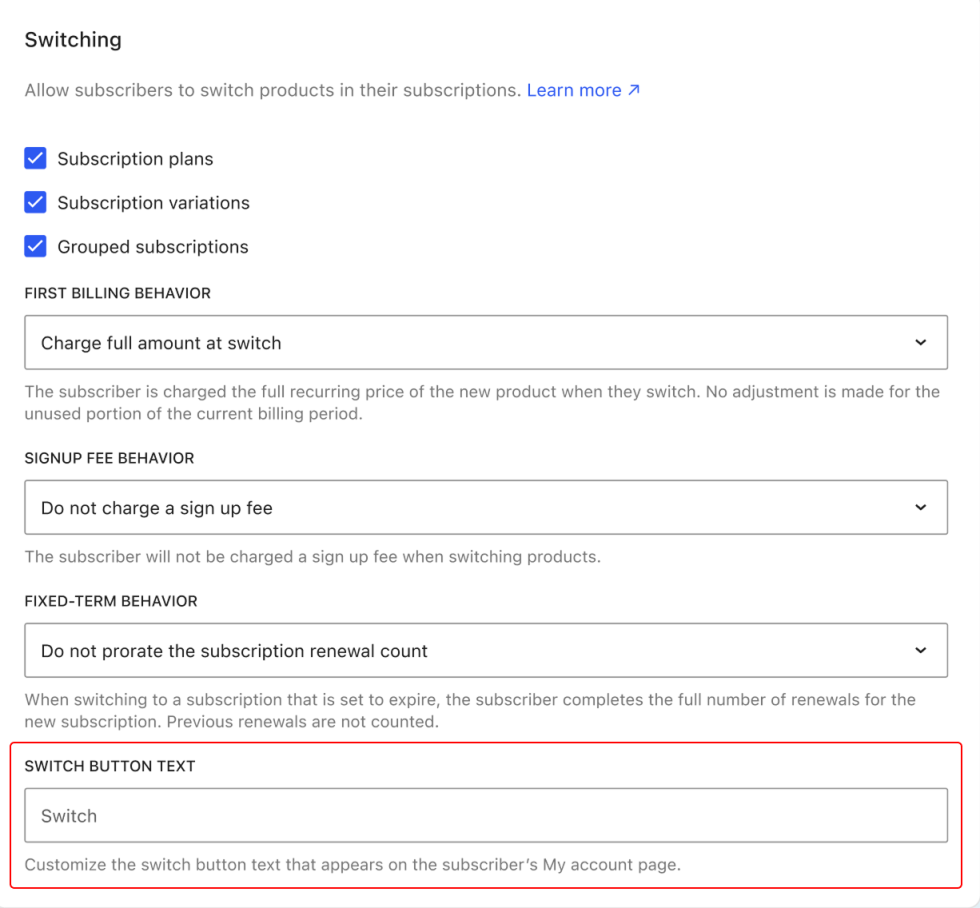
The Switch button is displayed in your customer’s detailed view of their subscription in their account area.
Questions and support
↑ Back to topSomething missing from this documentation? Still have questions and need assistance?
- If you have a question about a specific extension or theme you’d like to purchase, contact us to get answers.
- If you already purchased this product and need some assistance, get in touch with a Happiness Engineer via our support page and select this product’s name from the Product dropdown.