Use a staging site to test automatic subscription renewal payments before changing a live store. This lets you confirm that the subscription, payment gateway, scheduled action, and customer emails behave as expected without waiting for the next real billing date.
Note: Use a payment gateway test mode or another non-production payment method when testing renewals. If a gateway does not support payment date changes, you may need to wait for the gateway to process the renewal on the subscription product’s schedule.
Purchase a test subscription
↑ Back to topIf you have not already purchased a subscription to test with, purchase a test subscription on your site using the payment gateway you want to verify. After completing the purchase, note the subscription ID created for the order.
Trigger the renewal
↑ Back to topThere are two ways to trigger a renewal payment for a test subscription:
- Use the Process renewal action on the Edit Subscription screen.
- Manually run the scheduled action that processes the subscription payment.
Process renewal admin action
↑ Back to topThe Process renewal action is the simplest method to test a renewal payment. Open the test subscription, choose Process renewal from the Order actions panel, and click the arrow button to run the action.
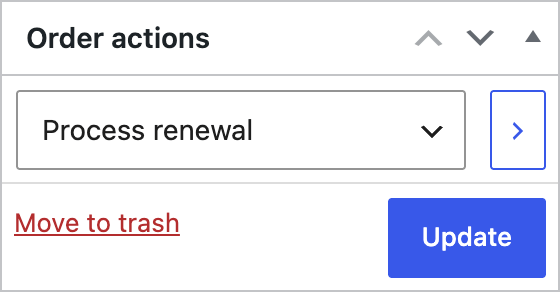
For an automatically renewing subscription that uses a gateway processed by WooCommerce Subscriptions, processing a renewal runs the full renewal process, including charging the assigned payment method and emailing the subscriber when emails are enabled. Gateways that manage scheduled payments themselves do not process the charge through this action.
The Process renewal action appears when the subscription is active and the payment method supports payment date changes.
Subscription payment scheduled action
↑ Back to topA more technical option is to manually run the scheduled action that triggers the subscription payment.
- Go to WooCommerce > Status > Scheduled Actions.
- Search for the ID of your test subscription.
- Find the row with the hook
woocommerce_scheduled_subscription_paymentand the status Pending. - Hover over the row to reveal the available actions, then click Run.

After the renewal payment processes successfully with an automatic renewal method, a new pending woocommerce_scheduled_subscription_payment action is created for the next payment date.
Troubleshooting issues with subscription renewals
↑ Back to topAutomatic renewal payments not starting
↑ Back to topIf subscriptions appear active but have a renewal date in the past, there may be a cron issue on the site. These subscriptions can show a Subscription payment overdue warning in the subscriptions list at WooCommerce > Subscriptions.
Start by verifying that WordPress cron is enabled. Go to WooCommerce > Status > System status and check the WordPress cron row. If WordPress cron is disabled, re-enable it before relying on scheduled subscription renewals.
- After confirming cron is enabled and your payment gateway supports date changes, try changing the next payment date of the subscription to one hour from now.
- If subscription renewals still do not process, consult the Complete Guide to Scheduled Events with Subscriptions to troubleshoot WP Cron and scheduled events.
Diagnosing stalled renewal payments
↑ Back to topA stalled renewal happens when an automatically renewing subscription starts the renewal process but an error prevents the renewal from finishing. The subscription may be left on hold, and the payment may or may not have been captured. The cause can be the payment itself, a payment gateway error, or a plugin or theme conflict.
Choose a single example subscription and trace the issue from there.
Look for clues
Start with these places:
- Order notes: Check the notes on both the subscription and the renewal order. Look for payment gateway errors, unusual notes, or signs that the issue was a normal failed payment, such as an expired card or insufficient funds.
- WooCommerce logs: Go to WooCommerce > Status > Logs and check for a WooCommerce fatal error log. If gateway logging was enabled, review those logs too.
- Failed scheduled actions: Check failed scheduled actions for recorded errors or stack traces.
- Plugins list: Check for outdated plugins that interact with WooCommerce orders, payments, or subscriptions.
- Debug log: If WordPress debug logging was enabled before the issue occurred, check
wp-content/debug.logusing SFTP, a file manager, or your hosting tools. - PHP server logs: If no clues are found elsewhere, check your server-level PHP error logs or ask your hosting provider where to find them.
Depending on the clues you find, the resolution may involve correcting payment gateway settings, asking the customer to update their card information, or performing a conflict test.
Perform conflict testing in a staging environment whenever possible. See How WooCommerce Subscriptions handles staging sites for details.
Questions and support
↑ Back to topSomething missing from this documentation? Still have questions and need assistance?
- If you have a question about a specific extension or theme you’d like to purchase, contact us to get answers.
- If you already purchased this product and need some assistance, get in touch with a Happiness Engineer via our support page and select this product’s name from the Product dropdown.