
TIV Switcher is the switcher component built by TIV.NET. It powers the currency switcher in TIV Multi-currency since version 5.1.0, and the language switcher in TIV Globus since version 1.2.0. One component, three layouts, three ways to place it, and no jQuery UI – so whichever of our plugins you use, it looks, behaves and is styled the same way.
The first half of this page is for shop managers and administrators: how to replace an older switcher, step by step. The second half is for developers: markup, selectors, styling and tests.
TIV Multi-currency: the previous switchers are deprecated.
They still work today, and updating the plugin changes nothing on your site by itself – but they will be removed in a future release. Please replace them at your earliest convenience. Every case below takes a minute or two, and you can do them one at a time.
For shop managers and administrators
↑ Back to topYou may have a switcher in more than one place – a page, a sidebar, a menu. Each is replaced separately, and nothing breaks while you work through them.
Which one do I have?
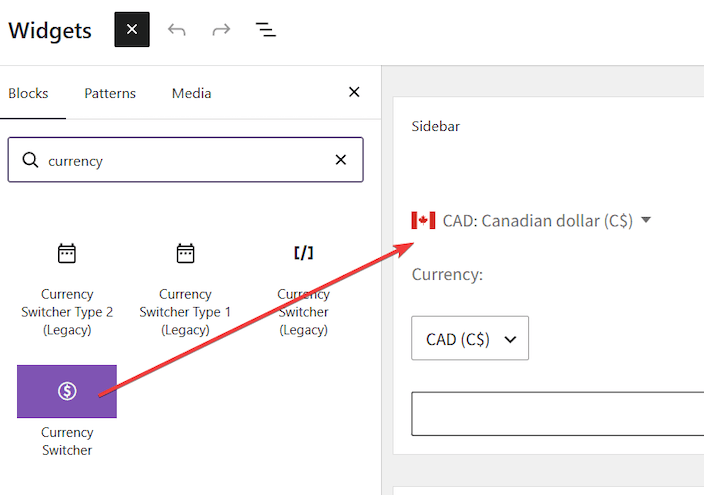
↑ Back to topThe older switchers are now labeled Legacy wherever they appear in the admin, so they are easy to spot: Currency Switcher (Legacy) for the block, and Currency Switcher Type 1 (Legacy) or Type 2 (Legacy) for the widgets.
Replacing a block on a page
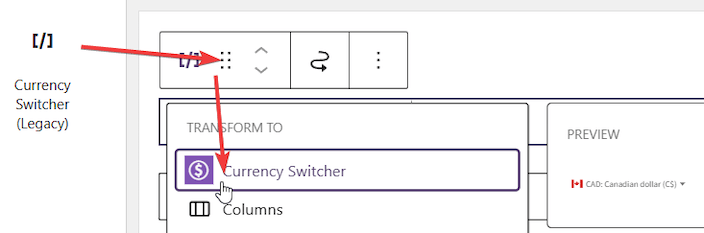
↑ Back to topThe block converts in place and keeps its settings, so this is the quickest case:
- Edit the page and click the Currency Switcher (Legacy) block to select it.
- Click the block’s icon at the left of the toolbar that appears above it.
- Choose Currency Switcher under Transform to.
- Save the page.
Your settings carry across. A switcher that showed flags still shows flags, and the text format you chose is kept:
| If your legacy block was | It becomes |
|---|---|
| Type 1 | Dropdown, opening on mouse over |
| Type 2, flags on | Dropdown, opening on click |
| Type 2, flags off | Standard select |
That last row is not a downgrade: a Type 2 switcher without flags always was an ordinary drop-down list, and Standard select is simply its new name.
Replacing a widget in a sidebar or footer
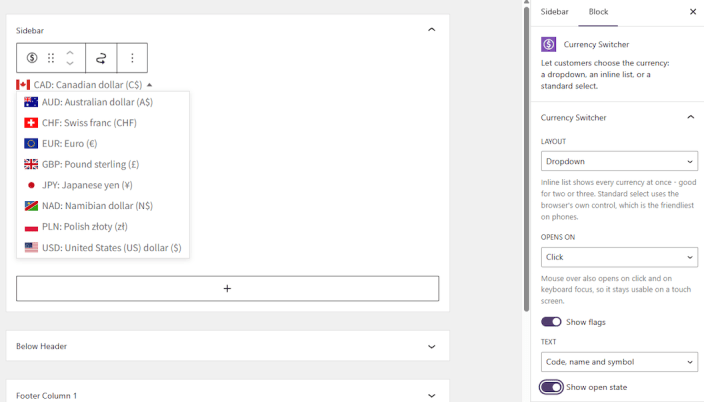
↑ Back to top- Go to Appearance > Widgets.
- Add the Currency Switcher block to the same widget area.
- Choose the layout, flags and text in the panel on the right.
- Delete the old Currency Switcher Type 1 (Legacy) or Type 2 (Legacy) widget.
- Click Update.
Replacing a switcher in a menu
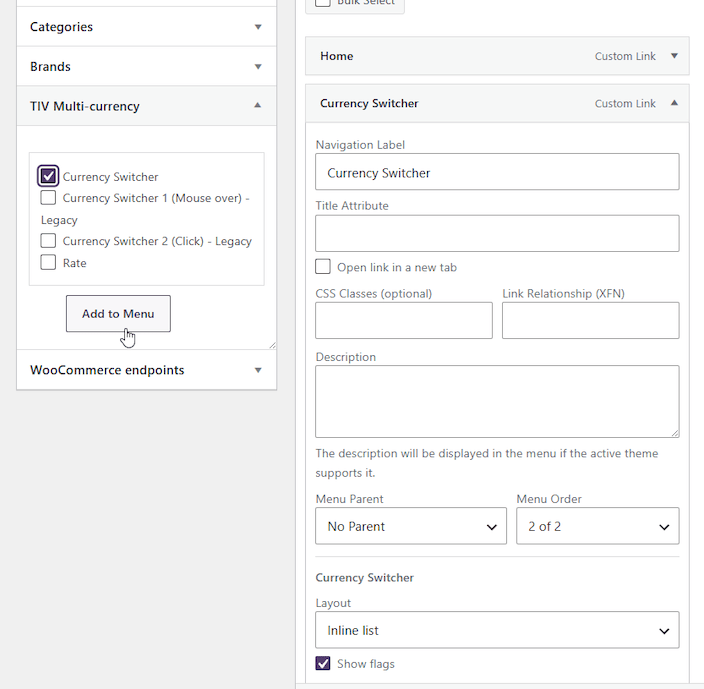
↑ Back to topPreviously a switcher went into a menu by pasting a shortcode into a menu item’s description. It is now a proper menu item with its own settings, so there is nothing to type and nothing to mistype:
- Go to Appearance > Menus.
- In the boxes on the left, open TIV Multi-currency and tick Currency Switcher.
- Click Add to Menu.
- Expand the new item and choose its layout, flags and text.
- Remove the old item that held the shortcode.
- Click Save Menu.
Replacing a shortcode
↑ Back to topIf you placed a switcher by typing a shortcode into a page, post or text widget, replace the whole shortcode with the new one:
| Replace this | With this |
|---|---|
[woocommerce-currency-switcher] | [tiv-currency-switcher style="dropdown" open_on="hover"] |
[woocommerce-currency-switcher flag="1"] | [tiv-currency-switcher style="dropdown" open_on="hover" flag="1"] |
[woocommerce-currency-selector flag="1"] | [tiv-currency-switcher style="dropdown" open_on="click" flag="1"] |
[woocommerce-currency-selector] | [tiv-currency-switcher style="native"] |
If you used format or currencies, copy them across unchanged – they mean exactly what they did before:
Before:
[woocommerce-currency-switcher type="1" flag="1" format="{{code}} ({{symbol}})"]

After:
[tiv-currency-switcher style="dropdown" open_on="hover" flag="1" format="{{code}} ({{symbol}})"]
For developers
↑ Back to topPlacing it
↑ Back to top- A block – Currency Switcher, under the TIV Multi-currency heading in the inserter.
- A shortcode –
[tiv-currency-switcher]. - A navigation menu item – with its own settings panel.
[tiv-currency-switcher]
[tiv-currency-switcher style="flat" flag="1"]
[tiv-currency-switcher style="native"]
[tiv-currency-switcher style="dropdown" open_on="hover" flag="1" format="{{code}} ({{symbol}})"]
[tiv-currency-switcher currencies="USD,EUR,GBP"] | Attribute | Values | Default |
|---|---|---|
style | dropdown, flat, native | dropdown |
open_on | click, hover (dropdown only) | click |
flag | 0, 1 (not available for native) | 0 |
format | template of {{code}}, {{name}}, {{symbol}} | {{code}}: {{name}} ({{symbol}}) |
currencies | comma-separated subset; empty means all enabled | empty |
An unrecognised value is clamped to the default rather than passed through, so a typo produces a working control instead of one that looks right and does nothing. A currencies subset is intersected with the currencies you actually accept, and the currency the visitor is currently in is always included – a switcher that cannot show where you are is worse than one that offers too much.
What does not change when you migrate
↑ Back to topWorth reading before you estimate the work, because it decides how much there is.
| Old | New | |
|---|---|---|
| POST field | currency | currency – identical |
| POST target | the current URL | the current URL – identical |
| Cookie set | woocommerce_multicurrency_forced_currency | identical |
| Flag classes | fi fi-us currency-flag currency-flag-usd | identical |
So anything that checks an outcome – the cookie was set, the price changed, the right flag is showing – keeps working untouched. Only code that targets the control itself needs attention.
The markup: dropdown
↑ Back to topA disclosure button and a list. The choice you are already on is shown on the button and deliberately left out of the list, since selecting it would do nothing.
<div class="tiv-switcher tiv-switcher-style-dropdown tiv-switcher-open-click">
  <button type="button" class="tiv-switcher-toggle"
          aria-expanded="false" aria-controls="tiv-switcher-list-1"
          aria-label="Currency Switcher">
    <span class="tiv-switcher-icon fi fi-ca currency-flag currency-flag-cad" aria-hidden="true"></span>
    <bdi class="tiv-switcher-label">CAD</bdi>
    <span class="tiv-switcher-chevron" aria-hidden="true"></span>
  </button>
  <ul class="tiv-switcher-list" id="tiv-switcher-list-1">
    <li class="tiv-switcher-item">
      <form class="tiv-switcher-form" method="post" action="https://example.com/">
        <input type="hidden" name="currency" value="USD">
        <button type="submit" class="tiv-switcher-link" data-tiv-switcher-value="USD">
          <span class="tiv-switcher-icon fi fi-us currency-flag currency-flag-usd" aria-hidden="true"></span>
          <bdi class="tiv-switcher-label">USD</bdi>
        </button>
      </form>
    </li>
  </ul>
</div>
The markup: inline list
↑ Back to topThe same items with nothing to open, so there is no toggle. Everything is listed, and the current one carries tiv-switcher-item-current.
<div class="tiv-switcher tiv-switcher-style-flat">
  <ul class="tiv-switcher-list" aria-label="Currency Switcher">
    <li class="tiv-switcher-item tiv-switcher-item-current"> ... </li>
    <li class="tiv-switcher-item"> ... </li>
  </ul>
</div>
The markup: standard select
↑ Back to topA real <select>, submitted on change. An <option> holds text only, so this layout never draws flags. The labels are wrapped in Unicode isolate characters (U+2068 and U+2069) so they read correctly in right-to-left pages; both are zero width, and you will notice them only if you compare strings exactly.
<div class="tiv-switcher tiv-switcher-style-native">
  <form class="tiv-switcher-form" method="post" action="https://example.com/">
    <select class="tiv-switcher-select" name="currency" aria-label="Currency Switcher">
      <option value="CAD" selected>CAD</option>
      <option value="USD">USD</option>
    </select>
    <noscript><button type="submit" class="tiv-switcher-submit">Go</button></noscript>
  </form>
</div>
The markup: inside a navigation menu
↑ Back to topThe menu walker has already opened an <li>, so there the wrapper is itself an <li> nested in a <ul> – the shape a theme already knows how to style, because that is what a submenu is.
<ul class="tiv-switcher-nav">
  <li class="tiv-switcher tiv-switcher-style-dropdown tiv-switcher-open-click tiv-switcher-in-menu">
    ...
  </li>
</ul>
Matching the menu item to your theme
↑ Back to topA menu item’s height and spacing usually come from the theme, and some themes apply them with a direct-child selector – Storefront, for one, pads ul.menu > li > a. The switcher’s links live inside its own wrapper, not directly under the menu <li>, so a rule written that way never reaches them and the switcher item can end up shorter than the items around it.
So that you can correct this with a single rule, every switcher menu item carries a generic class, menu-item-type-tiv-switcher, next to the plugin-specific one WordPress adds – menu-item-type-tiv_currency_switcher here, or menu-item-type-tiv_globus_switcher in TIV Globus. Target the generic class and one rule covers every switcher, in either plugin:
/* Give the switcher menu item the same padding the theme puts on its other menu links.
   Put it on the menu <li> - the class below - not on the switcher wrapper, so the item is
   spaced exactly like its neighbours. The value is your theme's; copy whatever it uses. */
.menu-item-type-tiv-switcher {
  padding: 1.618em 1em;
}
This is only needed under themes whose menu padding lives on a direct-child > a; a theme that pads the <li> itself already covers the switcher item, since it is an ordinary menu <li> too.
Selector mapping
↑ Back to top| Old | New |
|---|---|
.woocommerce-currency-switcher.woocommerce-currency-selector | .tiv-switcher |
.selector | .tiv-switcher-toggle |
.option-wrap | (no wrapper; icon and label are siblings) |
.option-text | .tiv-switcher-label (a <bdi>) |
.chevron-down | .tiv-switcher-chevron |
.dropdown-content | .tiv-switcher-list |
form.woomc-switcher.currency-USD | form.tiv-switcher-form – no per-currency class |
.option-submit | button.tiv-switcher-link[data-tiv-switcher-value] |
select.woocommerce-currency-selector | select.tiv-switcher-select |
.ui-selectmenu-button, #ui-id-N-menu, .ui-selectmenu-text | gone – no jQuery UI |
The one to plan for is the form. The old markup put the currency in a class (form.currency-USD), which made it easy to select. The new markup puts it where it belongs, in the value, so address an item by its data attribute instead:
/* old */
document.querySelector( 'form.currency-USD' )

/* new */
document.querySelector( '[data-tiv-switcher-value="USD"]' )
/* or  */
document.querySelector( '.tiv-switcher input[name="currency"][value="USD"]' )
Automated tests
↑ Back to topTests that drive the switcher need their selectors updated; tests that assert on the result do not. Submitting the form is more reliable than clicking, because a dropdown’s list is hidden until it opens, while the POST is what actually switches.
// Before - legacy switcher
cy.get( 'form.currency-USD' ).first().submit();

// After - dropdown or inline list
cy.get( '.tiv-switcher input[name="currency"][value="USD"]' )
  .first()
  .closest( 'form' )
  .submit();

// After - standard select (the script submits on change)
cy.get( 'select.tiv-switcher-select' ).first().select( 'USD' );
Two behaviours worth knowing when writing assertions:
- A dropdown does not list the choice you are already on, so switching to the current one finds nothing. The old switcher behaved the same way.
- An open dropdown covers what is below it. If two switchers sit on one page, a click aimed at the second can land on the first one’s list.
Styling
↑ Back to topEvery class is prefixed tiv-switcher, and the layout, the opening behaviour and the in-menu case are all expressed as classes on the wrapper, so you can target them without !important:
.tiv-switcher-style-dropdown { }
.tiv-switcher-style-flat { }
.tiv-switcher-style-native { }
.tiv-switcher-open-click { }
.tiv-switcher-open-hover { }
.tiv-switcher-in-menu { }
.tiv-switcher.tiv-switcher-open { } /* a dropdown while it is open */
The stylesheet uses logical properties (inset-inline-start, text-align: start), so it follows the page direction rather than assuming left to right. Because the same component also serves a language switcher, right-to-left was a requirement rather than an afterthought.
Flags
↑ Back to topFlags come from flag-icons by Panayiotis Lipiridis, used under the MIT License. They are served from the plugin rather than a third-party CDN, so your pages make no external request for them. The class names are those of the upstream library, so existing CSS that targets .fi-us – or our own .currency-flag-usd – keeps working.
Only the 4:3 set is bundled. flag-icons also publishes square (1:1) flags, reached through its fis class; those are not included, because nothing in our plugins emits that class and shipping them would roughly double the size of the flag assets. If you added fis yourself, keep your own copy of the square images.
The MIT license text ships alongside the artwork, at vendor/WOOMC/TIV/Flags/assets/flag-icons.LICENSE.txt inside the plugin, so the notice travels with any copy you redistribute.
Keeping the legacy widgets available
↑ Back to topOn a site that has never used them, the legacy widgets are no longer offered when adding a widget – there is nothing to migrate there, and it keeps the list short for new sites. To keep them on offer regardless:
add_filter( 'woocommerce_multicurrency_show_legacy_switchers', '__return_true' );Or as a constant, if you would rather set it in wp-config.php:
define( 'WOOMC_SHOW_LEGACY_SWITCHERS', true );TIV.NET INC., based in Toronto, Canada, develops and supports the following WooCommerce extensions:
↑ Back to top| TIV Admin Tools | A set of utilities for WooCommerce shop owners, administrators, and developers to secure, tune, and debug their store. |
| TIV Globus | Makes WooCommerce multilingual – translate product descriptions, categories, attributes, and tags. |
| TIV Multi-currency | Lets customers pay in the currency of their choice. |
| TIV Paywall | Enables the monetization of various types of content, including videos, documents, etc., by allowing the sale of access to it. |
| TIV Sales Assistant | Manage store-wide sales from one place – schedule discounts by category, tag, and country instead of editing products one by one. |

