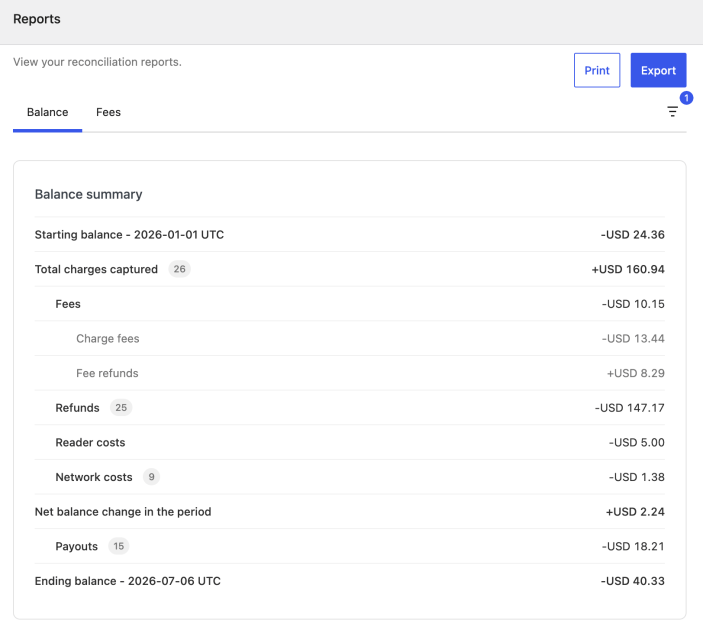
WooPayments’ Balance and Fees reports give you insight into how your WooPayments balance changed over a period of time, including the starting balance, everything that affected it during the time period in question, and your ending balance, along with a detailed breakdown of the fees involved.
You can find the Balance and Fees reports under Payments > Reports. There’s a tab for Balance and another for Fees. Each lets you select a date range, view money movement in that range, and either print a summary or export the details to a spreadsheet.
Your existing Transactions, Orders, and Payouts pages are unchanged. The reports simply give you a time-based, summary view of the same underlying activity.
NOTE: These reports are currently in testing, so you may not see Payments > Reports in your dashboard yet. You can turn them on yourself (see below for instructions) or wait until we enable these reports for all stores.
Enabling the reports
↑ Back to topBecause the feature is in testing, you must first enable it manually. You can do this in one of three ways.
The first option is to add the following snippet to your site using a code snippets plugin or your theme’s functions.php file:
add_filter( 'pre_option__wcpay_feature_reports_area', fn() => '1' );Or, if your hosting provider allows you to use WP-CLI, you can run this:
wp option update _wcpay_feature_reports_area 1Finally, if you are not comfortable adding code snippets or manually updating options, you can contact our support team, who can enable the reports for you.
Once it’s enabled, you’ll find the reports under Payments > Reports.
Available reports
↑ Back to topUnder Payments > Reports there are two tabs at the top:
- Balance: A summary of how your balance moved from the start of the selected time period to the end, including orders, refunds, disputes, and so on.
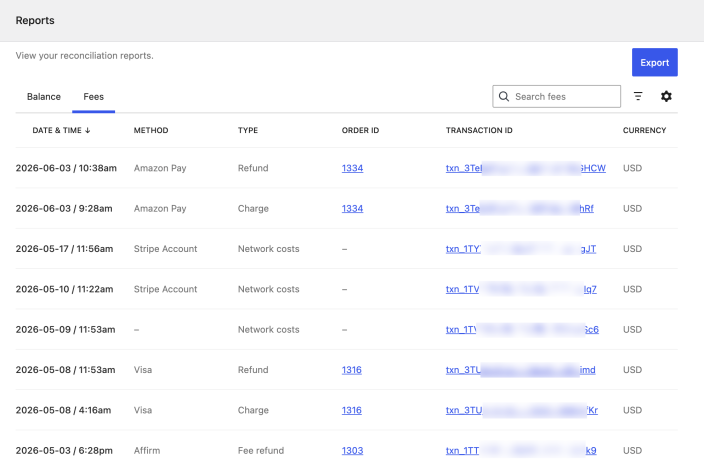
- Fees: A detailed ledger of all the fee-related events from the same time period.
Setting the reporting period
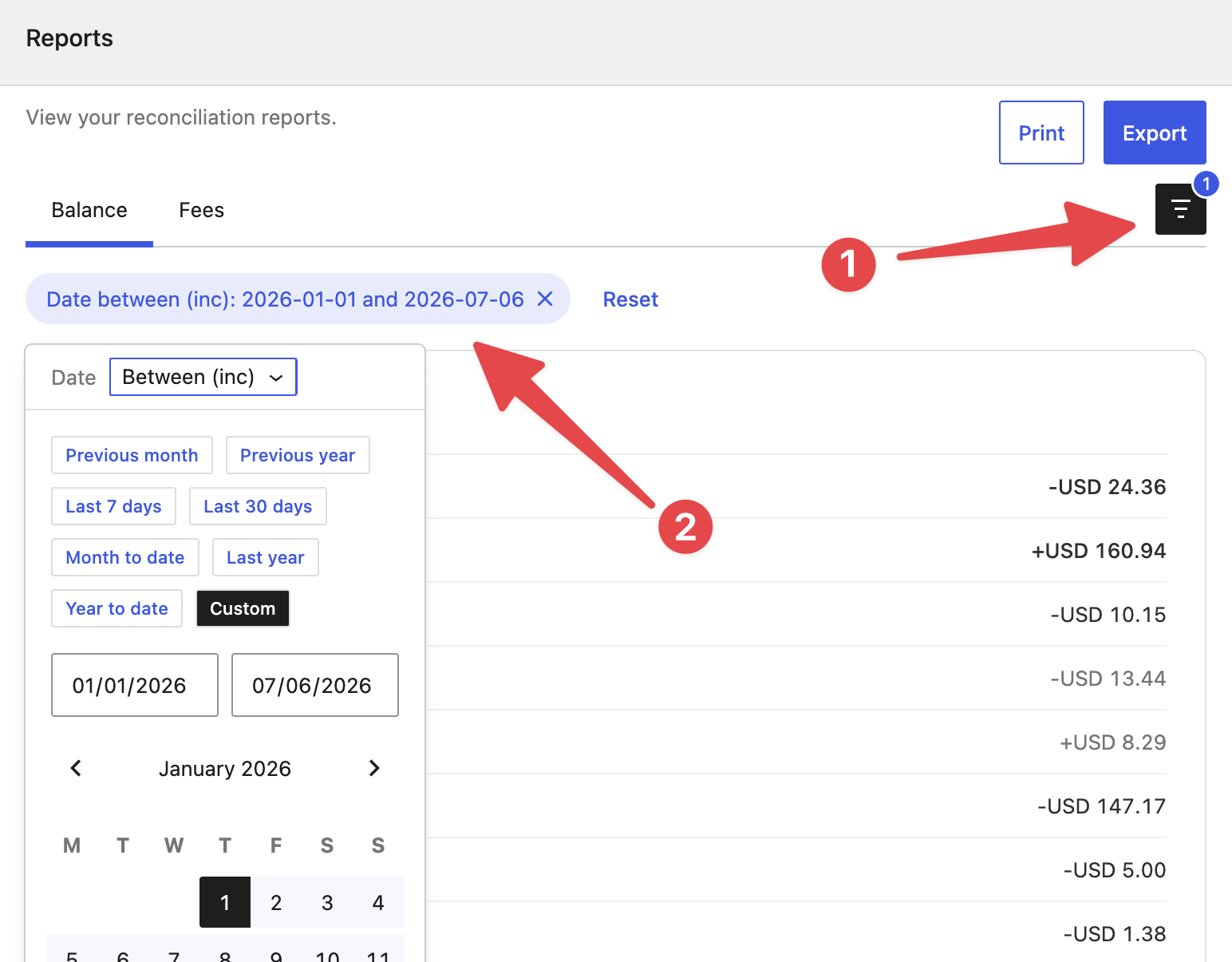
↑ Back to topBoth reports use the same date filter to set the time period. Click the filter icon (the funnel) to choose a ready-made time period or choose Custom to set your own.
NOTE: All reporting periods are calculated using UTC. See the How the numbers are calculated below for what that means for your totals.
The Balance report
↑ Back to topThe Balance report shows how your WooPayments balance changed over the period you select, from the starting balance to your ending balance.
The balance report can include the following lines. Lines only appear when they have activity in the period you’ve chosen, so your report may show fewer than all of them:
- Starting balance: Your balance at the beginning of the selected time period.
- Total charges captured: The total value of all payments captured.
- Fees: The total WooPayments fees for the time period. This line breaks down into:
- Charge fees: Fees on payments themselves.
- Dispute fees: Fees charged due to customer disputes.
- Fee refunds: Fees returned to you, e.g. for disputes you won.
- Refunds: Money you returned to customers during the time period.
- Refund failures: Attempted refunds that could not be completed.
- Disputes: Amounts withheld for disputes (chargebacks).
- Payout fees: Any fees charged on payouts sent to your bank.
- Reader costs: Monthly fees for any in-person card readers you used.
- Network costs: Card-network costs associated with your transactions.
- Financing payout and Financing paydown: Amounts related to Stripe Capital loans.
- Other adjustments: Any other balance activity not covered above.
- Net balance change: The combined effect of all activity on your balance.
- Payouts: The total amount paid out to your bank during the period.
- Ending balance: Your WooPayments balance at the end of the period.
NOTE: The starting balance, total charges captured, fees, net balance change, payouts, and ending balance will always appear. The remaining lines only show when there’s activity in that category during the selected time period.
The Fees report
↑ Back to topThe Fees report is a detailed ledger of all the fee-related events that occurred during the selected time period. This report shows individual line items rather than totals.
By default, the Fees report shows the following columns:
- Date & time
- Method (the payment method used)
- Type (e.g., charge, refund, dispute, and so on)
- Order ID
- Transaction ID
- Currency
- Gross amount
- Fees total
NOTE: The Gross amount and Fees total columns are shown in your account’s payout currency, while the Currency column shows the currency your customer was charged in. For multi-currency stores, these may differ.
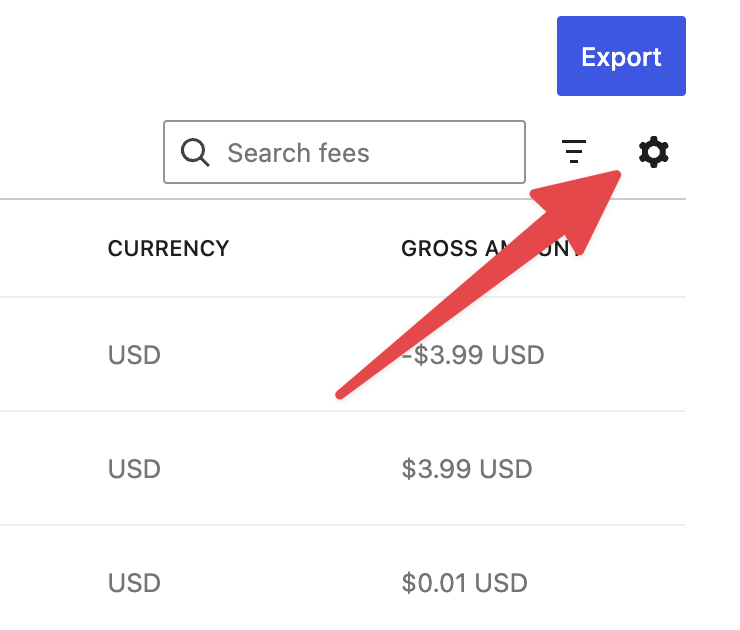
You can add two more columns, Settlement date and Payout ID, from gear/cog icon at the top of the list. This icon also allows you to adjust the sorting, ordering, table density, number of rows per page, and the columns shown.
Filtering and searching
↑ Back to topSelect Add filter (the funnel icon) to narrow the ledger by:
- Date: A preset or custom time period (same options as the Balance report).
- Method: The payment method used.
- Type: The kind of event (charges, refunds, disputes, etc.)
Exporting the Fees report
↑ Back to topClick the Export button to generate a CSV of all fee events matching the current filters. The file is prepared in the background, and then downloads automatically when ready. We also email a copy of the CSV to the logged-in user’s email address.
If you try to export a very large report (>10,000 rows), you’ll be asked to confirm first. Applying one or more filters before you generate the export keeps the file smaller and quicker to produce.
Reporting notes
↑ Back to topTwo details about how our reports work are worth knowing about:
- Times are always UTC, not local. This keeps the reporting consistent, though it can differ slightly from your local time zone at the start and/or end of a time period.
- No prior-period adjustments. Every payment, refund, dispute, etc. is attributed to the date it affected your account balance, not the date of the original order. For example, if you refund a May order in June, the income from the order will show up on the May report, and the refund will show on the June report.
Sharing feedback
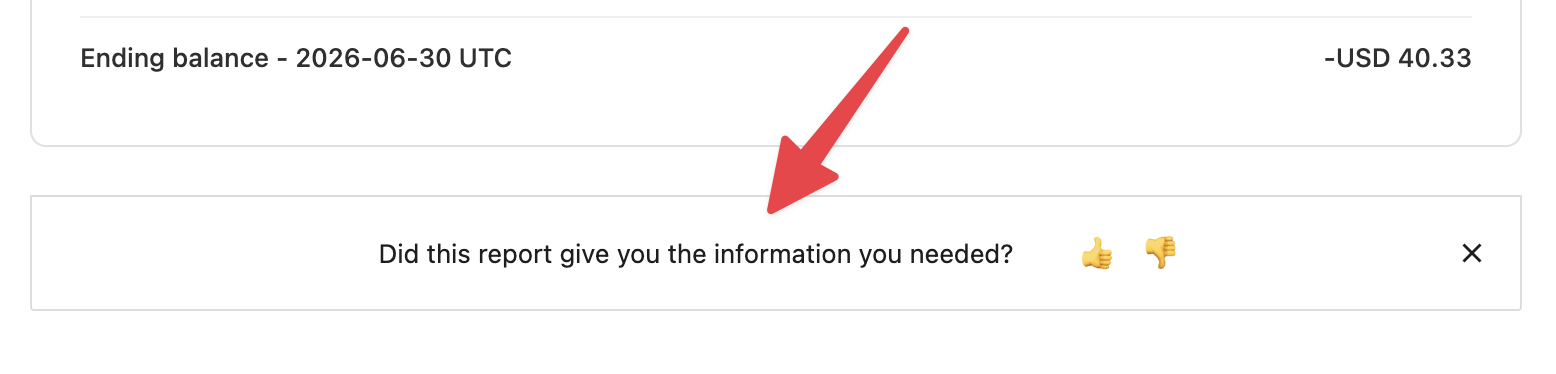
↑ Back to topBecause these reports are in testing, we’d love to know how they’re working for you. At the bottom of the Balance report, you’ll find a quick feedback survey, where you can give a thumbs up or down, plus leave optional comments.