Amazon Pay is a wallet payment method that lets your customers check out the same way as they do on Amazon.com.
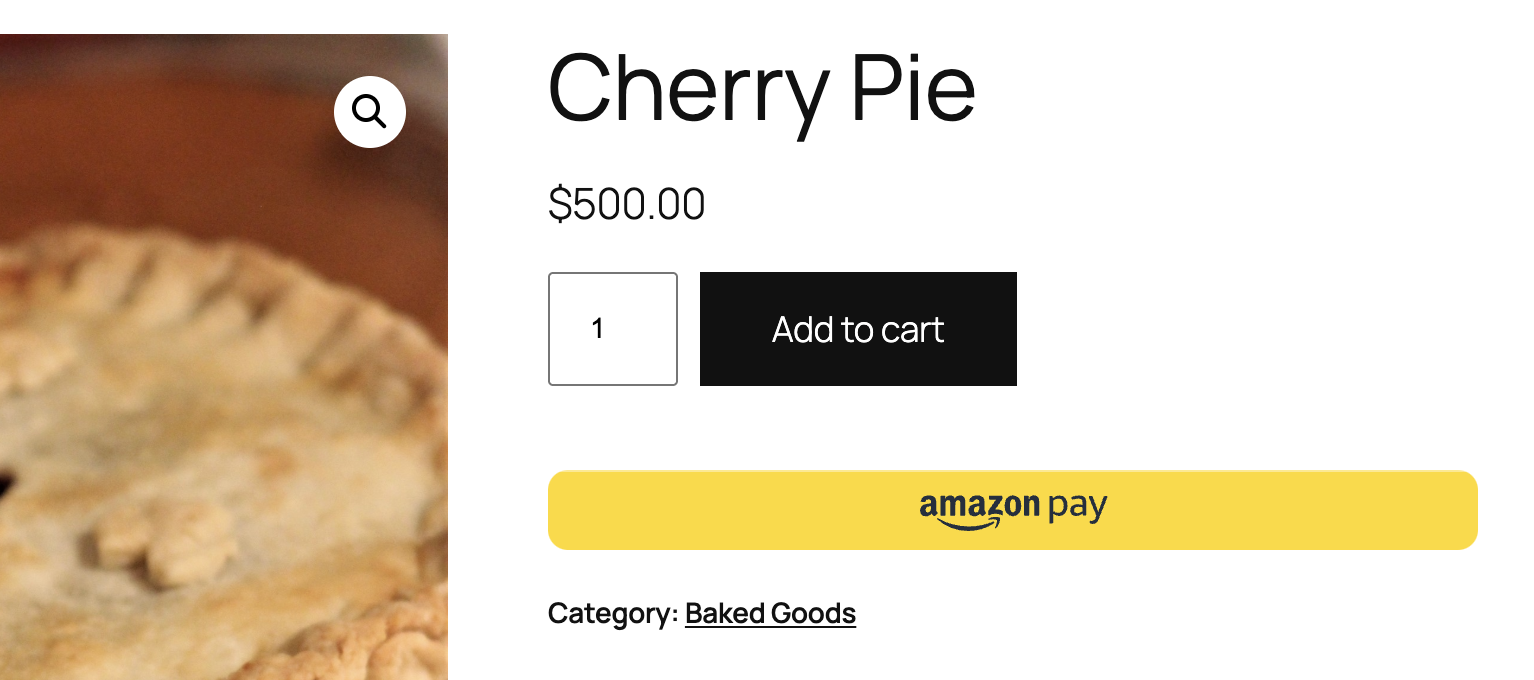
If a customer elects to pay via Amazon Pay, they will be redirected to Amazon’s website, where they can complete the checkout process using their shipping and payment info already stored in their Amazon account. After completing payment, Amazon redirects them back to your website.
This document describes how to set up, test, and troubleshoot the Amazon Pay feature in WooPayments.
Requirements
↑ Back to topTo accept Amazon Pay, you account must be based in one of these countries:
- France
- Germany
- Italy
- Luxembourg
- Spain
- United Kingdom
- United States
Additionally, the various customer currencies that you can accept via the Amazon Pay method depends on your WooPayments account country:
| If your account country is… | You can accept payment in… |
|---|---|
| France, Germany, Italy, Luxembourg, Spain, or the United Kingdom | AUD, GBP, DKK, EUR, HKD, JPY, NZD, NOK, ZAR, SEK, CHF, or USD |
| United States | USD |
Lastly, the Amazon Pay button will also be hidden across your entire store if you have WooCommerce set to calculate taxes based on the customer’s billing address.
Enabling
↑ Back to topTo enable Amazon Pay:
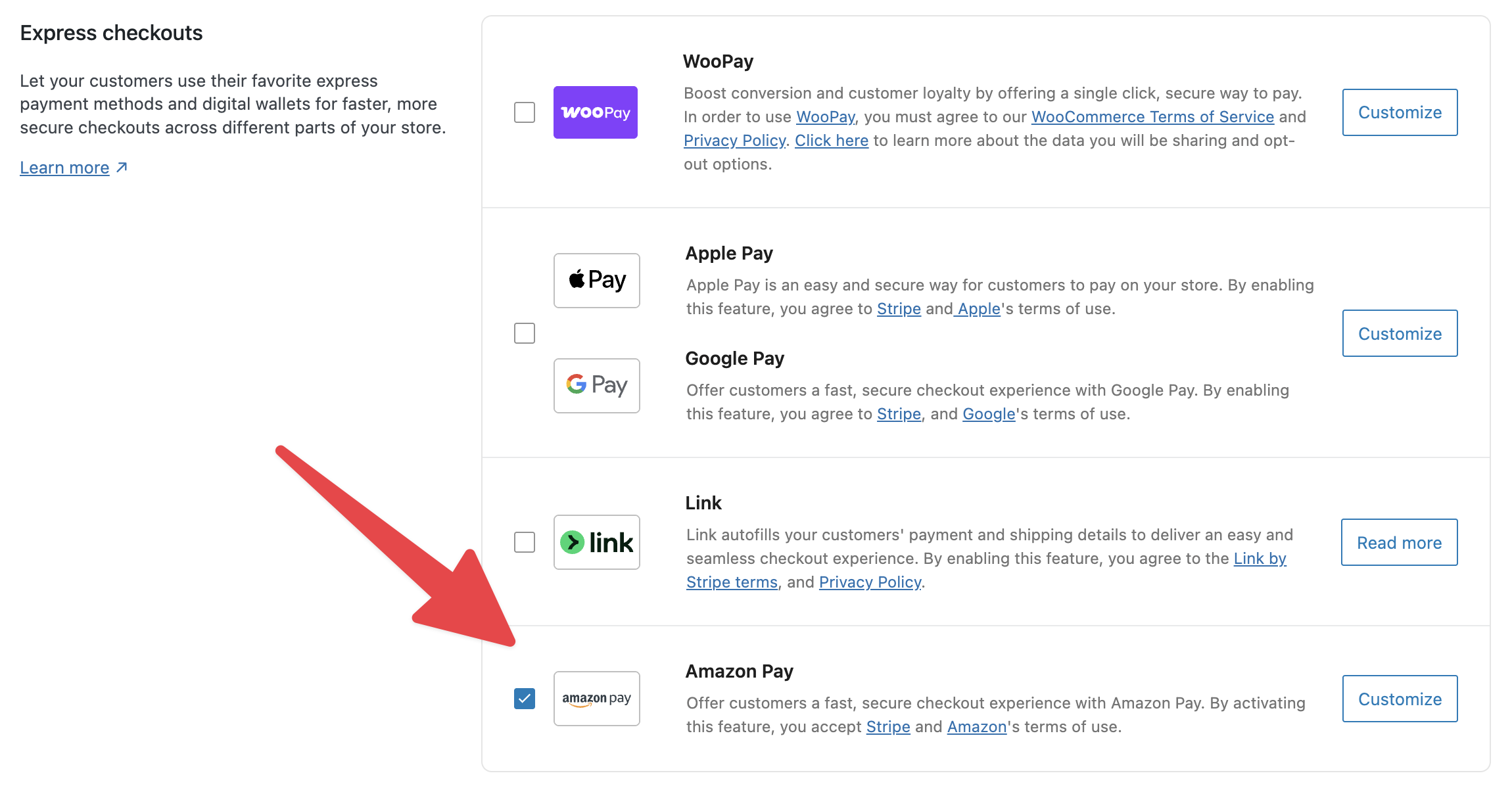
- Go to Payments > Settings in your WordPress dashboard.
- Scroll to the Express Checkouts section.
- Check the Amazon Pay box.
- Scroll to the bottom and click Save Changes.
Customizing
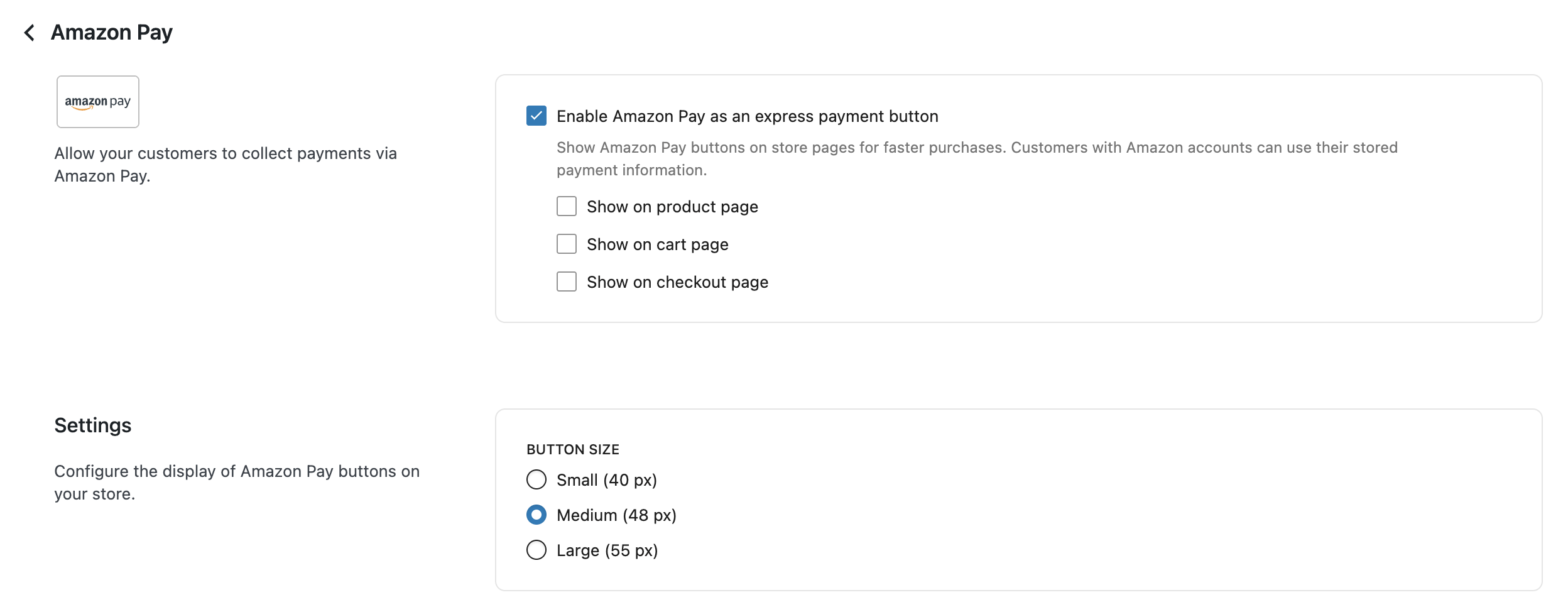
↑ Back to topAmazon Pay can be customized using the Customize button. There are a few options available that you can configure to your liking.

The Enable Amazon Pay as an express payment button setting, when checked, makes Amazon Pay show as an express checkout button, similar to Apple Pay or Google Pay.
You can control where the button appears by selecting any combination of:
- Show on product page
- Show on cart page
- Show on checkout page
Note that although Apple Pay and Google Pay are shown or hidden together, Amazon Pay can be shown or hidden independently. (For example, you can have Apple Pay and Google Pay show on a separate set of pages, or the same ones, as Amazon Pay.)
The Button Size setting controls how small or large the Amazon Pay button appears.
User Experience
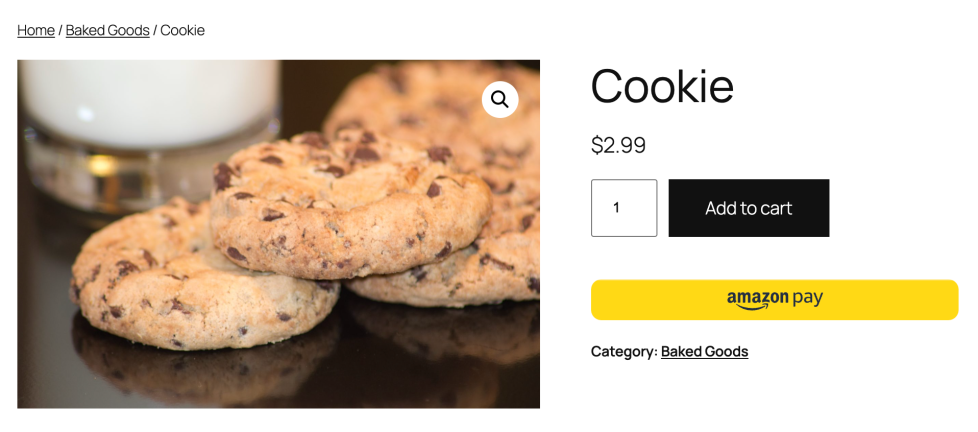
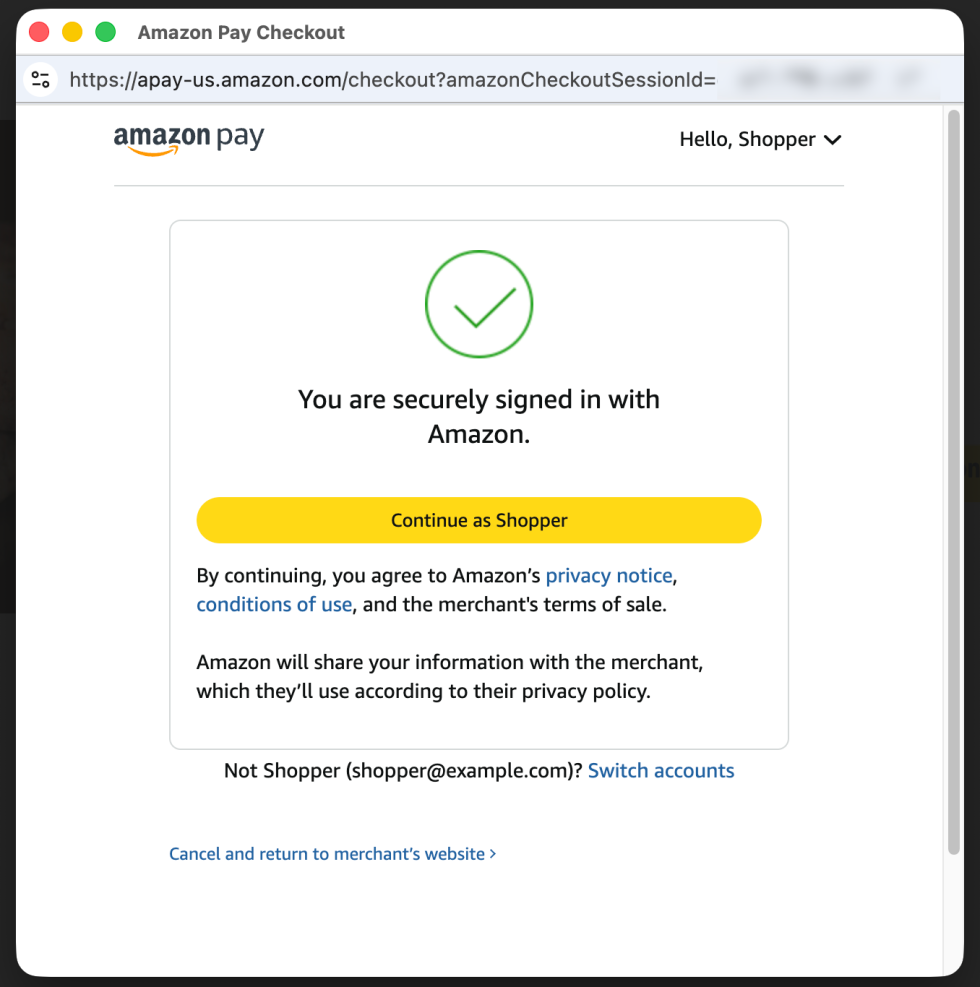
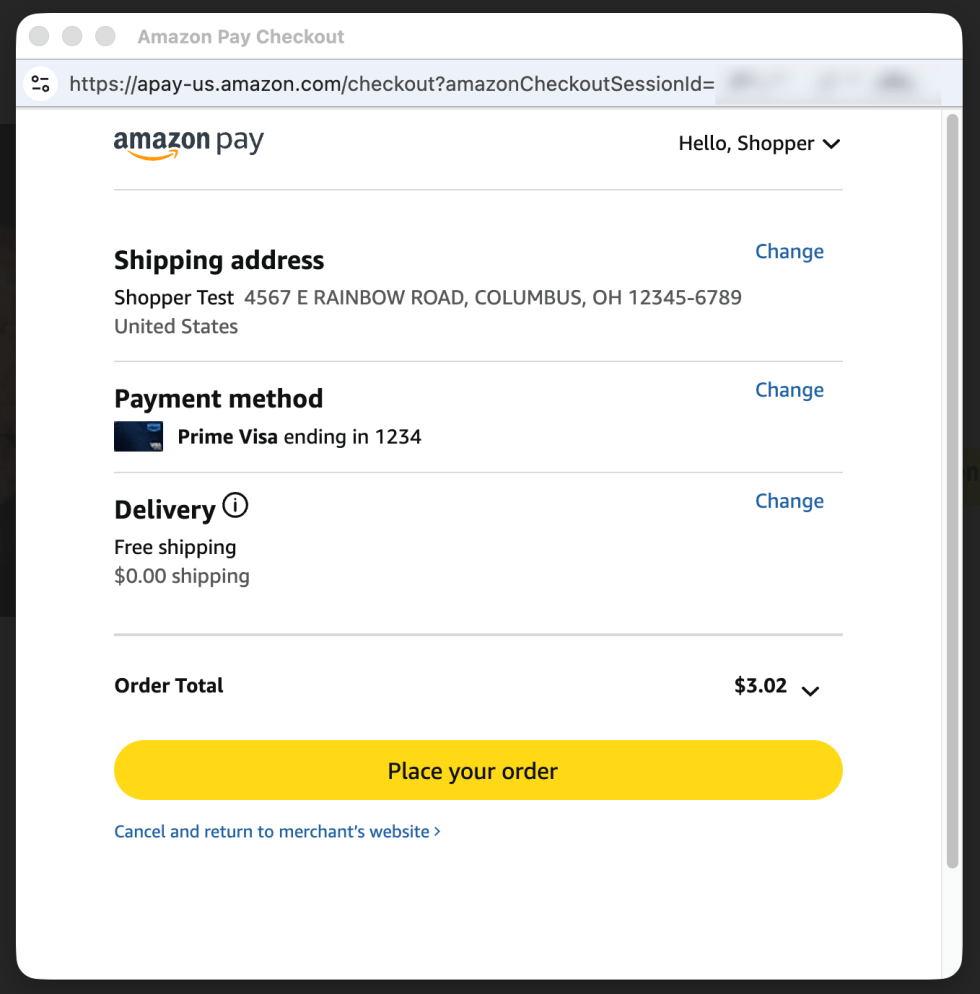
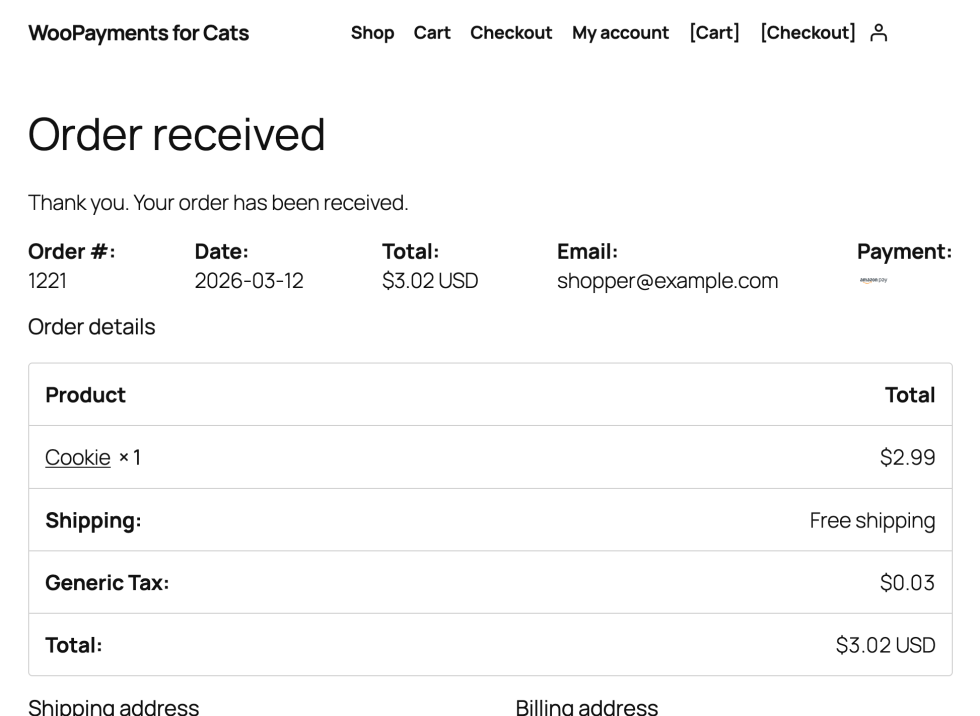
↑ Back to topHere’s how the Amazon Pay experience works for your customers:
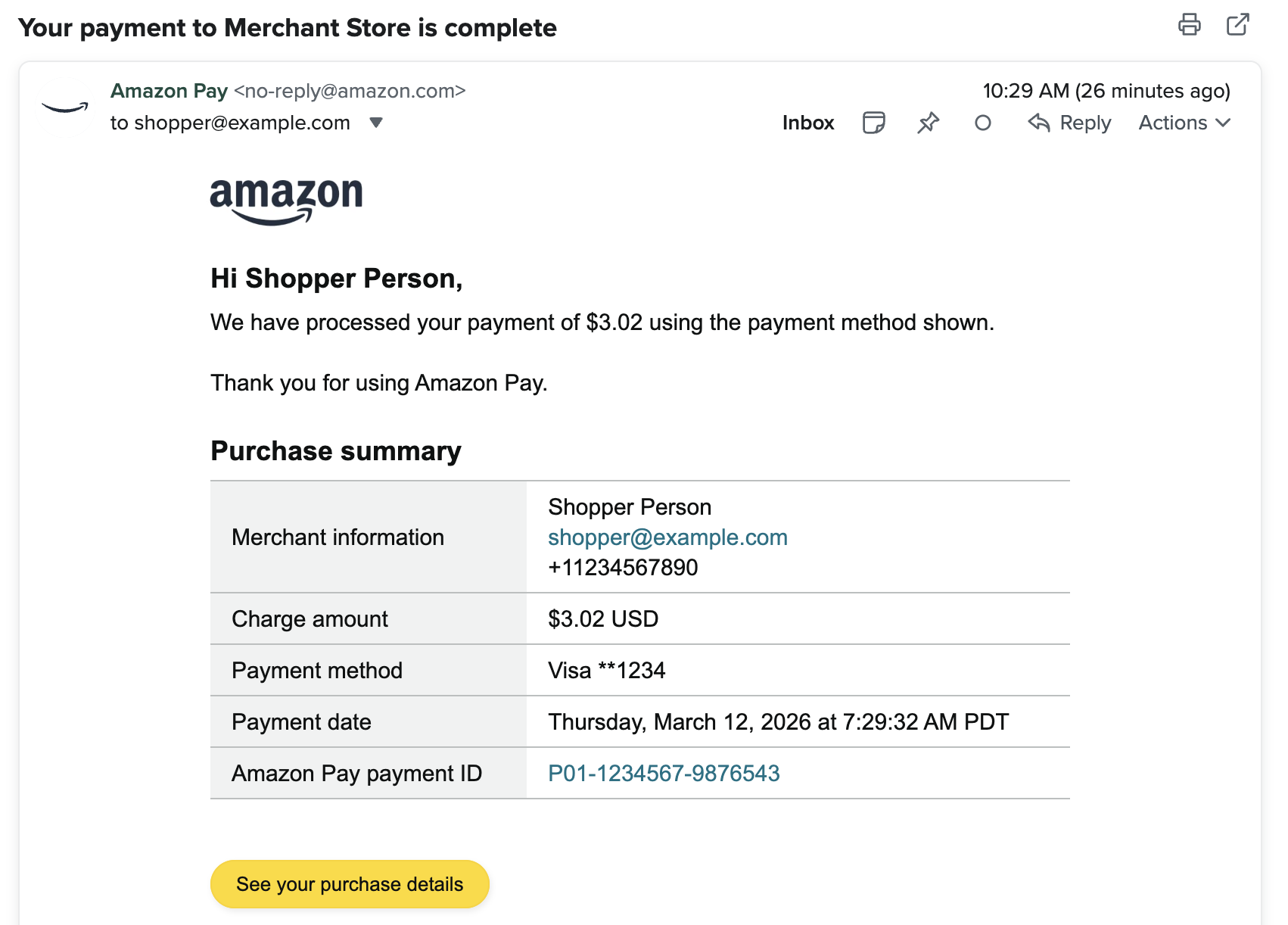
Amazon Pay will also send your customer a receipt via email alongside WooCommerce’s usual order completion email.
Non-card payment methods
↑ Back to topIn addition to paying with the card that your customer has on file with, Amazon Pay will also sometimes offer customers the ability to pay via other methods, e.g. with Affirm or with any existing Amazon Visa rewards points the customer has accrued.
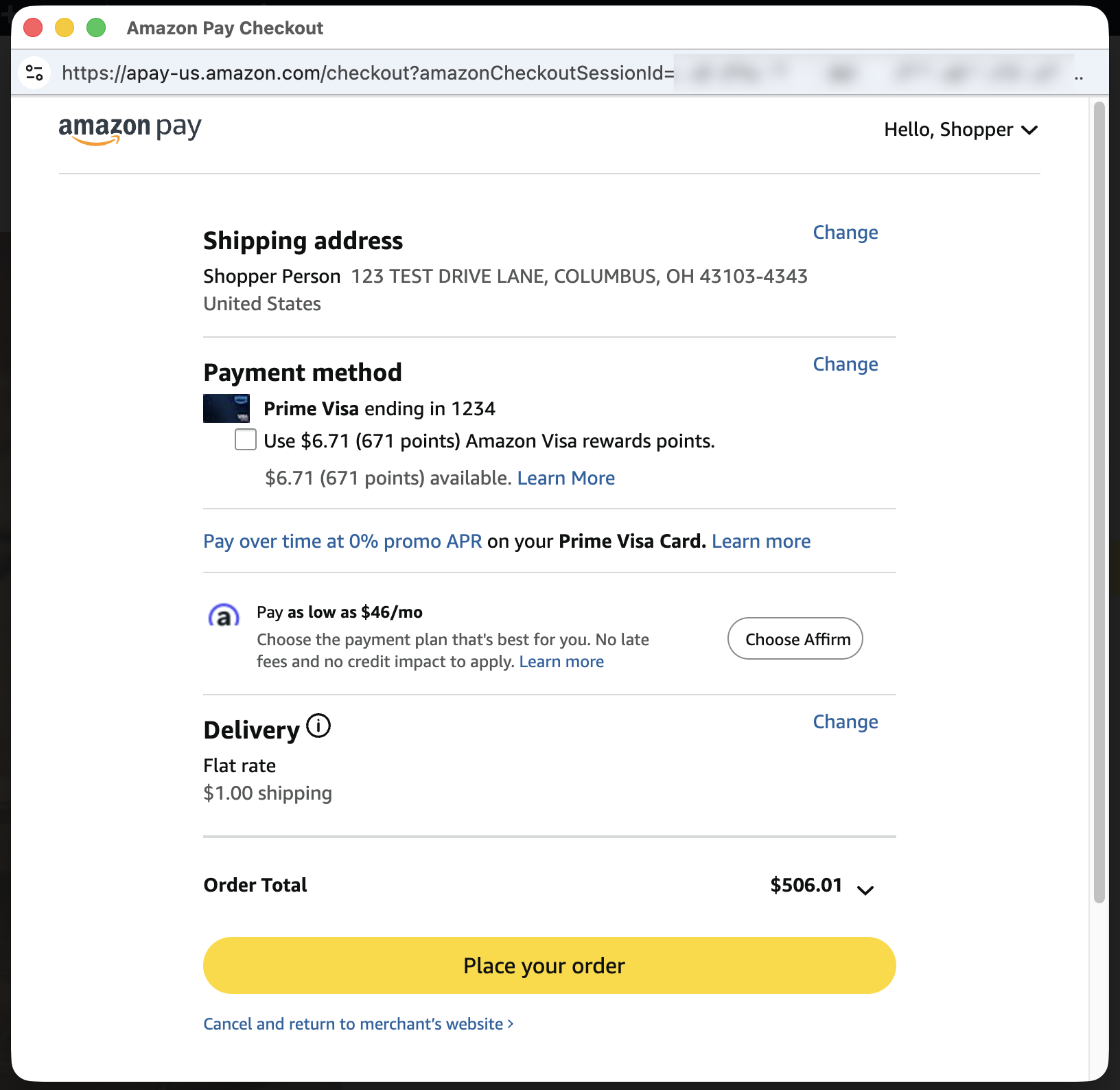
Please note that there is no way for WooPayments to control or disable these offerings, aside from disabling Amazon Pay entirely.
Managing accounts
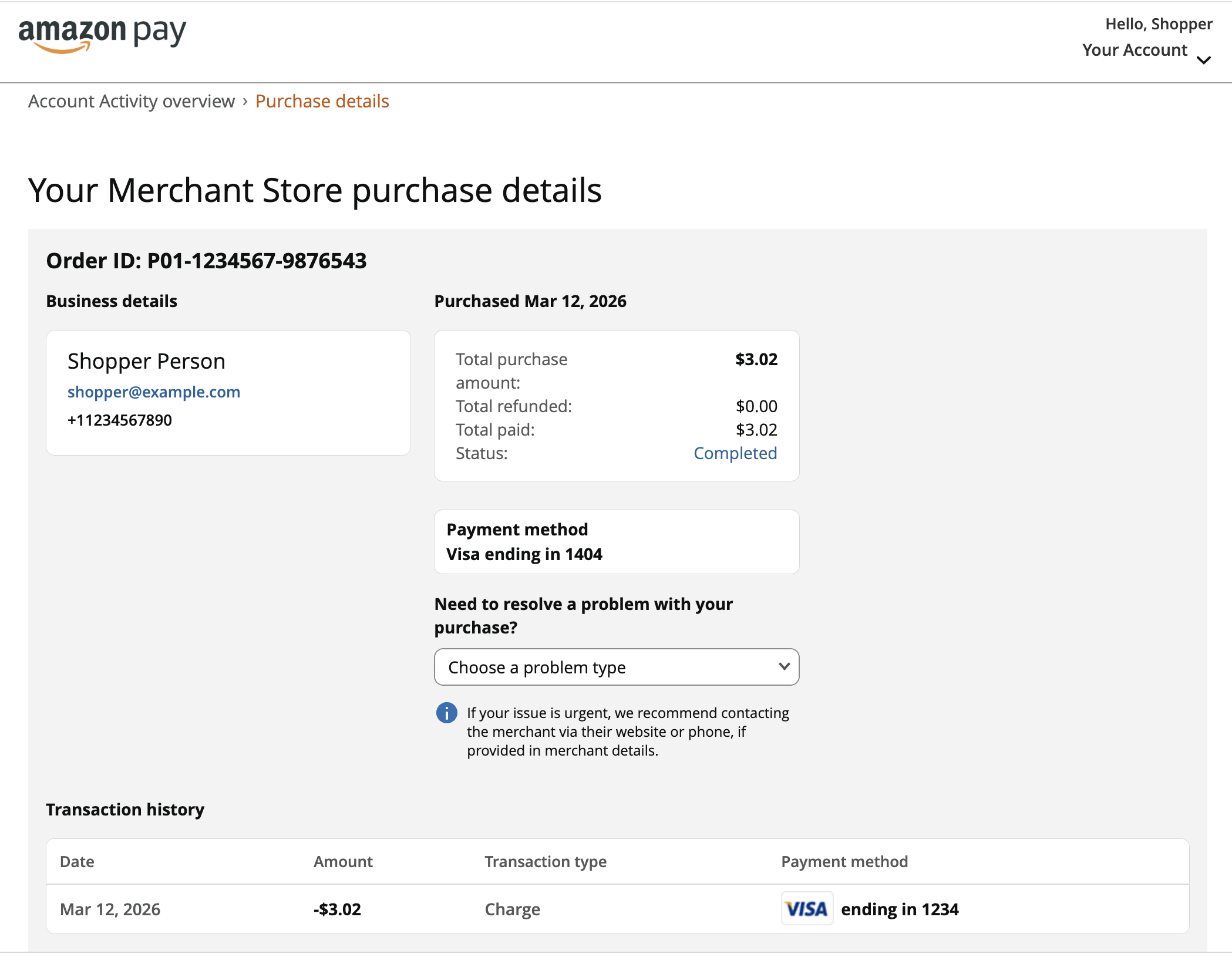
↑ Back to topYour customers can manage Amazon Pay via this site, where they can view their order history and details, as well as existing merchant agreements (for subscriptions).
Subscriptions
↑ Back to topLike other express checkout methods, Amazon Pay can be used to pay for subscription products. However, unlike other express checkout methods, Amazon Pay provides your customers with a dashboard where they can cancel subscriptions (Amazon calls these “merchant agreements”) without visiting your site directly.
The upside to this is that cancelling is more convenient for customers and thus you are likely to receive fewer complaints and disputes. The downside is that Amazon does not send our payments processor or your site any notification if the customer cancels their subscription in this manner.
Instead, what happens is that the customer’s next renewal payment will simply fail with this error in the notes: Error: The customer's payment method is invalid due to an invalid billing agreement. Retries won't succeed.
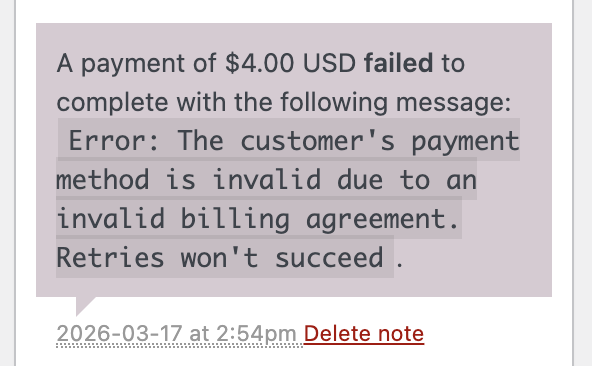
Eventually, the WooCommerce Subscriptions retry system will give up and stop retrying the renewal orders. However, if you’d like, you can use the custom code snippet shown below to have the customer’s subscription automatically cancelled after the first failed renewal order that returns the “invalid billing agreement” error.
/**
 * Cancel WooCommerce Subscription when Amazon Pay billing agreement is invalid.
 *
 * When an Amazon Pay billing agreement is canceled on the Amazon side, renewal
 * payments fail with a "payment_method_provider_decline" error and an
 * "invalid_billing_agreement" decline code. This snippet hooks into the
 * WooPayments webhook delivery to detect this specific error from the
 * structured Stripe event payload, then cancels the subscription.
 *
 * Cancelling the subscription automatically cancels any pending payment retry
 * via WCS_Retry_Manager::maybe_cancel_retry().
 *
 * @package WooPayments_Amazon_Pay_Fix
 */

add_action( 'woocommerce_payments_after_webhook_delivery', 'wcpay_cancel_sub_on_invalid_amazon_billing_agreement', 10, 2 );

/**
 * Cancel subscriptions when an Amazon Pay renewal fails due to an invalid billing agreement.
 *
 * Hooked to `woocommerce_payments_after_webhook_delivery` to intercept the
 * `payment_intent.payment_failed` Stripe webhook event with structured access
 * to the decline code and payment method type.
 *
 * @param string $event_type The Stripe webhook event type.
 * @param array  $event_body The full Stripe webhook event payload.
 * @return void
 */
function wcpay_cancel_sub_on_invalid_amazon_billing_agreement( $event_type, $event_body ) {
	if ( 'payment_intent.payment_failed' !== $event_type ) {
		return;
	}

	$last_payment_error = $event_body['data']['object']['last_payment_error'] ?? null;

	if ( ! $last_payment_error ) {
		return;
	}

	$decline_code        = $last_payment_error['decline_code'] ?? '';
	$payment_method_type = isset( $last_payment_error['payment_method']['type'] )
		? $last_payment_error['payment_method']['type']
		: '';

	if ( 'amazon_pay' !== $payment_method_type || 'invalid_billing_agreement' !== $decline_code ) {
		return;
	}

	$order_id = $event_body['data']['object']['metadata']['order_id'] ?? null;

	if ( ! $order_id ) {
		return;
	}

	$order = wc_get_order( $order_id );

	if ( ! $order ) {
		return;
	}

	if ( ! function_exists( 'wcs_order_contains_renewal' ) || ! wcs_order_contains_renewal( $order ) ) {
		return;
	}

	$subscriptions = wcs_get_subscriptions_for_renewal_order( $order );

	foreach ( $subscriptions as $subscription ) {
		if ( ! $subscription->has_status( 'cancelled' ) ) {
			$subscription->update_status(
				'cancelled',
				'Subscription cancelled automatically: Amazon Pay billing agreement is no longer valid. Payment retries will not succeed.'
			);
		}
	}
}
Note that merchants may still get an “Automatic renewal payment failed” email that says the payment will be retried, but that will no longer be true in this specific case.
Also note that we cannot provide support for custom code under our Support Policy. If you need to customize this code snippet further or extend the functionality, we highly recommend Codeable or a Certified WooExpert.
Manual capture
↑ Back to topAmazon Pay supports manual capture, if you have that setting enabled.
Refunds
↑ Back to topAmazon Pay supports full and partial refunds up to 90 days after the order was placed. Refunds are issued to the customer’s original form of payment.
If the refund fails for some reason, we return the amount to your account balance. You then need to arrange an alternative way to provide your customer with a refund.
For some Amazon Pay transactions that use non-card payment methods, refunds can take up to 14 calendar days.
Testing
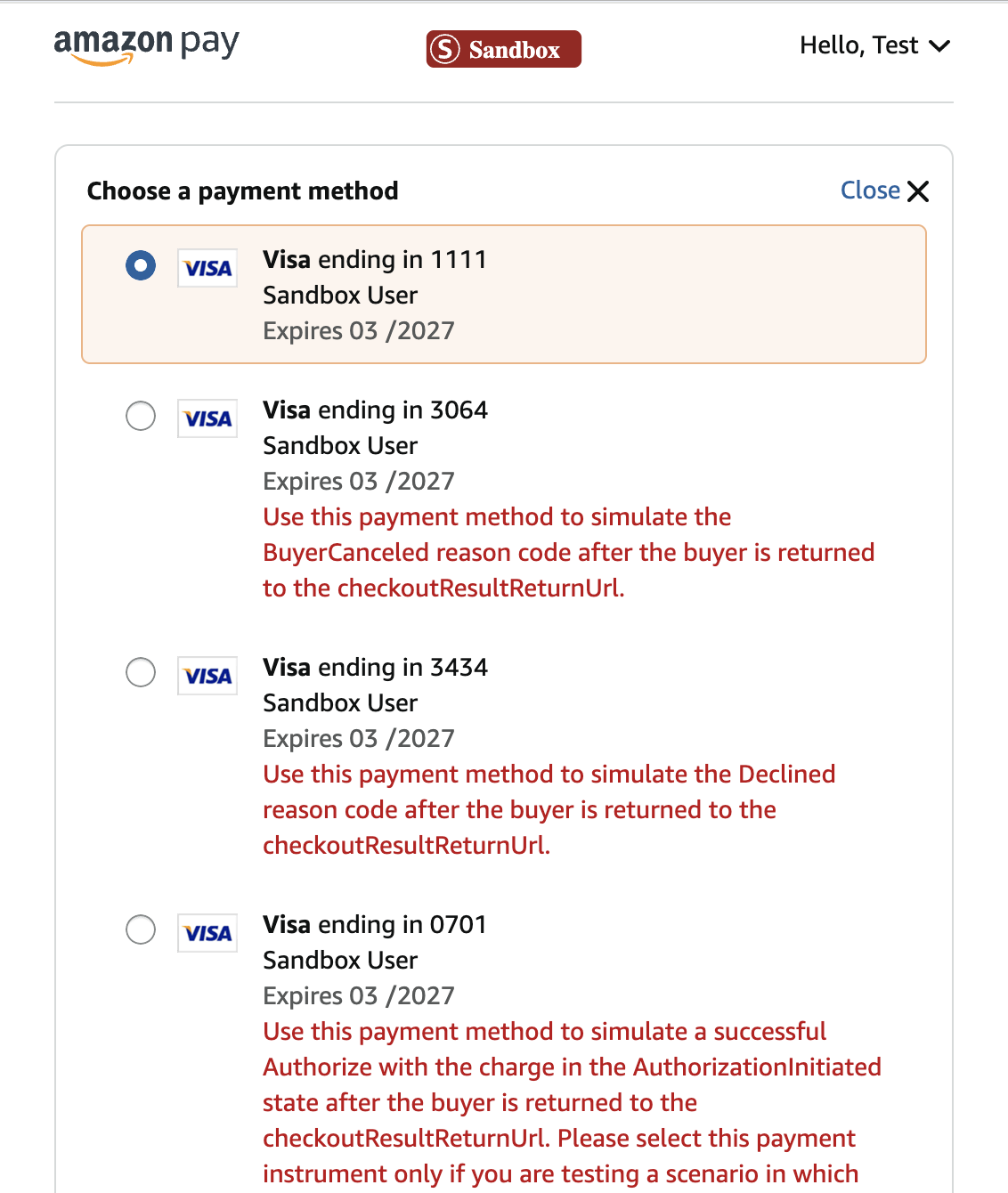
↑ Back to topIf you have WooPayments in test mode, an Ⓢ symbol will appear in the Amazon Pay button to indicate that only Amazon Seller Central Sandbox test buyer accounts can be used to complete the checkout process.
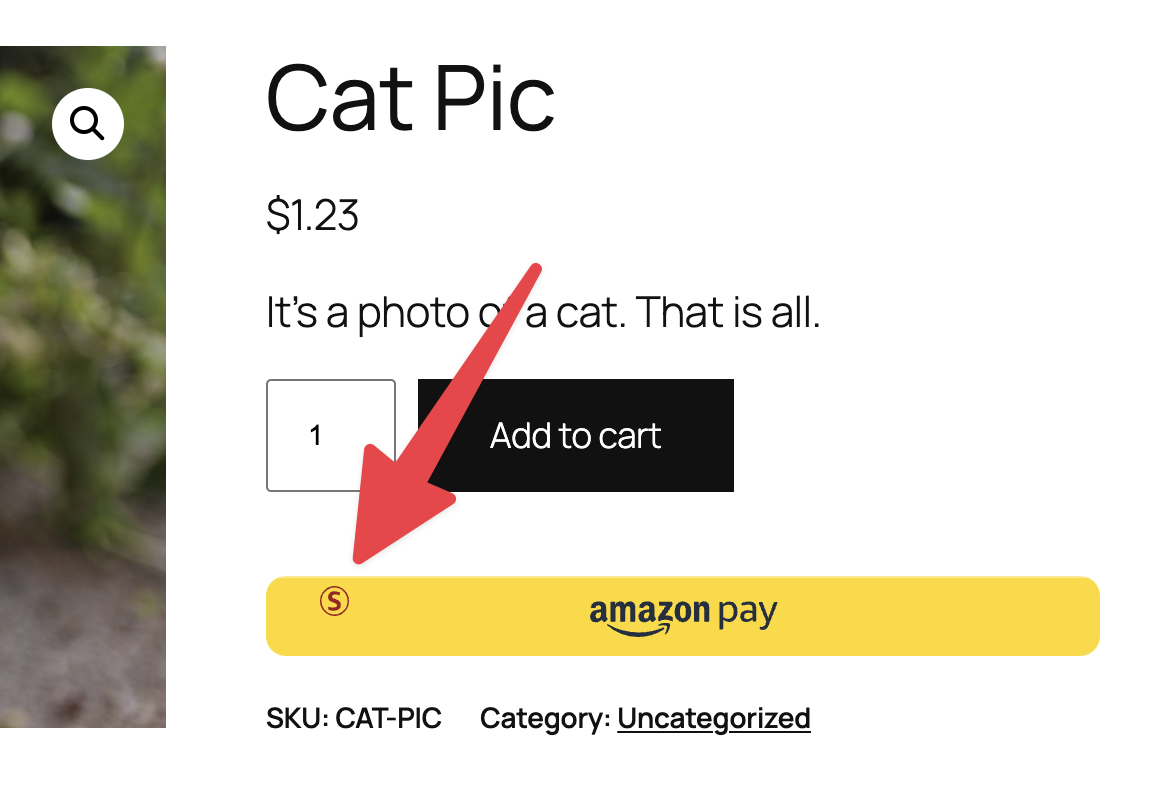
This Amazon documentation page has instructions on how to create a Seller Central Sandbox test buyer account. However, the easier route may be to simply create the account during the test mode Amazon Pay checkout process.
Some important testing notes to keep in mind:
- Make sure to use an email address that you have access to, as Amazon Pay may email you a one-time code that you’ll need to retrieve in order to check out.
- Once you’ve signed up with a test buyer account, you’ll be able to choose from several test cards that can help you try out various scenarios.
Disputes
↑ Back to topBefore purchasing with Amazon Pay, customers must of course log into their Amazon account. This requirement helps reduce (but not eliminate!) the risk of fraud, disputes, and unrecognized payments.
Most of the dispute process works the same as for other disputes. However, there are some Amazon Pay-specific details to be aware of.
Two dispute paths
↑ Back to topAmazon Pay customers can dispute a charge via two separate routes, which play out a little bit differently behind the scenes:
| Route | Filing source | Who decides | Dispute fee |
|---|---|---|---|
| Amazon A-to-Z claim | Amazon | Amazon | No fee |
| Regular dispute | Customer’s bank | Customer’s bank | Standard fee |
To file a traditional dispute, the customer must have paid for the Amazon Pay order with a credit or debit card inside their Amazon account. To file a claim via the Amazon A-to-Z Guarantee, the customer goes through Amazon Pay’s help/support process.
Both routes appear identically in your WooPayments dashboard as a dispute, and you’ll respond to them the same way.
Amazon A-to-Z claim timelines
↑ Back to topThe timelines for A-to-Z claims different from the timelines for regular disputes:
- Customers have up to 240 days from the date of purchase to file a dispute.
- You must submit the requested information within 10 days.
- A decision on the outcome is made within 90 days of evidence submission.